Receiving on the dock
What this is
When a delivery arrives, you count it into a receiving batch on your phone, standing at the pallet. Once everything's counted, the office locks the batch for inspection and you check each line: swipe right when everything's fine, swipe left to record damage and take photos. The office then posts the batch, and the good units go into stock.
This is the phone version of the office's Receiving a shipment, Inspecting and Posting to inventory pages. Both work on the same batches.
Before you start
- Role: Warehouse users can start batches, add and change lines, delete a draft, and inspect. Ready to Inspect, Revert to Draft and Post to Inventory need an Office user or an Administrator. The screenshots on this page are from a Warehouse user's phone.
- Getting there: Office and Administrator users tap Receive on the bottom bar. Warehouse users don't have a Receive tab or a Receiving entry under Me yet (#1562); open Me → Quarantine, then tap Receiving › at the top.
- You'll need: the supply partner the delivery is from, and the packing slip or bill of lading (BOL). The items on the delivery must already exist in ConsignTrak for that supply partner.
- Spreadsheets: a delivery the supply partner announced with a stock transfer spreadsheet is imported on the desktop, not the phone (see Spreadsheet import). The batch it creates shows up in your list like any other, ready for you to check.
Step by step
Start the batch
-
Open the Receiving list. It shows every open batch — Draft and Verified — newest first, with the supply partner, the packing-slip note, the number of lines and the date received. The pills across the top filter it: All Open, Draft ②, Verified, Posted.
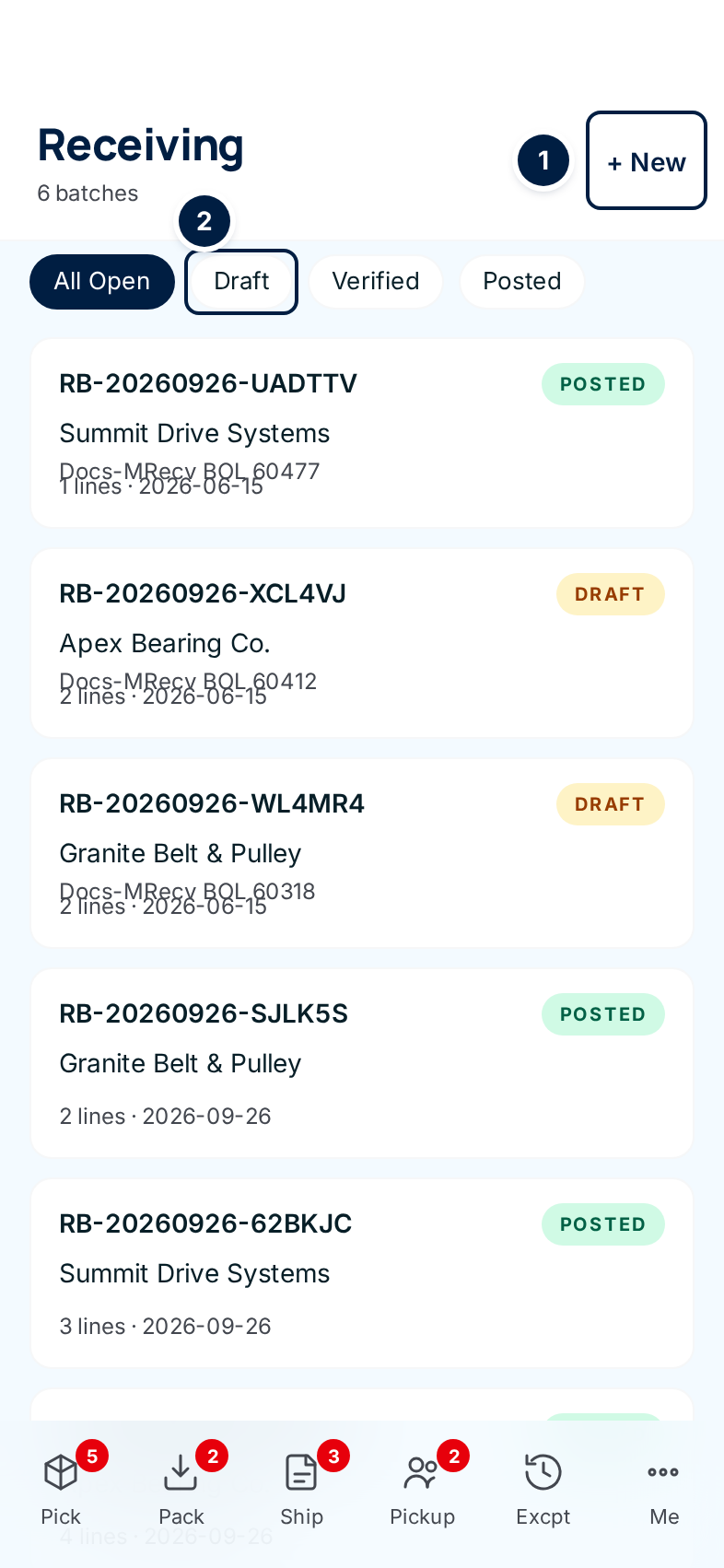
If the batch you want is already there (the office may have imported it), tap it and skip to Count each line.
-
Tap + New ①.
-
Choose the Supply Partner ①, type the BOL / packing slip # ②, and check the Received date ③ (it starts as today). Tap Save ④.
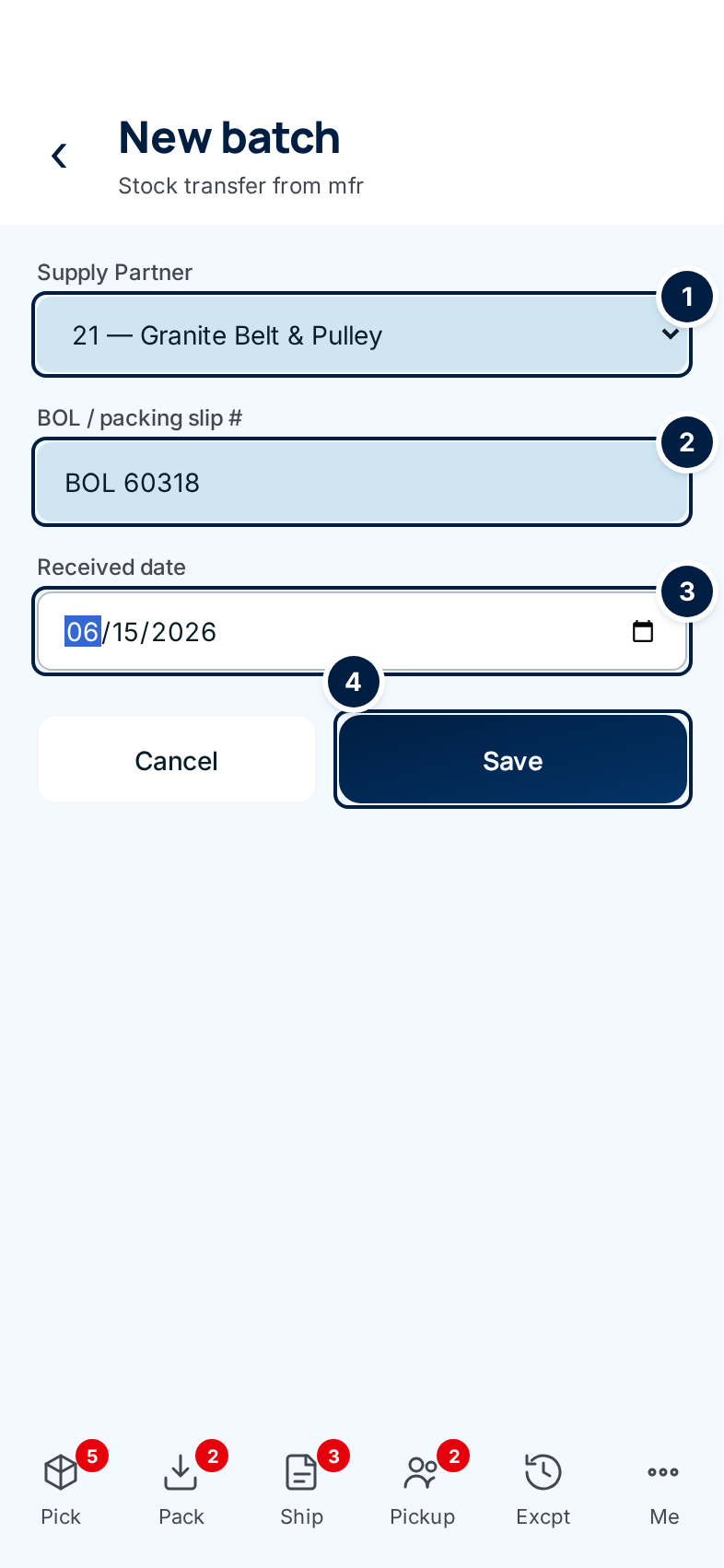
ConsignTrak creates the batch as Draft, gives it a batch number, and opens it.
Count each line
-
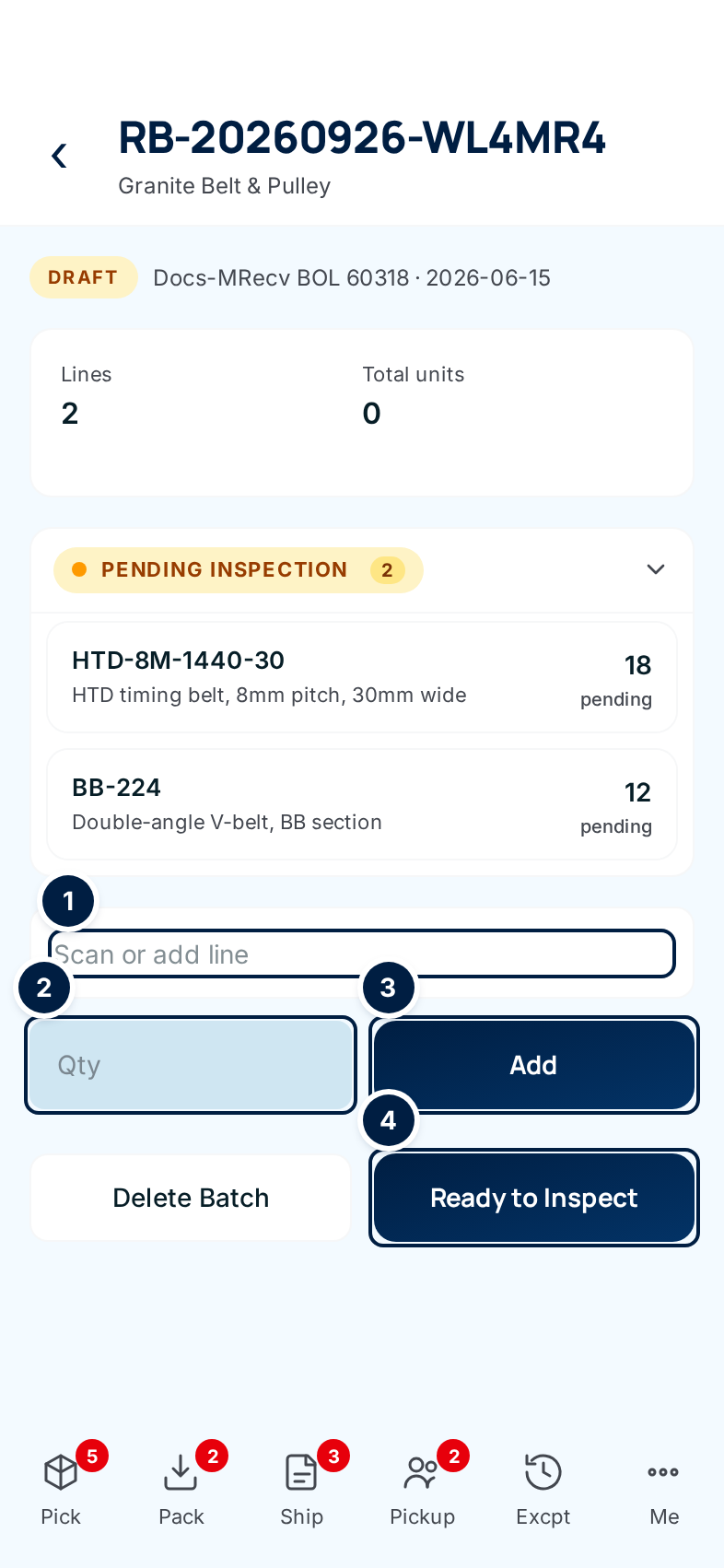
Find the item. Tap the Scan or add line box ① and scan the carton's barcode, or type a few characters of the part number. Only the batch's supply partner's items appear, each with its manufacturer code, how many are available and its usual bin. Tap the right one; ConsignTrak puts the cursor in Qty for you.
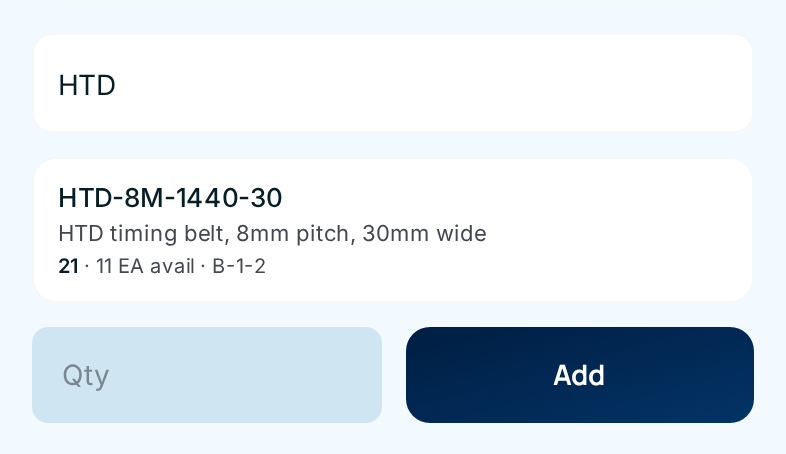
-
Type the quantity you counted in Qty ② and tap Add ③. The line appears under Pending Inspection. Repeat for every item on the delivery.
-
Fix a line if you miscounted: tap it to open it, change Qty and tap Save. Remove line takes it off the batch — it turns red and asks you to tap again. Cancel closes the line without changes.
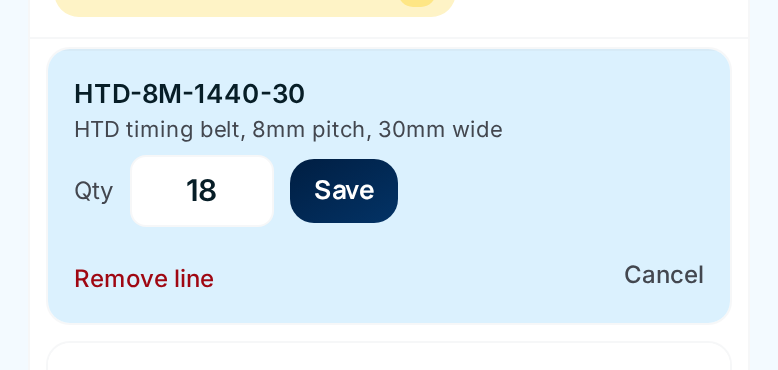
If the supply partner told ConsignTrak what to expect (an imported spreadsheet), each line also shows Expected N; when your count differs it reads Expected N · got M in amber.
The phone has no bin (put-away location) field. Lines you add here have no bin until someone sets one on the desktop — with Bulk location or on each line (see Receiving a shipment). Tell the office before the batch is posted, or the stock goes on hand with no bin to find it in (#1562).
Hand it over for inspection
-
Ask the office to lock the batch. When the count is done, an Office user or Administrator taps Ready to Inspect ④. It turns amber and asks to be tapped again. After that, no more lines can be added until the batch is reverted, and the batch shows Verified.
If you're a Warehouse user, don't tap Ready to Inspect yourself — the phone shows it to you, but it opens an Access denied page.
Inspect each line
-
Swipe right on a line when every unit is fine. The line moves to Passed Inspection. Swiping right again on a passed line undoes it and puts it back in Pending.
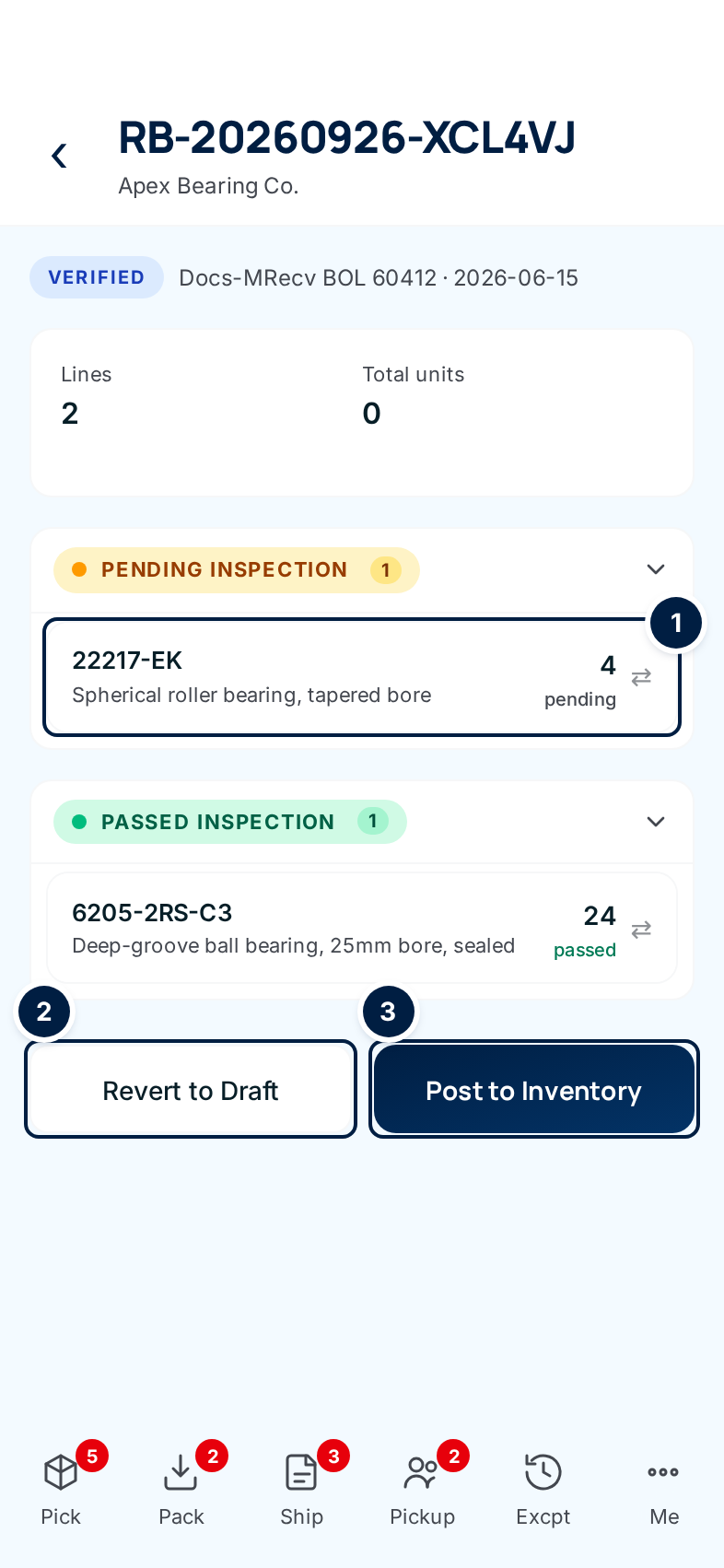
The ⇄ mark ① on the right of a line means it can be swiped. The next line to check is always at the top of Pending Inspection.
-
Swipe left (or tap the line) when something's wrong. The Inspect panel opens with Failed qty ① set to 1. Use − and + (or type) to set how many units failed; Passed: N of M updates as you go.
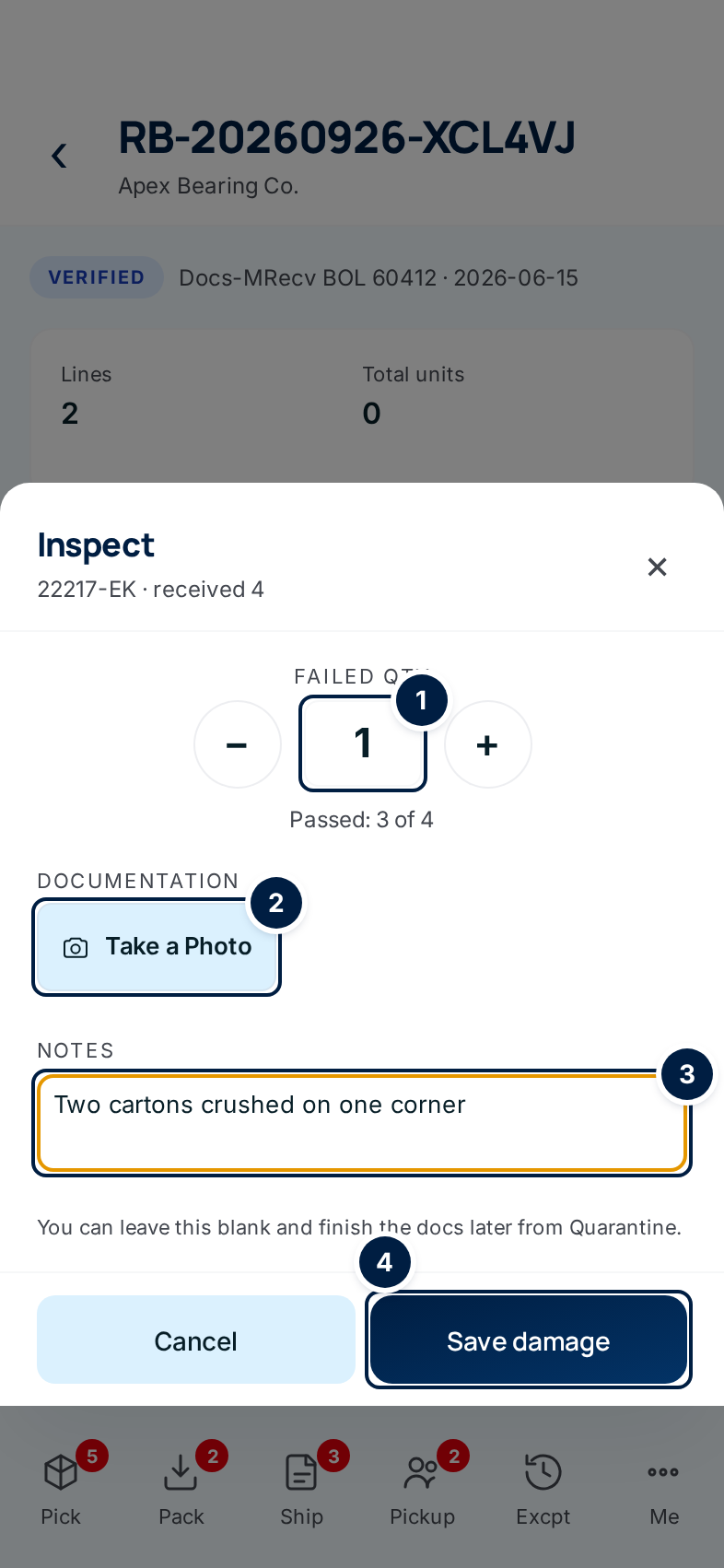
-
Take a photo ② of the damage. The camera opens; each photo uploads as soon as you take it and appears as a thumbnail. Tap again for another. Add a short Note ③ about what you saw, then tap Save damage ④.
The line moves to Failed Inspection — marked failed if every unit failed, partial if only some did. To change your answer, swipe left on it again: the panel opens as Re-inspect with your earlier numbers.
The panel says so itself: "You can leave this blank and finish the docs later from Quarantine." If the dock is busy, save the damage count now and add photos and notes from Quarantine after the batch is posted.
Posting
-
The office posts it. When no line is left in Pending Inspection, an Office user or Administrator taps Post to Inventory ③. It turns red and asks to be tapped again. If they spot a problem first, Revert to Draft ② unlocks the batch — and clears every inspection result, so the lines need checking again.
-
Follow failed units to quarantine. On a posted batch, every failed or partial line has a Manage in quarantine › link ①.
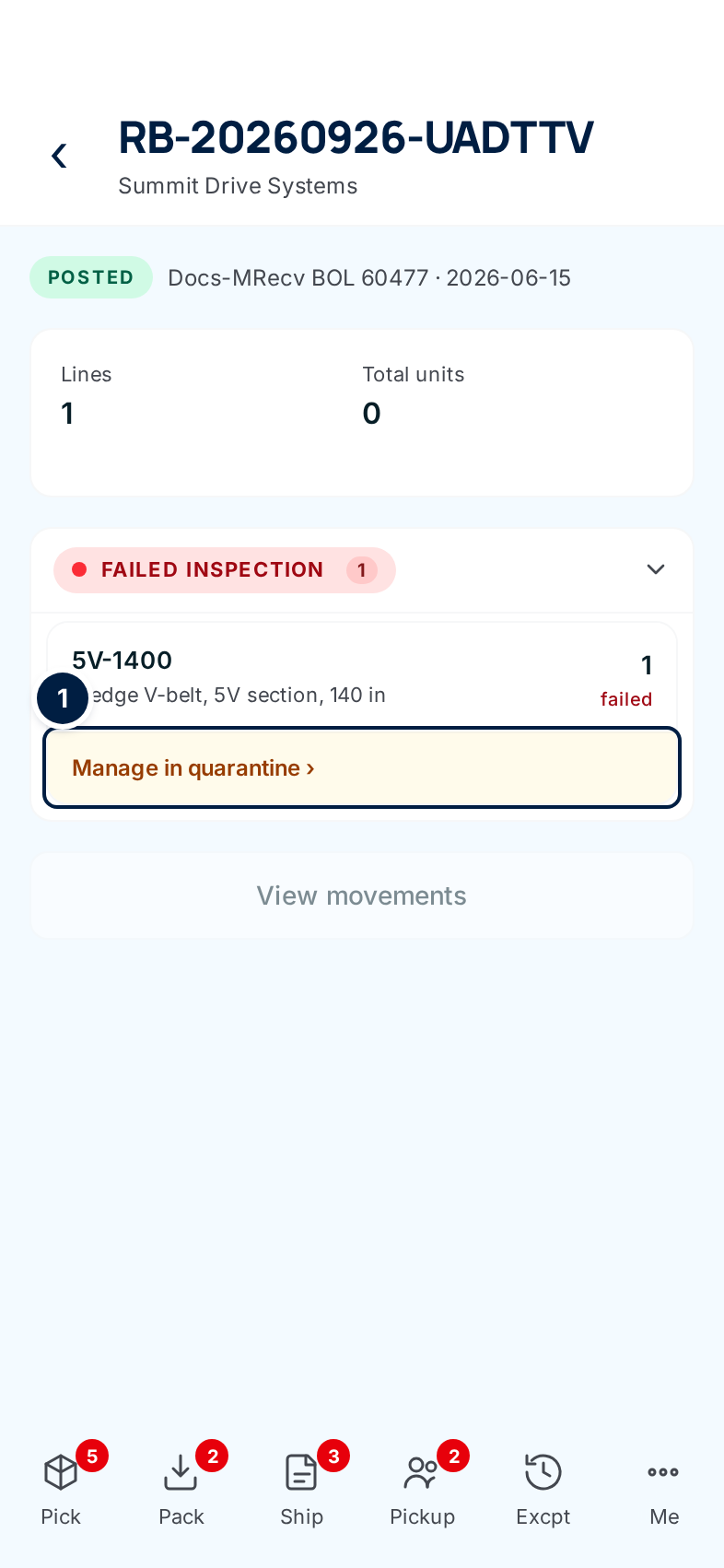
Every field and option
Receiving list
| Field or control | What it means | Required | Default | What changes when you set it |
|---|---|---|---|---|
| Receiving and N batches | The screen title and how many batches match the filter. | — | — | Read-only. |
| + New | Starts a new batch. | — | — | Opens the New batch form. |
| All Open | Shows Draft and Verified batches. | — | Selected | Filters the list. |
| Draft / Verified / Posted | Shows only batches in that status (see Receiving statuses). | — | — | Filters the list. Voided batches only show on the desktop. |
| Batch card | Batch number, status pill, supply partner, the packing-slip note, N lines · date received. | — | — | Tap to open the batch. |
| Previous / Next | Page through a long list. Shown only when there's more than one page. | — | — | Shows the previous or next page, keeping the filter. |
New batch
| Field or control | What it means | Required | Default | What changes when you set it |
|---|---|---|---|---|
| New batch (title), "Stock transfer from mfr" | The screen title. | — | — | Read-only. |
| Supply Partner | Who the delivery is from, shown as manufacturer code — name. | Yes | Select supply partner | The batch belongs to this supply partner; the item search only shows their items. |
| BOL / packing slip # | The paperwork number. Saved as the batch's note and shown on the list. | No | Empty | Helps the office match the batch to the paperwork. |
| Received date | The day the delivery arrived. | Yes | Today | Printed on the batch and used in reports. |
| Cancel | Back to the list without saving. | — | — | Nothing is created. |
| Save | Creates the batch as Draft. | — | — | Opens the new batch. |
| ‹ (back arrow) | Back to the list. | — | — | — |
Batch page — Draft
| Field or control | What it means | Required | Default | What changes when you set it |
|---|---|---|---|---|
| Batch number (title), supply partner | Which batch you're in. | — | — | Read-only. |
| Status pill, note, date | draft, verified or posted, the packing-slip note and the received date. | — | — | Read-only. |
| Lines, Total units | How many lines the batch has. Total units shows 0 on the phone today whatever you've counted (#1562); the desktop shows the real total. | — | — | Read-only. |
| Pending Inspection / Failed Inspection / Passed Inspection | The lines, grouped by inspection result, each with a count. Tap a heading to open or close it. | — | Pending and Failed open, Passed closed | — |
| Line card | Part number, description, bin (when one is set), quantity and inspection result; Expected N when the supply partner sent a spreadsheet. | — | — | Tap (Draft) to edit. |
| Scan or add line | Search for an item by scanning or typing its part number. | Yes, to add | Empty | Shows matching items; tapping one picks it. |
| Qty (add line) | How many you counted. | Yes | Empty | — |
| Add | Adds the line. | — | — | The line appears under Pending Inspection. |
| Qty (open line) | Change the counted quantity. | Yes | The saved quantity | — |
| Save (open line) | Saves the new quantity. | — | — | The line updates. |
| Remove line | Takes the line off the batch. Asks you to tap again. | — | — | The line is gone. No stock changes. |
| Cancel (open line) | Closes the line without saving. | — | — | — |
| Delete Batch | Deletes the whole draft. Turns red and asks you to tap again. | — | — | The batch and its lines are gone. No stock changes. |
| Ready to Inspect | Locks the lines for inspection. Office and Administrator only. Asks you to tap again. | — | — | Status moves to Verified. An empty batch can't be marked ready. |
Batch page — Verified
| Field or control | What it means | Required | Default | What changes when you set it |
|---|---|---|---|---|
| Swipe right on a line | Pass every unit. On a passed line, undo the pass. | — | — | The line moves to Passed, or back to Pending. |
| Swipe left on a line, or tap it | Open the Inspect panel (Re-inspect on a line already checked). | — | — | — |
| Failed qty, −, + | How many units failed, from 0 to the quantity received. | — | 1 (or the earlier answer) | Passed: N of M updates. |
| Documentation — Take a Photo | Opens the rear camera. Each photo uploads straight away and shows as a thumbnail. | No | — | The photo is attached to the line and shows in Quarantine. |
| Notes | What you saw. | No | Empty | Saved as the line's inspection notes; shows in Quarantine. |
| × / Cancel | Close the panel without saving the count. Photos already taken stay attached. | — | — | — |
| Save damage | Records the failed and passed quantities. | — | — | The line moves to Failed Inspection (failed or partial), or Passed if you set 0. |
| Revert to Draft | Unlocks the batch. Office and Administrator only. | — | — | Status back to Draft; every inspection result is cleared. |
| Post to Inventory | Puts the batch into stock. Office and Administrator only. Turns red and asks you to tap again. Refused while any line is pending. | — | — | See What happens next. |
Batch page — Posted
| Field or control | What it means | Required | Default | What changes when you set it |
|---|---|---|---|---|
| Manage in quarantine › | On a failed or partial line: opens that line in Quarantine. | — | — | — |
| View movements | Greyed out: the stock-movement view isn't on the phone yet. Use the desktop. | — | — | Nothing. |
What happens next
- Draft and Verified change nothing in stock. Nothing moves until the batch is posted.
- When the batch is posted, passed units are added to each item's stock and failed units go to quarantine — counted, but not available to pick. ConsignTrak records a movement for every line, and the batch shows Posted. The details are on Posting to inventory.
- Photos and notes you took during inspection follow the failed units to Quarantine, where anyone can add more.
- The supply partner can follow the batch in their portal's receiving list.
Common problems
"Access denied" after tapping Ready to Inspect, Revert to Draft or Post to Inventory — those steps belong to Office users and Administrators. Ask the office to do it; nothing changed.
"Item is required" — you typed in Scan or add line but didn't tap a result. Tap the matching item in the list, then Add.
"Quantity must be a positive number" — Qty is empty or zero. Type the count and tap Add again.
"Failed to add line" — ConsignTrak couldn't add that item to this batch. Check that the item belongs to the batch's supply partner; if it still fails, ask the office to add it from the desktop.
The item I need isn't in the search — it may not exist yet for this supply partner. The office adds items (see Creating and editing an item).
"Supply partner and received date are required" — choose a supply partner on the New batch form before saving.
"Cannot mark an empty batch as ready to inspect; add at least one line first." — the batch has no lines. Add them, then try again.
"Cannot post batch: one or more lines are still pending QC. Inspect or waive each line first." — a line is still under Pending Inspection. Swipe it (waiving has been retired), then post again.
I can't find Receiving on my phone — Warehouse users reach it from Me → Quarantine → Receiving ›.