Quarantine on the phone
What this is
Units that fail inspection when a receiving batch is posted go into quarantine: they're counted as on hand, but nobody can pick them. The Quarantine screen lists every held line so the floor can finish documenting it — a photo of the damage and a note about what happened. The office uses that evidence when it takes the problem up with the supply partner, who owns the stock.
The office sees the same lines on the desktop; see Quarantine.
Before you start
- Role: Warehouse, Office or Administrator. Only Office users and Administrators can delete a photo.
- Getting there: Warehouse users open Me → Quarantine. Office users get a Quarantine tab on the bottom bar whenever a held line has no photos yet; otherwise it's under More.
- You'll need: a receiving batch that was posted with at least one failed unit (see Receiving on the dock).
Step by step
-
Open Quarantine. Each card shows the part number, description, supply partner, batch number and date received, and on the right how many units failed and whether the line failed outright or was partial.
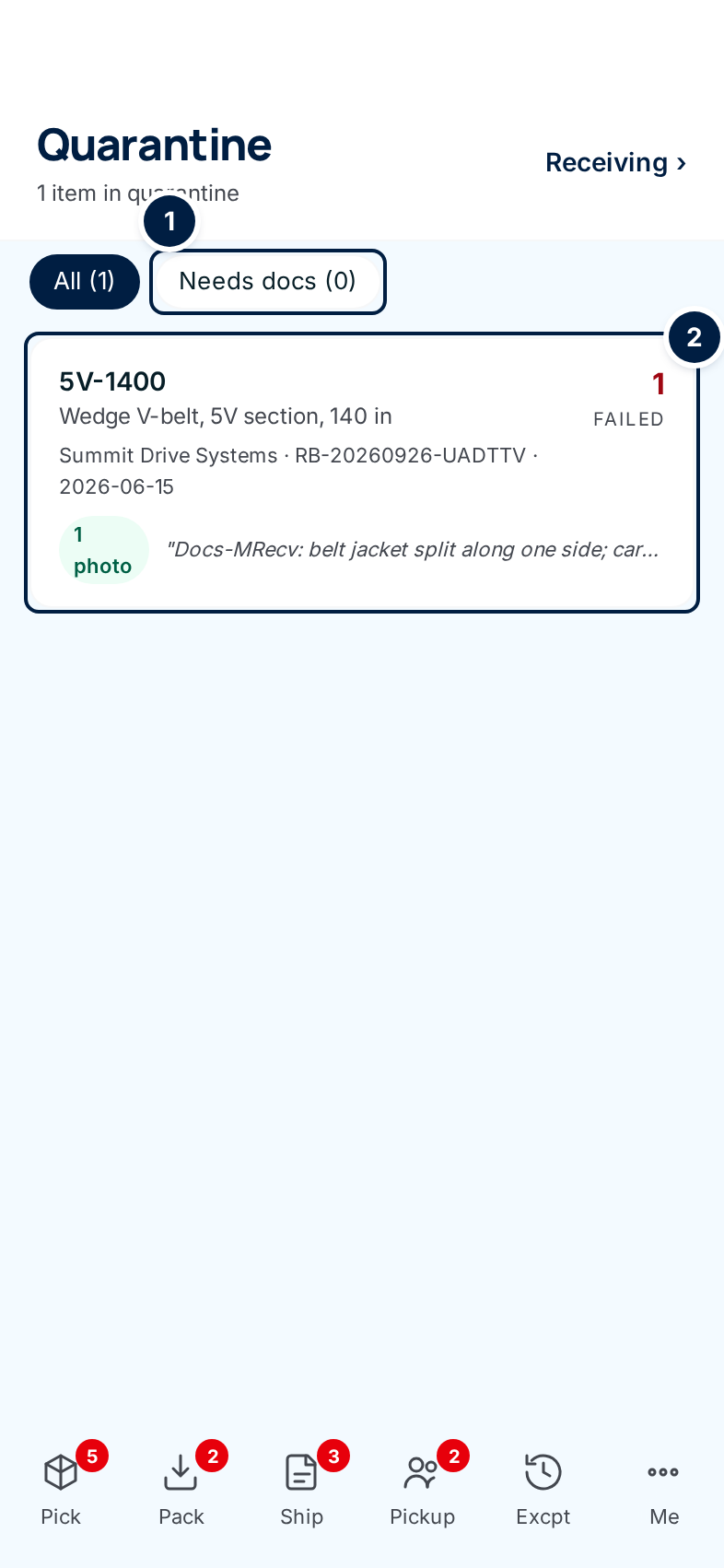
A card with no photos carries an amber ⚠ Needs docs tag; one with photos says how many. The start of the inspection note shows beside it.
-
Tap Needs docs ① to see only the lines still missing photos. Tap All to see everything again.
-
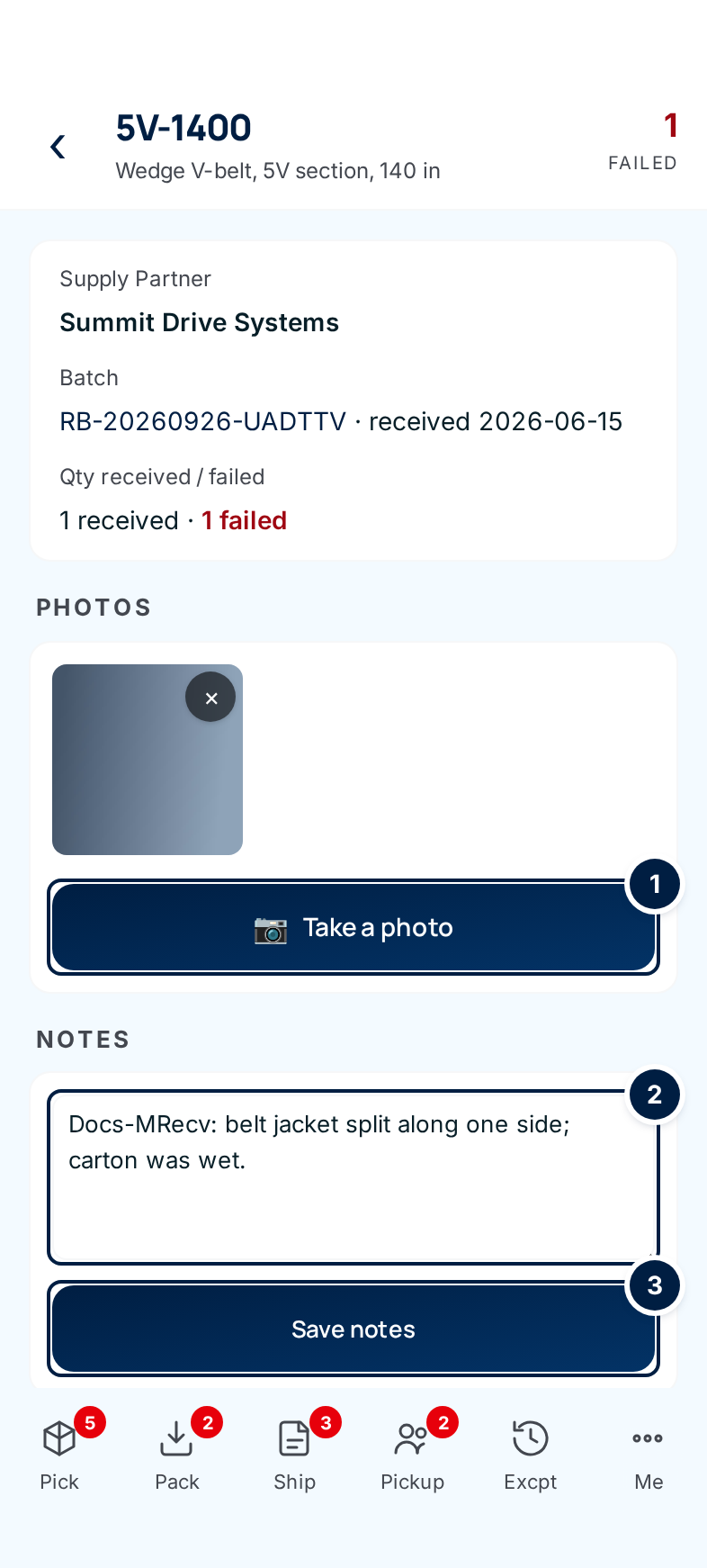
Tap a card ② to open it. The top card repeats the supply partner, the batch (tap the batch number to open it) and N received · N failed.
-
Take a photo ①. The rear camera opens; as soon as you take the photo it's saved and appears in Photos. Tap again for the next one. Tap a thumbnail to see it full screen; Save there downloads it to your phone, and × closes it.
-
Write or update the note ② — what's wrong, how many cartons, anything the office should know — and tap Save notes ③. The note replaces the one recorded at inspection, so keep what's still true.
Nothing on this screen — or anywhere else in ConsignTrak yet — returns, scraps or releases quarantined units. A held line stays on this list, and its units stay out of pickable stock, until that's added (#1518). Your photos and notes are what the office uses to agree with the supply partner what happens to the stock. The office handles any stock correction (see Quarantine).
Every field and option
Quarantine list
| Field or control | What it means | Required | Default | What changes when you set it |
|---|---|---|---|---|
| Quarantine and N items in quarantine | The screen title and how many lines are held. | — | — | Read-only. |
| Receiving › | Opens the Receiving list. | — | — | — |
| All (N) | Every held line. | — | Selected | Filters the list. |
| Needs docs (N) | Only lines with no photo or document yet. | — | — | Filters the list. |
| Line card | Part number, description, supply partner · batch · date, failed quantity, failed or partial, ⚠ Needs docs or N photos, and the start of the note. | — | — | Tap to open the line. |
Held line
| Field or control | What it means | Required | Default | What changes when you set it |
|---|---|---|---|---|
| Part number (title), description, failed quantity and result | Which line you're on. | — | — | Read-only. |
| ‹ (back arrow) | Back to the list. | — | — | — |
| Supply Partner, Batch, Qty received / failed | Where the units came from. The batch number is a link to the receiving batch. | — | — | Read-only. |
| Photos | Every photo or document attached to the line — from inspection and from here. Tap one to view it full screen. A PDF shows as a file icon with its name. | — | — | — |
| Save (full-screen view) | Downloads the photo to your phone. | — | — | — |
| × (full-screen view) | Closes the full-screen view. | — | — | — |
| × (on a thumbnail) | Deletes that photo for good. Office and Administrator only; turns red and asks you to tap again. | — | — | The photo is gone. |
| Take a photo | Opens the rear camera. The photo is saved as soon as you take it. | — | — | The photo appears under Photos; the line leaves Needs docs. |
| Notes | What was wrong and anything the office should know. | No | The inspection note | — |
| Save notes | Saves the note. | — | — | Replaces the line's note everywhere it shows. |
What happens next
- Photos and notes show wherever the office looks at the line: its Quarantine screen and the receiving batch. The supply partner's portal doesn't show them; the office passes them on.
- The stock doesn't move. Adding photos or notes changes no quantities, and the line stays on this list (see the note above).
- The Needs docs count drops once a line has a photo, and the office's Quarantine tab disappears when nothing is left to document.
Common problems
"Access denied" after tapping × on a photo — only Office users and Administrators can delete photos. Ask the office.
The camera doesn't open — your phone's browser needs permission to use the camera. Allow it in the phone's settings for the browser, then tap Take a photo again.
"Line is no longer eligible for quarantine notes update" — the line is no longer held (for example, the batch was voided on the desktop). Go back to the list; it will have dropped off.
"Failed to save notes" — the note didn't save. Try again; if it keeps failing, tell the office.
The line I'm looking for isn't here — only posted batches put units in quarantine. If the batch is still being inspected, record damage from the batch itself (see Receiving on the dock).