Daily counts on the floor
What this is
A cycle count is a small count of a few items, done every day. ConsignTrak picks the items at random and tells you which bin each one is in. You walk to the bin, count what's actually there, and type the number into your phone. ConsignTrak compares it with what it expected; the office decides whether to correct the stock.
The office side — approving corrections and closing the batch — is on Running a count.
Before you start
- Role: Warehouse users (and Administrators) generate, start and count. Office users can look at counts on the phone but can't enter them. Approve adjustment and Complete batch are for Office users and Administrators.
- Getting there: Me → Cycle counts (Office and Administrator: More → Cycle counts).
- You'll need: nothing but the phone. The office may already have generated today's batch.
Step by step
-
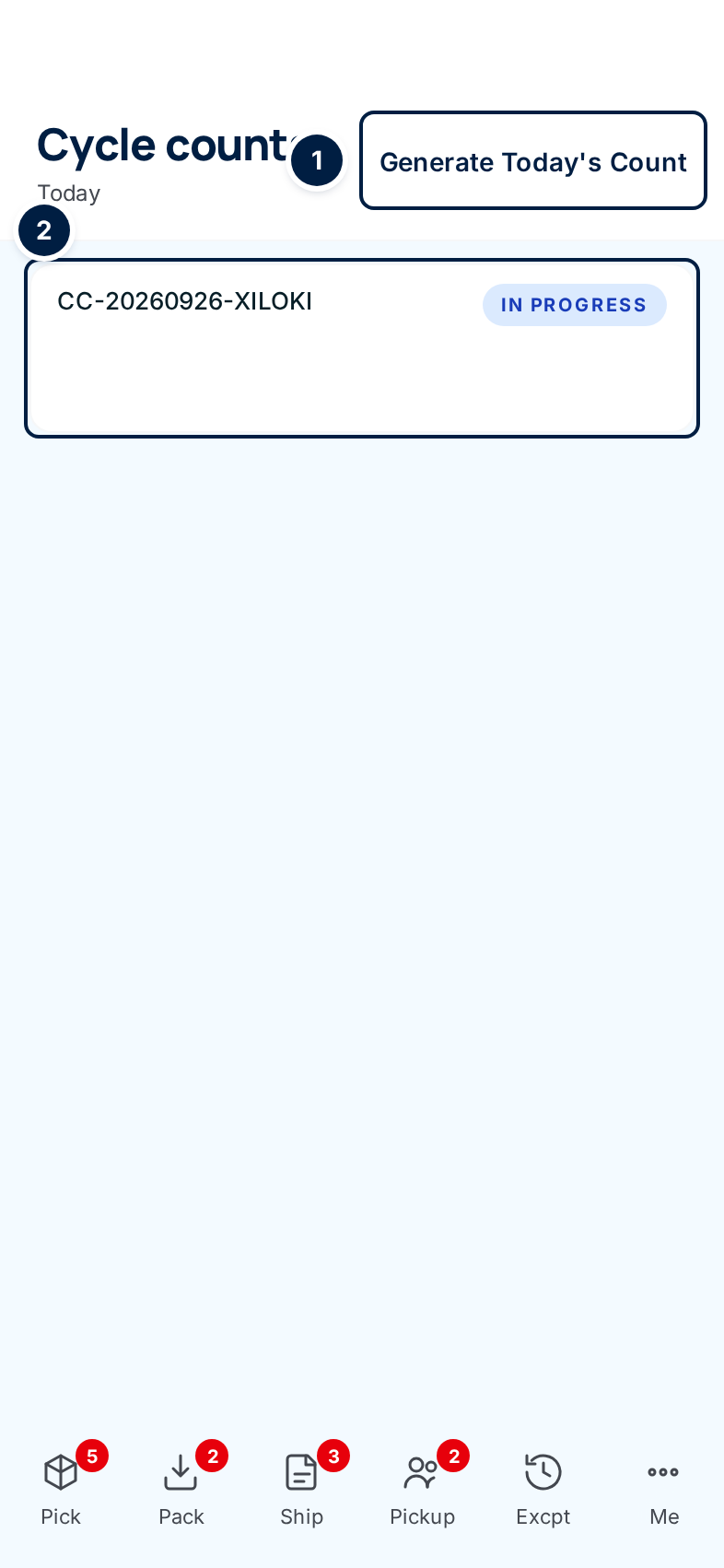
Open Cycle counts. Each card is one batch, with its number and status: Draft, In progress or Done.
-
Tap the batch ② for today. If there isn't one, tap Generate Today's Count ① — ConsignTrak picks up to ten items at random and opens the new batch.
Generate onceEvery tap of Generate Today's Count makes another batch. Check the list first; if today's batch is there, use it.
-
Tap Start counting if the batch is still Draft. It moves to In progress and the count boxes appear. The line under the batch number keeps score: N of M counted.
-
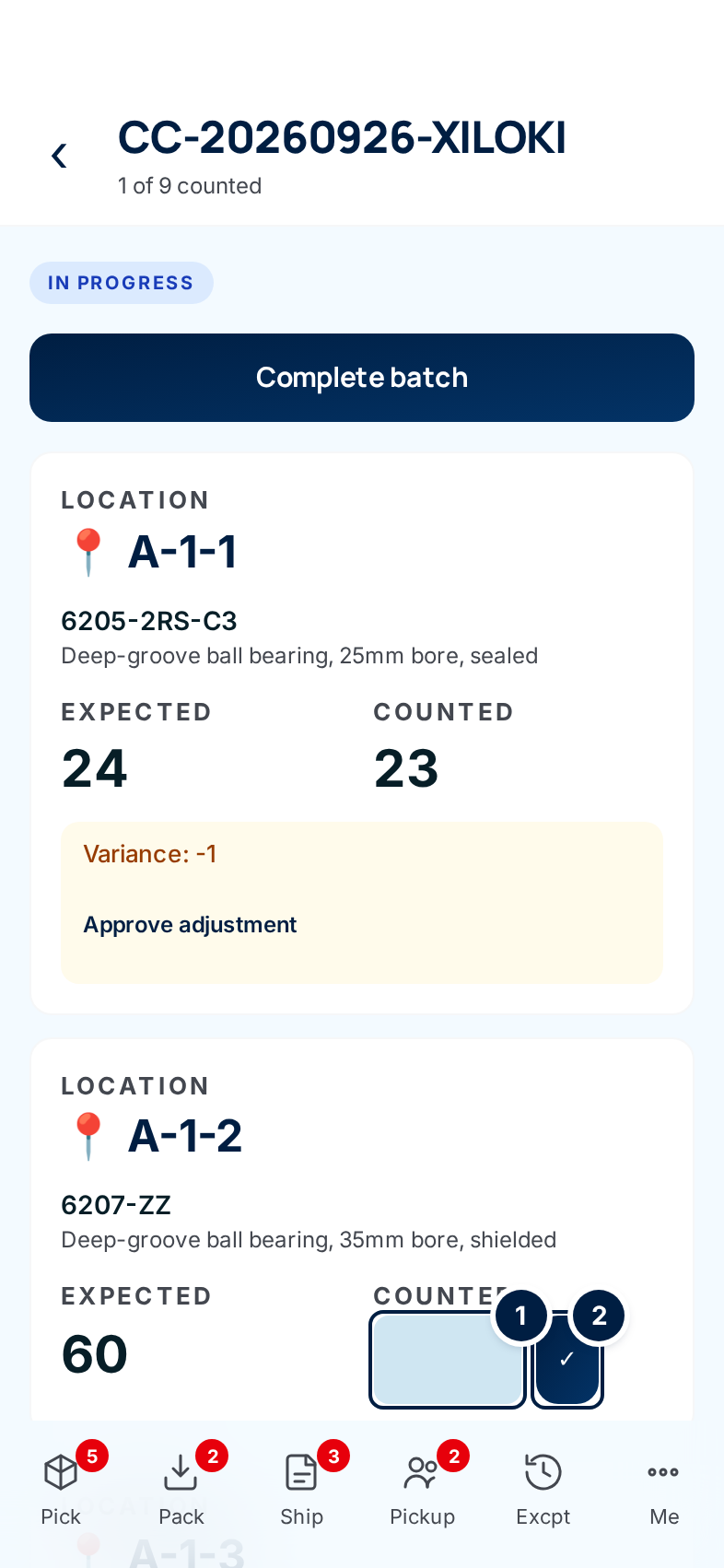
Walk to the first bin. Each card shows the Location in large type, the part number and description, and Expected — how many ConsignTrak thinks are there.
-
Count what's there and type it in the Counted box ①, then tap ✓ ②. Count every unit you find in that bin, even if it looks like more than expected. If the bin is empty, enter 0.
A count can't be changedOnce you tap ✓, the line shows your number and the box goes away. There's no way to correct it on the phone or the desktop (#1485). Recount before you tap, and tell the office if you entered a wrong number.
-
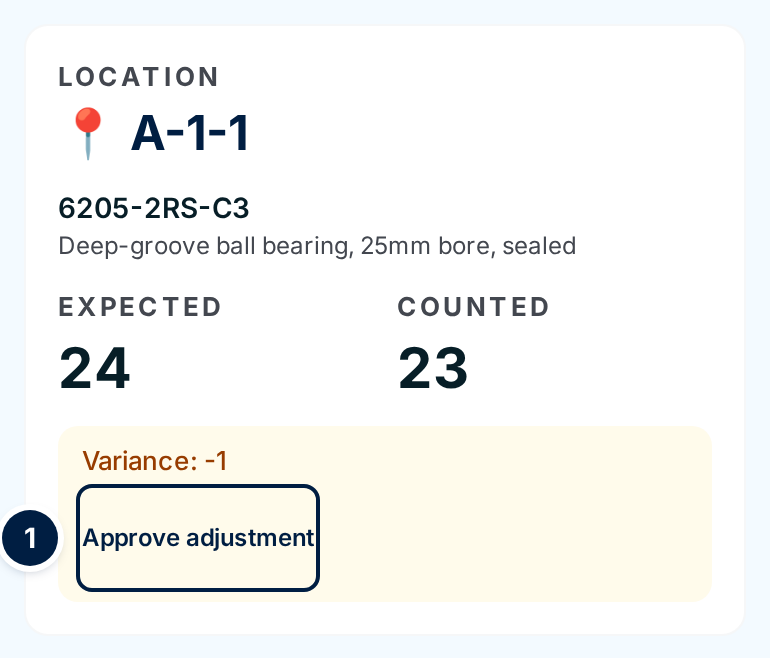
Read the result. A green ✓ No variance — counts match means the bin is right. An amber card with Variance: N means your count differs from Expected — a negative number means you found fewer, a positive number more.
-
Move on to the next card and repeat until every line is counted. Leave Approve adjustment ① and Complete batch for the office — the phone shows them to you, but a Warehouse user who taps them gets an Access denied page (#1487).
Every field and option
Cycle counts list
| Field or control | What it means | Required | Default | What changes when you set it |
|---|---|---|---|---|
| Cycle counts, "Today" | The screen title. | — | — | Read-only. |
| Generate Today's Count | Creates a new batch of up to ten randomly chosen items. Warehouse and Administrator only. | — | — | A new Draft batch opens. Each tap makes another one. |
| Batch card | Batch number and status: Draft, In progress or Done. The space under the number stays empty for now (#1563). | — | — | Tap to open the batch. |
Count batch
| Field or control | What it means | Required | Default | What changes when you set it |
|---|---|---|---|---|
| Batch number (title), N of M counted | Which batch, and how far through it you are. | — | — | Read-only. |
| ‹ (back arrow) | Back to the list. | — | — | — |
| Status pill | Draft, In progress or Completed. | — | — | Read-only. |
| Start counting | Shown on a Draft batch. Warehouse and Administrator only. | — | — | Status moves to In progress; count boxes appear. |
| Location | The bin to go to. | — | — | Read-only. |
| Part number and description | The item to count. | — | — | Read-only. |
| Expected | How many ConsignTrak had in that bin when the batch was generated. | — | — | Read-only. |
| Counted box | How many you found. Shown on uncounted lines of an In progress batch. | Yes | Empty | — |
| ✓ | Saves the count for that line. | — | — | The line shows your number and its variance. Can't be undone. |
| Variance: N / ✓ No variance — counts match | Your count minus Expected. | — | — | Read-only. An amber border marks a line with a variance. |
| Approve adjustment | Corrects the stock to your count. Office and Administrator only; asks to be tapped again. | — | — | See What happens next. |
| Complete batch | Closes the batch. Office and Administrator only. | — | — | Status moves to Completed. |
What happens next
- Your count changes nothing on its own. Stock only changes when an Office user or Administrator approves the adjustment for that line. ConsignTrak then sets the bin to your count, changes the item's stock by the variance, and records an adjustment movement.
- A variance the office doesn't approve stays as a record of the count; stock isn't touched. See Reading the variance for how the office decides.
- Expected is a snapshot. It was taken when the batch was generated. If stock was picked or received from that bin since, your count can differ for that reason alone — mention it to the office (#1485).
- The office sees your counts straight away on the desktop batch page.
Common problems
"Access denied" after tapping Approve adjustment, Complete batch, Start counting or Generate Today's Count — the first two are office steps, the last two warehouse steps. Ask whoever's role it is; nothing changed.
"Invalid quantity" — the Counted box was empty or not a number. Type the count and tap ✓ again.
"Quantity must be zero or greater" — you typed a negative number. Enter what you found; an empty bin is 0.
I entered the wrong number — it can't be changed. Tell the office before they approve the adjustment, so they can leave it unapproved.
There are two batches for today — Generate Today's Count was tapped twice. Count one of them and tell the office which.