When a batch completes without you
What this is
After a short pick, a mispick or a damage flag, the order is blocked and the decision moves to the office. The office's choice changes what you find on your phone. Sometimes ConsignTrak finishes the pick for you. Sometimes a line comes back to be picked again. Sometimes the order just waits while the office talks to the supply partner. This page tells you what each looks like from the floor, and what to do with the parts on your cart.
Before you start
- Role: Warehouse.
- Settings: none.
- You'll need: an order you short-picked or flagged (see Picking a line and Flagging a wrong item or damage). The office side of every decision is in the triage queue.
Step by step
-
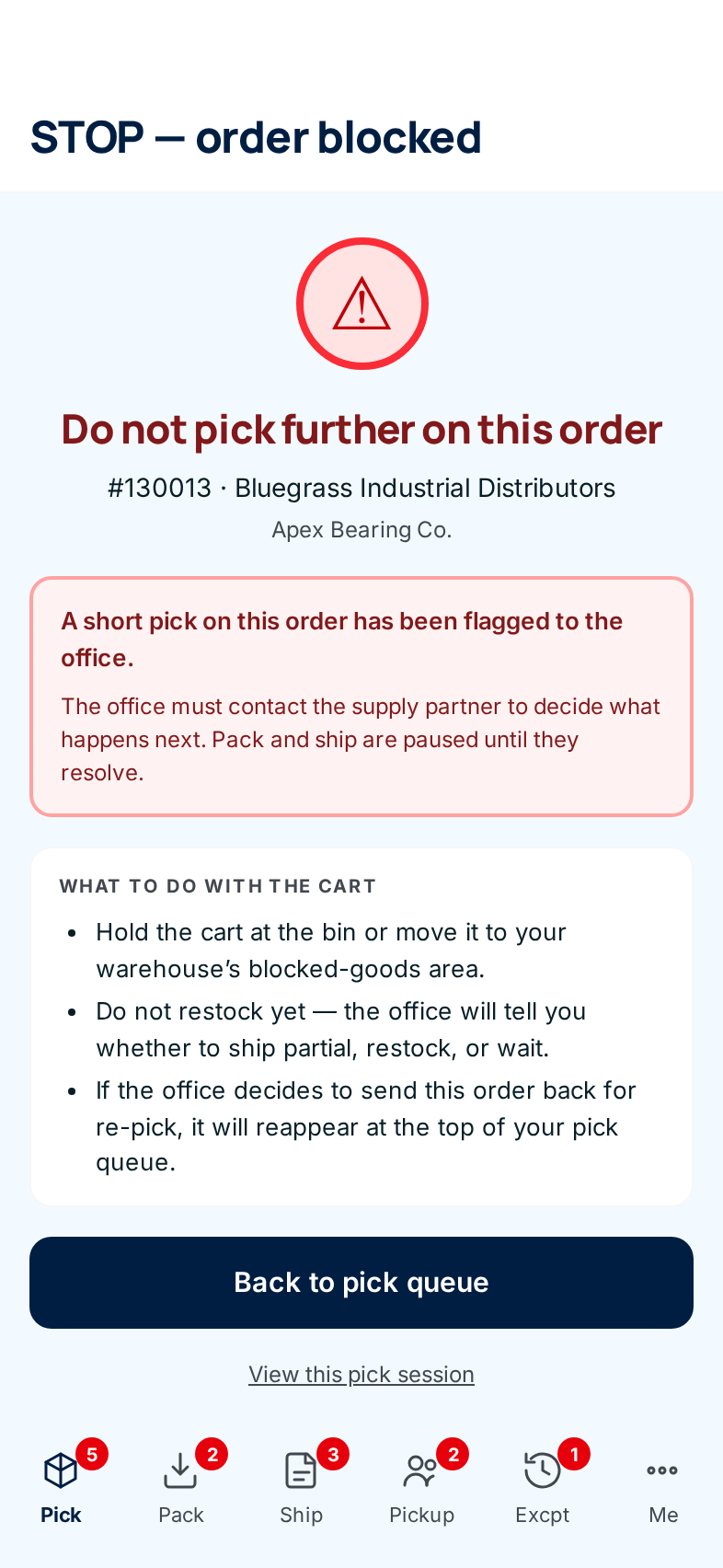
Stop and park the cart. After a short pick you usually land on STOP — order blocked. Hold the cart at the bin or in your blocked-goods area. Don't put anything back on the shelf yet.
-
Carry on with other orders. A blocked order drops out of your Resume — in progress list. Tap Back to pick queue and take the next order.
-
Watch for the office's decision. Check the Excpt tab on the bottom bar, or ask the office. Then follow the row for what they chose:
The office chose What you see on the phone What to do with the cart Ship partial, backorder remainder The pick is finished for you. Any line you never reached is marked short as Not picked — resolved by office. The order appears in the pack queue. Take the stack to the packer or a staging area and tell the packer where it is. It has no staging area recorded. Ship as is (after a mispick or damage flag) The pack screen unblocks, and Mark packed works again. If the pick was still open, it is finished for you as above. Pack it as it is. Send back for re-pick The order reappears at the top of Resume — in progress with an Office reopened tag. The line is back to not picked. Tap the card and pick the line again. Supply partner direct-ships full order The order leaves every warehouse queue. The supply partner ships it themselves. Put the parts back in the bins they came from. Cancel order The order leaves every warehouse queue. If it was already in a staging area, that area shows amber Needs clearing. Put the parts back in their bins. The office's Return to shelf list names each bin. Other The block comes off and nothing else changes. An unfinished pick returns to Resume — in progress. Ask the office what they arranged, then carry on. -
If the office is waiting on the supply partner, keep waiting. The office can mark the exception Awaiting supply partner while it asks the supply partner what to do. The order stays blocked. On the phone it still looks like any open exception: there's no separate label for it yet (#1565). Leave the cart parked until the office resolves it.
The stock belongs to the supply partner, and so does the decision about their customer's order. When the shelf doesn't match the order, the office often has to ask them: ship less, substitute, ship it from their own warehouse, or cancel.
Every field and option
This page has no screens of its own. The controls you use are covered on:
- The pick queue — Resume — in progress and the Office reopened tag.
- Picking a line — the STOP screen and undoing a short pick.
- Staging the batch — the Needs clearing tile.
- The triage queue — every disposition, from the office's side.
What happens next
- Finished for you: the order goes on to packing and shipping like any other. Everything short is put on backorder when it ships, so the customer's missing units aren't lost.
- Sent back: once you pick the line, Picking complete opens again and you hand off as normal.
- Direct ship or cancelled: the warehouse's hold on that stock is released. Nothing left the shelf in the records, because stock only comes off when an order ships.
Common problems
The order I short-picked vanished from my Resume list. — That's expected. Blocked orders are hidden from the floor until the office decides. Check the Excpt tab.
The pack screen says "awaiting office review" and Mark packed won't work. — The order is still blocked by a short pick, mispick or damage flag. Only the office can clear it.
An order came back with "Office reopened". — The office wants one or more lines picked again. Open it from Resume — in progress and pick the lines it shows.