The pick queue
What this is
The pick queue is your to-do list on the phone. It lists every released order that nobody has started picking yet, most urgent first. You tap an order, check what's on it, and tap Start picking. That order becomes your pick batch and leaves the queue, so nobody else walks to the same bins.
Before you start
- Role: Warehouse. Office users and Administrators can view the queue too (see The pick queue from the office).
- Settings: none.
- You'll need: a phone signed in to ConsignTrak, and at least one order the office has released. Lines the supply partner ships directly never appear here.
Step by step
-
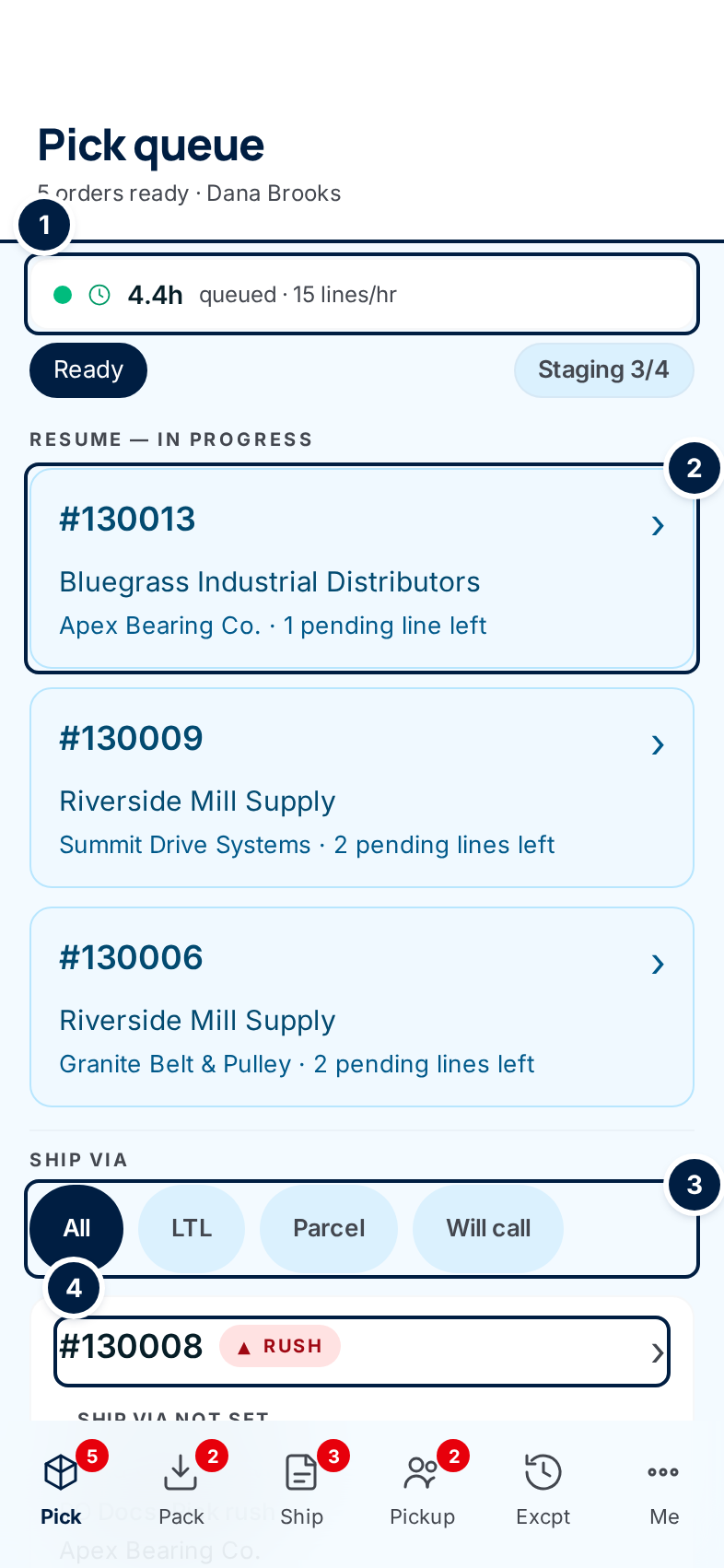
Open the queue. Tap Pick on the bottom bar. The red number on the Pick icon is how many orders are waiting.
-
Check the strip at the top ①. It shows about how many hours of picking are waiting at the current pace. A green clock means you're keeping up. An amber hourglass means the queue is running low. A red warning means act now. The Staging 1/4 chip beside Ready shows how many staging areas are in use.
-
Finish what you started first. Orders under Resume — in progress ② were started and not finished — yours after a break, or one the office sent back. Tap one to go straight to the next line still to pick. A card marked Office reopened has a line the office wants picked again.
-
Filter by how it ships, if you like. The Ship via chips ③ show only LTL (freight), Parcel or Will call orders. Tap All to see everything again.
-
Take the order at the top ④. The list runs Rush first, then High, then Normal. Within each, the order entered earliest comes first. Tap the card.
-
Check the order, then start. The next screen shows the customer, the supply partner, the PO and how it ships, and a preview of every line with its quantity and bin. Tap Start picking ①.
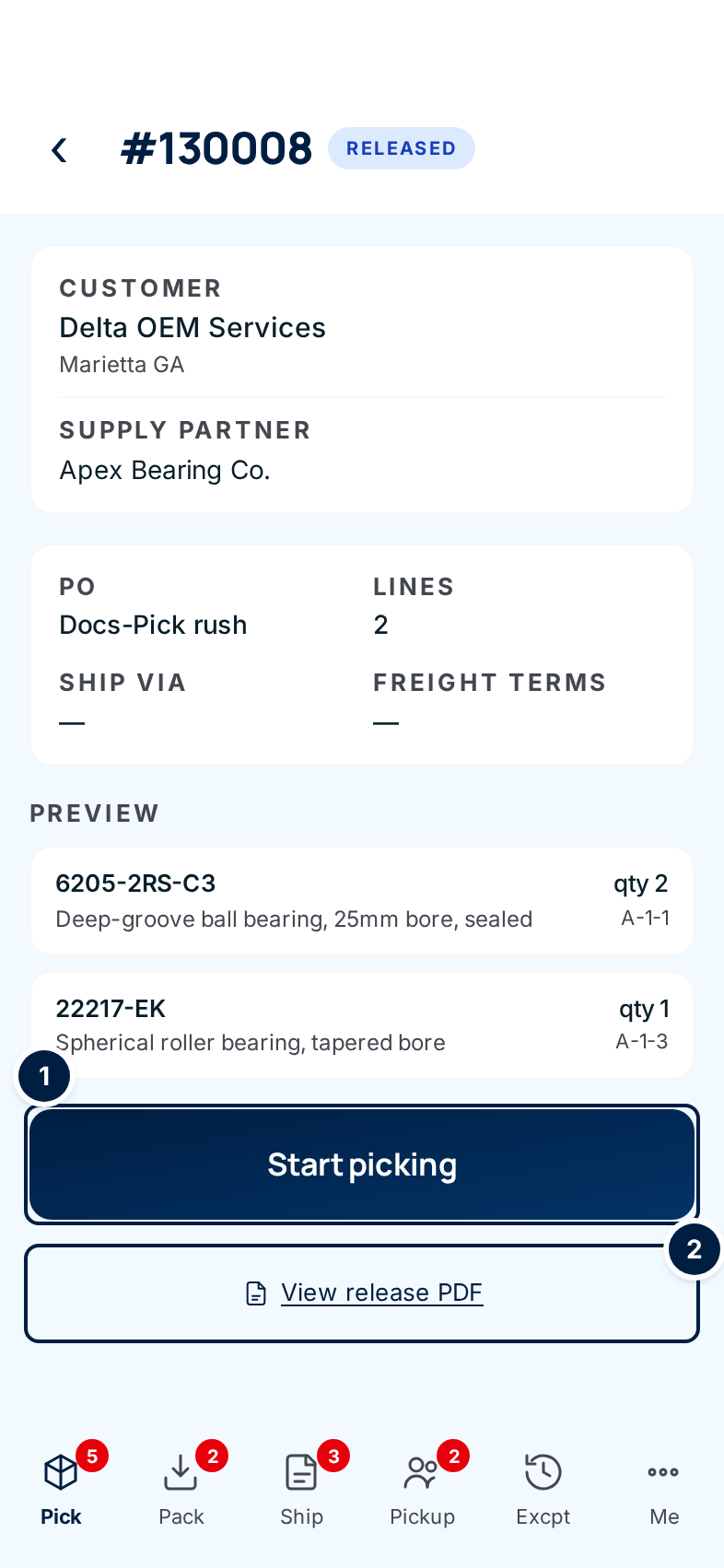
The first line to pick opens. Carry on with Picking a line.
View release PDF ② opens the printed release for the order. It lists the same lines and bins, if you'd rather carry a sheet.
Every field and option
| Field or control | What it means | Required | Default | What changes when you set it |
|---|---|---|---|---|
| Pick queue title and N orders ready · your name | How many orders are waiting to be picked, and who is signed in. | — | — | Read-only. |
| Picker buffer strip (9.2h queued · 7 lines/hr) | Roughly how many hours of picking are waiting, at the pace of the last hour. Shows — and no picks last 60m when nobody has picked in the last hour. | — | — | Read-only. Refreshes every minute. |
| Ready | Labels the list of orders waiting to be picked. | — | — | Nothing; it isn't a button. |
| Staging N/N chip | How many staging areas hold an order, out of how many exist. Turns red when every area is full. | — | — | Read-only. Only shows when staging areas exist. |
| Resume — in progress cards | Orders already started and not finished, with the supply partner and how many lines are left. Office reopened marks one the office sent back for re-picking. | — | — | Opens the next unpicked line of that order. |
| Ship via: All, LTL, Parcel, Will call | Narrow the list to one way of shipping. | No | All | Only matching orders are listed. Tap the active chip or All to clear it. The Resume list is never filtered. |
| Order card | Order number, a Rush or High tag, how it ships, the customer, the PO and supply partner order numbers, the supply partner and the number of lines. | — | — | Opens the order's summary. |
| No orders to pick / Checking again in 30s · tap to refresh now | Shown when the queue is empty. It checks for new orders every 30 seconds. | — | — | Tap the box to check right away. |
| Help pack the open queue → | Shown when there's nothing to pick but orders are waiting to be packed. | — | — | Opens the pack queue. |
| Staged at S-1 / Marked as handed to the packer | A one-time confirmation after you stage an order. | — | — | Read-only. Goes away when the page reloads. |
| Order summary: Customer, Supply Partner, PO, Lines, Ship via, Freight terms | What the order is and how it leaves. A dash means it wasn't filled in. Any special instructions print under them. | — | — | Read-only. |
| Preview | Every line you'll pick: part number, description, quantity and bin. | — | — | Read-only. |
| Start picking | Makes this order your pick batch and opens its first line. | — | — | The order leaves the queue for everyone. |
| View release PDF | Opens the printed release in a new tab. | — | — | Nothing changes. |
| Back arrow (Back to queue) | Returns to the queue without starting. | — | — | Nothing changes. |
What happens next
- The order leaves the Ready list for every picker. If you're interrupted, it waits for you under Resume — in progress.
- The office sees Picking on the order and on the dashboard.
- No stock moves. On-hand drops only when the order ships.
Common problems
An order the office released isn't in the queue. — Someone may already have started it; look under Resume — in progress. Also check the Ship via chips are on All. An order whose lines all ship straight from the supply partner never reaches the queue.
The order I just staged shows "Start picking" again. — Don't tap it. Once an order is picked, tapping Start picking again can open a second pick for the same order. This has been reported to the ConsignTrak team (#1523). Orders that are picked already drop out of the queue, so you'll only meet this if you go back to an old screen.
The strip says "—" and "no picks last 60m". — Nobody has picked in the last hour, so there's no pace to measure. It's not an error.