Staging the batch
What this is
When the last line is picked, you hand the order off. ConsignTrak then asks Where did you put it? You tap the staging area where you set the stack down. The packer's queue leads with that area, so nobody has to hunt the tables. If you gave the stack straight to a packer, you say so instead.
Before you start
- Role: Warehouse (Office users and Administrators can do it too).
- Settings: staging only happens once at least one location of type Staging exists. Without any, Hand off to packing takes you straight back to the queue. An administrator sets up areas under Locations.
- You'll need: an order with every line picked or short, and a free staging area (or a packer to hand it to).
Step by step
-
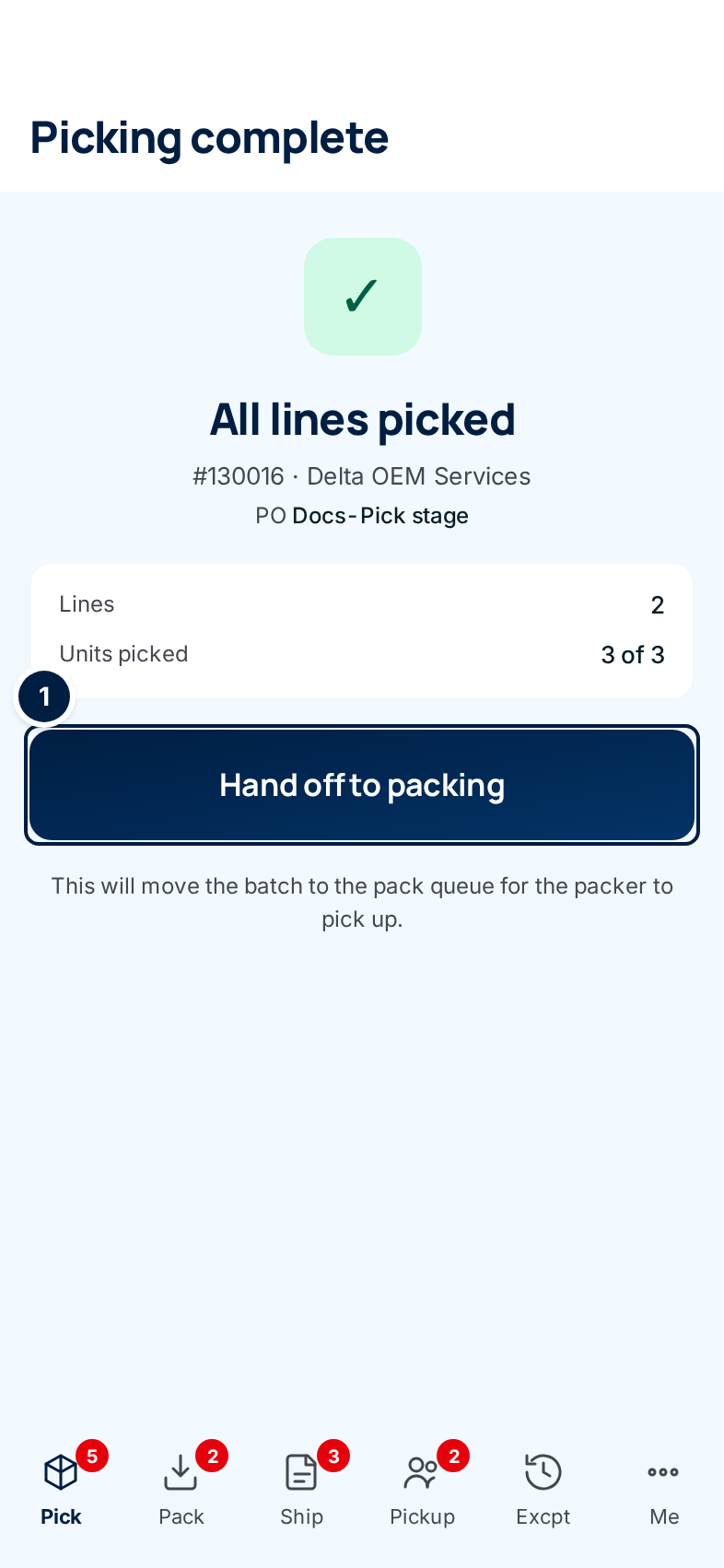
Check the summary. Picking complete shows how many lines and units you picked, and lists any short picks.
-
Tap Hand off to packing ①. The button turns amber and asks you to click again — tap it a second time to confirm. On a will-call order the button says Release to customer pickup queue instead, because will-call orders skip packing.
-
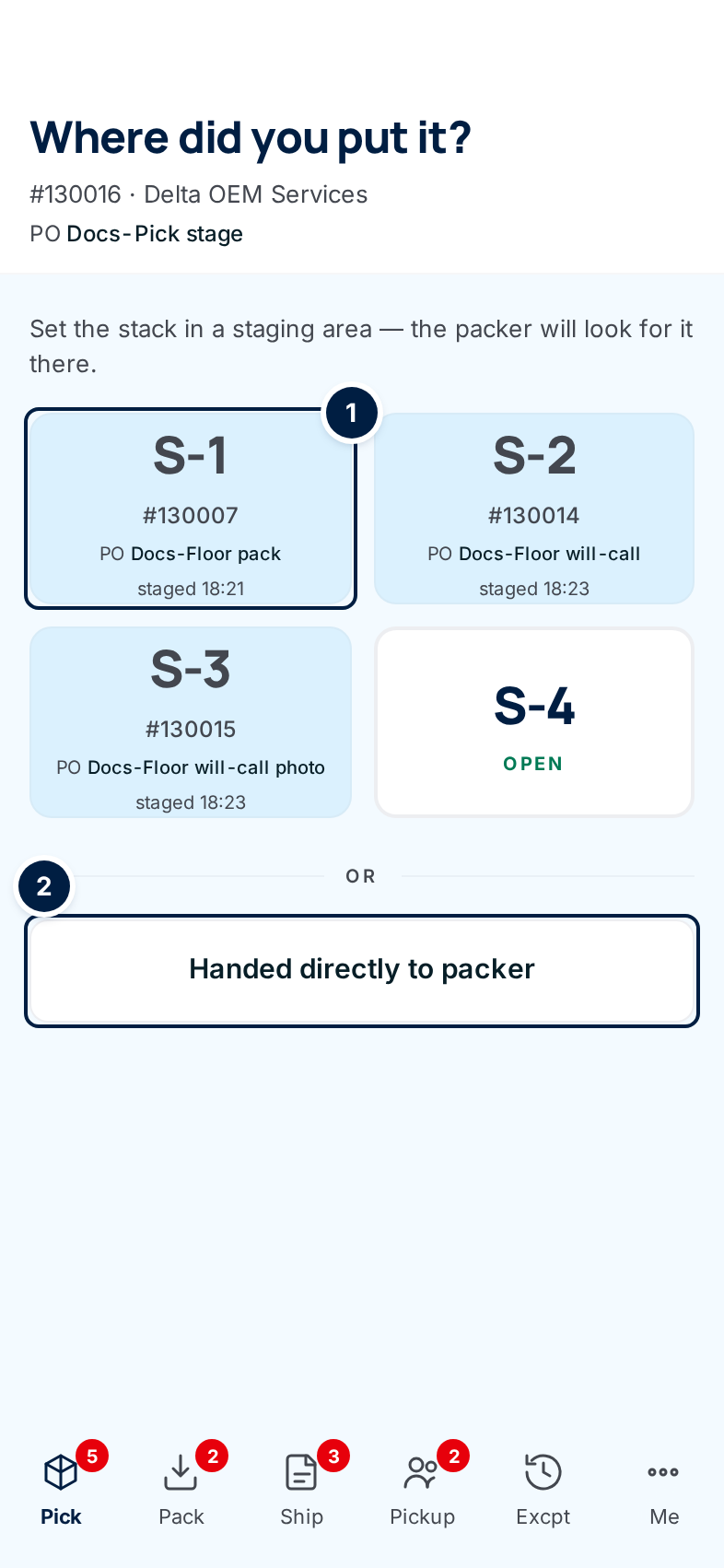
Set the stack down, then tap where you put it ①. Each tile matches the placard on a table or shelf. A white tile marked Open is free. A blue tile shows the order already sitting there and when it was staged; you can't tap it.
-
Or tap Handed directly to packer ②, if a packer took the stack from you.
-
Check the confirmation. You're back on the pick queue with a green note.

If you handed it to a packer, it says Marked as handed to the packer.
Tapping a tile saves it straight away and takes you back to the queue. There's no button on the phone to move a staged order afterwards, so move the stack to the area you tapped, or tell the packer where it really is.
When a tile is amber: Needs clearing
An amber tile marked Needs clearing holds the stack of an order that was cancelled after it was staged. You can't stage there until those parts are back on the shelf. Put them back in their bins (the office's Return to shelf list names each bin), then tap the amber tile. It asks you to click again — tap it a second time. The area turns Open.
When every area is full
The phone warns All staging areas are full, both on Picking complete and on the staging screen. It never stops you. Clear an area, help pack, or hand the stack directly to the packer.
Every field and option
| Field or control | What it means | Required | Default | What changes when you set it |
|---|---|---|---|---|
| Picking complete / All lines picked, order number, customer, PO | Which order you've finished. | — | — | Read-only. |
| Lines, Units picked N of N, Short picks | What you picked against what was asked for. | — | — | Read-only. |
| Short picks list, Oops — I made a mistake | Any short lines, with a way to undo them. See Picking a line. | — | — | See that page. |
| All staging areas are full | Every staging area holds an order. | — | — | Read-only. You can still hand off. |
| Hand off to packing | Finishes the pick. Asks you to click again. | — | — | The order moves to the pack queue and the staging screen opens. |
| Release to customer pickup queue (will-call orders) | Finishes the pick of a will-call order. Asks you to click again. | — | — | The order goes to the pickup queue instead of packing. |
| Where did you put it?, order number, customer, PO, Will Call tag | Which order you're staging. | — | — | Read-only. |
| Open tile (e.g. S-4) | A free staging area. | One tile or the button below | none | The order is staged there; the area shows it to everyone. |
| Occupied tile (order number, PO, staged 14:05) | An area already holding another order. | — | — | Can't be tapped. |
| This order tile | The area this order is in now, if you come back to the screen. | — | — | Tap another tile to move it. |
| Needs clearing tile | A cancelled order's stack is still there. Asks you to click again. | — | — | Confirms the parts went back on the shelf; the area opens up. |
| Handed directly to packer | You gave the stack to a packer instead of setting it down. | One tile or this | — | The order goes to the pack queue with no area. |
| No staging areas defined / An admin can add them under Locations | Shown if no staging area can be listed, so you're never stuck. | — | — | Use Handed directly to packer. |
| That area was just taken | Another picker tapped the same area first. | — | — | Choose a different area. |
| Back arrow (Back to pick queue) | Shown only once the order is staged. | — | — | Returns to the queue. |
What happens next
- The order is in the pack queue. The packer sees the area in large type before the order number (see Packing, shipping & pickup).
- The area stays taken until the order is packed, shipped or cancelled. A will-call order keeps its area until the customer collects it.
- The office sees the area on the order page, on the ship station's staging panel, and printed on any release printed after staging (see Staging areas (office)).
- The dashboard flags an order that has sat staged and unpacked for over two hours.
Common problems
"That area was just taken — Another picker got there first." — Tap a different open area.
"That area isn't available — It may have been retired." — The area was removed from use. Tap another one.
"That area still holds a cancelled order's stack." — Return those parts to the shelf first, or pick another area.
Hand off to packing took me straight back to the queue. — Your warehouse hasn't set up staging areas, so there's no staging step. The order is in the pack queue.