Picking a line
What this is
Once you start an order, the phone shows one line at a time. The screen leads with the bin to go to, then the item and how many to take. You tap Picked and the next line loads. If the bin doesn't hold enough, you record a short pick and the office decides what happens to the order.
Before you start
- Role: Warehouse (Office users and Administrators can pick too).
- Settings: none.
- You'll need: an order you've started from the pick queue, and a cart.
Step by step
-
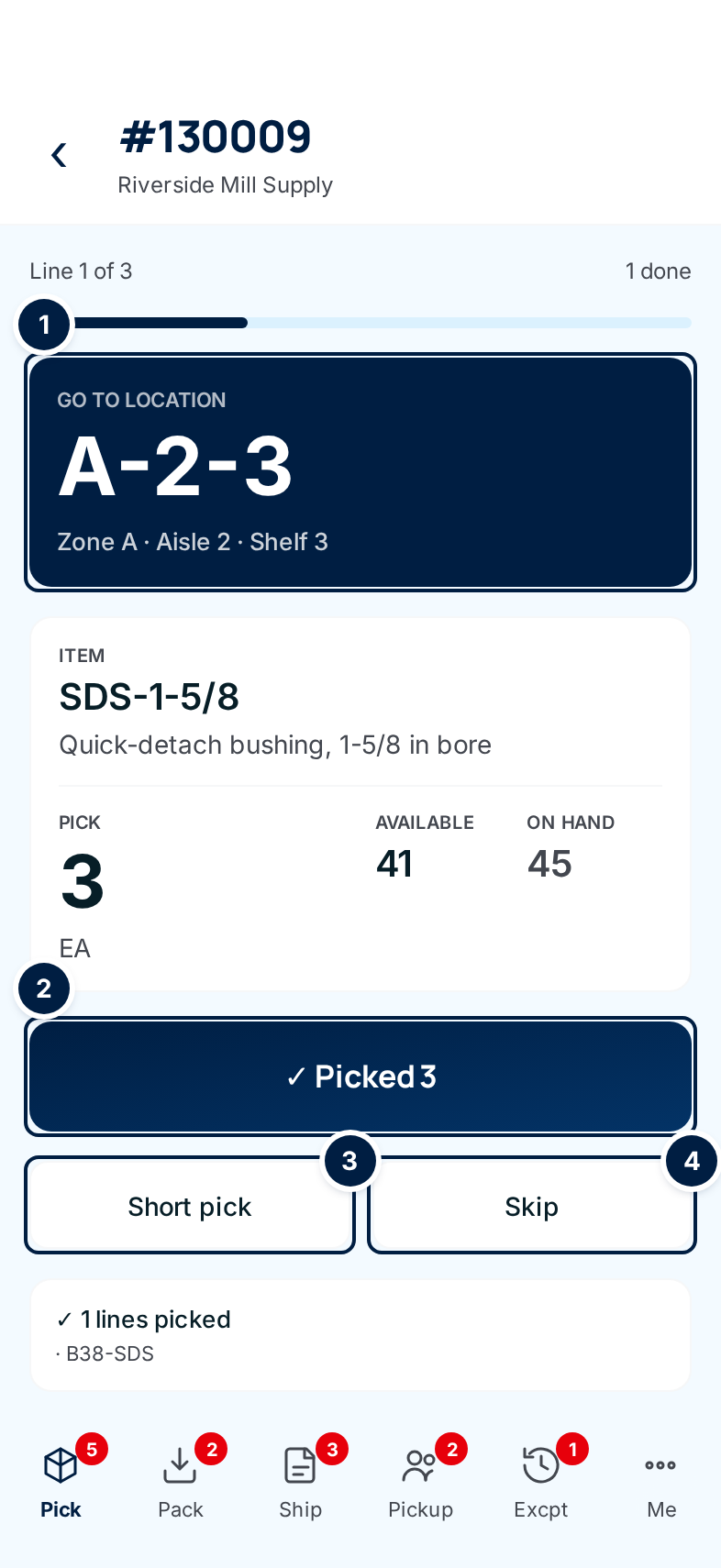
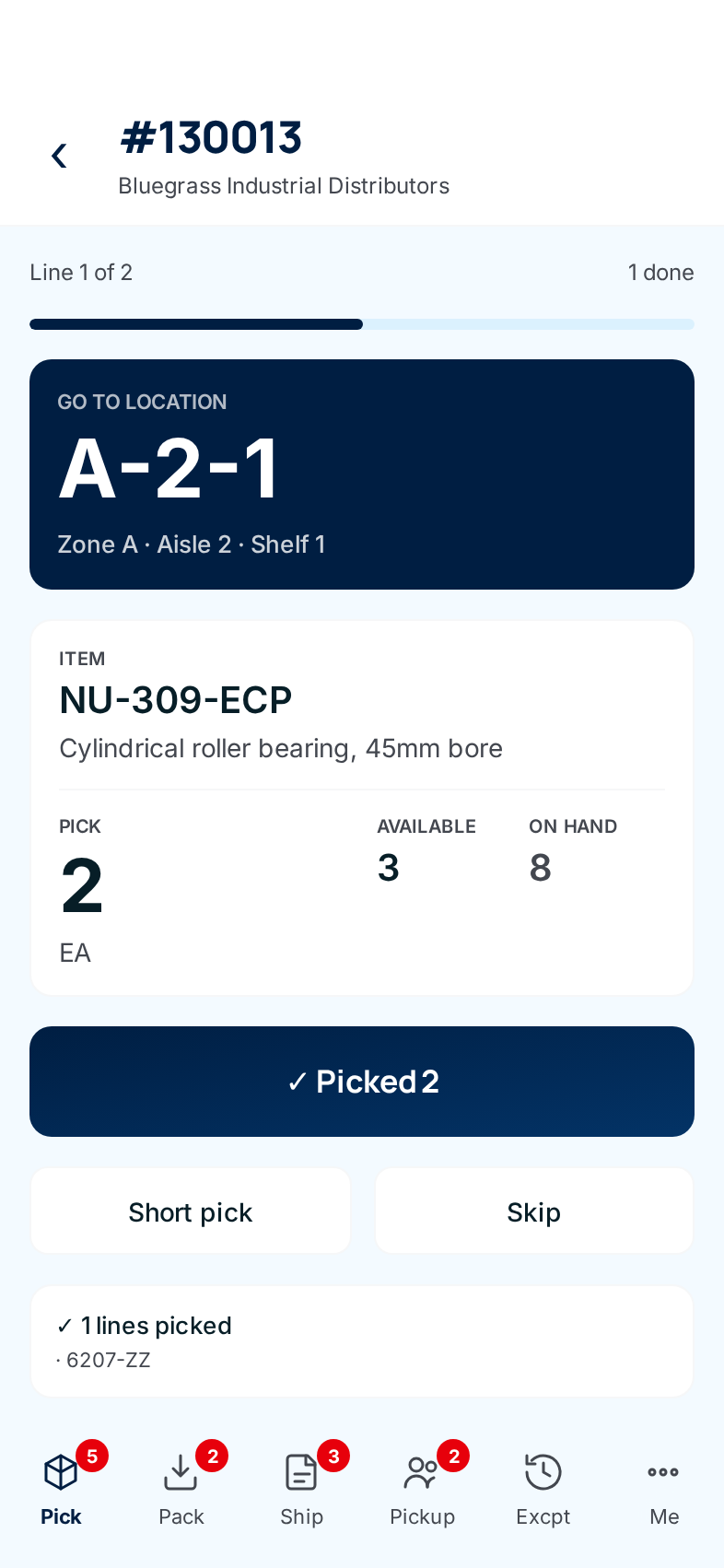
Go to the location ①. The dark box shows the bin in large type, with the zone, aisle, rack and shelf under it. The bar above it shows which line you're on and how many are done.
-
Check the item. Match the part number under Item against the label on the shelf. Pick is how many to take, with the unit under it. Available and On hand show the stock in that item; they refresh every 30 seconds.
-
Take the full quantity and tap Picked ②. The button says exactly how many, for example ✓ Picked 3. The next line opens. Lines you've done are listed at the bottom of the screen.
-
If the bin is short, tap Short pick ③. A panel slides up.
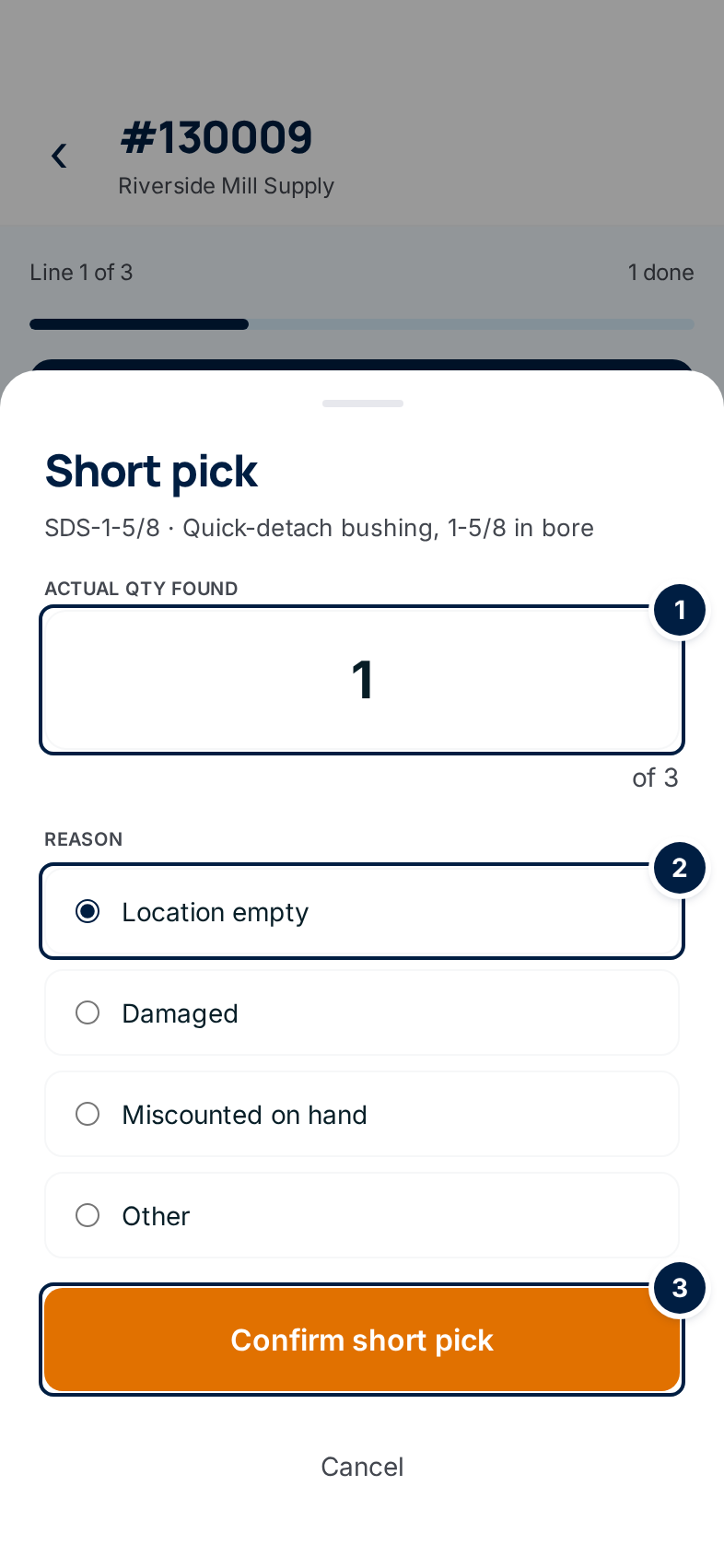
- Enter how many you actually found ① — 0 if the bin was empty.
- Choose a reason ②: Location empty, Damaged, Miscounted on hand or Other.
- Tap Confirm short pick ③. Cancel closes the panel without recording anything.
-
If you need to come back to a line, tap Skip ④. The button turns amber and asks you to click again — tap it a second time to skip.
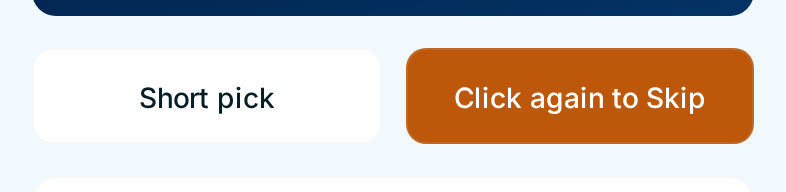
The line moves to the end of your pick. After your other lines, it comes back to you, and you pick it or short-pick it then.
-
Keep going until the last line. When every line is picked or short, Picking complete opens. Carry on with Staging the batch.
A short pick raises a pick exception and blocks the order. It can't be packed or shipped until the office decides what to do in the triage queue.
When the phone says STOP
For most supply partners, a short pick sends you straight to a red STOP — order blocked screen. Don't pick anything else on that order.
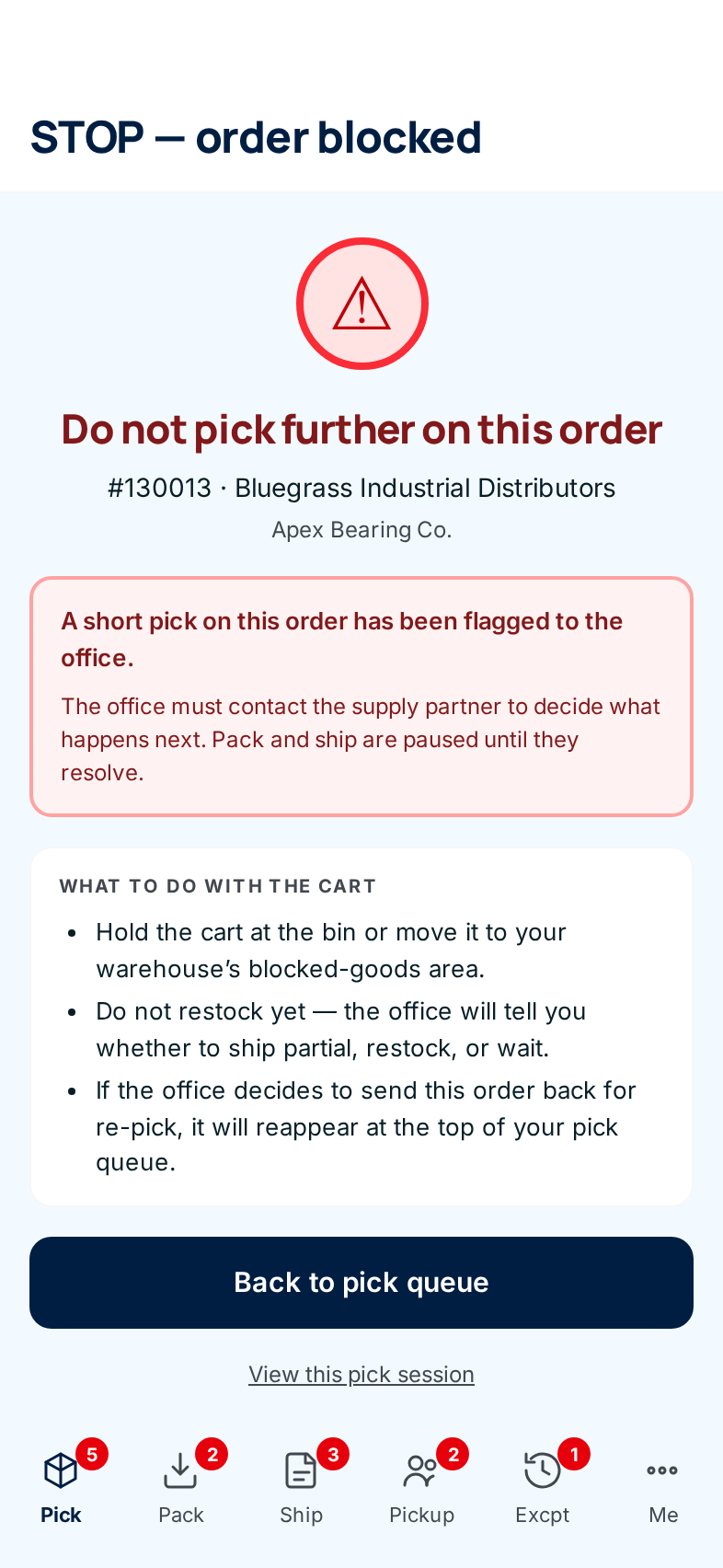
- Hold the cart at the bin, or move it to your warehouse's area for blocked goods.
- Don't put anything back on the shelf yet. The office will tell you whether to ship what you have, restock, or wait.
- Tap Back to pick queue and take the next order.
Whether a supply partner's short picks stop you is set per supply partner; it's on unless your administrator has turned it off (see Stop the picker after a short pick). When it's off, a short pick simply moves you to the next line. The order is still blocked from packing until the office decides.
Undoing a short pick you got wrong
Found the parts after all? You can undo a short until the office has looked at it.
-
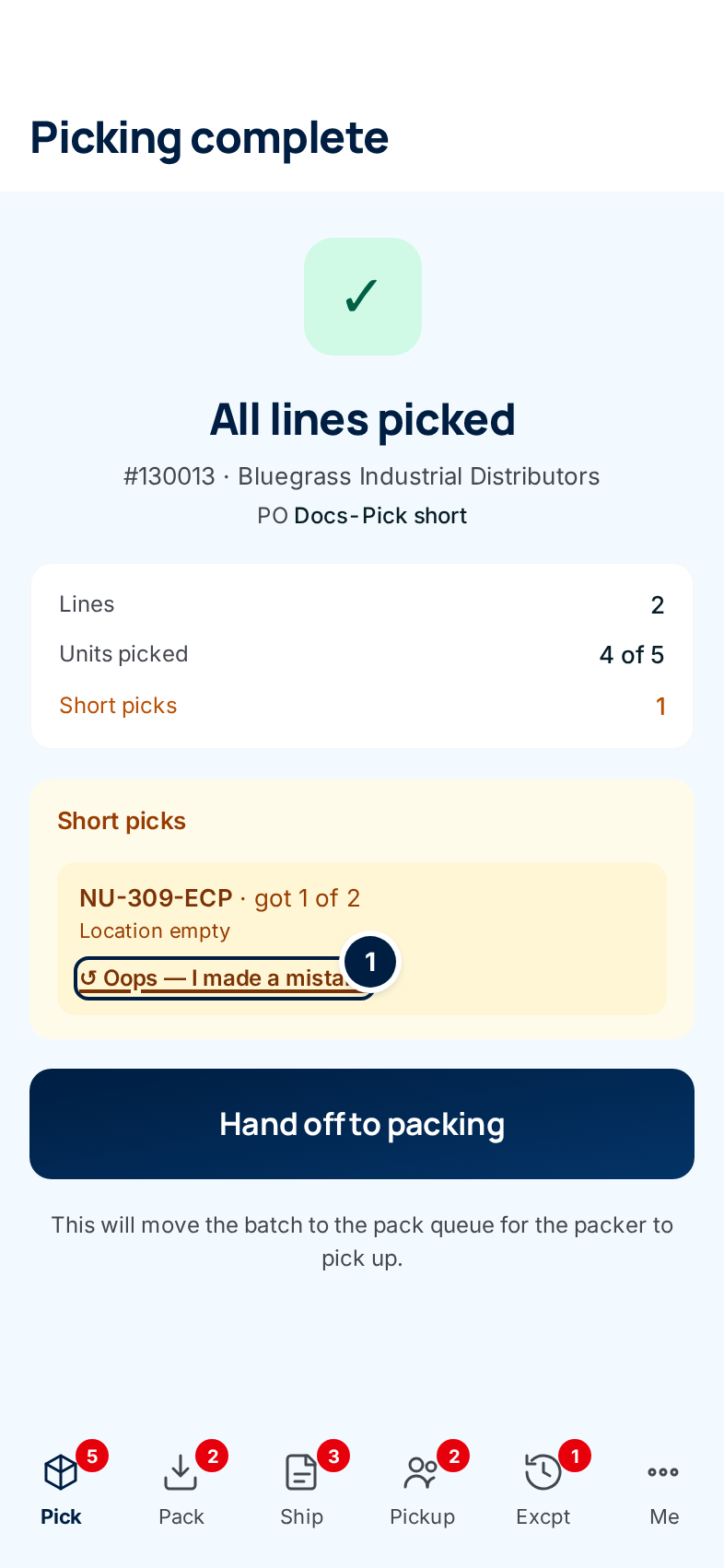
Open Picking complete for the order. On the STOP screen, tap View this pick session. If there are no lines left to pick, it opens Picking complete.
-
Tap Oops — I made a mistake ① under the short.
-
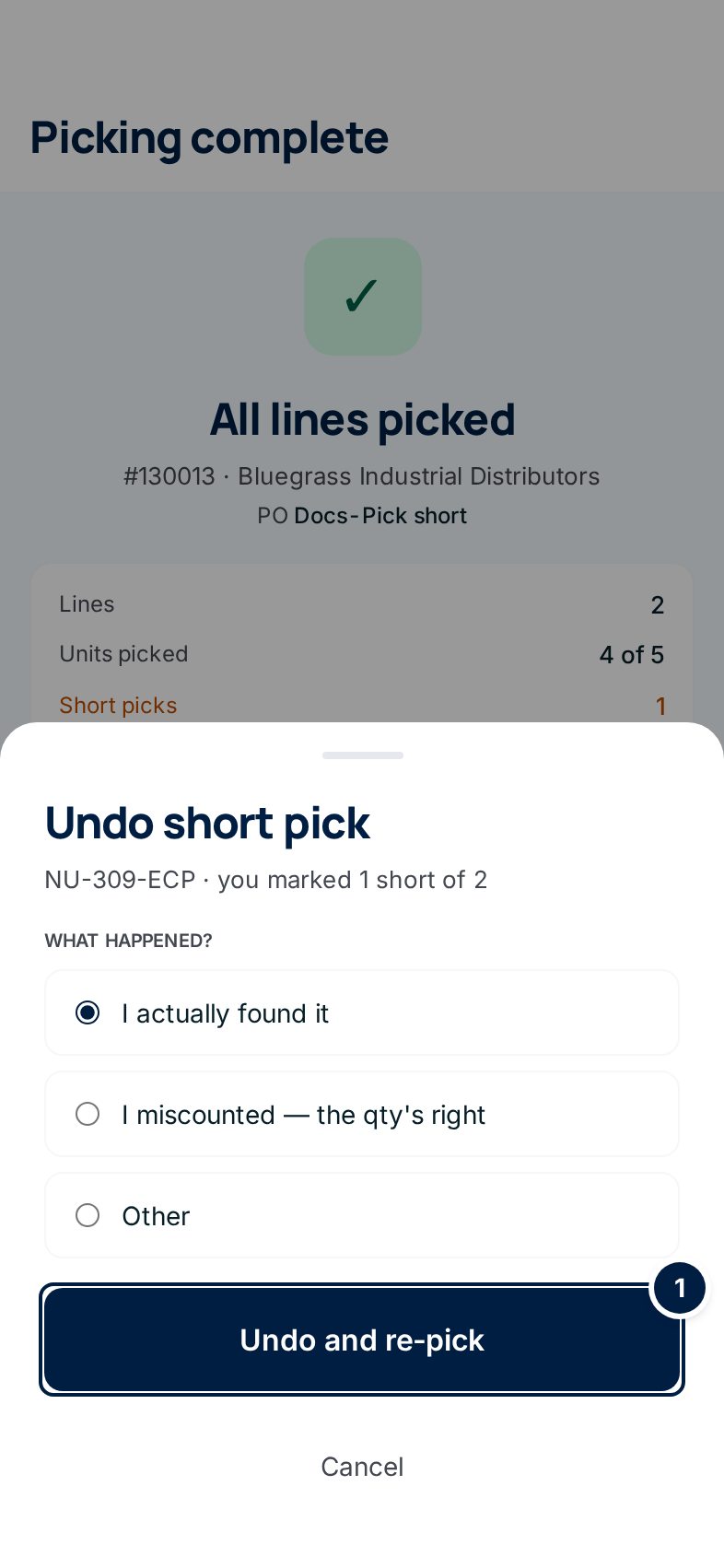
Say what happened — I actually found it, I miscounted — the qty's right, or Other — and tap Undo and re-pick ①.
-
Pick the line again. The line reopens so you can tap Picked or record a new short. The block comes off the order, and the office sees the exception as Picker undid.
Every field and option
| Field or control | What it means | Required | Default | What changes when you set it |
|---|---|---|---|---|
| Header: #order number, customer, ship-via tag | Which order you're picking. The tag says LTL, Parcel or Will call. | — | — | Read-only. |
| Back arrow (Back) | Leaves the line. | — | — | Nothing is recorded; the order waits under Resume — in progress. |
| Line N of N / N done and the progress bar | Where you are in the order. | — | — | Read-only. |
| Go to location | The bin to pick from, with zone, aisle, rack and shelf when known. A dash means the item has no bin on record; ask the office. | — | — | Read-only. |
| Item | Part number and description of what to take. | — | — | Read-only. |
| Pick | How many to take, and the unit of measure. | — | — | Read-only. |
| Available / On hand | Available is what isn't promised to other orders. On hand is everything on the shelf, including units promised to orders. as of shows when it last refreshed. | — | — | Read-only. Refreshes every 30 seconds. |
| List $… set by supply partner | The supply partner's list price for the item. | — | — | Read-only. Shows only when prices are switched on and the supply partner has set one. |
| ✓ Picked N | You took the full quantity. | — | — | Records the pick and opens the next line. |
| Short pick | Opens the short pick panel. | — | — | Nothing until you confirm. |
| Skip | Moves this line to the end of your pick. Asks you to click again. | — | — | The line comes back after your other lines. |
| ✓ N lines picked | The lines already done, by part number. | — | — | Read-only. |
| Actual qty found (short pick panel) | How many units you found. The panel shows of N beside it. | Yes | empty | Recorded as picked; the rest is short. |
| Reason: Location empty, Damaged, Miscounted on hand, Other | Why the line is short. | Yes | none | Shown to the office on the exception. |
| Confirm short pick | Records the short pick. | — | — | Raises a pick exception and blocks the order. Usually opens the STOP screen. |
| Cancel (short pick panel) | Closes the panel. | — | — | Nothing is recorded. |
| STOP — order blocked / Do not pick further on this order | The order is blocked by your short pick. | — | — | Read-only. |
| What to do with the cart | What to do with the parts you've picked so far. | — | — | Read-only. |
| Back to pick queue | Returns to the queue. | — | — | Nothing changes. |
| View this pick session | Returns to the order's pick screens. | — | — | Opens the next line, or Picking complete if none are left. |
| Short picks list on Picking complete | Each short line: part number, got N of N, and the reason. Office is handling this means it's been reviewed. You undid this short means it was undone. | — | — | Read-only. |
| Oops — I made a mistake | Opens the undo panel. Only shows while the office hasn't reviewed the short. | — | — | Nothing until you confirm. |
| What happened?: I actually found it, I miscounted — the qty's right, Other | Why you're undoing. | Yes | none | Shown to the office on the exception. |
| Undo and re-pick | Undoes the short pick. | — | — | The line reopens, the exception is marked Picker undid, and the block comes off the order. |
| Cancel (undo panel) | Closes the panel. | — | — | Nothing changes. |
What happens next
- Picked lines are saved with your name and time. No stock moves yet; on-hand drops when the order ships.
- A short pick appears straight away in the office's triage queue. A red banner on the office screens says an order is blocked. The office picks a disposition: ship what you have, send the line back to you, have the supply partner ship it, or cancel. See When a batch completes without you.
- After the last line, Picking complete opens so you can hand the batch off.
Common problems
"Already recorded — this line was picked or marked short. Nothing changed." — You tapped twice, or went back to an old screen. The first tap counted. Carry on with the next line.
"That quantity doesn't match this line. Use Short pick for a partial quantity." — Picked only records the full quantity. If you took fewer, use Short pick.
"That quantity isn't a number. Try again." — Enter digits only in Actual qty found.
"Something went wrong recording that. Try again." — The phone lost its connection or the save failed. Tap the button again.
I skipped a line and it came straight back. — That's how Skip works today: it moves the line to the end of your pick, it doesn't give it to someone else. The confirmation text says otherwise; this has been reported (#1557). If you can't pick it, record a short pick.
"Office has this short — Already reviewed in the office." — The office has already dealt with it, so you can't undo it on the phone. Ask the office to reopen it. (The message currently names two staff members; this has been reported, #1558.)
"Nothing to undo — That short pick is no longer here." — It was already undone, or the office resolved it. Check the order with the office.
Watch the video
Reporting a short pick is covered in more depth in: