Flagging a wrong item or damage
What this is
Sometimes the parts in a picked stack aren't right. The carton holds the wrong item (a mispick), or the item is right but damaged, badly packaged or unreadable (a quality problem). You don't fix it on the spot. You flag it, with a photo, and the office decides what happens. Both flags are made from the pack screen, while the stack is checked before packing.
Before you start
- Role: Warehouse (Office users and Administrators can flag too).
- Settings: none.
- You'll need: an order that has been picked and is on the pack screen (see Packing, shipping & pickup), and the phone's camera if you want a photo.
Step by step
-
Open the order's pack screen and find the line with the problem.
-
Tap the ⋯ button at the end of the line. A panel opens with the part number, what was picked, and the stock.
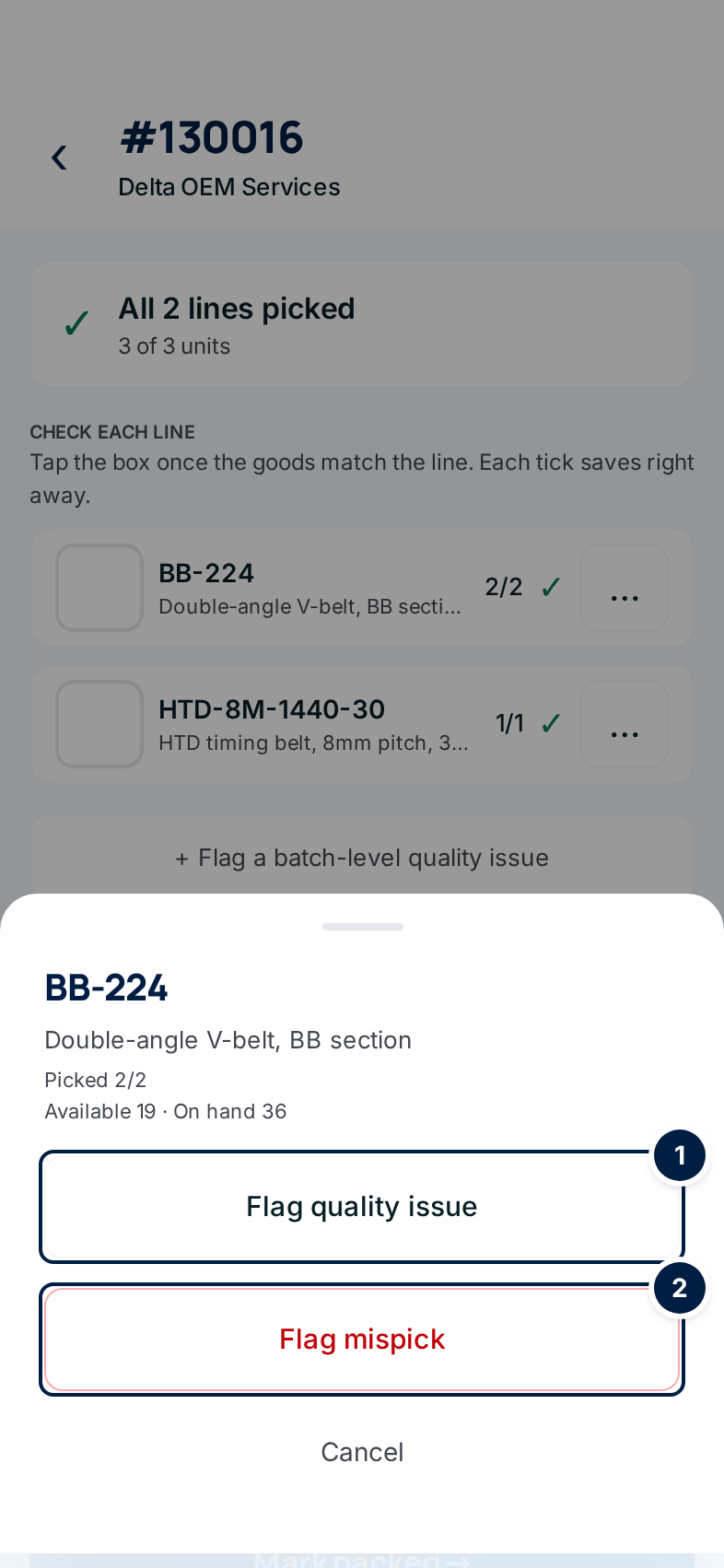
- For damage, packaging or a label, tap Flag quality issue ①.
- For the wrong item, tap Flag mispick ②. It turns red and asks you to click again — tap it a second time.
For a problem with the whole order rather than one line, tap + Flag a batch-level quality issue under the list of lines instead.
Flagging a mispick
-
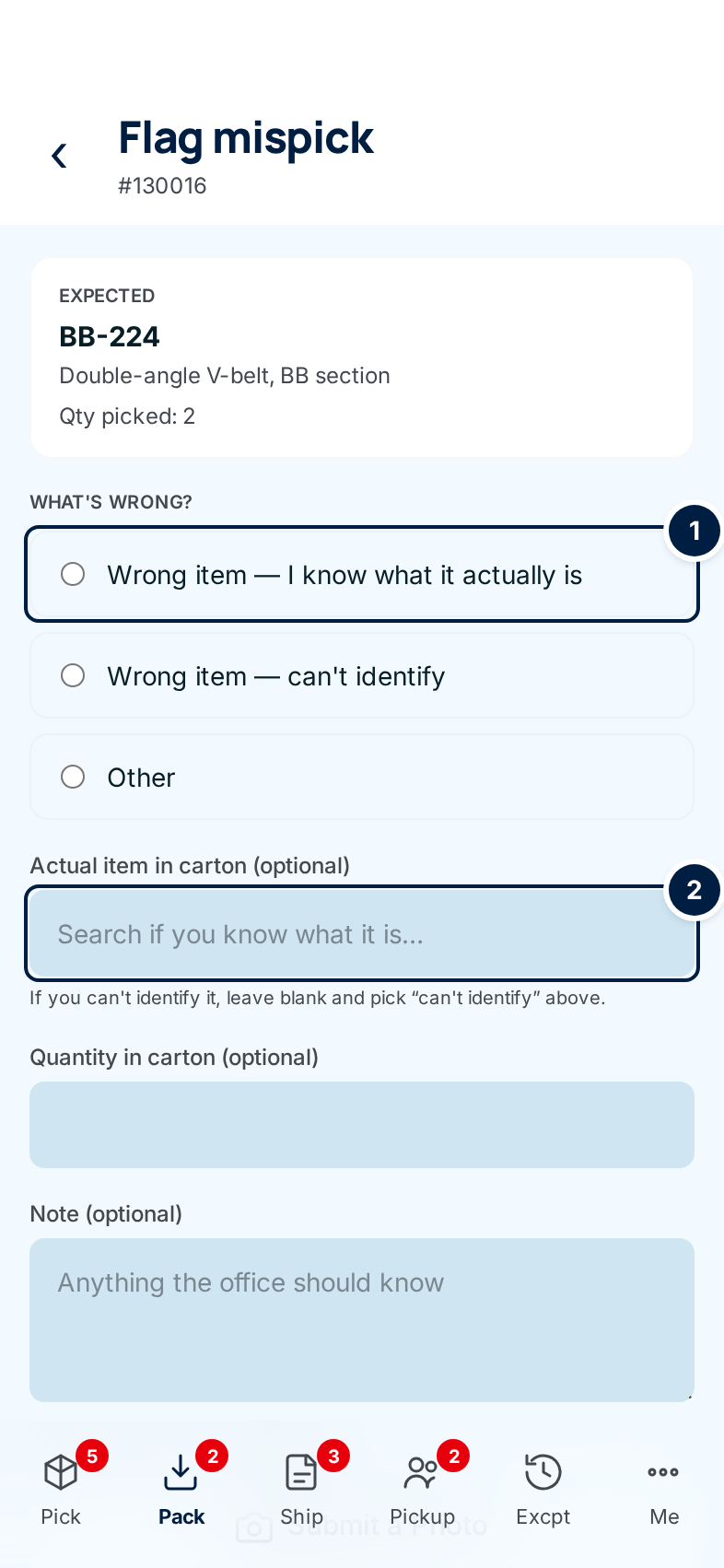
Say what's wrong ①: Wrong item — I know what it actually is, Wrong item — can't identify, or Other.
-
Name the item you found, if you can ②. Type part of its number in Actual item in carton and tap the match. Enter how many are in Quantity in carton. Leave both blank if you can't tell.
-
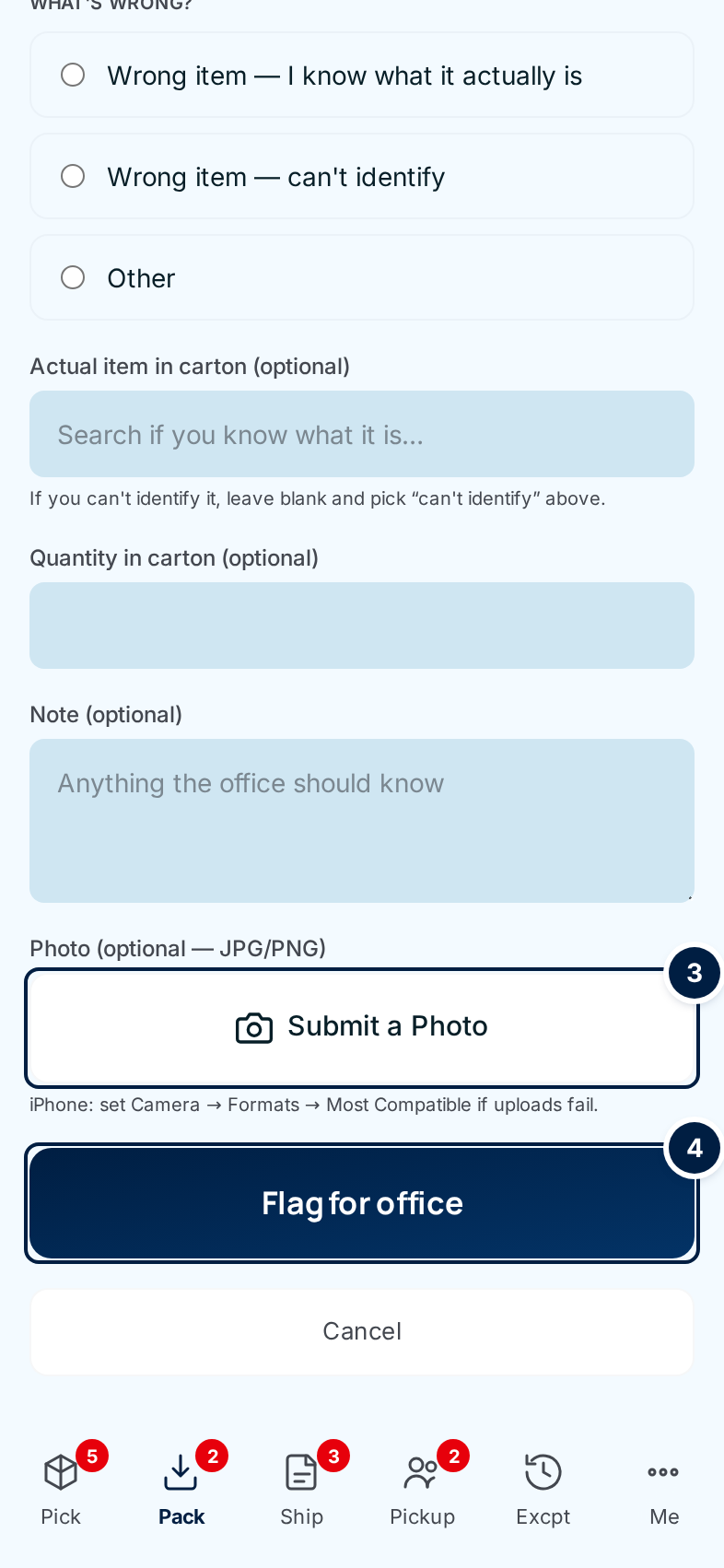
Add a note and a photo. Tap Submit a Photo ③ to open the camera and take one shot of the label or the part. Then tap Flag for office ④.
Flagging a quality problem
-
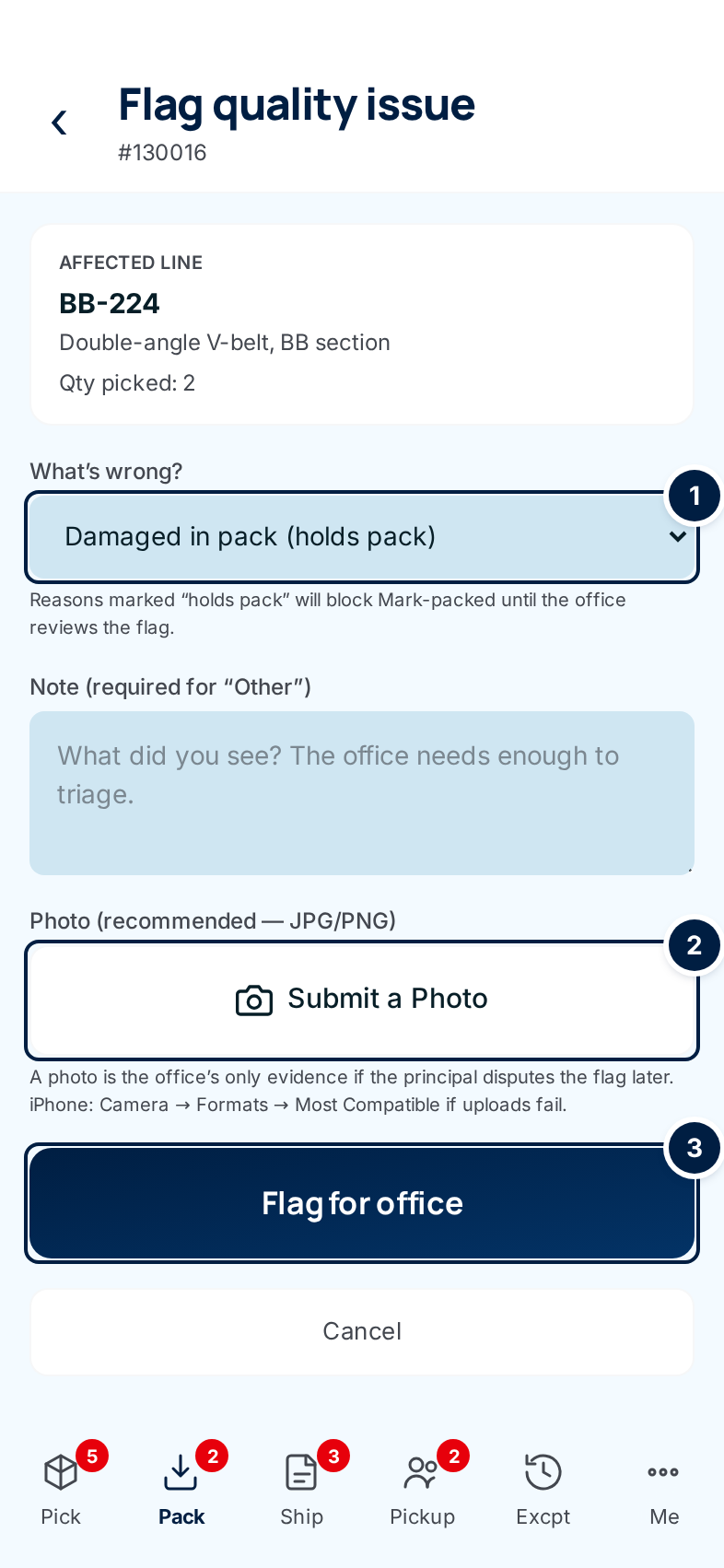
Choose what's wrong ①. Reasons marked holds pack stop the order from being packed until the office has looked.
-
Describe it in Note. A note is required when you choose Other.
-
Take a photo ②. It's recommended: the photo is the office's evidence if the supply partner questions the flag later.
-
Tap Flag for office ③. It turns amber and asks you to click again — tap it a second time.
The goods belong to the supply partner. Swapping a part or setting a damaged one aside without a record would leave their stock wrong. A flag keeps the photo, your note and the office's decision together.
Every field and option
| Field or control | What it means | Required | Default | What changes when you set it |
|---|---|---|---|---|
| ⋯ (More actions) on a pack line | Opens the actions for that line. | — | — | Nothing yet. |
| Flag quality issue | Opens Flag quality issue for that line. | — | — | Nothing yet. |
| Flag mispick | Opens Flag mispick for that line. Asks you to click again. | — | — | Nothing yet. |
| Undo quality flag / Undo mispick flag | Replace the flag buttons once a line is flagged. Work until the office reviews it. | — | — | The flag is withdrawn and the office sees Picker undid. |
| + Flag a batch-level quality issue | A quality problem with the whole order, not one line. | — | — | Opens Flag quality issue for the whole batch. |
| Flag mispick, order number | The form's title. | — | — | Read-only. |
| Expected | The item and quantity that should be in the carton. | — | — | Read-only. |
| What's wrong?: Wrong item — I know what it actually is, Wrong item — can't identify, Other | The kind of mispick. | Yes | none | Shown to the office. |
| Actual item in carton (optional) | Search for the item that's really there, then tap it. | No | empty | Lets the office correct the stock of both items when it resolves. |
| Quantity in carton (optional) | How many of that item are there. | No | empty | Used with the item above. |
| Note (optional) | Anything the office should know. | No | empty | Shown to the office. |
| Photo (optional — JPG/PNG) / Submit a Photo | Opens the rear camera for one photo. The label shows the file name once taken. | No | none | Attached to the exception. |
| Flag for office (mispick) | Sends the mispick. | — | — | Raises a pick exception and blocks the order. |
| Flag quality issue, order number, whole batch | The form's title; whole batch when it isn't for one line. | — | — | Read-only. |
| Affected line / Scope | The line you're flagging, or a note that the flag covers the whole batch. | — | — | Read-only. |
| What's wrong? list | Damaged in pack (holds pack), Damaged from manufacturer (holds pack) (the item arrived damaged from the supply partner), Wrong packaging, Label illegible, Other (note required). | Yes | Select reason… | The two holds pack reasons block packing until the office reviews. The others don't. |
| Note (required for "Other") | What you saw. | Only for Other | empty | Shown to the office. |
| Photo (recommended — JPG/PNG) / Submit a Photo | Opens the rear camera for one photo. | No | none | Attached to the exception. |
| Flag for office (quality) | Sends the flag. Asks you to click again. | — | — | Raises a pick exception. |
| Cancel / back arrow | Leaves the form. | — | — | Nothing is recorded; you're back on the pack screen. |
What happens next
- You're back on the pack screen with a note that the flag was recorded. The line shows Mispick flagged · needs review or Quality flag and the reason.
- A mispick, or a quality flag that holds pack, blocks the order. Mark packed stays unavailable until the office decides in the triage queue.
- Wrong packaging, an unreadable label or Other don't block anything; the office just acknowledges them.
- The office may ship as is, send the line back for re-picking, have the supply partner ship it, or cancel. See When a batch completes without you.
Common problems
"A note is required when the reason is 'Other'" — Go back, write what you saw in Note, and send it again.
The photo won't upload from an iPhone. — The form's own hint applies: in the iPhone's Settings, set Camera → Formats → Most Compatible, then take the photo again. If the flag was saved without its photo, the office can add one later.
I flagged the wrong line. — Tap ⋯ on that line and choose Undo mispick flag or Undo quality flag. Once the office has reviewed it, ask the office instead.