Shipping an order
What this is
Shipping is the moment the stock leaves the books. On the ship screen you check where the order is going, scan the carrier's tracking label on every box with the phone's camera, and confirm the shipment. Nobody types tracking numbers. This page covers the phone. The office can do the same job from a desk at the Ship station.
Before you start
- Role: Warehouse, Office or Administrator, on a phone or tablet.
- Settings: none.
- You'll need: an order that has been packed (see Packing an order), with the carrier's shipping label printed and stuck on every box. The phone needs permission to use its camera, or a paired ring scanner.
Step by step
-
Open the ship queue. After Mark packed, the ship screen for that order opens on its own. To ship something packed earlier, tap Ship ① in the bottom bar. The Ship via chips ② narrow the list to LTL or Parcel, such as everything going on the freight truck. Tap a card to open the order.
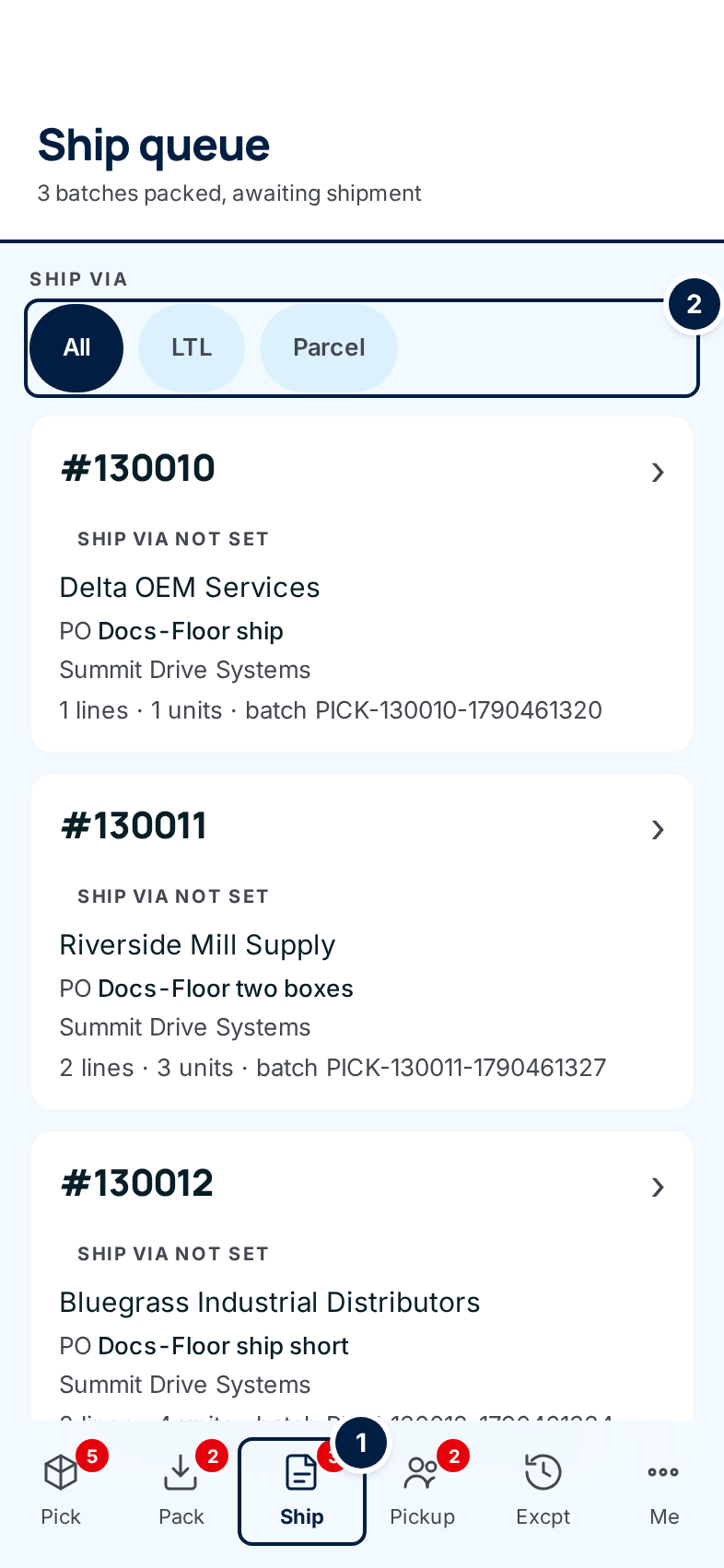
A Lane badge on a card means the packer moved the cartons to that shipping lane. Go there to find them.
-
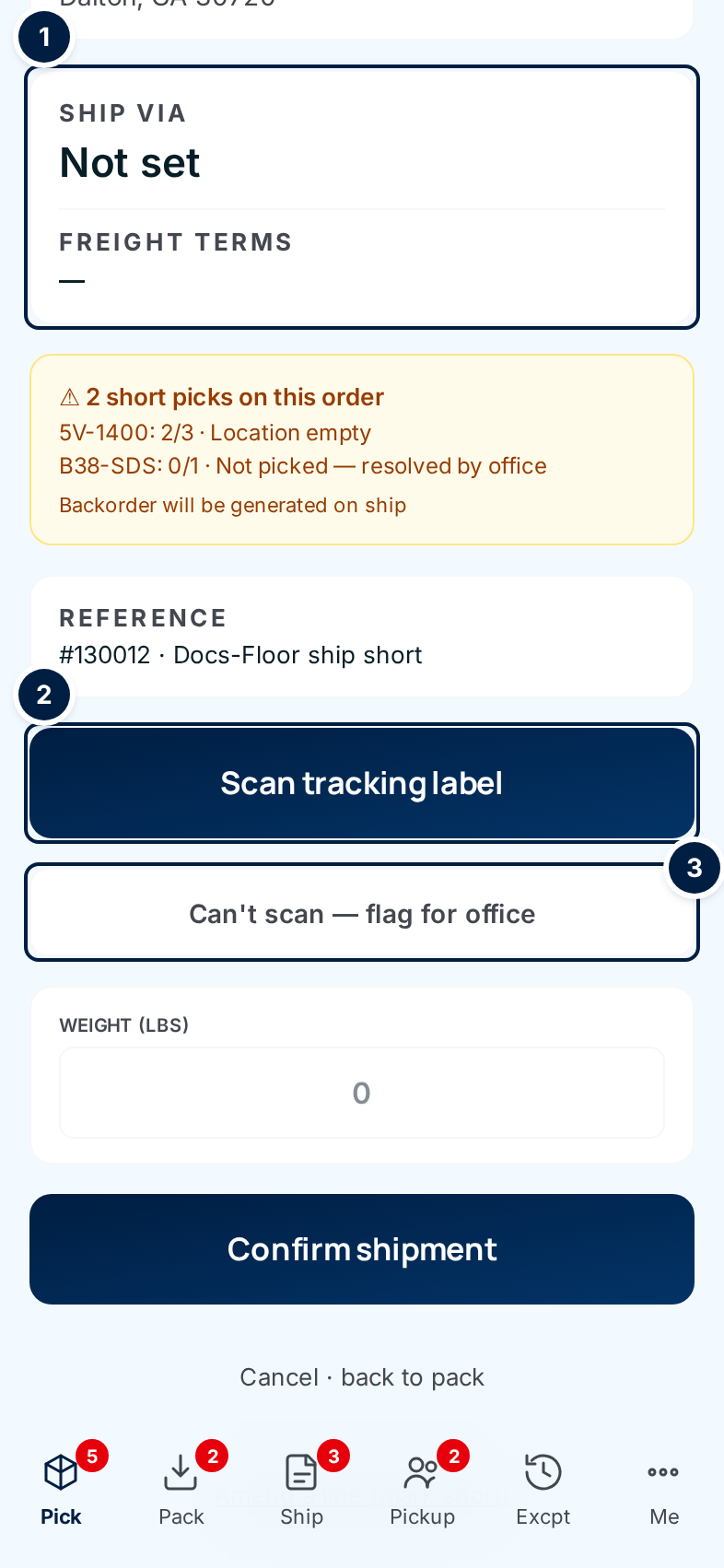
Check the paperwork. The top of the ship screen shows Ship to, then Ship via ① with the carrier and service, and Freight terms. Check them against the label. An amber Use this account box means the freight is billed to someone else's carrier account. Use the account number it shows.
-
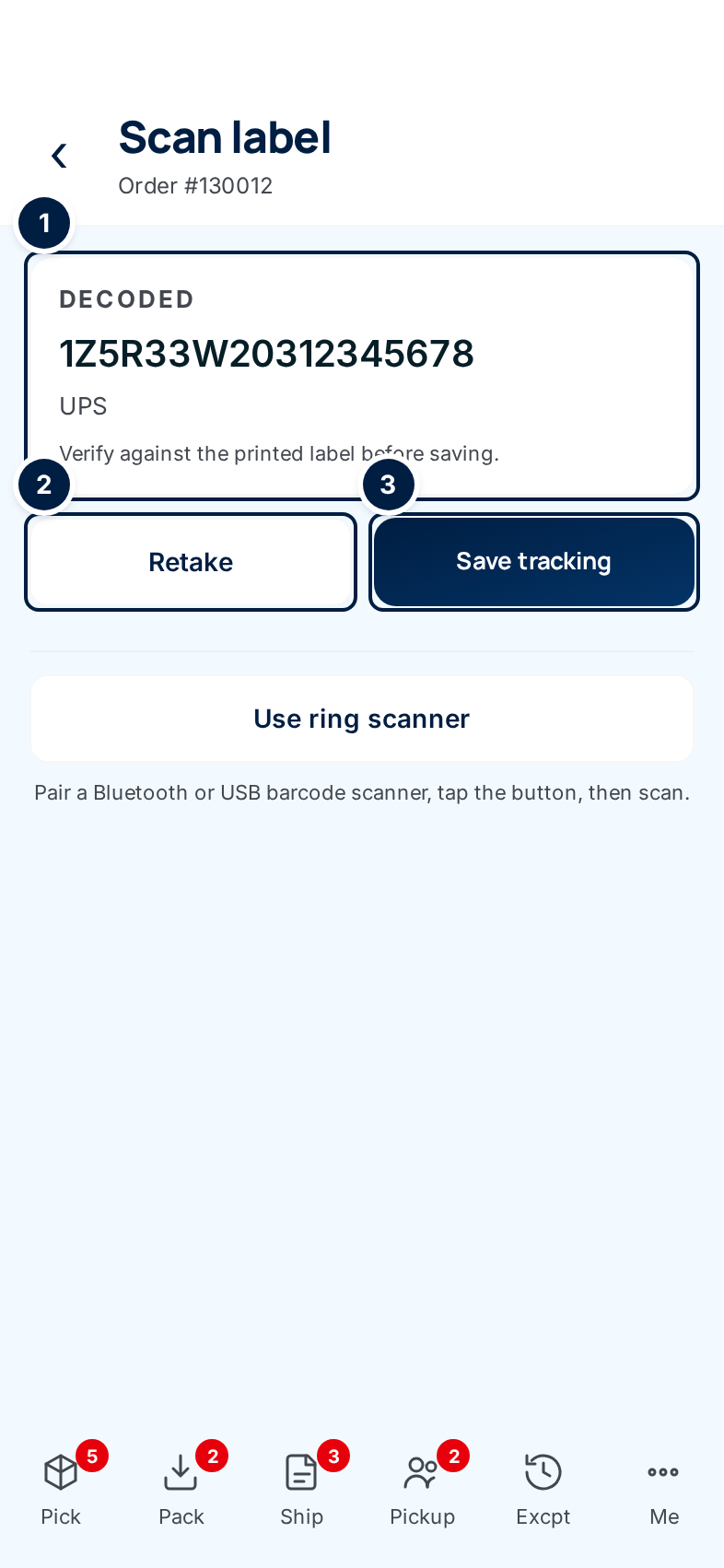
Scan the first box. Tap Scan tracking label ②. The camera opens. Point it at the carrier's barcode on the label and hold still. When it reads the code, the screen shows the number under Decoded ① and the carrier it recognised, such as UPS.
-
Check it and save. Compare the number with the printed label. If it's wrong, tap Retake ②. If it's right, tap Save tracking ③. You're back on the ship screen with the box listed.
-
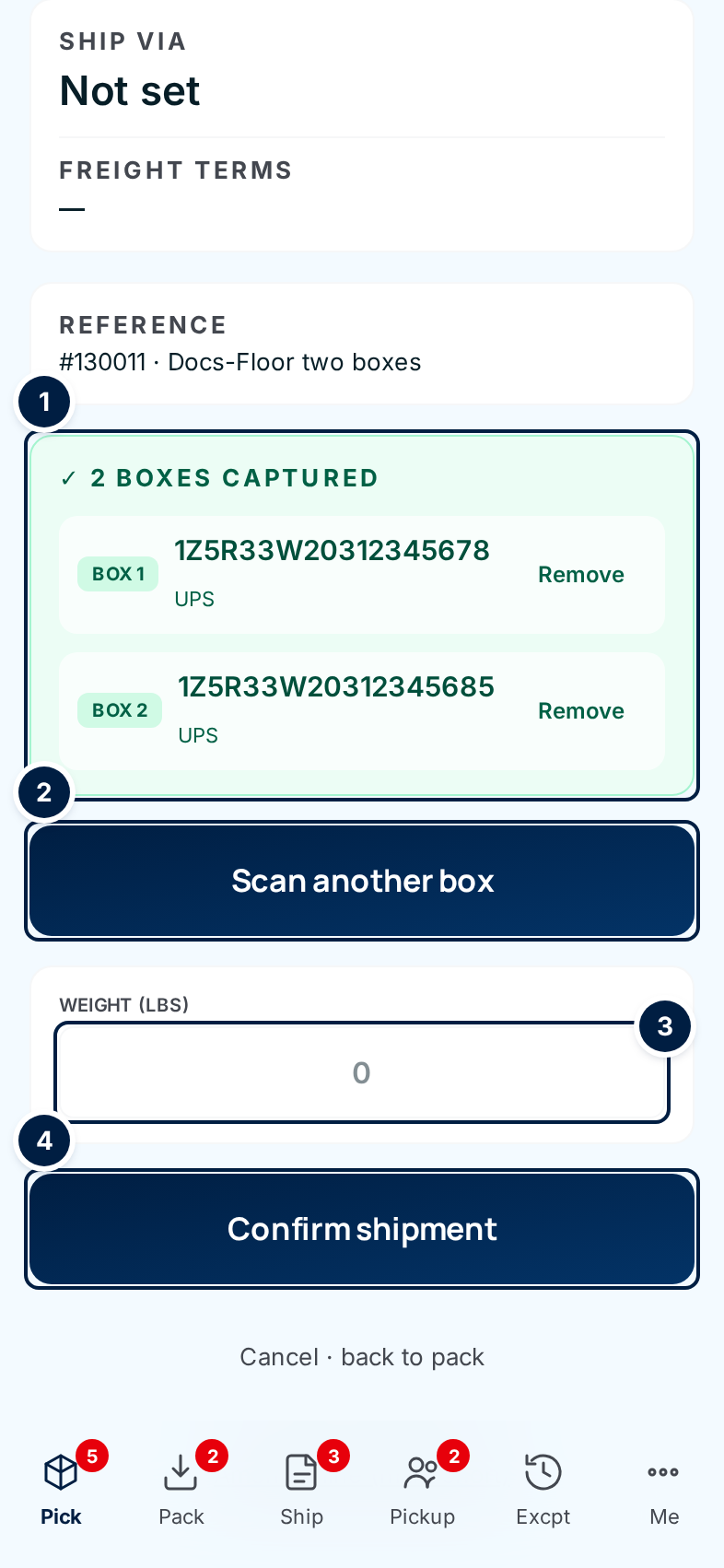
Scan every other box. Each scan is one box. Tap Scan another box ② for the next label, and repeat until every box on the order is listed under Boxes captured ①.
-
Remove a box you scanned by mistake. Tap Remove beside it. The button turns red and asks you to tap again. Tap it a second time to confirm. Then scan the right label. Boxes can't be edited in place.
-
Enter the weight (optional). Type the total weight in pounds in Weight (lbs) ③.
-
Confirm the shipment. Tap Confirm shipment ④. The button turns red and asks you to tap again, because this moves the stock. Tap it a second time. The Order shipped screen opens. Tap Next to ship for the next order in the queue, or Pack queue to go back to packing.
When a label won't scan
The camera reads UPS, FedEx and USPS labels only. For a torn or smudged label, a regional carrier, or an LTL freight bill, don't guess and don't type:
- Tap Can't scan — flag for office ③ on the ship screen (or Flag for office on the scan screen if the camera won't start).
- Check the ship screen. It now shows an amber Flagged for office note: Office will capture tracking later. Try scan again is there if the label turns up.
- Confirm the shipment as usual. The office adds the tracking number from their Pending tracking list.
Confirm shipment works even when no box has been scanned and nothing was flagged. The order then ships with no tracking number, and it does not appear on the office's Pending tracking list, so nobody is reminded to add one. Always scan every box, or flag the order, first. This gap has been reported to the ConsignTrak team.
Using a ring scanner
A Bluetooth or USB barcode scanner works too. On the Scan label screen, tap Use ring scanner, then scan the label. The number lands in the same Decoded panel. Check it and tap Save tracking.
Orders that ship short
Sometimes an order is packed with less than was ordered. The ship screen then shows an amber box listing every line that won't ship in full.
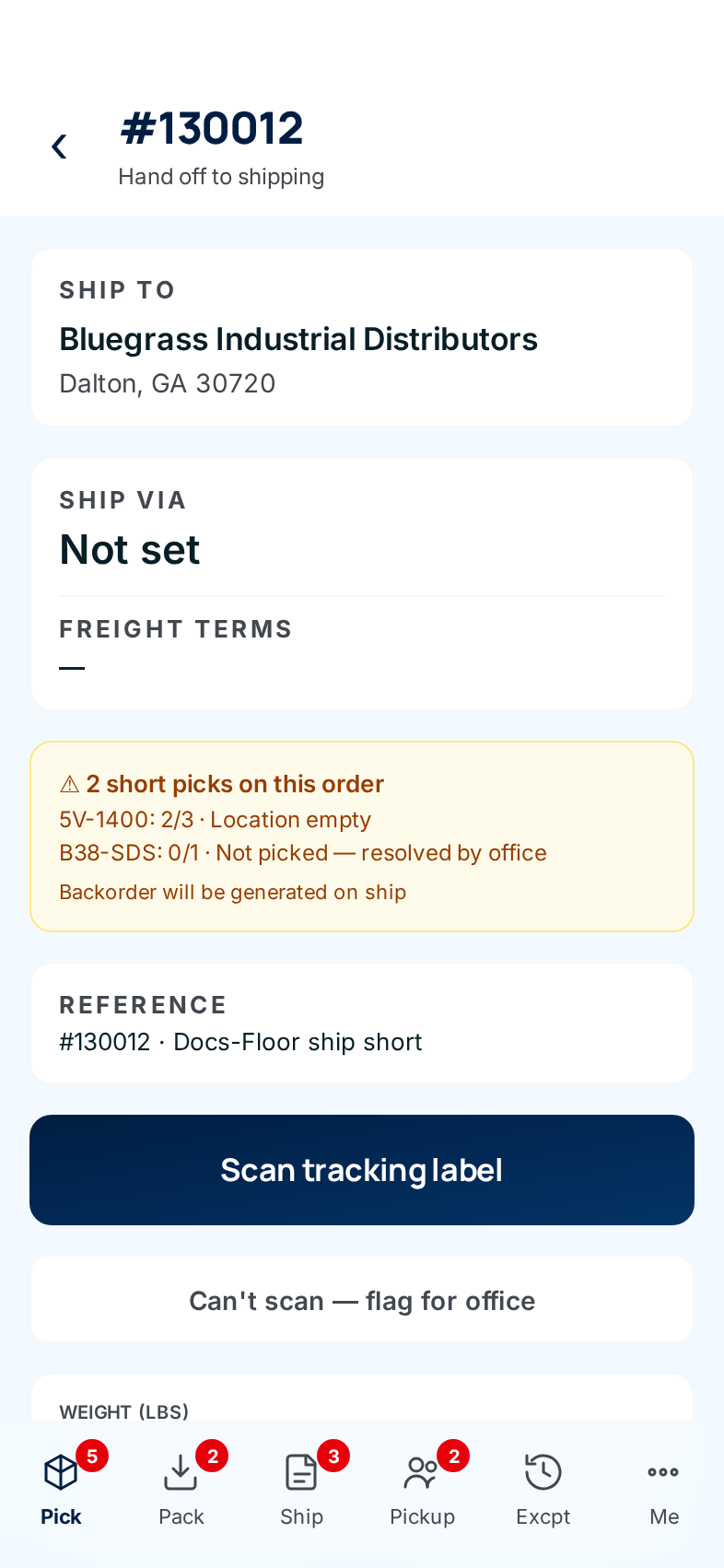
| What the line says | What happened | What happens when you ship |
|---|---|---|
| 2/3 · Location empty (or Damaged, Miscounted on hand, Other) | The picker found fewer than ordered. | The shortfall goes on backorder. |
| 0/1 | The picker skipped the line. | The whole line goes on backorder. |
| 0/1 · Not picked — resolved by office | The office told ConsignTrak to ship what's been picked and backorder the rest, before anyone reached this line. | The whole line goes on backorder. |
You don't need to do anything different. Scan the boxes and confirm as usual. ConsignTrak ships what was picked and puts the rest on backorder for the customer. If you think a short line should still be picked, stop and ask the office before you confirm. The office side is explained in The ship station.
Every field and option
Ship queue
| Field or control | What it means | Required | Default | What changes when you set it |
|---|---|---|---|---|
| Ship queue / n batches packed, awaiting shipment | The screen title and how many packed orders are waiting. | — | — | Read-only. |
| Ship via chips: All, LTL, Parcel | Filter by how the order ships. Tap the active chip again to clear it. | No | All | Only those orders are listed. |
| Order card | The Lane badge (when the cartons were moved to a lane), order number, Rush or High tag, ship-via, customer, customer PO and the supply partner's order number, supply partner, lines, units and batch number. | — | — | Tapping it opens the ship screen. |
| Nothing to ship | The queue is empty. It checks again every 30 seconds. Tap it to check now. | — | — | New orders appear on their own. |
Ship screen
| Field or control | What it means | Required | Default | What changes when you set it |
|---|---|---|---|---|
| Back arrow | Back to this order's pack screen. | — | — | — |
| Lane badge, order number, Hand off to shipping | Where the cartons are, and which order. | — | — | Read-only. |
| Ship to | The delivery name and address. | — | — | Read-only. The office changes it on the order. |
| Ship via | Carrier and service, with an LTL, Parcel or Will call tag. Not set if the order has none. | — | — | Read-only. |
| Freight terms | Who pays the freight: PREPAID, PREPAID & ADD, COLLECT or 3RD PARTY. A dash if not set. | — | — | Read-only. |
| Use this account | The carrier account to bill, and whose it is. | — | — | Read-only. Shown only when the order has one. |
| n short picks on this order | The lines shipping short, and why. | — | — | Read-only. See Orders that ship short. |
| Reference | Order number and customer PO. | — | — | Read-only. |
| Scan tracking label | Opens the camera to scan the first box. | Scan or flag | — | Adds a box when saved. |
| Can't scan — flag for office | The office will add tracking later. | Scan or flag | — | The order goes on the office's Pending tracking list. |
| Flagged for office · Try scan again | Shown after flagging. | — | — | Try scan again opens the camera. A saved box takes the order off Pending tracking. |
| Boxes captured: Box n, number, carrier | Every box scanned so far. | — | — | Read-only. |
| Remove | Deletes that box's tracking number. Asks you to tap again (red). | — | — | The box is removed from the shipment. |
| Scan another box | Opens the camera for the next box. | — | — | Adds a box when saved. |
| Weight (lbs) | Total shipment weight in pounds. | No | Empty | Recorded with the shipment in the audit trail. |
| Confirm shipment | Ships the order. Asks you to tap again (red). | — | — | Stock leaves, the order is Shipped, and Order shipped opens. |
| Cancel · back to pack | Leaves without shipping. | — | — | The order stays in the ship queue. Boxes already scanned stay on it. |
| Amend a line (mark short) | Meant for correcting a line. It opens the pack screen, which is locked once packed, so it doesn't work. Ask the office instead. | — | — | Nothing. This has been reported to the ConsignTrak team. |
Scan label screen
| Field or control | What it means | Required | Default | What changes when you set it |
|---|---|---|---|---|
| Back arrow | Cancels and returns to the ship screen. | — | — | Nothing is saved. |
| Camera view | Point the frame at the carrier's barcode. | — | — | Reads the label on its own. |
| Decoded and carrier | The number read, and the carrier it looks like: UPS, FedEx Express, FedEx Ground, FedEx SmartPost or USPS. | — | — | Read-only until you save. |
| We don't recognize this format. | The code isn't a known carrier's tracking number. | — | — | Save tracking will be refused. Retake, or flag for office. |
| Retake | Discards the read and scans again. | — | — | — |
| Save tracking | Saves the number as a new box. | — | — | Adds the box and returns to the ship screen. |
| Scan unavailable · Try again | The camera couldn't start. The message says why and how to allow it. | — | — | Try again restarts the camera. |
| Flag for office | Shown when the camera can't start. | — | — | Same as Can't scan — flag for office. |
| Back to ship | Shown when the camera can't start. | — | — | Returns to the ship screen. |
| Use ring scanner | Listens for a paired Bluetooth or USB scanner instead of the camera. | — | — | The next scan fills Decoded. |
Order shipped screen
| Field or control | What it means |
|---|---|
| Order shipped, order number, customer | Confirmation. |
| Carrier, Lines, Units picked, Short picks · backorder created | A summary of what went out. Carrier shows the order's freight terms. |
| Next to ship | Back to the ship queue. |
| Pack queue | Back to the pack queue. |
Not listed: the hidden form fields and the hidden box that receives a ring scanner's keystrokes.
What happens next
- The stock leaves. ConsignTrak records a stock movement for each line, and the supply partner's numbers update.
- The order is Shipped, with every box's tracking number on it. The office sees them on the order's page (see Shipment tracking).
- Short and unpicked quantities go on backorder for the customer.
- A flagged order waits for the office on Pending tracking until someone enters its numbers.
- A lane or area the order was in frees up.
Common problems
"We don't recognize this label format — try again or flag for office." — The code isn't a UPS, FedEx or USPS tracking number. You may have scanned a different barcode on the label. Tap Retake and aim at the tracking barcode. For freight and other carriers, flag for office.
"Tracking number is too short — try again or flag for office." (or too long, or has unexpected characters) — The camera read part of the code, or the wrong code. Tap Retake.
"Camera permission denied." — The phone blocked the camera. The message underneath says where to allow it. Then tap Try again.
"No camera on this device." — Use a ring scanner, or flag for office.
"Network error saving tracking. Check connection and retry." — The phone lost signal. Move somewhere with signal and tap Retry save.
"Cannot ship — order is blocked" — A pick exception on this order is waiting for the office. Shipping stays paused until they resolve it.
I confirmed without scanning anything. — The order shipped with no tracking and the office wasn't told. Tell the office, so they can add the numbers from the order's Edit tracking page.
A line needs correcting after packing. — The Amend a line link doesn't work. Ask the office, who can resolve it before you ship.
"Ship failed" — Something went wrong on the server. Refresh and try again. If it keeps happening, get the office.