Packing an order
What this is
Packing is the last check before the box is closed. On the pack screen you tick each line once the goods in front of you match it, count the cartons, and mark the order packed. Each tick saves the moment you tap it, with your name and the time, so this is the warehouse's recorded quality check. Once it's packed, the order moves to the ship queue.
Before you start
- Role: Warehouse, Office or Administrator, on a phone or tablet. The desktop pack queue is view-only.
- Settings: none. The line check is always on.
- You'll need: an order that has been picked and handed off to packing. Will-call orders never come here. They go to Will-call pickup.
Step by step
-
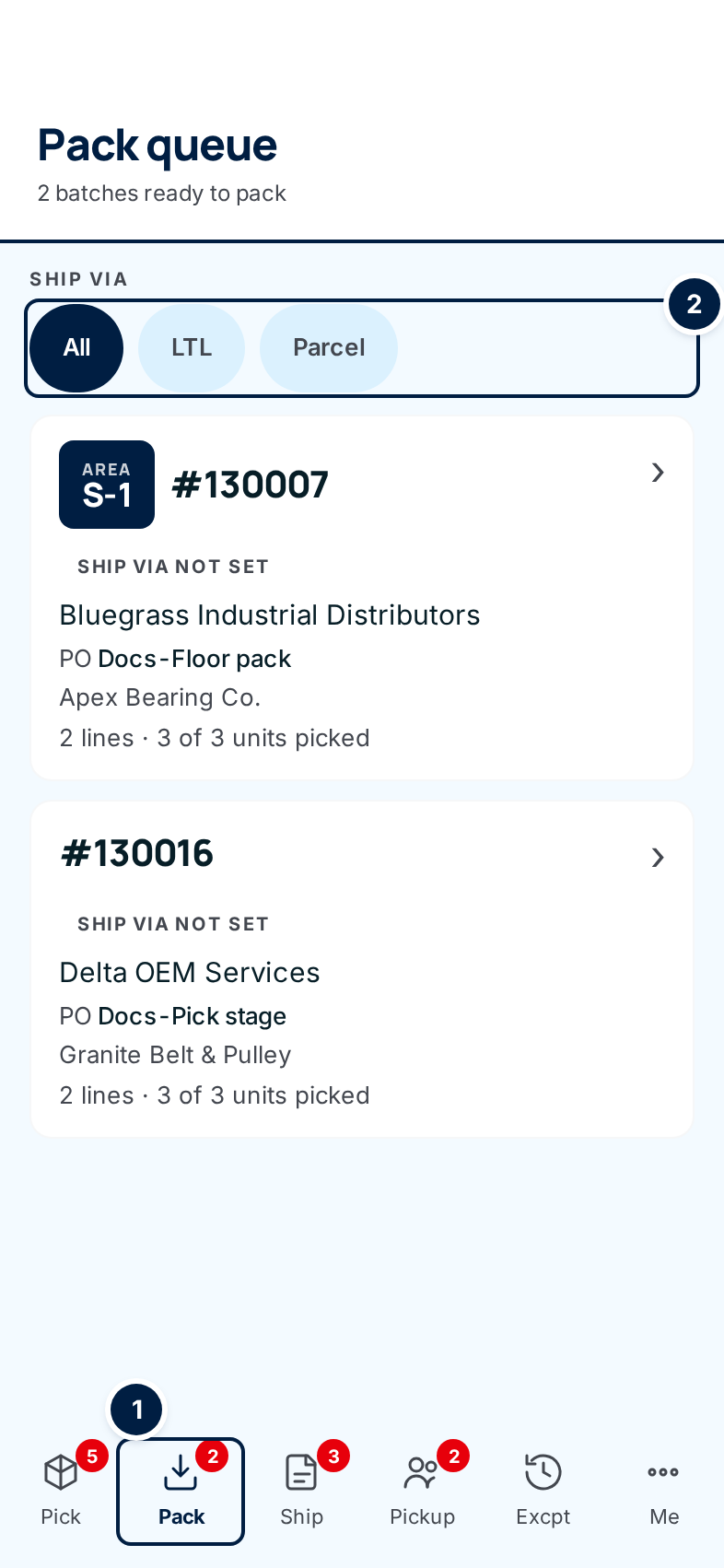
Open the pack queue. Tap Pack ① in the bottom bar. Each card is an order waiting to be packed, led by the area it's sitting in. Use the Ship via chips ② to show only LTL or Parcel orders.
-
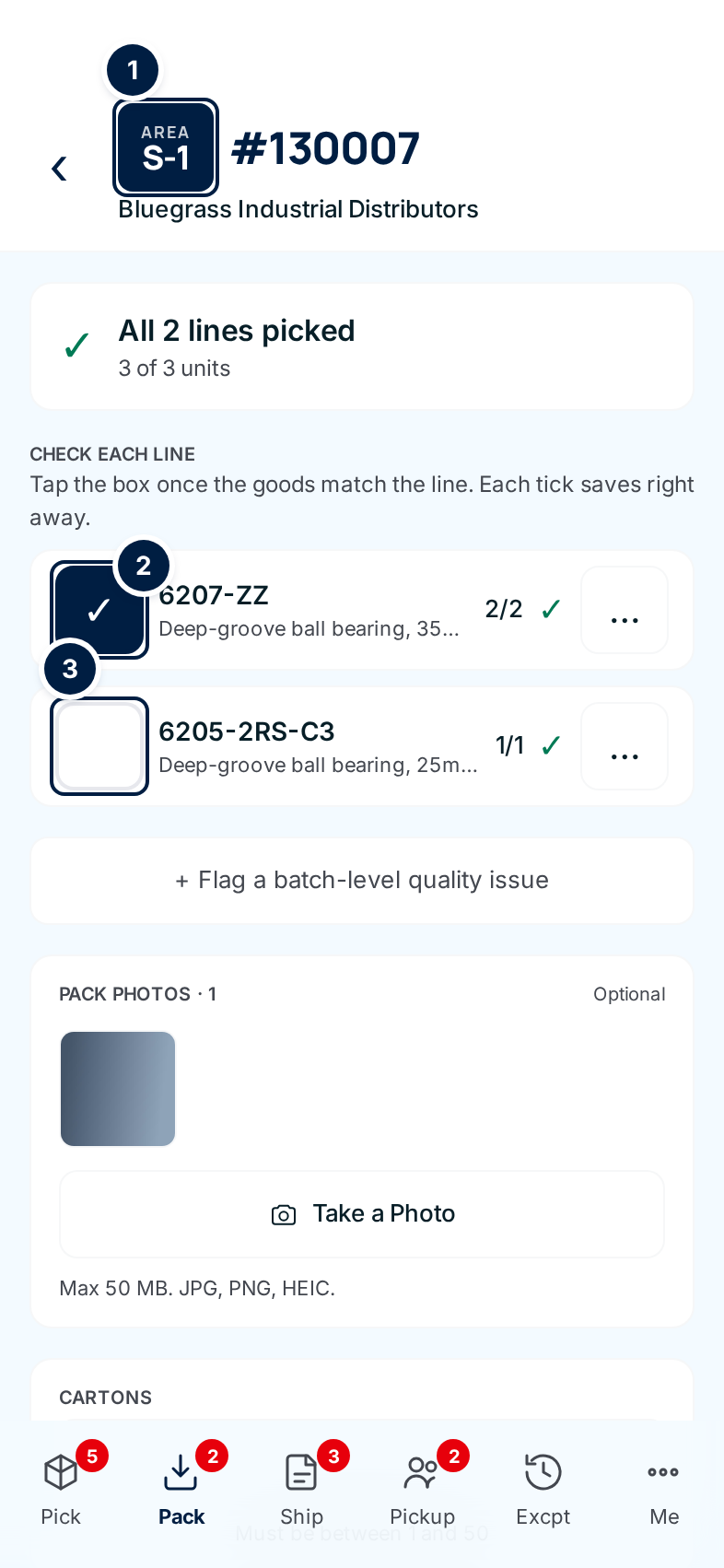
Go to the area and open the order. Find the goods on the placard that matches the Area badge, then tap the card. The pack screen opens with the area ① and order number at the top, and the customer underneath. Check the customer against the label you'll be putting on the box.
-
Print the supply partner's packing list, if there is one. When the supply partner sent their own packing list with the order, an amber Supply partner packing list panel appears near the top. Tap it to open the list, print it, and put it in the box.
-
Check each line. Under Check each line, compare the goods with each line's part number, description and quantity. When they match, tap the box beside the line. It fills in navy with a tick ②. An empty box ③ is a line you haven't checked yet. Tap a ticked box again to untick it.
Each tap saves straight away. You can flag a problem, take a photo or walk away, and your ticks will still be there when you come back.
-
Flag anything that doesn't match. Don't tick a line that's wrong. Tap the ⋯ button at the end of the line instead.
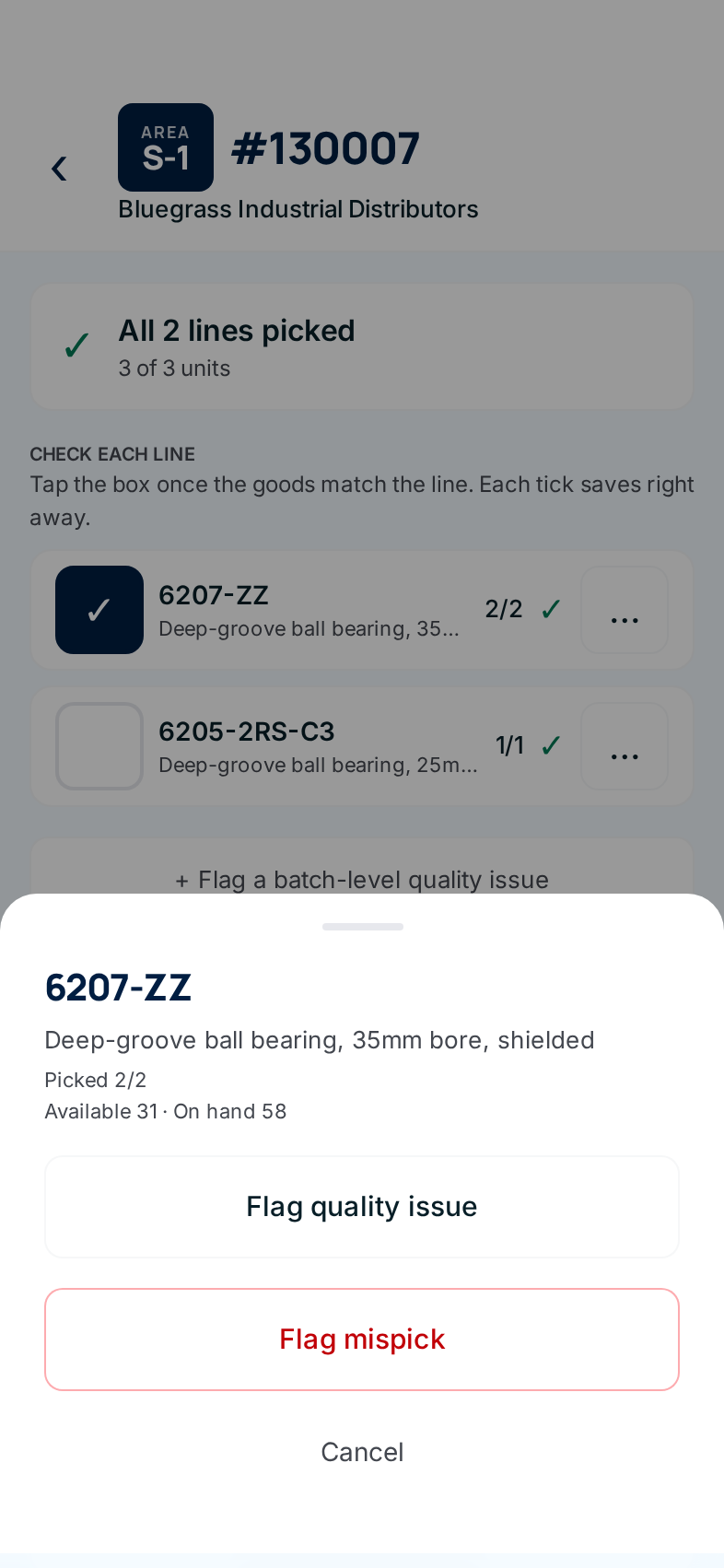
- Flag quality issue — the goods are damaged, mislabelled or badly packaged.
- Flag mispick — it's the wrong item or the wrong quantity. The button turns red and asks you to tap again. Tap it a second time to confirm.
Both open a short form where you choose a reason and can add a photo (see Picking). The office reviews the flag. A problem that isn't tied to one line, such as the whole shipment's labels being wrong, goes under + Flag a batch-level quality issue below the lines.
-
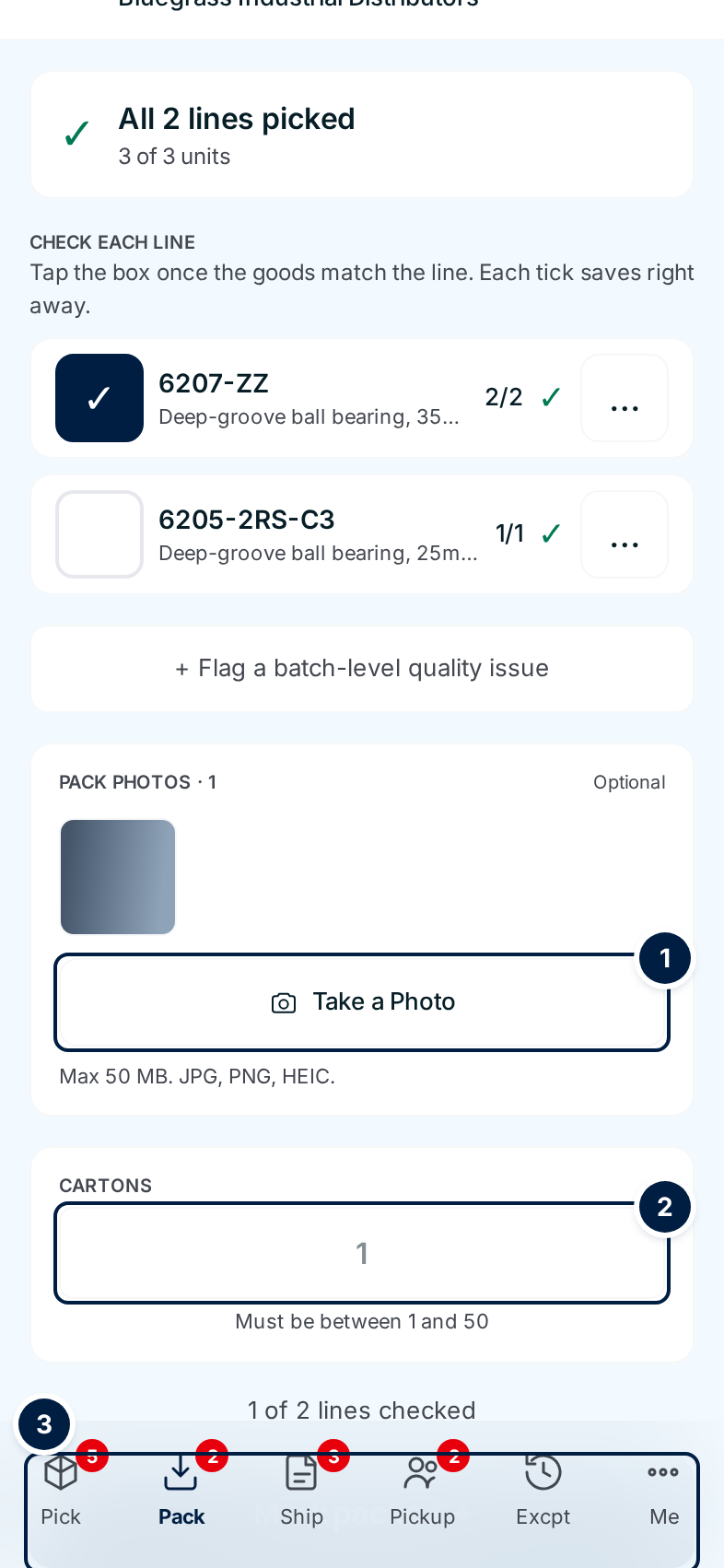
Take pack photos (optional). Under Pack photos, tap Take a Photo ①. The camera opens. The photo saves as soon as you take it and shows as a thumbnail. Tap again for another one. A photo of the open box settles "it arrived damaged" questions later.
-
Enter the cartons. Type how many cartons the order fills in Cartons ②, from 1 to 50.
-
Send the cartons to a shipping lane (optional). If your warehouse has shipping lanes set up, a Cartons going to row appears under Cartons. Leave it on Staying here if you're shipping from where you stand. Tap a lane's code if the boxes are moving to the dock, so the shipper knows where to find them. The demo warehouse in these pictures has no lanes, so the row isn't shown.
-
Mark it packed. Mark packed ③ stays greyed out until every line is ticked. The line above it says how many are done, such as 1 of 2 lines checked. Tap it to jump back to the lines. When every box is ticked, tap Mark packed. The button turns amber and asks you to tap again. Tap it a second time to confirm.
The ship screen for the same order opens next, so you can scan the labels straight away (see Shipping an order).
Every field and option
Pack queue
| Field or control | What it means | Required | Default | What changes when you set it |
|---|---|---|---|---|
| Pack queue / n batches ready to pack | The screen title and how many orders are waiting. | — | — | Read-only. |
| Ship via chips: All, LTL, Parcel | Filter by how the order ships. Tap the active chip again to clear it. Will-call orders never reach packing, so there's no Will call chip here. | No | All | Only those orders are listed. |
| Order card | The Area badge (or Direct handoff when the picker handed it straight to you), order number, Rush or High tag, ship-via, customer, customer PO and the supply partner's order number, supply partner, lines and units picked. | — | — | Tapping it opens the pack screen. |
| Nothing to pack | The queue is empty. It checks again every 30 seconds. Tap it to check now. | — | — | New orders appear on their own. |
Pack screen
| Field or control | What it means | Required | Default | What changes when you set it |
|---|---|---|---|---|
| Back arrow | Back to the pick queue. | — | — | Nothing is lost; ticks are already saved. |
| Area badge, order number, customer | Where the goods are waiting, which order, and who it's for. Direct handoff replaces the area when the picker handed the goods straight over. | — | — | Read-only. |
| All n lines picked | Units picked out of units ordered, and how many short picks were noted. | — | — | Read-only. |
| Supply partner packing list | The supply partner's own packing list for this order. Shown only when they attached one. | — | — | Opens it in a new tab to print. |
| Line tick box | The goods match this line. | Yes, every line | Unticked | Saved at once with your name and time. Locked once the order is packed. |
| Part number, description, picked/ordered, ✓ or ! | The line, and whether it was picked in full (✓) or short (!). | — | — | Read-only. |
| Mispick flagged · needs review / Quality flag · reason | This line has an open flag. The row gets an amber border. | — | — | Read-only. |
| ⋯ (line menu) | Opens the line's actions, with its stock (Available, On hand). | — | — | — |
| Flag quality issue | Opens the quality form for this line. | — | — | Creates a quality flag for the office. |
| Undo quality flag | Shown instead when the line has a quality flag. Withdraws it. | — | — | Works until the office has reviewed it. |
| Flag mispick | Opens the mispick form for this line. Asks you to tap again (red). | — | — | Creates a mispick for the office. Packing stops until it's resolved. |
| Undo mispick flag | Shown instead when the line has a mispick. Withdraws it. | — | — | Works until the office has reviewed it. |
| Cancel | Closes the line menu. | — | — | Nothing. |
| + Flag a batch-level quality issue | A quality problem with the whole order, not one line. | — | — | Opens the quality form without a line. |
| Batch-level quality flags · Undo | The open whole-order flags, with a button to withdraw each. | — | — | Undo works until the office has reviewed it. |
| Pack photos · Take a Photo | Optional photos of the packed goods. Opens the camera. | No | — | Each photo saves on capture and appears as a thumbnail. Tap one to open it full size. |
| Cartons | How many cartons, 1 to 50. | Yes | Empty | Recorded with the pack. |
| Cartons going to: Staying here or a lane code | Where the boxes go after packing. Shown only when shipping lanes exist. | No | Staying here | The order appears in the ship queue under that Lane. |
| n of n lines checked | Progress on the line check. Tap it to jump to the lines. | — | — | — |
| Mark packed → | Finishes packing. Greyed out until every line is ticked. Asks you to tap again (amber). | — | — | The order moves to the ship queue and the ship screen opens. |
| Already packed — go to shipping → | Shown instead when the order is already packed. | — | — | Opens the ship screen. |
| Back to picking | Returns to this order's picking screens. | — | — | — |
Not listed: the hidden form fields and the page's own photo upload control, which Take a Photo stands in for.
What happens next
- The order moves to the ship queue and the ship screen opens for it. Anyone can pick it up from Ship in the bottom bar.
- The staging area frees up for the next picked order. If you chose a lane, the order shows that Lane in the ship queue instead.
- Your ticks are locked. They can't be changed after packing. If the office later sends a line back for re-picking, that line's tick is cleared and must be checked again.
- Photos go on the order. The office sees them on the order's Pack photos card.
- No stock moves yet. Stock leaves only when the shipment is confirmed.
The goods belong to the supply partner, and the warehouse answers to them for what went out. A record of who checked each line, and when, settles "that wasn't in the box" disputes without anyone relying on memory.
Common problems
Mark packed stays greyed out. — A line isn't ticked yet. The line above the button says how many are done. Tap it to jump to the lines.
"Check every line first" — Mark packed was sent with a line still unticked. Tick the remaining lines and try again.
"Resolve n mispick flags before marking packed." — A line has an open mispick. The office has to review it first. Ask them, or undo the flag from the line's ⋯ menu if you flagged it by mistake.
"Resolve n damaged-carton quality flags before marking packed." — A damaged-carton flag holds packing until the office reviews it. Other quality flags (illegible label, packaging, other) don't.
"Cannot pack — order is blocked" — A short pick or mispick on this order is waiting for the office. Leave the order where it is. Packing opens again once the office resolves it.
"Cartons out of range" — Enter a number from 1 to 50.
"Photo too large — max 50 MB. Try a smaller image." — Take the photo again at a lower resolution.
A HEIC photo is refused. — The hint under Take a Photo says HEIC is accepted, but it isn't yet. Set the camera to save JPG ("Most Compatible" on an iPhone). This gap has been reported to the ConsignTrak team.
The office can't see which lines I ticked. — Correct, for now. The office order page shows only who packed the order and when. This gap has been reported to the ConsignTrak team.
"Pack failed" — Something went wrong on the server. Refresh the page and try again. If it keeps happening, get the office.