Your phone is the terminal
What this is
On the warehouse floor there's no desktop computer to walk back to. You pick, pack, ship, receive and report problems on your phone, in its web browser. This page covers the basics you use on every screen: getting ConsignTrak onto your phone, the tabs along the bottom, taking photos, scanning labels, and what to do when the signal is poor.
It's written for Warehouse users. Office staff and administrators get a different home screen and bottom bar on a phone (see Who sees what), but the photo, scanning and signal advice below applies to everyone.
Before you start
- Role: Warehouse. Any staff role can use the phone layout.
- Settings: none.
- You'll need:
- A phone with a working rear camera and a current web browser: Safari on an iPhone, Chrome on Android.
- Your ConsignTrak web address, username and password from your administrator. Signing in is covered in Signing in.
- Optional: a Bluetooth ring scanner paired to the phone, if the warehouse uses them.
ConsignTrak shows the phone layout to phones only. An iPad or Android tablet gets the desktop layout, which works well on the bigger screen.
Step by step
-
Put ConsignTrak on your home screen. Open your ConsignTrak web address in Safari or Chrome and sign in. Then:
- iPhone (Safari): tap the Share button, then Add to Home Screen.
- Android (Chrome): tap the ⋮ menu, then Add to Home screen.
Tap the new shortcut from now on instead of typing the address. For now the shortcut gets your phone's plain web-page icon and opens in a normal browser tab.
-
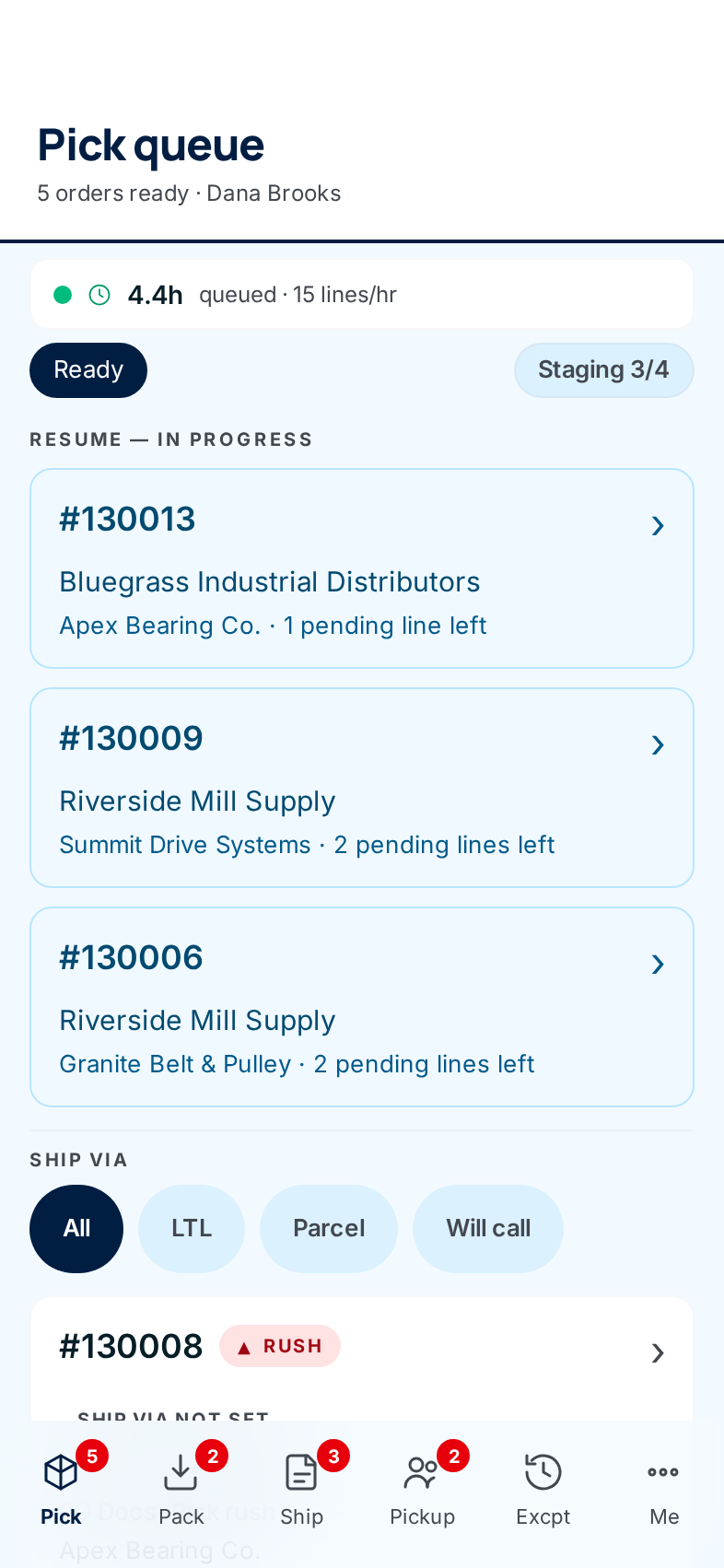
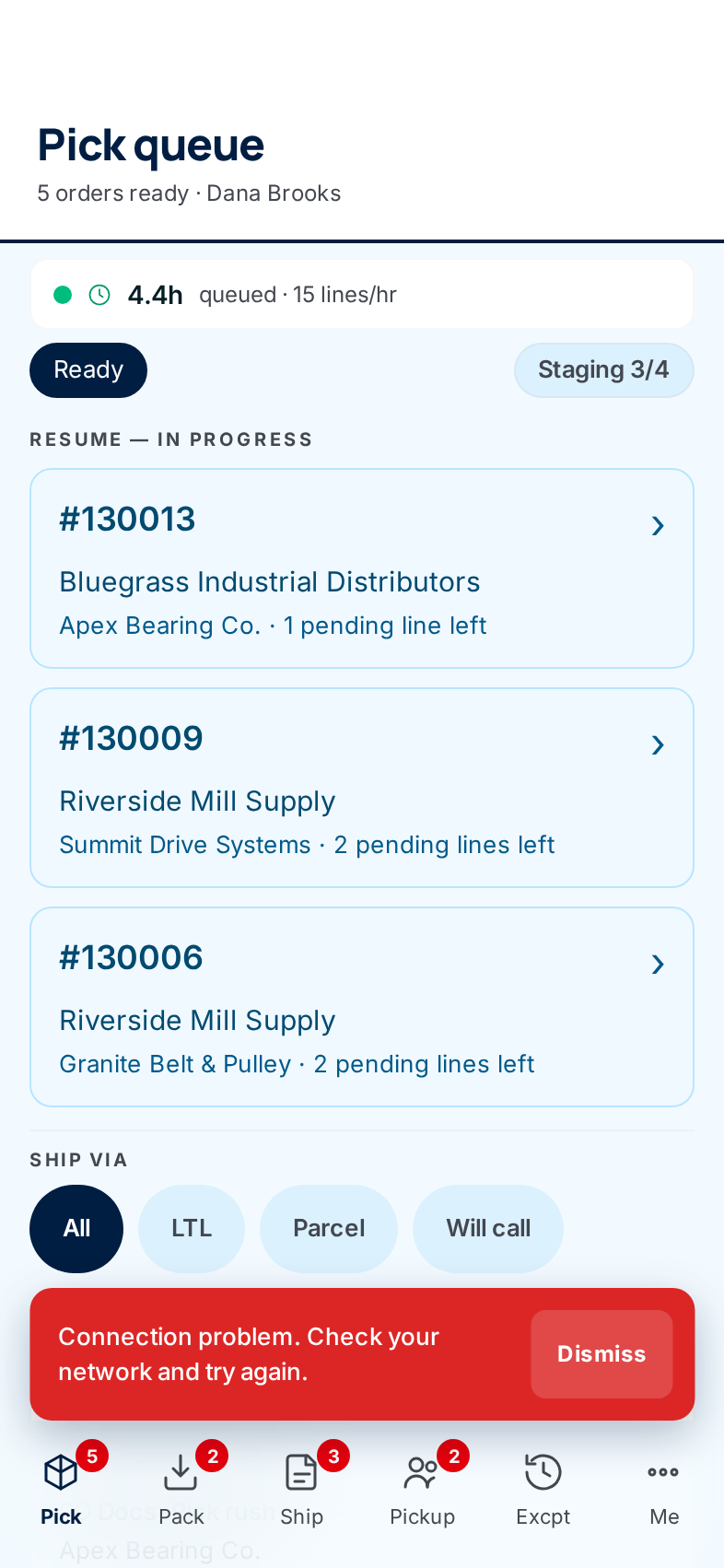
Start from the Pick queue. As a Warehouse user you land on the Pick queue every time you sign in or tap the shortcut. It's your home screen: the orders ready to pick, and any pick you started and haven't finished under Resume — in progress. Picking itself is covered in Picking.
-
Move between jobs with the bottom bar. The bar stays at the bottom of every screen. Left to right:
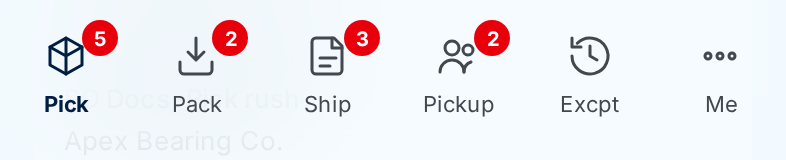
Tab What it's for Pick The Pick queue: orders waiting to be picked. See Picking. Pack The Pack queue: picked orders waiting to be checked and boxed. See Packing, shipping & pickup. Ship Packed orders waiting for tracking and the ship confirmation. See Packing, shipping & pickup. Pickup Only appears while a will-call order is waiting for the customer to collect it. It disappears again when there's nothing waiting. Excpt Pick exceptions: problems reported on the floor (short picks, mispicks, quality flags) that are waiting for the office, plus any stock you've been asked to put back on the shelf. See Exceptions & quarantine. Me Everything else: the Warehouse and Inventory screens, View desktop site and Sign out. A red number on a tab is how many things are waiting there. Pick, Pack, Ship, Pickup and Excpt all show one when there's work. No number means that queue is empty.
-
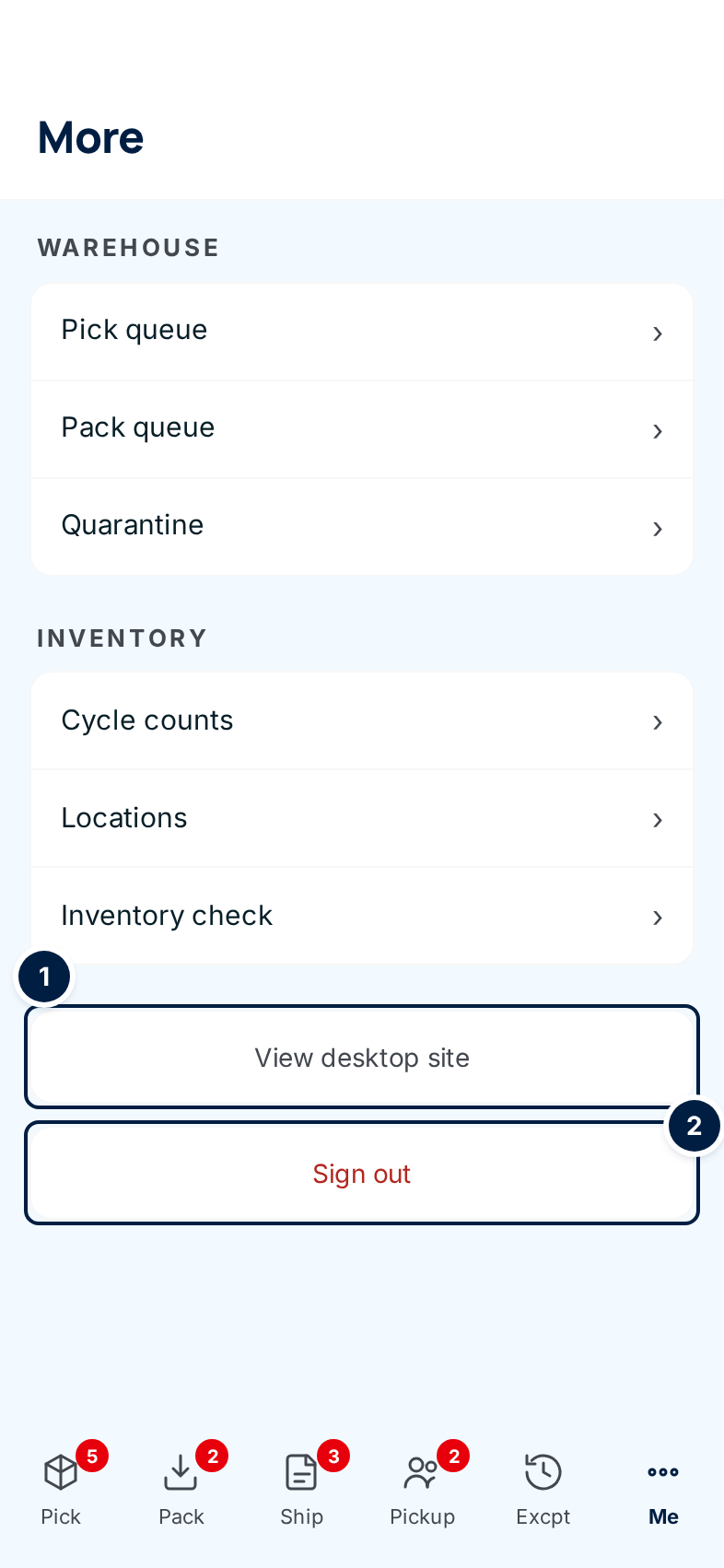
Find everything else under Me. Tap Me. The page is titled More and lists the screens your role can open:
- Warehouse: Pick queue, Pack queue, Quarantine.
- Inventory: Cycle counts, Locations, Inventory check.
① View desktop site switches this phone to the computer layout. ② Sign out ends your session on this phone. Sign out before you hand a shared phone to someone else.
-
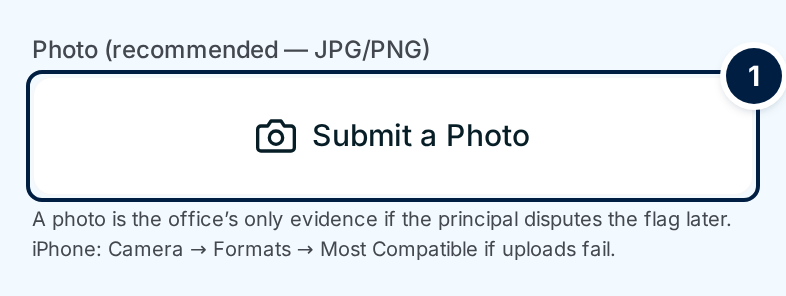
Take photos with the camera. Every place that wants a picture (a damaged receipt, a packed box, a will-call pickup, a pick problem) shows a button like Take a Photo or Submit a Photo ①. Tapping it opens the phone's rear camera straight away. It never opens your photo library or files. That's deliberate: a photo taken in the moment is evidence; a photo picked from the library could be from anywhere.
How the photo is saved depends on the screen:
- Saved as soon as you take it. Receiving damage photos, pack photos, pickup photos, quarantine photos and document photos upload the moment you tap the camera's Use Photo (iPhone) or ✓ (Android). A small thumbnail appears. To add another, tap Take a Photo again. Photos build up one at a time.
- Saved when you send the form. On the report-a-problem forms (a mispick or a quality problem), the button changes to Photo attached — tap to replace with the file name. To retake, tap it again and take a new picture. The new one replaces the old one. The photo goes to the office when you send the form.
-
Scan barcodes instead of typing. You're never asked to type a long code on the floor. Where a label has one, you scan it:
- Carrier tracking labels. On the ship screen, tap Scan tracking label. Point the camera at the carrier barcode inside the frame. ConsignTrak shows the number it read and the carrier. Check it against the printed label, then tap Save tracking, or Retake to scan again.
- Driver's license at will-call pickup. Scan driver's license reads the name from the barcode on the back. Type name instead is always there if the customer would rather not.
- Ring scanner. If you have a paired Bluetooth or USB scanner, tap Use ring scanner on the scan screen, then scan. The scanner types the code for you.
- Bin labels. The phone camera doesn't read bin labels today. Bin codes are short (like A-01-1), so type them where a screen asks, or use a paired ring scanner.
The first time you scan, the phone asks whether ConsignTrak may use the camera. Tap Allow.
-
Use the desktop layout only when you need it. View desktop site (under Me, or Switch to desktop view on the sign-in page) shows the computer layout on your phone. It's there for the rare screen that only exists on a desktop. It's the wrong choice for picking, packing, shipping or receiving: the buttons are small, there's no bottom bar and the camera shortcuts aren't there. The phone remembers the choice for 30 days. To switch back, open the account menu (your initials, top right) and choose View mobile site.
Every field and option
The bottom bar and Me page for Warehouse users:
| Field or control | What it means | Required | Default | What changes when you set it |
|---|---|---|---|---|
| Bottom bar: Pick | The Pick queue. Red number: orders ready to pick. | — | — | Opens the Pick queue, your home screen. |
| Bottom bar: Pack | The Pack queue. Red number: orders waiting to pack. | — | — | Opens the Pack queue. |
| Bottom bar: Ship | Packed orders waiting to ship. Red number: how many. | — | — | Opens the Ship queue. |
| Bottom bar: Pickup | Will-call orders waiting for the customer. Shown only while there's at least one. | — | Hidden | Opens the Pickup queue. |
| Bottom bar: Excpt | Pick exceptions awaiting the office, and put-back tasks. Red number: how many are open. | — | — | Opens Pick exceptions. |
| Bottom bar: Me | Everything else. The page it opens is titled More. | — | — | Opens the More page. |
| More: Pick queue | Same as the Pick tab. | — | — | Opens the Pick queue. |
| More: Pack queue | Same as the Pack tab. | — | — | Opens the Pack queue. |
| More: Quarantine | Received goods held back from stock until someone checks them. See Receiving, quarantine & counts. | — | — | Opens the quarantine list. |
| More: Cycle counts | Counts assigned to the floor. | — | — | Opens the counts list. |
| More: Locations | Bins and what's in each. See Looking things up. | — | — | Opens the locations list. |
| More: Inventory check | Look up stock for one or many part numbers. Changes nothing. | — | — | Opens Inventory check. |
| More: Supply Partners, Customers, Units of measure | Office and Administrator only. Warehouse users don't see them. | — | — | Opens that list. |
| More: Users, Settings | Administrator only. | — | — | Opens that administration screen. |
| More: View desktop site | Shows the computer layout on this phone. | — | Off | Remembered on this phone for 30 days. |
| More: Sign out | Ends your session on this phone only. | — | — | Returns to the sign-in page. |
| View desktop site (bottom of any page) | Shown only on a computer that was switched to the phone layout. Switches it back. | — | Hidden | Remembered on that computer. |
| Message banner × | Closes the message shown at the top of a screen after you save something. | — | — | Hides the message. |
| Error page: Back to home | Leaves the error for your home screen (the Pick queue). | — | — | Opens your home screen. |
| Error page: Reload page | Shown only on Page out of date. Opens the page you were on again. | — | — | Reloads that page. |
| Connection message: Dismiss / Reload | Closes the message, or reloads the screen when the message offers it. | — | — | See Common problems. |
The sign-in page's fields are covered in Signing in. The office and administrator phone home screens are covered in Dashboard.
What happens next
- Nothing on this page changes stock. The bottom bar, Me and the layout switch only move you around.
- Photos you take are attached to the receipt, order or report they belong to. The office sees them on the desktop.
- Scanned tracking numbers are saved on the shipment. The office sees them on the order.
- Warehouse sessions last 2 hours. After that the phone asks you to sign in again (see How long you stay signed in).
Common problems
"Connection problem. Check your network and try again." — The phone lost touch with ConsignTrak, so what you tapped probably didn't save. Move somewhere with better signal or Wi-Fi. Before you tap it again, reload the screen and check: if the signal dropped just as the reply was coming back, the change may already be there.
"Something went wrong (HTTP …). Try again." — ConsignTrak received the tap but couldn't finish it. Try once more. If it keeps happening, tell the office what you were doing and the number shown.
"This page is out of date. Reload and try again." with a Reload button, or a whole screen titled Page out of date — The screen was open too long. Tap Reload (or Reload page) and do it again.
"This batch has moved on from packing, so the check was not saved. Reload to see where it is now." — Someone else finished or changed this order while you had it open. Tap Reload.
A screen won't load at all, or the browser shows its own "can't connect" page. — The phone is offline. Check Wi-Fi or mobile data, then pull down to refresh or tap the browser's reload button. You won't lose anything that already saved.
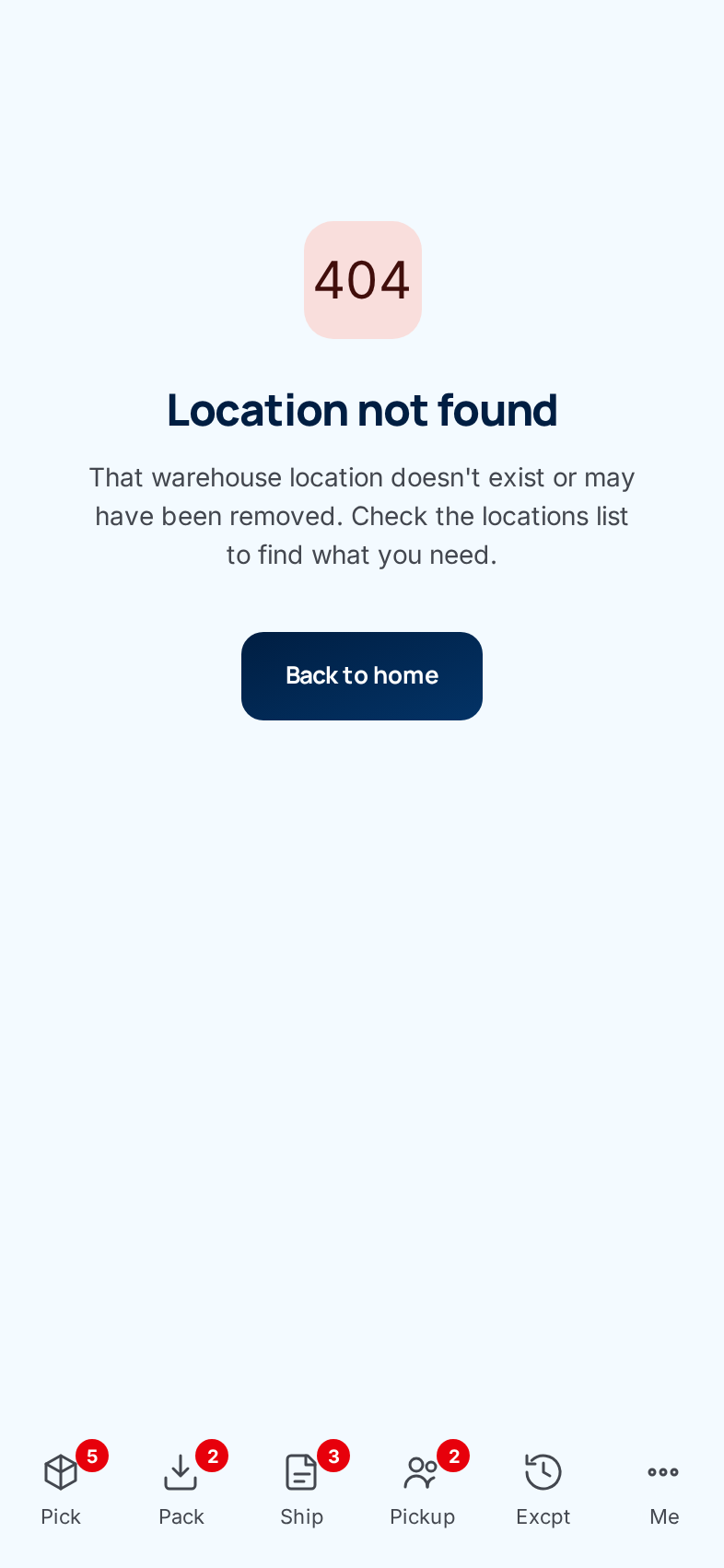
A page titled "… not found" with a 404. — The order, bin or item has been removed, or the address was mistyped. Tap Back to home.
"Camera permission denied." — You tapped Don't Allow when the phone asked. On an iPhone, open Settings → Safari → Camera and choose Allow. On Android, tap the lock icon in the address bar, then Permissions → Camera. Then tap Try again.
"Camera blocked by the app." — This is a ConsignTrak setting, not your phone. Tell the office, and Flag for office instead of scanning.
"We don't recognize this format." — The barcode read, but it doesn't look like a tracking number from a carrier ConsignTrak knows. Check the printed label. Retake, or flag it for the office.
My iPhone photo won't upload. — The phone may be saving photos in its space-saving format. Open Settings → Camera → Formats and choose Most Compatible, then take the photo again.
I took the wrong photo and it already saved. — Photos that save the moment you take them can't be removed from the phone. Tell the office which one is wrong.
My phone shows the desktop layout. — Someone chose View desktop site on this phone. Open the account menu (your initials, top right) and choose View mobile site.
I got signed out in the middle of a job. — Warehouse sessions end after 2 hours. Sign in again. Picks you'd recorded are kept, and your order is waiting under Resume — in progress on the Pick queue.