Items on your phone
What this is
On the floor, the question is usually "do we have it, and where is it?" Inventory check answers that for one part or a whole list. Tap a result and the item's page shows how many are on hand, how many are promised to orders, which bin it lives in, and what moved lately. Office users and Administrators can also adjust stock from the item's page.
Everything here is a lookup except Adjust, Edit and + New. The desktop versions are covered in Inventory & items.
Before you start
- Role: anyone can use Inventory check, the Items list and an item's page. Adjust, Edit, + New and the item's History screen are for Office users and Administrators only (see the caution below).
- Settings: none.
- You'll need: a part number, an alias, or a few words of the description. See How items are identified for why the same part can be written several ways.
On a phone, Edit, Adjust, + New and History show for everyone. If you're a Warehouse user, tapping one of them opens an Access denied page. Tap the back arrow to return. This is a known issue.
Step by step
Check stock for one or more parts
-
Open Inventory check from Me (Warehouse) or More (Office and Administrator).
-
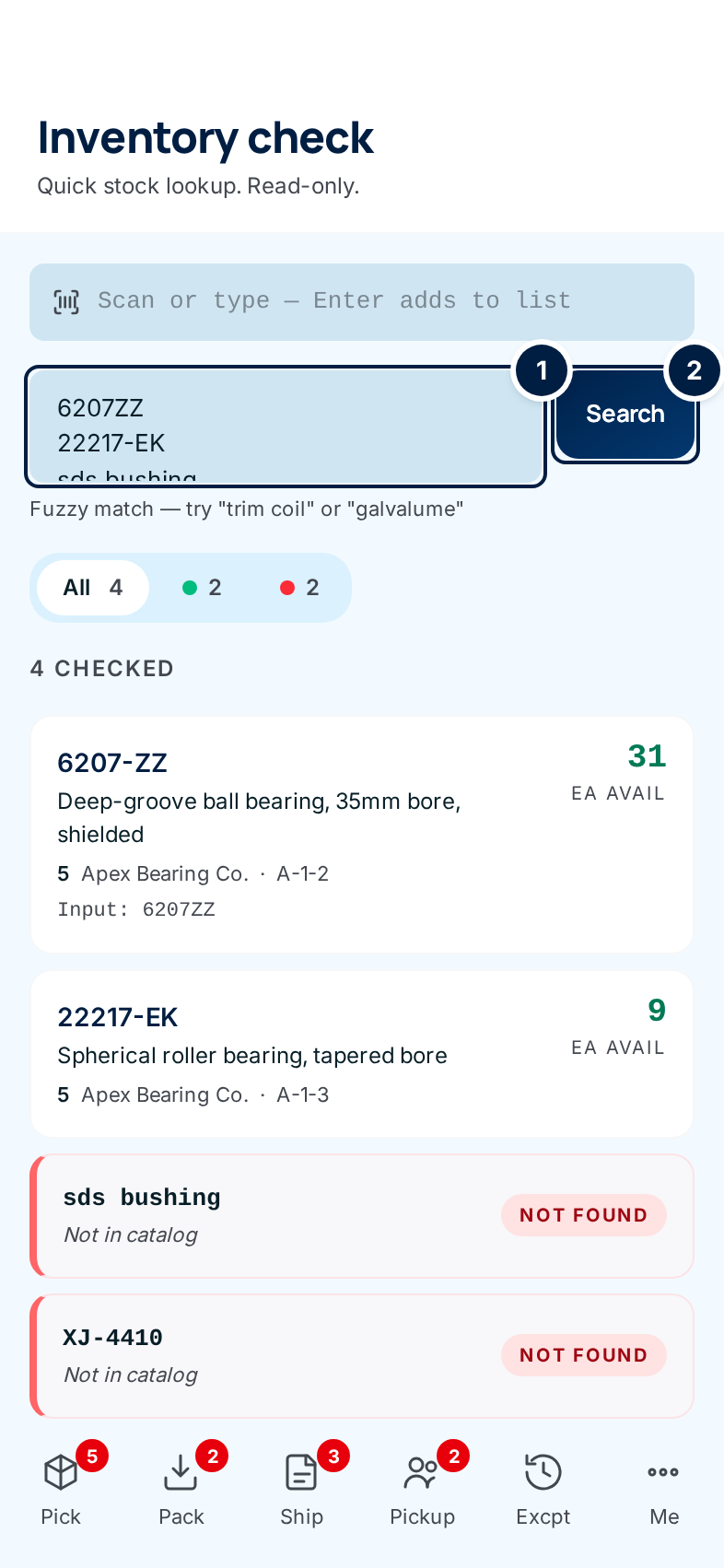
Enter the parts in the list box ①, one per line. You can type part numbers, aliases or description words. Bullets, numbering and a trailing quantity such as ", 24" are stripped for you.
With a barcode scanner, tap the Scan or type — Enter adds to list bar above the box and scan. Each scan adds a line; it doesn't search on its own.
-
Tap Search ②. Each line gets a card.
-
Read the cards. The big number on the right is how many are available: on the shelf and not already promised to an order. Green means plenty. Amber means 5 or fewer left while some are promised. A red Out pill means none are available. Under the description you see the manufacturer code, the supply partner and the item's bin.
A Fuzzy match pill means ConsignTrak found one close match, not an exact one. +N more matches means several items matched and the card shows the first. Not found means nothing came close. When what you typed differs from the part number, the card shows it as Input:.
-
Filter the cards if the list is long. The buttons above the cards show All, then one coloured dot per kind of result with its count: green for exact, blue for fuzzy, amber for several matches, red for not found. Tap one to show only those cards; tap All to see everything again.
-
Tap a part number to open that item's page.
A Fuzzy match or +N more matches card is ConsignTrak's best guess. Open the item and make sure it's the part you mean.
Find an item in the Items list
Office users open Items from the bottom bar. Warehouse users reach it with the back arrow on any item's page.
-
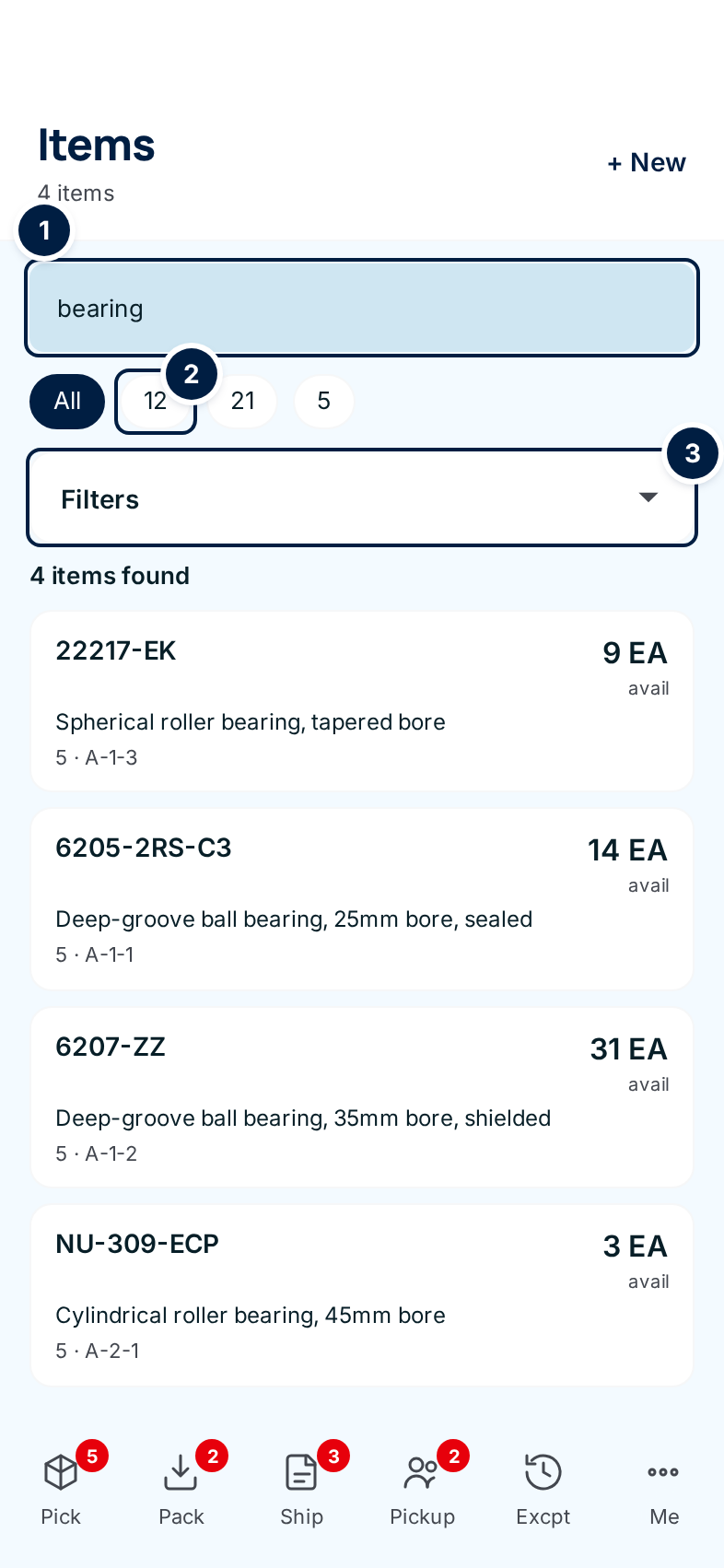
Type in the search box ①: a part number, an alternate number, a barcode or description words. The list updates as you type.
-
Narrow it by supply partner with the buttons under the search box ②. Each shows a supply partner's manufacturer code; All clears the choice.
-
Open Filters ③ for more ways to narrow the list: by category, bin, unit, stock problems, how long since anything moved, or how fast the item sells. Tap Apply filters when you're done. The Filters heading shows how many filters are on.
-
Tap an item to open its page.
The list is empty until you search, pick a supply partner or apply a filter.
Read an item's page
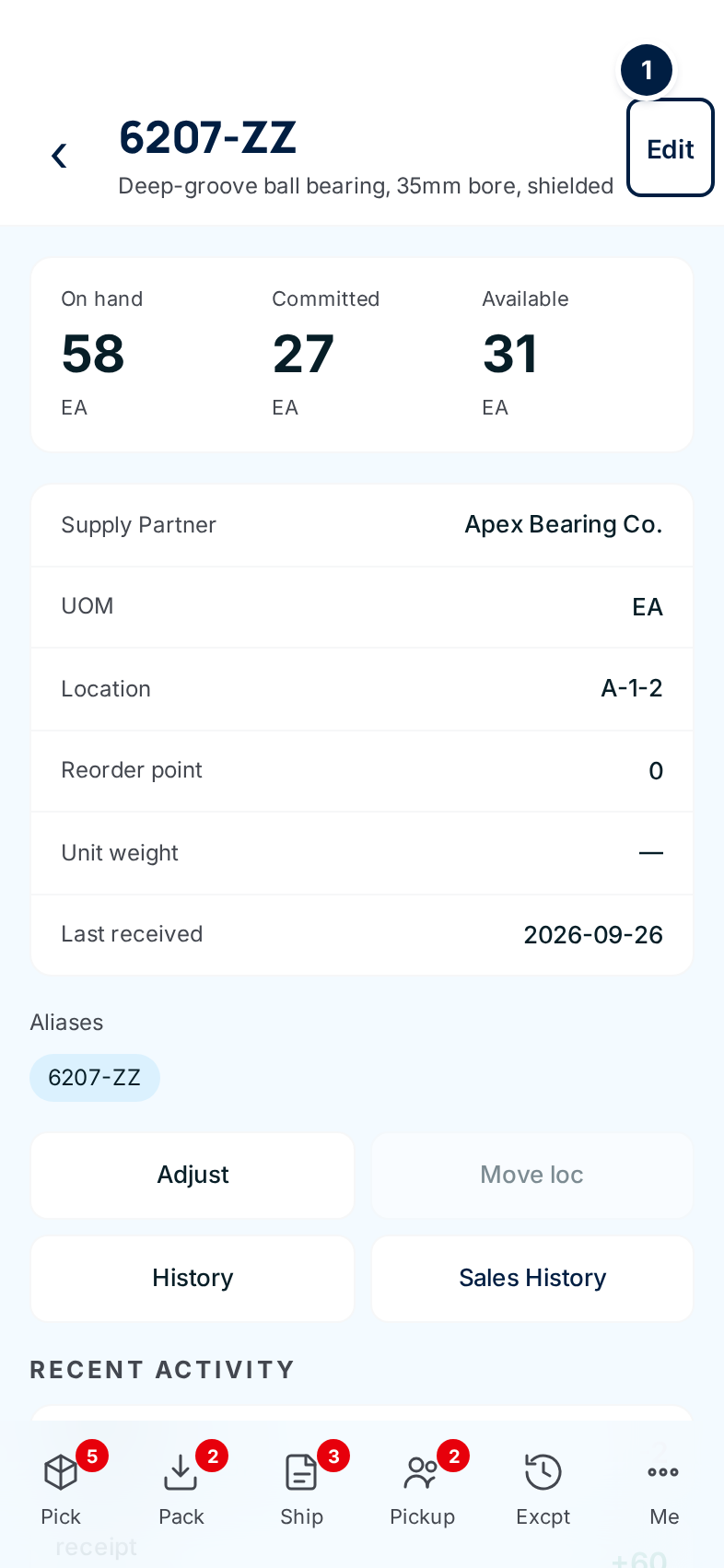
- On hand is everything on the shelf. Committed is promised to released orders. Available is what's left to promise. A negative Available shows in red; it means more is promised than ConsignTrak thinks is on the shelf, so tell the office.
- Location is the item's main bin.
- Aliases are the other numbers the part is known by. Search finds the item by any of them.
- Recent activity lists the latest movements: receipts, shipments, counts, adjustments. A green number is stock in; a red one is stock out. Tap an order, receiving or count number to open it. A movement labelled quarantine is stock that failed inspection when it was received.
See the item's full history (Office and Administrator)
- Tap History on the item's page. You see every movement, newest first, with Previous and Next to page through.
The phone History screen says Last 30 days, but it shows the item's whole history. Change › just reloads the page; there's no date choice on the phone yet. Use the desktop page to filter by date (see Item detail).
Sales History opens the item's sales from the system the warehouse used before ConsignTrak, in the desktop layout. See Item detail.
Adjust stock (Office and Administrator)
- Tap Adjust on the item's page. The Adjust stock form opens with the item already chosen.
- Enter the quantity. A positive number adds stock; a negative number removes it.
- Choose the reason.
- Tap Submit Adjustment. The button changes to ask you to click again. Tap it a second time to record the change. Tap anywhere else, or wait a few seconds, to back out.
The item's page opens again with the new numbers. The full guide, including when to adjust and when to count instead, is Adjusting stock.
The phone form has a Notes box, but ConsignTrak throws away what you type there. Pick the reason carefully, and put any detail somewhere the office will see it.
The phone Edit item screen shows only four fields. Saving it erases the item's Category, Extended Description and Purchase UOM. Make item changes on a desktop until this is fixed (see Creating and editing an item).
Every field and option
Inventory check
| Field or control | What it means | Required | Default | What changes when you set it |
|---|---|---|---|---|
| Scan or type — Enter adds to list | A single-line bar for a scanner or typing. Each Enter adds the text to the list box. Shows only when your browser runs scripts. | No | Empty | Adds a line. Doesn't search. |
| List box (item number, description, barcode...) | The parts to check, one per line. Up to 100 lines. | Yes | Empty | What gets checked. |
| Search | Checks every line. | — | — | Shows the cards. Changes nothing else. |
| All and the coloured-dot buttons | Show every card, or only exact (green), fuzzy (blue), several matches (amber) or not found (red). A kind with no cards has no button. | No | All | Hides other cards. |
| N checked | How many lines were checked. | — | — | Read-only. |
| Card: part number | The matched item. | — | — | Tap to open the item. |
| Card: description, manufacturer code, supply partner, bin | The matched item's details. | — | — | Read-only. |
| Card: Input: | What you typed, shown when it differs from the part number. | — | — | Read-only. |
| Card: number and avail, or Out | Units available to promise. Amber when 5 or fewer are left with some promised. | — | — | Read-only. |
| Fuzzy match, +N more matches, Not found / Not in catalog | How good the match is. | — | — | Read-only. |
| Clear filters | Shown when the filter buttons hide every card. | — | — | Shows all cards again. |
| Showing first N results | The list was longer than the limit. | — | — | Read-only. |
Items list
| Field or control | What it means | Required | Default | What changes when you set it |
|---|---|---|---|---|
| N items | How many items there are (under the title), or how many match (N items found). | — | — | Read-only. |
| + New | Opens New item. Office and Administrator only. | — | — | See below. |
| Search items, alternate numbers, barcode | Finds items by part number, alias, barcode or description. | No | Empty | Filters the list as you type. |
| All and manufacturer-code buttons | Show one supply partner's items, or all. | No | All | Filters the list. |
| Filters (N) | Opens the filter panel. N is how many filters are on. | — | Closed | — |
| Category, Location, UOM tick boxes | Show only items in the ticked categories, bins or units. Only values that exist are listed. | No | None ticked | Filters the list. |
| Stock: Out of stock, Below reorder, Negative on-hand, Oversold, Missing price | Show only items with that problem: zero on hand, under their reorder level, less than zero on hand, more promised than on hand, or no current price from the supply partner. | No | None ticked | Filters the list. |
| Movement | Any, or items with No movement in 30d / 90d / 180d / 365d (dead). | No | Any | Filters the list. |
| Velocity | Any, Fast (top 25%, 365d), Slow (bottom 25%, 365d) or Dead (no shipments, 365d), based on the last year's shipments. | No | Any | Filters the list. |
| Sort | Mfg code (default), Item number, Description, On hand (high → low), On hand (low → high), Available (low → high), Recent movement. | No | Mfg code | Orders the list. |
| Apply filters | Applies the panel's choices. | — | — | Updates the list. |
| Item card | Part number, available quantity and unit, description, manufacturer code and bin. | — | — | Tap to open the item. |
| Previous / Next | More pages of results. | — | Page 1 | — |
Item page and History
| Field or control | What it means | Required | Default | What changes when you set it |
|---|---|---|---|---|
| Back arrow | Returns to the Items list. | — | — | — |
| Edit | Opens Edit item. Office and Administrator only. | — | — | See the danger note above. |
| On hand, Committed, Available | Stock numbers, in the item's unit. | — | — | Read-only. |
| Supply Partner, UOM, Location, Reorder point, Unit weight, Last received | The item's details. A dash means not set. | — | — | Read-only. |
| Aliases | Other numbers the part is known by. | — | — | Read-only. |
| Adjust | Opens Adjust stock for this item. Office and Administrator only. | — | — | See above. |
| Move loc | Greyed out. Moving stock between bins isn't on the phone yet. | — | — | Nothing. |
| History | Opens the full movement history. Office and Administrator only. | — | — | — |
| Sales History | Sales from the previous system, in the desktop layout. | — | — | — |
| Recent activity | Latest movements; order, receiving and count numbers are links. | — | — | Read-only. |
| Last 30 days / Change › (History) | Should show and change the date range; see the note above. | — | — | Reloads the page. |
| Received, Shipped, Balance, Quarantined (History) | Totals for a date range. They appear only when the address carries a date range, which the phone can't set yet. | — | — | Read-only. |
| Previous / Next (History) | More pages. | — | Page 1 | — |
Adjust stock
| Field or control | What it means | Required | Default | What changes when you set it |
|---|---|---|---|---|
| Item (Search by item number or description...) | The item to adjust. Filled in when you come from the item's page; otherwise type and tap a match. | Yes | The item you came from | Chooses the item. |
| Quantity | Whole units. Positive to add, negative to remove. Not zero. | Yes | Empty | The size of the change. |
| Reason | Cycle Count Variance, Damaged Goods, Found Stock, Data Correction, Sample / Demo, Other. | Yes | Select reason… | Recorded with the movement. |
| Notes | Free text. Not saved today. | No | Empty | Nothing. |
| Submit Adjustment | Records the change. Click-twice. | — | — | Changes on-hand stock and records a movement. |
New item and Edit item (Office and Administrator)
| Field or control | What it means | Required | Default | What changes when you set it |
|---|---|---|---|---|
| Supply Partner (New only) | Whose item this is. Shown as manufacturer code and name. | Yes | Select supply partner | Can't be changed later on the phone. |
| Item number (New only) | The part number as the supply partner writes it. | Yes | Empty | How the item is found. |
| Description | What the part is. | Yes | Current value | Shown everywhere the item appears. |
| UOM / Selling UOM | The unit code, such as EA. See Units of measure. | Yes | Current value | The unit quantities are counted in. |
| Unit weight | Weight of one unit, in pounds. | No | Empty | Used for shipping weights. |
| Default location / Location | The item's main bin. | No | Empty | Shown as the item's Location. |
| Create item / Save changes | Saves. | — | — | Creates or updates the item. On Edit, also erases the fields the phone doesn't show. |
| Cancel | Leaves without saving. | — | — | Nothing. |
What happens next
- Inventory check, the Items list, an item's page and History change nothing. Look as often as you like.
- Submit Adjustment changes the item's on-hand quantity straight away and records a movement with your name and the reason. It shows in Recent activity and on the office's Adjustments page.
- Create item adds the item to the catalog with no stock. Stock arrives through receiving.
Common problems
"Access denied" after tapping Edit, Adjust, History or + New. — Those screens are for Office users and Administrators. Tap the back arrow.
Every line says Not found. — Put one part per line. A whole sentence on one line is read as one part.
The Items list is blank. — It only shows results after you search, tap a supply partner or apply a filter.
"Please select an item" — On Adjust stock you typed a part number but didn't tap a match. Tap one of the results under the box.
"Reason is required" — Choose a reason before you submit.
"Quantity must be a non-zero number" — Enter a whole number other than 0. Use a minus sign to remove stock.
The note I typed on an adjustment is gone. — The phone doesn't save notes yet (see the caution above).
An item lost its category after someone edited it on a phone. — That's the phone edit problem above. Re-enter the missing fields on a desktop.