Customers, supply partners and orders on your phone
What this is
The phone has short versions of the customer, supply partner and order screens. They're for quick answers away from a desk: where a customer is, which items a supply partner has, whether an order is picked yet. An order's page also carries one button that takes you to whatever the warehouse does next with it: start picking, carry on picking, or start packing.
The full screens, and all the editing, are on the desktop. See Customers, Supply Partners and Orders.
Before you start
- Role:
- Orders: everyone can view them. Edit, Release, Close and + New are for Office users and Administrators.
- Customers and Supply Partners: Office users and Administrators only. A Warehouse user who opens them gets Access denied.
- Settings: none.
- You'll need: nothing. These screens only show what's already there.
The phone edit forms for customers, supply partners and orders show only some fields, and saving them erases fields they don't show:
- Customer: saving erases Type, Region and Address Line 2.
- Supply partner: saving erases the rep code, commission rate, agency details, freight billing information and the logo.
- Order: saving erases the Ship via carrier and service level.
Make changes on a desktop until this is fixed.
Step by step
Check an order and take the next step
-
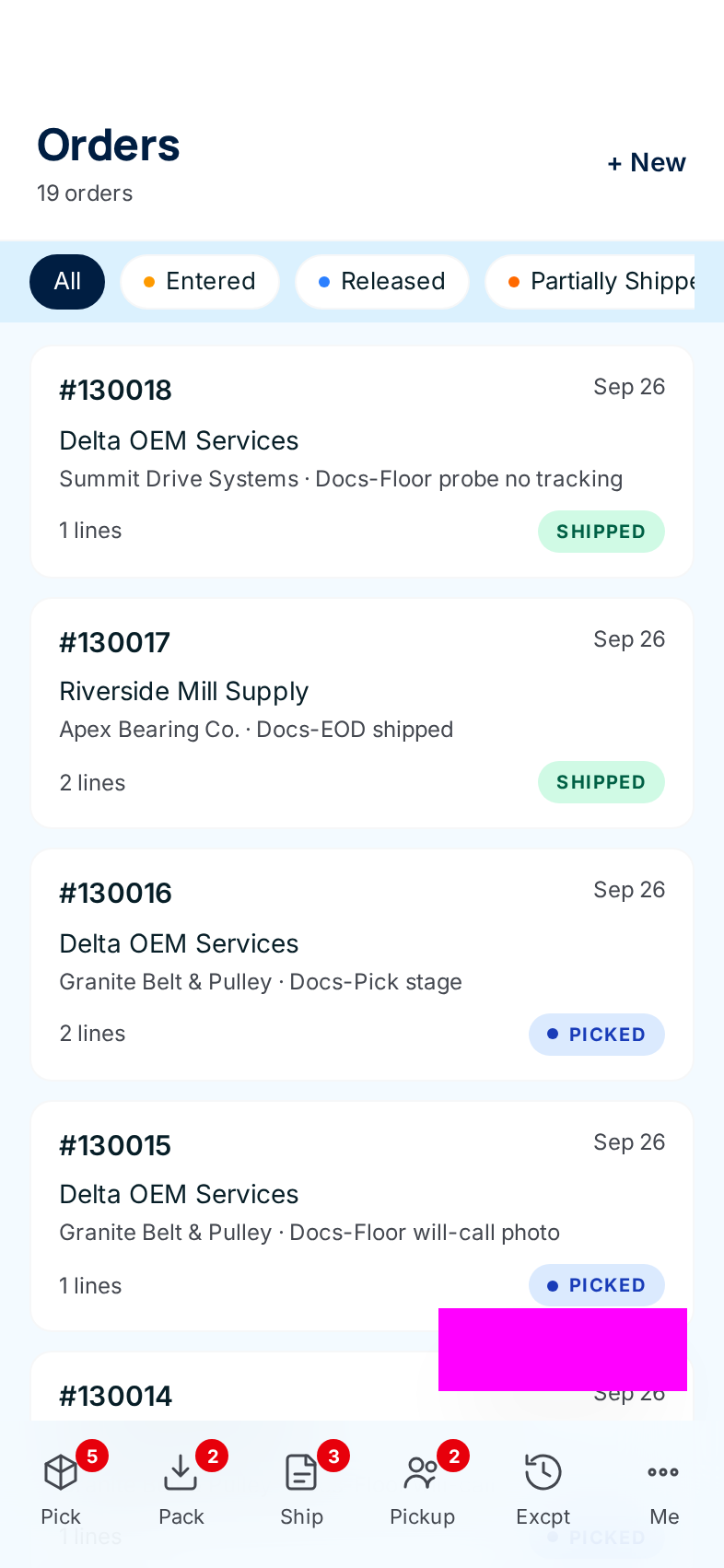
Open Orders from the bottom bar (Office and Administrator). Each card shows the order number, date, customer, supply partner, customer PO, number of lines and a status pill.
-
Filter by status with the pills at the top: Entered, Released, Partially Shipped, Shipped, Closed. Tap more than one to see several at once; tap one again to remove it. All clears the filter.
-
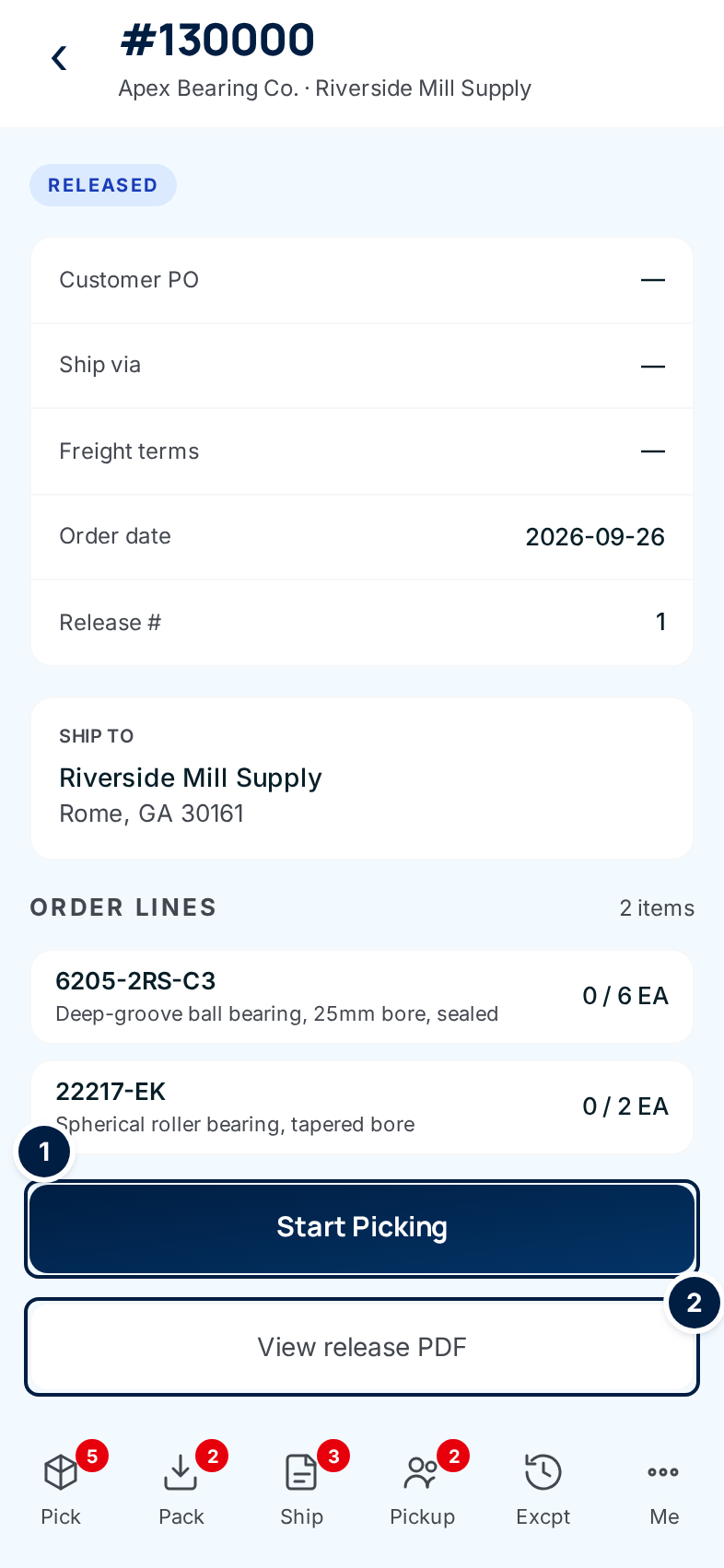
Tap an order. Its page shows the status, the order details, where it ships to, and each line as shipped / ordered.
-
Tap the action button ① at the bottom, if there is one. What it says depends on where the order is in the warehouse:
The order is… The button or note says Where it takes you Released, not started Start Picking The pick screen. See Picking. Being picked Continue Picking Back to the pick screen where it was left. Picked Start Packing The pack screen. See Packing, shipping & will-call. Picked, and a will-call (the customer collects it) Customer pickup happens at the dock — find this batch in the Pickup queue. No button. Use Pickup in the bottom bar. Packed, or shipped This order is packed and ready to ship. Shipping is done at the desktop Ship Station. No button. Shipping is done on a desktop. Every line ships direct from the supply partner Nothing The warehouse doesn't handle it. -
Tap View release PDF ② to see the printed release. It opens in a new tab. It's there for any order that has been released and not cancelled.
The status pill on a released order can read Picking, Picked or Packed instead of Released. That tells you how far the warehouse has got. See Order statuses.
If a picker reported a problem on the order and the office has dealt with it, a Pick exception history card lists each problem, who flagged it, and what the office decided. Tap a row to open it.
Release or close an order (Office and Administrator)
- On an Entered order, Edit opens the phone edit form and Release sends the order to the warehouse. Release asks you to click again before it goes. See Releasing an order.
- On a Shipped order, Close closes it. It also asks you to click again.
On a phone, a Warehouse user also sees + New, the floating New order button, Edit, Release and Close. Tapping them opens Access denied. This is a known issue.
Enter an order header (Office and Administrator)
+ New or the floating New order button opens New order. You can choose the supply partner and customer and fill in the shipping details, then Save order. Lines can't be added on a phone; add them on the desktop order page. The full steps are in Entering an order.
Look up a customer (Office and Administrator)
-
Open Customers from More. Active customers are listed with their city and state.
-
Type part of the name in Search customers. The list updates as you type.
-
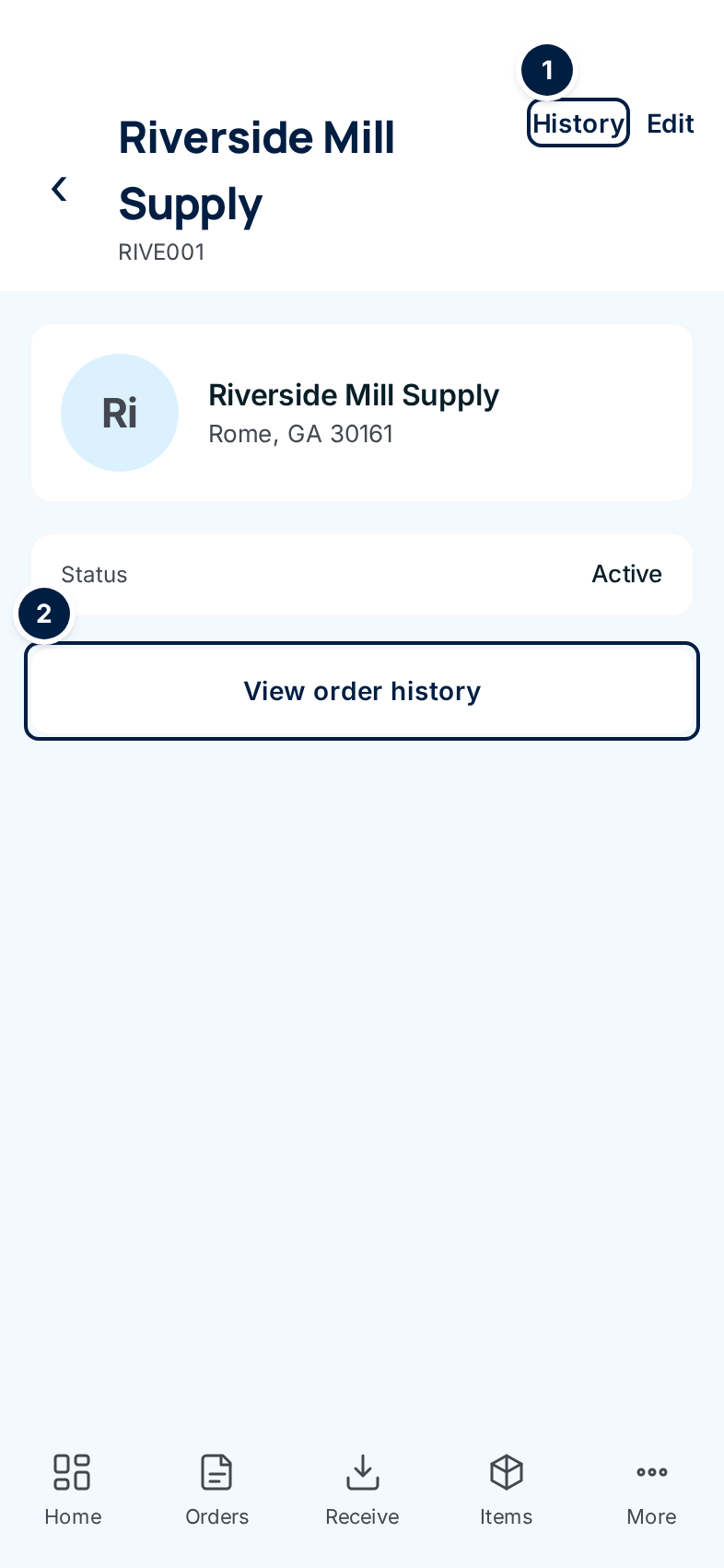
Tap the customer. You see the account number, address, phone numbers, website and status, and any other names they're known by under Aliases.
-
Tap View order history ② to see what has shipped to them: each line with the date, reference, item and quantity. Orders that haven't shipped yet aren't listed.
History ① at the top opens the customer's purchases from the system the warehouse used before ConsignTrak, in the desktop layout. See Customer records.
Look up a supply partner (Office and Administrator)
-
Open Supply Partners from More. Each is listed with its manufacturer code and abbreviation.
-
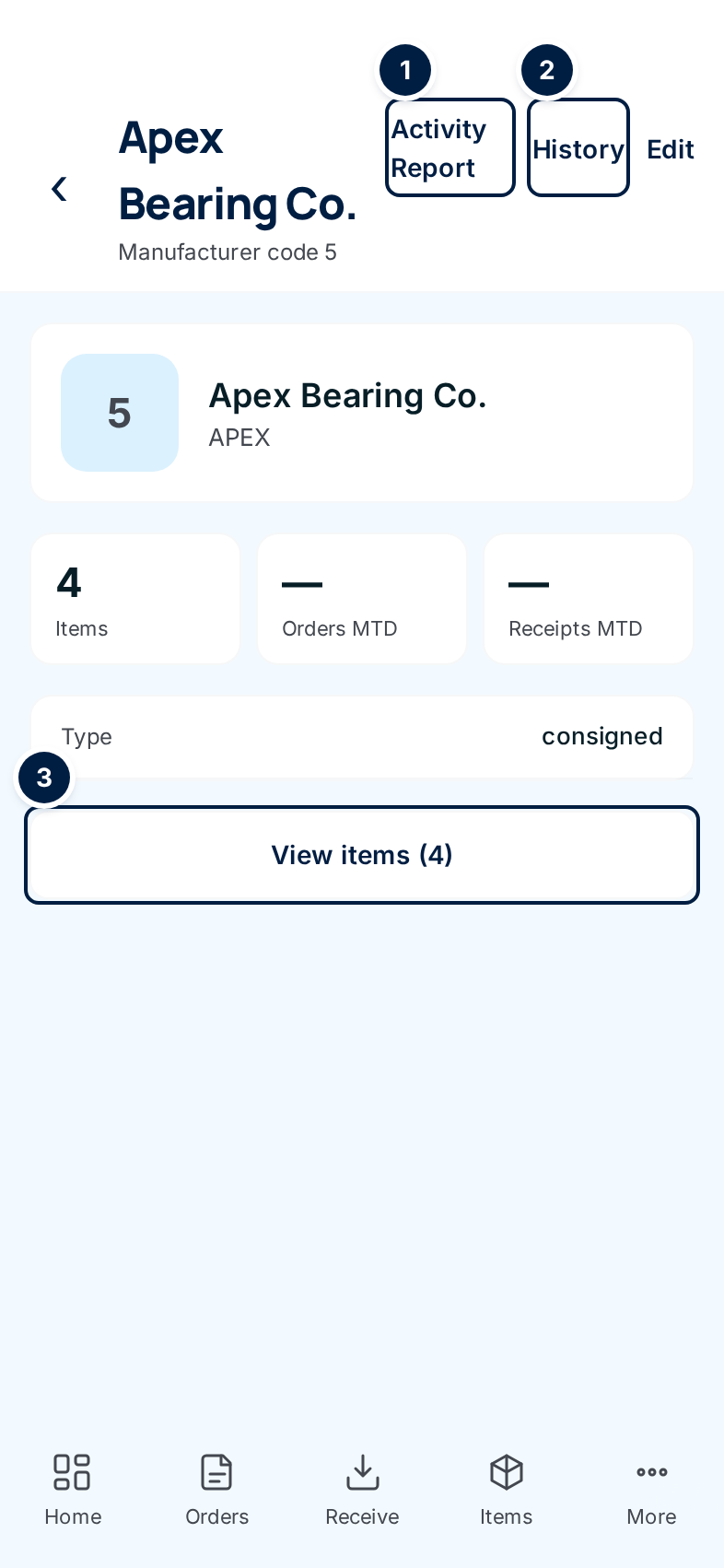
Tap the supply partner. You see how many items they have with the warehouse, their type, and their rep code, commission and notes when set.
-
Tap View items ③ to open the Items list showing only their items.
Activity Report ① and History ② open the desktop versions in the desktop layout. See The Activity Report and History and audit chain.
Every field and option
Orders list
| Field or control | What it means | Required | Default | What changes when you set it |
|---|---|---|---|---|
| N orders | How many orders match. | — | — | Read-only. |
| + New and the floating New order button | Open New order. Office and Administrator only. | — | — | — |
| All | Clears the status filter. | — | All | Shows every order. |
| Entered, Released, Partially Shipped, Shipped, Closed | Status filters. Tap to add, tap again to remove. | No | None | Filters the list. |
| Order card | Order number, order date, customer, supply partner, customer PO, number of lines and status (Picking, Picked or Packed replace Released while the warehouse works on it). | — | — | Tap to open the order. |
| No orders found | Nothing matches the filter. | — | — | — |
| Previous / Next | More pages. | — | Page 1 | — |
An order's page
| Field or control | What it means | Required | Default | What changes when you set it |
|---|---|---|---|---|
| Back arrow, order number, supply partner · customer | Which order this is. | — | — | — |
| Status pill | Where the order is. See Order statuses. | — | — | Read-only. |
| Customer PO, Ship via, Service, Freight terms, Order date, Release # | The order details. Service shows only when set; Release # only after release. A dash means not set. | — | — | Read-only. |
| Pick exception history | Problems reported while picking and what the office decided. Shown only when there are some. | — | — | Tap a row to open that problem. |
| Ship to | Where the order goes. | — | — | Read-only. |
| Order lines / N items | Each line: part number, description and shipped / ordered with the unit. Green when fully shipped, amber when part-shipped. | — | — | Read-only. |
| Edit (Entered orders) | Opens Edit order. Office and Administrator only. | — | — | See the danger note above. |
| Release (Entered orders) | Sends the order to the warehouse. Click-twice. Office and Administrator only. | — | — | The order becomes Released and gets its release number. |
| Close (Shipped orders) | Closes the order. Click-twice. Office and Administrator only. | — | — | The order becomes Closed. |
| Start Picking, Continue Picking, Start Packing, or a note | The next warehouse step (see the table above). | — | — | Opens that screen. |
| View release PDF | The printed release, in a new tab. Not shown on Entered or Cancelled orders. | — | — | — |
New order and Edit order (Office and Administrator)
| Field or control | What it means | Required | Default | What changes when you set it |
|---|---|---|---|---|
| Supply Partner (New only) | Whose stock the order draws on. | Yes | Select supply partner | — |
| Customer (New only) | Type a name or code, then tap a match. A Selected customer card confirms your choice and its address. | Yes | Empty | The customer and default ship-to. |
| Customer PO | The customer's purchase order number. | No | Empty | Printed on the release. |
| Supply Partner order # (Edit only) | The supply partner's own number for the order. | No | Empty | Shown on the order. |
| Order date (New only) | The date on the order. | Yes | Today | — |
| Ship via, Service, LTL carrier (New only) | The carrier, its service level, and a carrier name for freight (LTL) shipments. Service lists the chosen carrier's services. | No | Select carrier… | How the order ships. Not on the phone Edit form. |
| Freight terms | Will Call, Collect, Prepaid, Prepaid & Add, 3rd Party. | No | Select freight terms… | Who pays freight. 3rd Party opens Third-party billing. |
| Carrier account | The carrier account the freight is billed to. | No | Empty | Printed for the shipper. |
| Third-party billing: Bill-to name, Address line 1, Address line 2, City, St, ZIP | Who pays the freight, when Freight terms is 3rd Party. | All but line 2, when shown | Empty | The bill-to on the shipment. |
| Remember this payer for reuse | Saves the payer so it can be picked next time on the desktop. | No | Off | Adds a saved payer for this customer. |
| Shipping point (Edit only) | Where the order ships from. | No | Empty | Shown on the order. |
| Special instructions | Notes for the warehouse. | No | Empty | Printed on the release. |
| Save order / Save | Saves. | — | — | New: creates an Entered order with no lines. Edit: see the danger note. |
| Cancel | Leaves without saving. | — | — | Nothing. |
Customers
| Field or control | What it means | Required | Default | What changes when you set it |
|---|---|---|---|---|
| N active | How many active customers there are. | — | — | Read-only. |
| + New | Opens New customer. | — | — | — |
| Search customers | Filters the list by name as you type. | No | Empty | Filters the list. |
| Customer card | Initials, name, city and state. | — | — | Tap to open. |
| No customers found | Nothing matches. | — | — | — |
| Previous / Next | More pages. | — | Page 1 | — |
| History | Purchases from the previous system, in the desktop layout. | — | — | — |
| Edit | Opens Edit customer. | — | — | See the danger note above. |
| Name, account number, address | Who the customer is. | — | — | Read-only. |
| Phone, Phone 2, Website | Contact details, shown only when set. | — | — | Read-only. |
| Status | Active or inactive. | — | — | Read-only. |
| Aliases | Other names the customer is known by. | — | — | Read-only. |
| View order history | What has shipped to the customer. | — | — | Opens Order history. |
| Order history: All time, N orders | The range, and how many lines are listed (the count is of lines, not orders). | — | — | Read-only. |
| Order history rows | Type, date, reference, item and description, and the quantity. | — | — | Read-only. |
| No order history | Nothing has shipped to them. | — | — | — |
| Company name | The customer's name. | Yes | — | — |
| Account number (New only) | The customer's short code. | Yes | Empty | How the customer is found. See How customers are identified. |
| Street address, City / State / Zip | The default ship-to address. | No | Empty | Used when an order ships to the customer. |
| Create customer / Save changes, Cancel | Save, or leave without saving. | — | — | Creates or updates the customer. |
Supply Partners
| Field or control | What it means | Required | Default | What changes when you set it |
|---|---|---|---|---|
| N supply partners | How many there are. | — | — | Read-only. |
| + New | Opens New supply partner. | — | — | — |
| Supply partner card | Manufacturer code, name and abbreviation. | — | — | Tap to open. |
| Manufacturer code | The partner's code from the previous system. | — | — | Read-only. |
| Activity Report, History | The desktop reports, in the desktop layout. | — | — | — |
| Edit | Opens Edit supply partner. | — | — | See the danger note above. |
| Items | How many items they have with the warehouse. | — | — | Read-only. |
| Orders MTD, Receipts MTD | Always show a dash today; not filled in yet. | — | — | Read-only. |
| Type, Rep code, Commission, Notes | Partner details. Rep code, commission and notes show only when set. | — | — | Read-only. |
| View items (N) | Opens the Items list filtered to this partner. | — | — | — |
| Name | The partner's full name. | Yes | — | — |
| Code (New only) | The manufacturer code. | Yes | Empty | Can't be changed on the phone. |
| Abbreviation | A short name. | No | Empty | Shown on the list. |
| Notes | Free text. | No | Empty | Shown on the partner's page. |
| Create supply partner / Save changes, Cancel | Save, or leave without saving. | — | — | Creates or updates the partner. |
What happens next
- Viewing any of these screens changes nothing.
- Start Picking, Continue Picking and Start Packing open the warehouse screens. Starting a pick is recorded on the order, and its pill changes to Picking.
- Release gives the order its release number and puts it in the pick queue. Close marks a shipped order as finished.
- Save order creates an Entered order with no lines. The office adds lines at a desk and releases it.
Common problems
"Access denied" on Customers or Supply Partners. — Warehouse users can't open those lists. Ask the office.
"Access denied" after tapping Edit, Release, + New or New order. — Those are Office and Administrator actions. Tap the back arrow.
There's no Start Picking button. — The order isn't released yet, every line ships direct from the supply partner, or it's already packed. The note at the bottom says which.
A customer's Order history is empty, but they have orders. — The list shows only what has shipped. Open the orders from Orders instead.
"Supply partner, customer, and order date are required" — On New order, choose a supply partner, tap a customer in the search results, and keep a date.
"Pick a customer from the search results before creating the order." — You typed a name but didn't tap a match.
"Third-party billing needs the payer's name, address, city, state, and ZIP — fill the rest or clear the section." — Finish the bill-to, or change Freight terms away from 3rd Party.
An order lost its carrier, or a customer lost its region, after a phone edit. — That's the known phone edit problem. Put the details back on a desktop.