Bins on your phone
What this is
Every shelf, rack slot and staging spot in the warehouse is a location, usually called a bin. On a phone, Locations lists them all and opens a bin to show which items are stored there and how many. It's how you answer "what's supposed to be on this shelf?" while you're standing in front of it.
Moving stock from one bin to another is a desktop job today. This page explains why and where to go.
Before you start
- Role: anyone can view bins. Moving stock between bins needs an Office user or an Administrator.
- Settings: none.
- You'll need: the bins set up by the office (see Locations).
Today, opening a bin that holds stock on a phone shows the first item, then the words Internal Server Error, and stops. Empty bins open normally. This is a known issue. Until it's fixed, use Inventory check to see where a part lives, or open the bin with View desktop site.
Step by step
Find a bin and see what's in it
-
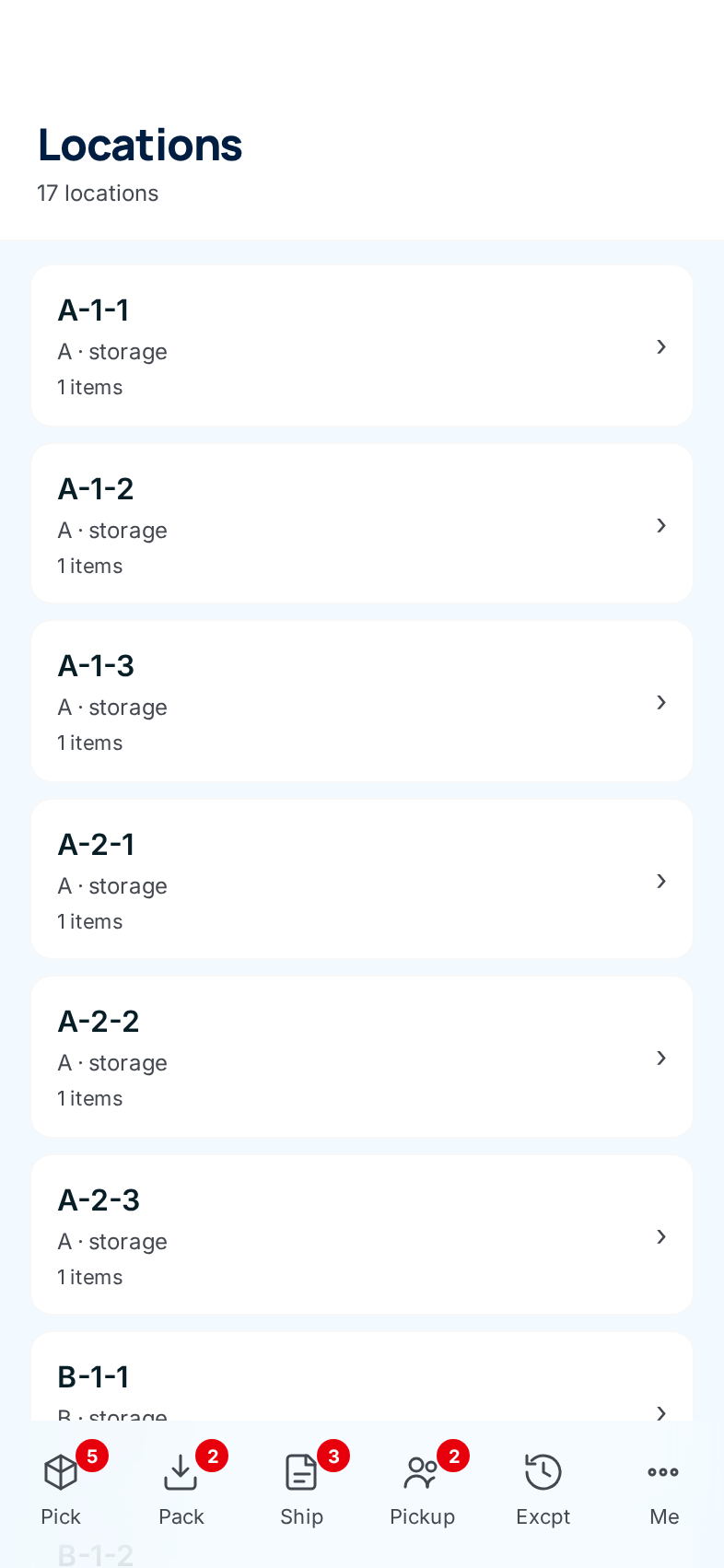
Open Locations from Me (Warehouse) or More (Office and Administrator). Every bin is listed with its zone, its type and how many items it holds.
-
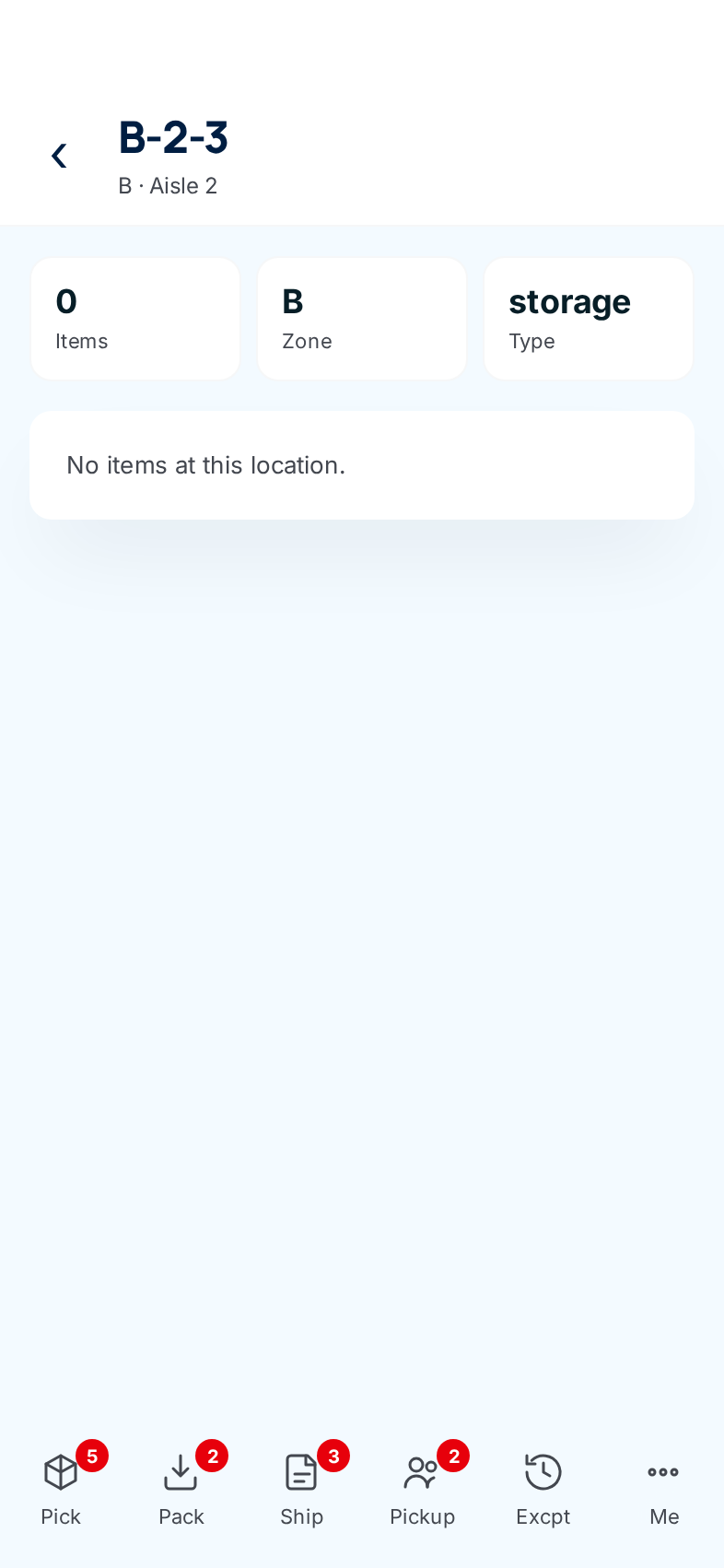
Tap the bin. Its page shows three tiles: how many items are stored there, the zone, and the type. Storage bins hold stock on shelves. Staging bins are where packed orders wait (see Staging areas).
-
Read the list under Items at this location. Each row is an item stored in the bin with its quantity. Tap a row to open the item's page. An empty bin says No items at this location.
If what's on the shelf doesn't match what ConsignTrak shows, don't fix it by hand. Tell the office, or count the bin in a cycle count. A count leaves a record of what changed and why.
Move stock to another bin
There's no way to move stock from the phone screens today. The Move loc button on an item's page is greyed out, and the phone bin page has no Relocate button.
Office users and Administrators move stock from a desktop: open the bin and choose Relocate, or use Scan a bin on the Locations list to jump to a bin by its label. The full steps are in Relocating stock. On a phone, View desktop site at the bottom of More opens the same screens in the desktop layout.
Stock always lands in the new bin as Available, even if it was on hold where it came from. Don't move stock that is in quarantine or waiting on a problem. Deal with it through exceptions and quarantine instead.
Every field and option
Locations list
| Field or control | What it means | Required | Default | What changes when you set it |
|---|---|---|---|---|
| N locations | How many bins there are. | — | — | Read-only. |
| Bin card: code | The bin's name, as printed on its label. | — | — | Tap to open the bin. |
| Bin card: zone · type | The area of the warehouse and the kind of bin, such as storage or staging. | — | — | Read-only. |
| Bin card: N items | How many different items are stored there. | — | — | Read-only. |
| No locations found. | No bins exist yet. | — | — | Ask the office to set them up. |
A bin's page
| Field or control | What it means | Required | Default | What changes when you set it |
|---|---|---|---|---|
| Back arrow | Returns to the Locations list. | — | — | — |
| Bin code, zone · Aisle | The bin's name, zone and aisle. | — | — | Read-only. |
| Items, Zone, Type tiles | How many items are stored there, the zone and the bin type. A dash means not set. | — | — | Read-only. |
| Items at this location | Each item stored in the bin with its quantity. Currently shows an error instead (see above). | — | — | Tap a row to open the item. |
| No items at this location. | The bin is empty. | — | — | — |
Bin search results. Where a phone screen lets you search for a bin by typing, matches appear as a short list of bin codes with their type. Tap one to choose it. No locations found means nothing matched.
What happens next
- Looking at bins changes nothing.
- When the office relocates stock, each move is recorded in the item's history and the bin's contents change straight away. The stock arrives as Available.
- When a bin's contents are wrong, a cycle count or an adjustment by the office puts them right, with a record of the change.
Common problems
"Internal Server Error" under the first item in a bin. — The known issue above. Use Inventory check, or View desktop site, to see what's in the bin.
I can't find a Relocate or Move button. — Moving stock isn't on the phone screens yet. Ask the office, or use the desktop (see Relocating stock).
"Access denied" when I open Relocate. — Only Office users and Administrators can move stock between bins.
A bin I scanned isn't in the list. — The label may be for a bin that hasn't been created, or was renamed. Ask the office to check Printing bin labels.