Admin on a phone
What this is
An Administrator can look after the team from a phone: see who has an account, add someone, change a name, email or role, and glance at the main system settings. It's for quick jobs away from a desk, such as giving a new starter an account on their first morning.
Everything else an Administrator does (roles, two-factor, API keys, imports, changing settings) is on the desktop. See Users & roles and System configuration.
Before you start
- Role: Administrator. Nobody else sees the System section of More.
- Settings: none.
- You'll need: for a new user, their name, a username, and a starting password that meets the rules below.
Today the phone Edit user screen stops after Save with the words Internal Server Error. The Deactivate user / Activate user button and the Password section below it don't appear. Use the desktop for those until this is fixed.
Step by step
See the team
-
Open More, then Users under System. Everyone with an account is listed with their role and an Active or Inactive pill.
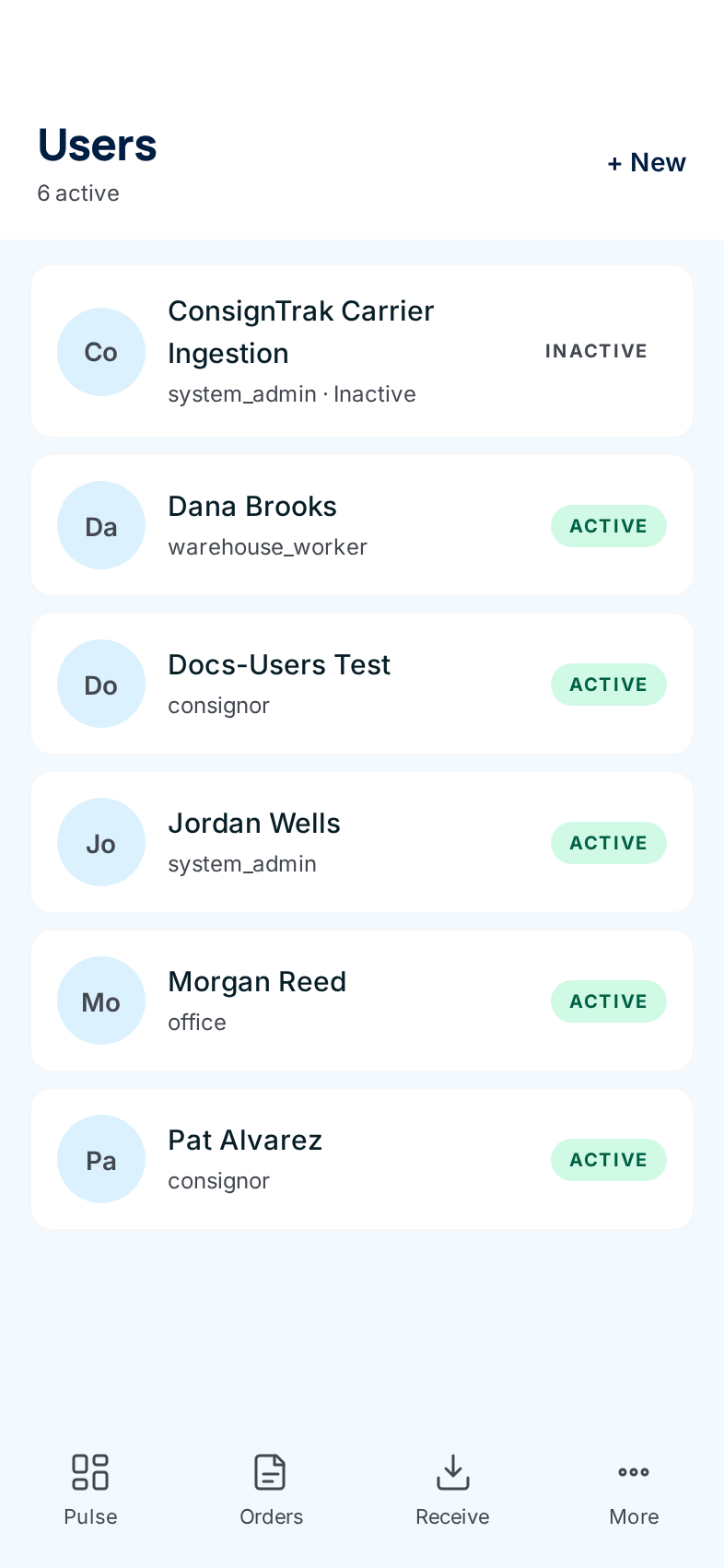
The role under each name shows the system's internal name for it today: system_admin is Administrator, office is Office, warehouse_worker is Warehouse and consignor is Supply Partner. The count under the title includes inactive users, even though it says "active". A user named ConsignTrak Carrier Ingestion may appear. It's ConsignTrak's own account for carrier tracking updates. Leave it alone.
Add a user
-
Tap + New.
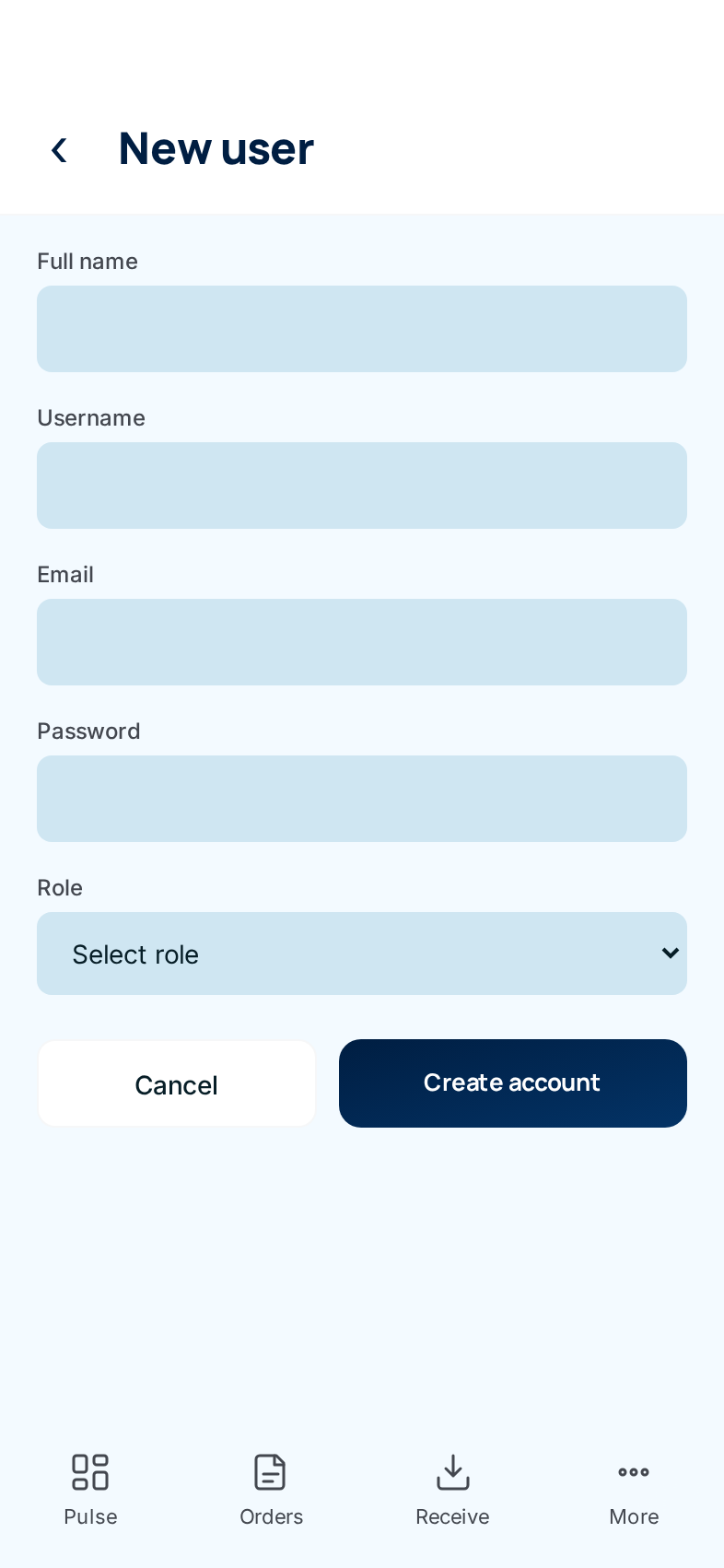
-
Fill in Full name, Username and Password. Add their Email if they have one.
-
Choose the role: Office, Admin or Warehouse Worker.
-
Tap Create account. Give them their username and starting password in person.
Supply Partner User is in the role list, but the phone form has no place to choose which supply partner they belong to, so ConsignTrak refuses to create them. Add portal users from the desktop, where they're sent an invitation by email (see Users & roles). For the same reason, don't switch an existing user's role to Supply Partner User on the phone: they'd be left with no supply partner and couldn't open the portal.
Change a user's name, email or role
- Tap the person in the list.
- Change Full name, Email or Role. The Username is greyed out; it can't be changed.
- Tap Save. You're back on the list.
A role change takes effect the next time they open a page.
Check the settings
-
Open More, then Settings. This is a read-only summary.
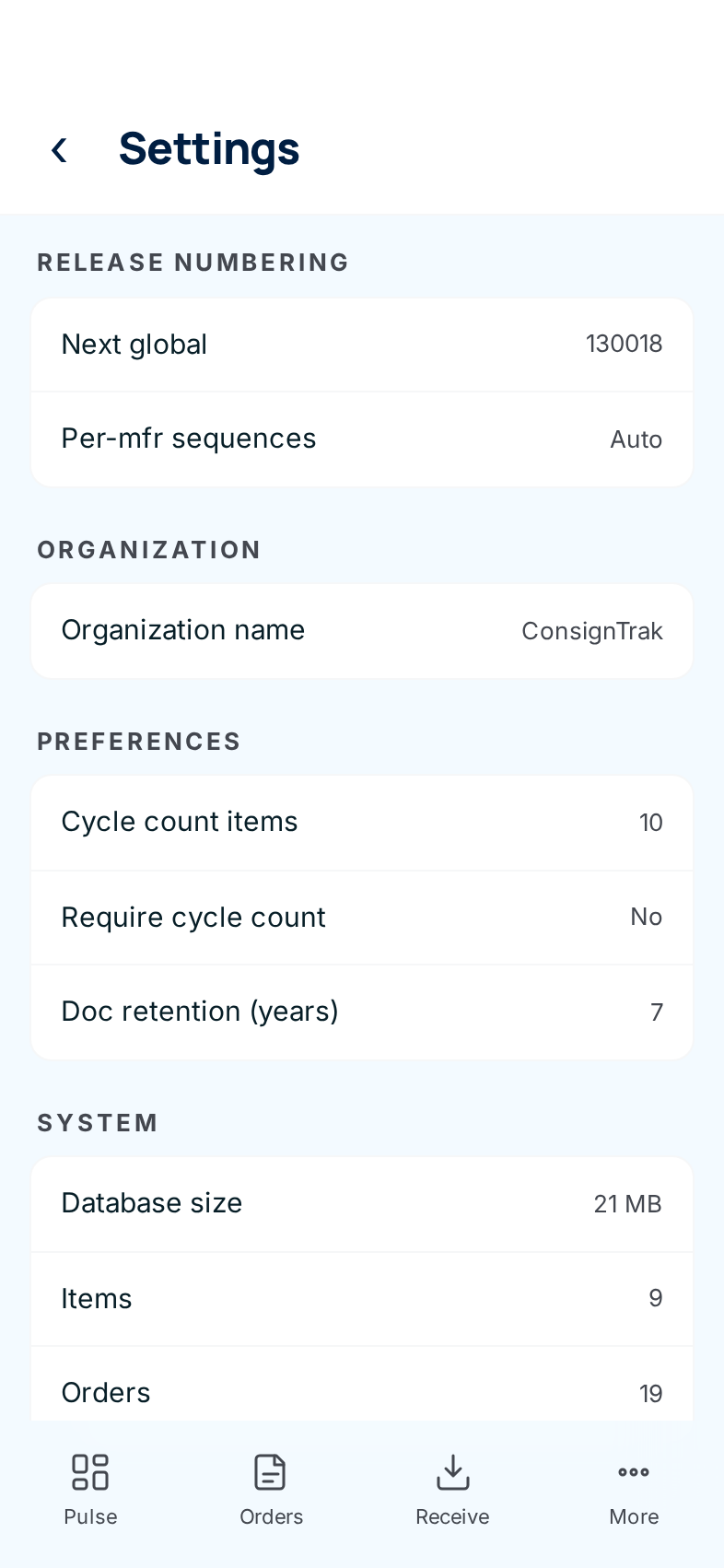
To change any of these, use the desktop System configuration page.
Every field and option
Users
| Field or control | What it means | Required | Default | What changes when you set it |
|---|---|---|---|---|
| N active | How many users are listed. It counts inactive users too. | — | — | Read-only. |
| + New | Opens New user. | — | — | — |
| User card | Initials, name, role (internal name), and Active or Inactive. | — | — | Tap to open Edit user. |
New user
| Field or control | What it means | Required | Default | What changes when you set it |
|---|---|---|---|---|
| Full name | The name shown to everyone. | Yes | Empty | — |
| Username | What they type to sign in. Can't be changed later. | Yes | Empty | — |
| Their email address. | No (Yes for Supply Partner users) | Empty | — | |
| Password | Their starting password. At least 8 characters, with an uppercase letter, a lowercase letter, a number and a symbol. | Yes | Empty | — |
| Role | Supply Partner User, Office, Admin or Warehouse Worker. See Who sees what. Supply Partner User can't be created here (see above). | Yes | Select role | What they can see and do. |
| Create account | Creates the user. | — | — | They can sign in straight away. |
| Cancel | Leaves without saving. | — | — | Nothing. |
Edit user
| Field or control | What it means | Required | Default | What changes when you set it |
|---|---|---|---|---|
| Full name | The name shown to everyone. | Yes | Current | — |
| Username | Greyed out. | — | Current | Can't be changed. |
| Their email address. | No | Current | — | |
| Role | As on New user. | Yes | Current | What they can see and do. |
| Save | Saves the three fields above. | — | — | Returns to the list. |
| Deactivate user / Activate user | Stops or restores their sign-in. Deactivate is click-twice. Currently missing on the phone (see above). | — | — | Deactivating stops them at their next page and blocks sign-in. |
| Password: New password, Confirm password, Set password | Sets a new password. Takes effect straight away, clears any lockout, and signs them out everywhere. Same rules as above. Currently missing on the phone. | Yes, both | Empty | Replaces their password. |
Settings (read-only)
| Field or control | What it means | Required | Default | What changes when you set it |
|---|---|---|---|---|
| Release numbering: Next global | The counter behind order numbers. See Release numbers. | — | — | Read-only. |
| Release numbering: Per-mfr sequences | Always Auto: each supply partner's release numbers count up on their own. | — | — | Read-only. |
| Organization name | The name ConsignTrak shows for your warehouse. | — | — | Read-only. |
| Cycle count items | How many items go into each generated cycle count. | — | 10 | Read-only. |
| Require cycle count | Whether a cycle count is required before orders. | — | No | Read-only. |
| Doc retention (years) | How long attached documents are kept. | — | 7 | Read-only. |
| System: Database size, Items, Orders | How big the system is. | — | — | Read-only. |
What happens next
- Create account: the new user can sign in on any device with the username and password you gave them. Their role decides their home screen and menus.
- Save on Edit user: a new role or name applies from their next page.
- Viewing Users or Settings changes nothing.
Common problems
"Internal Server Error" under the Save button. — The known issue above. Your Save still works; do deactivations and password resets on a desktop.
"Email is required for consignor users (the invite link is emailed)" or "Supply partner is required for consignor users" — You chose Supply Partner User on the phone. Create portal users on the desktop.
The new password is refused. — It needs at least 8 characters, with an uppercase letter, a lowercase letter, a number and a symbol.
Users and Settings aren't in my More menu. — Only Administrators see the System section.