Looking things up on your phone
What this is
Standing at a shelf, you often need one fact: how many of a part are left, which bin it lives in, whether an order has been picked. ConsignTrak's phone screens answer those questions without walking back to a desk.
This section covers the phone's lookup screens. Picking, packing and receiving have their own sections. The full desktop versions of these screens live under the Office section; this section links to them rather than repeating them.
Before you start
- Role: anyone who signs in on a phone. What you see depends on your role (see the table below and Who sees what).
- Settings: none.
- You'll need: a phone signed in to ConsignTrak. See Mobile basics if you haven't done that yet.
Where the lookup screens are
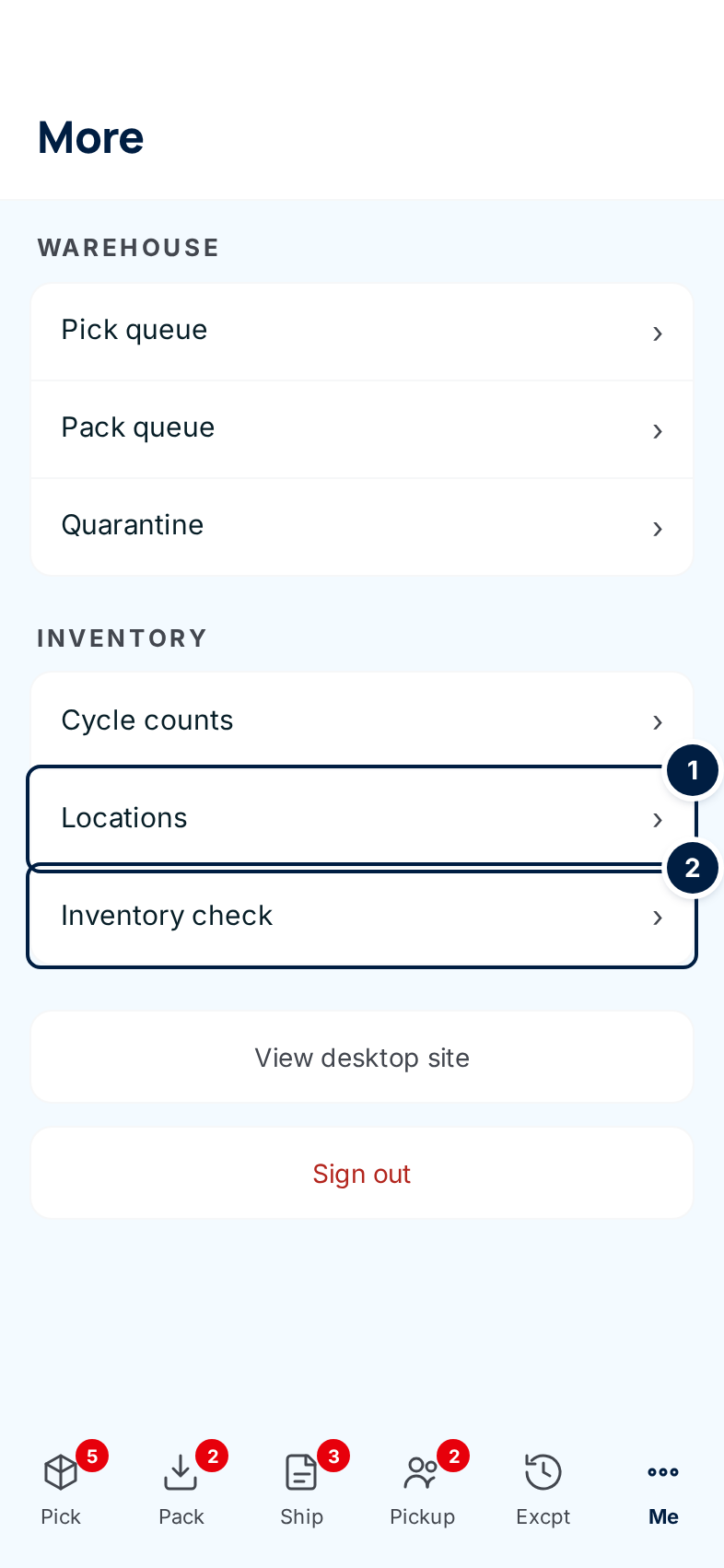
Warehouse users find them under Me at the right end of the bottom bar. Office users and Administrators find them under More, and Office users also have Items in the bottom bar.
| Screen | What it answers | Where it is | Who can open it |
|---|---|---|---|
| Inventory check ② | "Do we have these parts, and how many?" Type or scan one or more part numbers. | Me / More | Everyone |
| Items | One item's stock, bin, aliases and latest movements. | Items in the Office bottom bar. Warehouse users reach an item by tapping it in Inventory check. | Everyone |
| Locations ① | Every bin, and what is in each one. | Me / More | Everyone |
| Orders | An order's status, lines and the next warehouse step. | Orders in the Office and Administrator bottom bar. Warehouse users have no menu entry for it; an order number linked from an item's Recent activity opens it. | Everyone |
| Customers | A customer's address, phone and shipment history. | More | Office, Administrator |
| Supply Partners | A supply partner's items and reports. | More | Office, Administrator |
| Units of measure | What a unit code means. | More | Office, Administrator |
| Users, Settings | Team accounts and system settings. | More, under System | Administrator |
The pages in this section
- Items on your phone: Inventory check, the item list, an item's page, its history and a quick stock adjustment.
- Bins on your phone: the Locations list and what is in a bin. Moving stock between bins is done on a desktop today.
- Customers, supply partners and orders: the quick views, and the button on an order that takes you to its next warehouse step.
- Admin on a phone: the four screens an Administrator has on a phone.
Two more phone screens are covered in the Office section, because they work the same way on both:
- Units of measure: see Units of measure.
- Documents (photos and files on a record): see The Documents page.
Tap View desktop site at the bottom of Me / More to switch the phone to the desktop layout. It's cramped, but every desktop feature is there. Switch back from the same place.
Some phone edit forms show fewer fields than the desktop. Saving one of them can erase the fields it doesn't show. Until that's fixed, make changes to items, customers, supply partners and orders on a desktop. Each page in this section says which forms are affected.