Your window into the warehouse
What this is
The Supply Partner portal is your view of the stock the warehouse holds on your behalf. You own the goods; the warehouse stores them, ships your customers' orders and receives your replenishments. The portal lets you check all of that yourself, any time, without phoning or emailing the warehouse.
This page is for you, the supply partner. It covers what the portal shows, how to accept your invitation, how to sign in, and how your information is kept private.
The small label under the ConsignTrak logo, the invitation email and the line under the dashboard title still say Consignor Portal. It's the same thing as the Supply Partner portal. The wording is being updated (#1479).
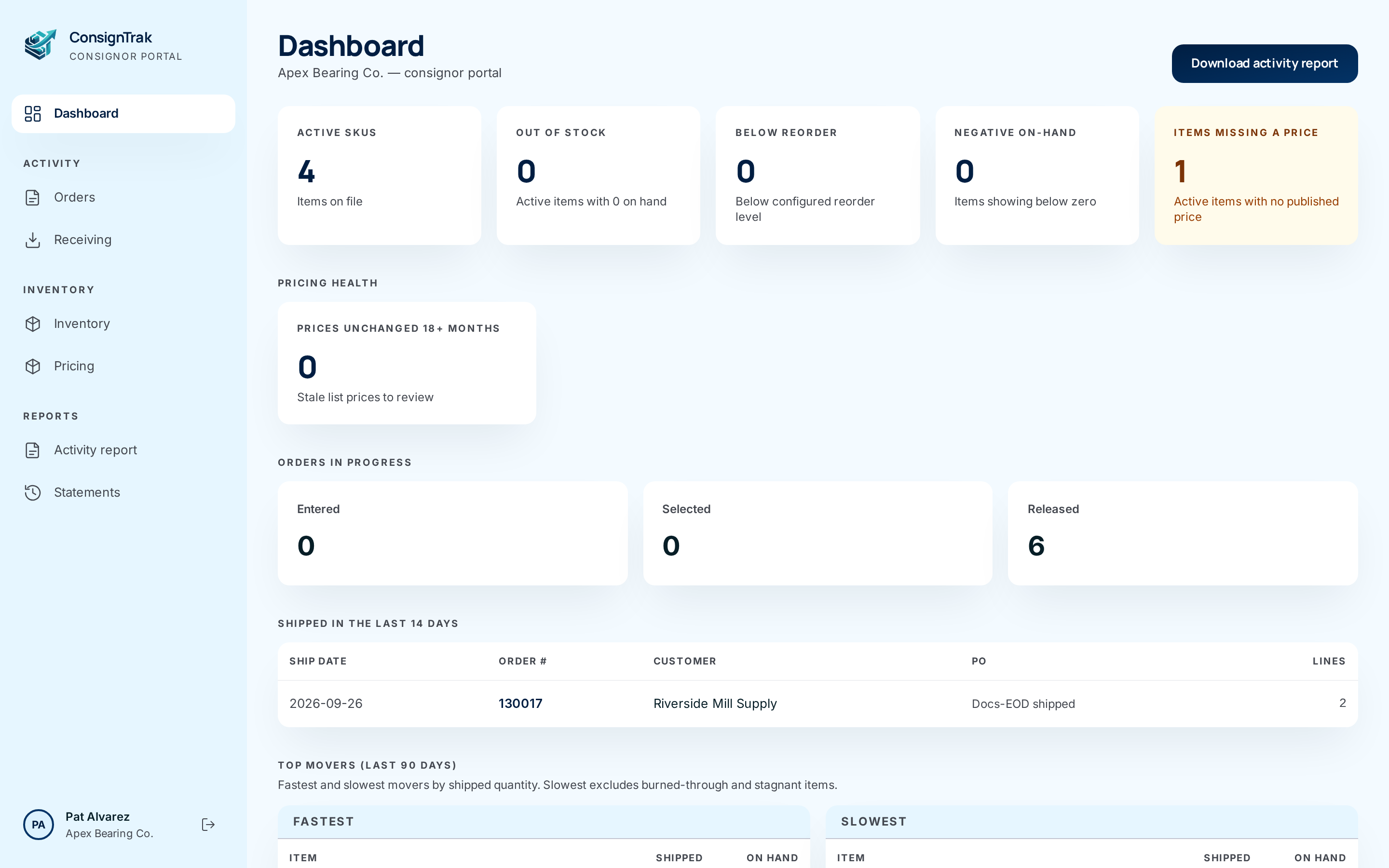
What you can see
| Where | What it shows |
|---|---|
| Dashboard | A summary of your stock, prices, open orders, recent shipments, your fastest and slowest items, and recent deliveries. See The portal dashboard. |
| Orders | Every order the warehouse has entered for your items, with its status, lines and shipments. |
| Receiving | Every delivery of your goods the warehouse has received and counted in. |
| Inventory | Your items, how many the warehouse has on hand, and each item's recent history. |
| Pricing | The list prices you publish for your items. |
| Activity report | A PDF of all movements of your stock over a date range. It's suitable for audits. |
| Statements | Your period statements from the warehouse. |
The Orders, Receiving, Inventory, Pricing and report pages have their own guides: Inventory & pricing and Orders, receiving, reports & statements.
What you can change
The portal is mostly for looking, not changing. You can:
- Set and adjust your prices. They print on the warehouse's paperwork.
- Mark a direct-ship order as shipped when you shipped it from your own factory rather than from the warehouse.
- Edit an item's description, reorder level or unit of measure, but only if the warehouse has turned this on for you.
What the portal doesn't do
- It doesn't show other supply partners. See Your data only below.
- It doesn't show the warehouse's own screens. If you open a warehouse staff address, ConsignTrak sends you back to your dashboard.
- You can't enter orders, move stock or change quantities. Send orders to the warehouse as you do today. The warehouse enters them, and they appear in your portal.
- Customer names on an item's shipment history are hidden unless the warehouse has agreed to show them. You see the customer's code instead. Orders themselves show the customer's name.
Your data only
Everything you see in the portal belongs to your company and no one else.
- The warehouse holds stock for several supply partners. Your account is tied to one of them: yours. The portal shows only your items, your orders, your deliveries, your prices and your reports.
- Totals and counts on the dashboard are counted from your records only. They never include another supply partner's stock.
- If you follow a link to a record that isn't yours, you see Not found. The portal won't even confirm that the record exists.
- The same is true the other way round. No other supply partner can see anything of yours.
- Warehouse staff can see your records, because they handle your goods. That is the only other group who can.
Before you start
- Role: Supply Partner. The warehouse sets up your account; you can't sign up yourself.
- You'll need: the invitation email from the warehouse. Its subject reads You've been invited to the … Consignor Portal. It comes to the email address the warehouse has on file for you.
- You'll also need your username. The warehouse chooses it when they invite you. The invitation doesn't include it yet (#1537), so ask the warehouse for it. You don't need it the first time, but you will the next time you sign in.
- Time limit: the invitation link works for 72 hours, and only once.
Step by step
Accept your invitation
-
Open the invitation email and choose the link in it. A page opens that greets you by name: Welcome, (your name). It says Set your password for (your company) to finish signing in.
-
Type a new password in New password ①. It must be at least 8 characters and include an uppercase letter, a lowercase letter, a digit and a special character such as
!or#. Very common passwords are refused. -
Type it again in Confirm password ②. On a phone, this box is just called Confirm.
-
Choose Set password and sign in ③. You're signed in straight away and land on your dashboard.
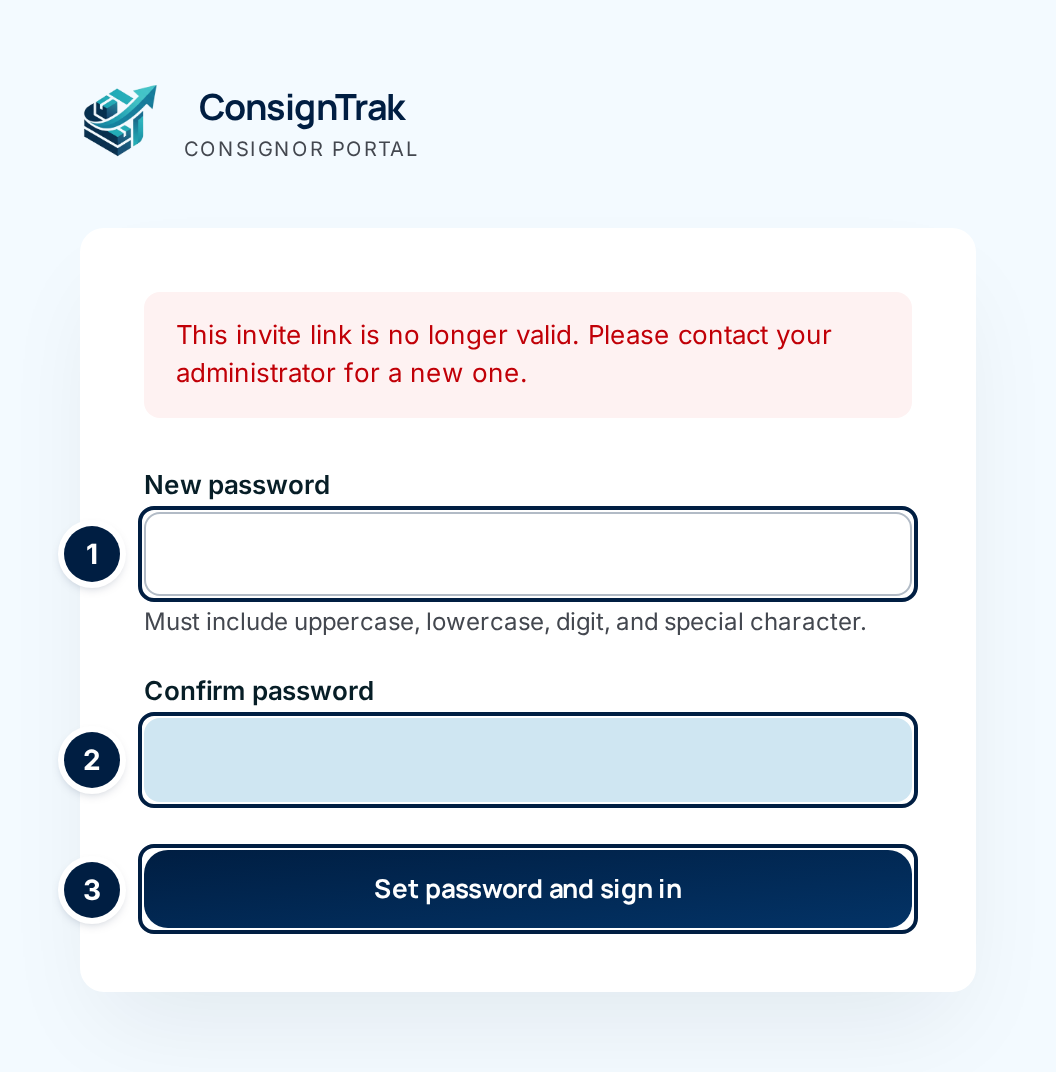
The picture above shows the page when the link has expired, which is why the red message is showing. On a working link you see the welcome line instead of the red message. On an expired or used link, the password boxes still appear, but filling them in only shows the same message again (#1478). Ask the warehouse for a new link instead.
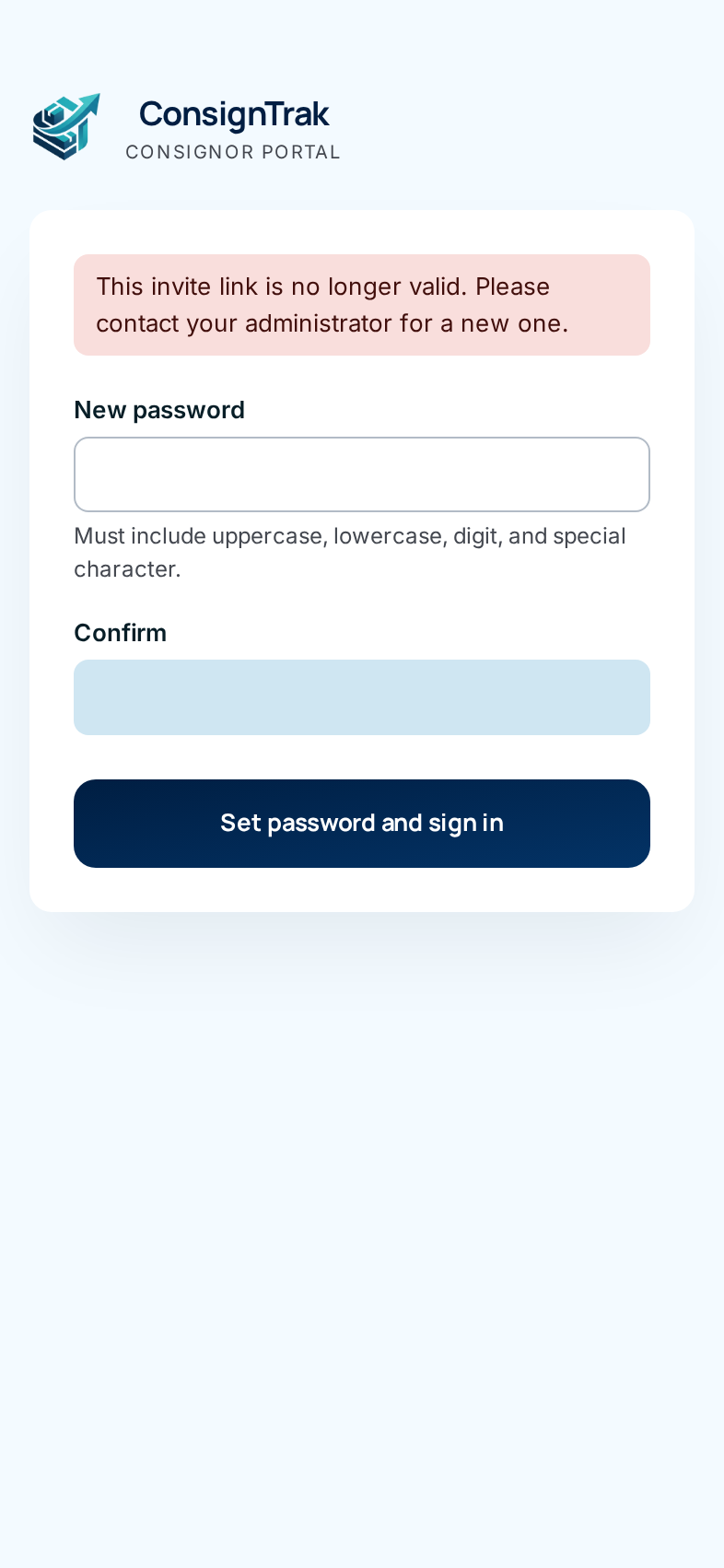
Sign in after the first time
- Open your bookmark for the portal. After your first sign-in, bookmark your dashboard. When you open it while signed out, ConsignTrak shows the sign-in page first.
- Type your username and password and choose Sign in. The page is described in Signing in.
- You land on your dashboard.
Stay signed in, and sign out
- Sessions last 4 hours. After that, the next page you open takes you back to the sign-in page. Sign in again, and you're returned to your dashboard, not to the page you were on.
- To sign out, choose the sign-out icon beside your name at the bottom of the menu (the arrow pointing out of a box). On a phone, open the menu first with the ☰ button at the top left.
Every field and option
Set-password page (computer and phone)
| Field or control | What it means | Required | Default | What changes when you set it |
|---|---|---|---|---|
| Welcome, (your name). | The greeting on a working link, with your company named underneath. | — | — | Read-only. |
| Red message box | Shows when something's wrong: an expired link, a password that breaks the rules, or passwords that don't match. | — | Hidden | Read-only. |
| New password | The password you'll use from now on. The hint under it lists the rules. | Yes | Empty | Becomes your password when you submit. |
| Confirm password (phone: Confirm) | The same password again, to catch typing mistakes. | Yes | Empty | Must match New password. |
| Set password and sign in | Saves your password and signs you in. | — | — | Uses up the invitation link, sets your password and opens your dashboard. |
| If you think this link should work, please contact your administrator. | Shown instead of the form when the page is opened without a link code at all. | — | — | Read-only. |
Portal "not found" and error pages
| Field or control | What it means | Required | Default | What changes when you set it |
|---|---|---|---|---|
| Large number and title | The kind of problem: 404 Order not found, 403 Access denied, 401 Sign in required, or 403 Page out of date. | — | — | Read-only. |
| Reload page | Appears only on Page out of date. It takes you back to the page you were on so you can try again. | — | — | Reopens that page. |
| Back to portal home | Returns you to your dashboard. | — | — | Opens the dashboard. |
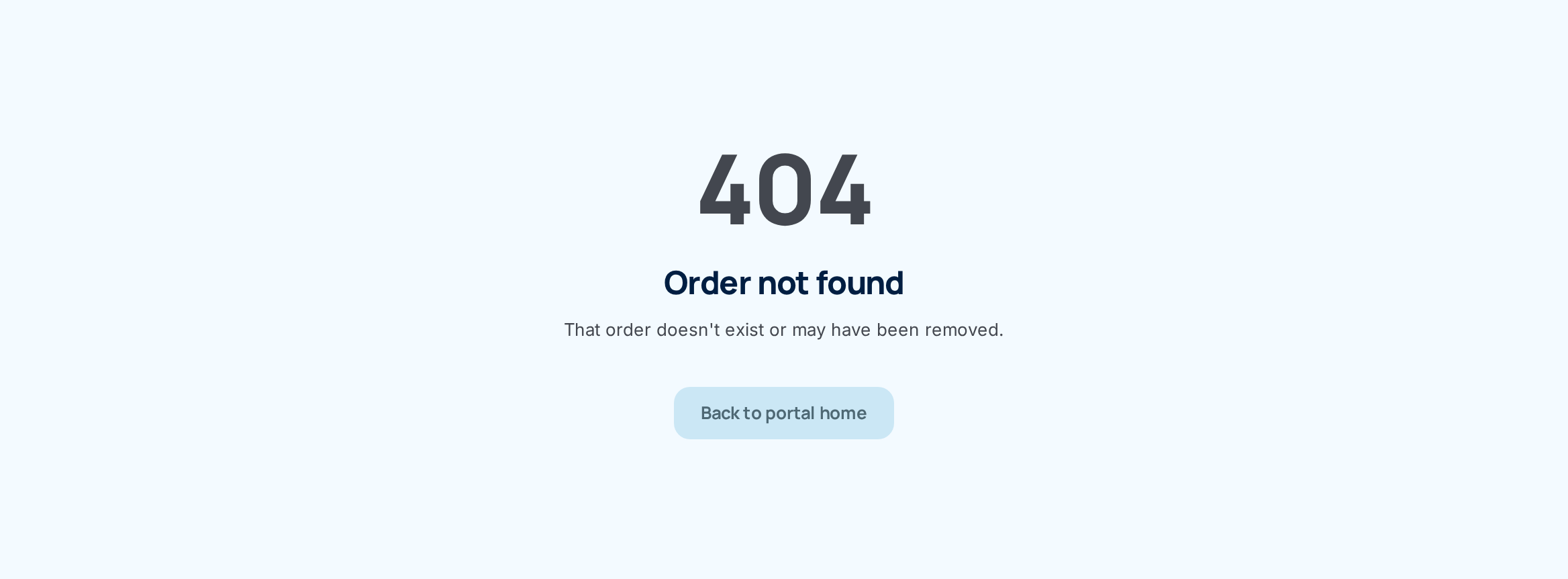
The menu, sign-out and dashboard controls are covered in The portal dashboard.
What happens next
- Your invitation link is used up. It can't be used again, even by you.
- Your password is set and ConsignTrak records that it was changed.
- You're signed in for 4 hours and see your dashboard.
Common problems
"This invite link is no longer valid. Please contact your administrator for a new one." The link has expired (it lasts 72 hours), has already been used, or was copied incompletely. Ask the warehouse to resend your invite. A new email arrives with a fresh link, and any older link stops working.
"Passwords do not match." The two boxes differ. Type the same password in both.
"password must be at least 8 characters", "password must include at least one uppercase letter, digit, special character" (the list names whatever is missing), or "password is too common, please choose a stronger one". Choose a longer password or a less common one that meets every rule.
"too many attempts, try again later" Too many tries came from your network in a short time. Wait a few minutes and try again.
"Invalid username or password" on the sign-in page. Check your username with the warehouse, because it isn't in the invitation. Passwords are case-sensitive.
I forgot my password. There's no "forgot password" link yet (#1477). Ask the warehouse to resend your invite, then set a new password from the new link.
Can I turn on two-factor sign-in? Not yet. The portal doesn't offer two-factor authentication for supply partner accounts today (#1476). Choose a strong password that you don't use anywhere else.
"Order not found", "Item not found" or "Receiving batch not found" The record isn't yours, or it has been removed. Links shared by another company, or by warehouse staff from their own screens, won't open in your portal. Choose Back to portal home.
"Access denied" You followed a link to a page your account can't use. Contact the warehouse office if you think you need it.
"Page out of date" The page was open too long. Choose Reload page and try again.
I opened a link and landed on my dashboard instead. The link was to a warehouse staff page. Supply partner accounts are always sent back to the portal.