Your receivings
What this is
When you send stock to the warehouse, the warehouse counts it, inspects it and adds it to your inventory. Each delivery is a receiving batch. The Receiving page lists your batches. A batch's page shows what was counted and whether each item passed inspection.
You use it to confirm a shipment arrived and to spot any shortfall or failed stock. You can also download a spreadsheet of the last 12 months of receiving lines.
Before you start
- Role: Supply Partner.
- Settings: none.
- You'll need: nothing. A batch appears as soon as the warehouse starts receiving your delivery.
Step by step
-
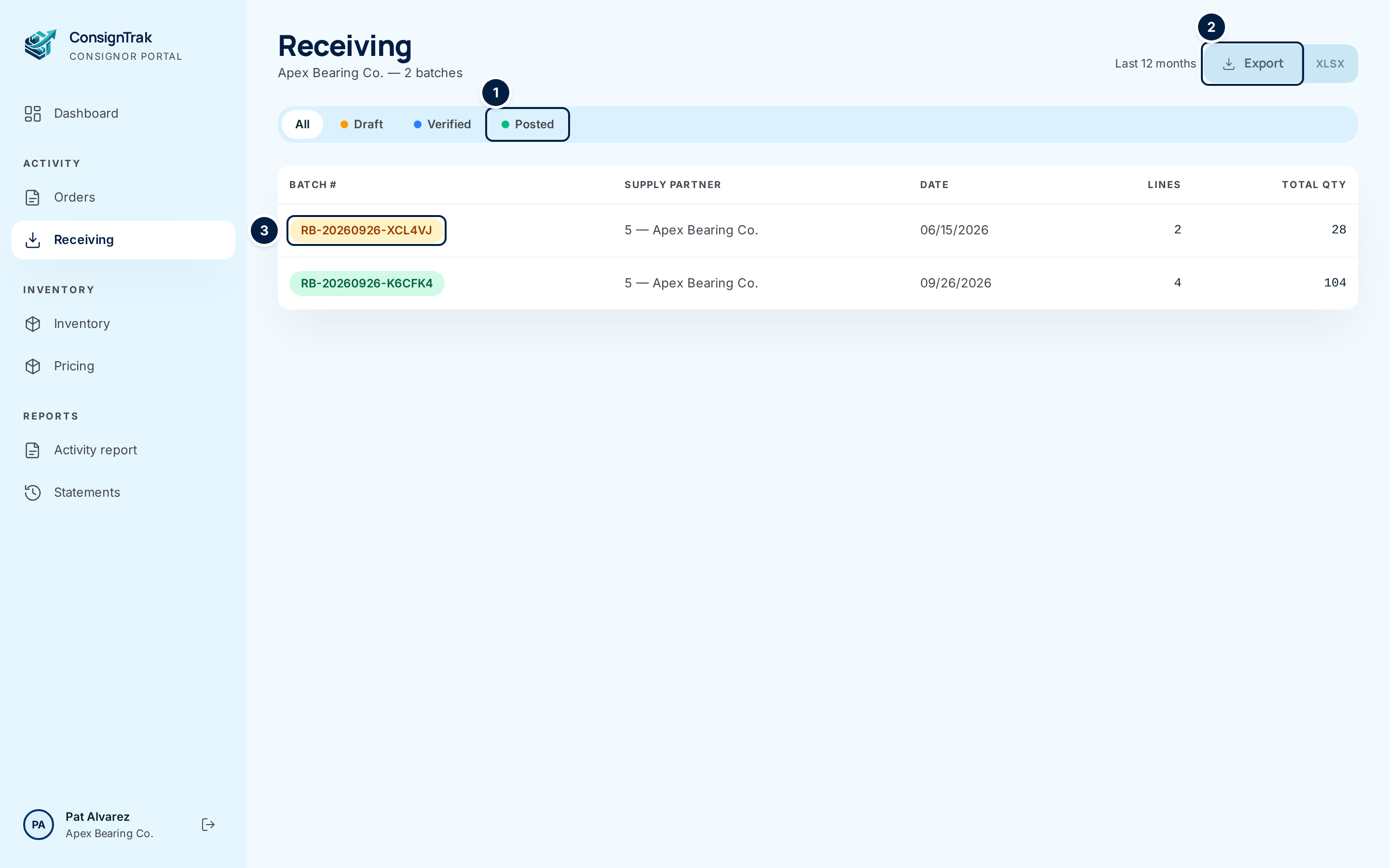
Open Receiving from the sidebar, under Activity.
-
Narrow the list with the status tabs ①:
- Draft: the warehouse is still counting the delivery.
- Verified: the count is locked and the stock is being inspected.
- Posted: done. Stock that passed inspection is now in your inventory.
You can choose several tabs. Choose a highlighted tab again to remove it. All clears the filter.
-
Open a batch by clicking its row ③. The batch number's colour matches its status: amber for Draft, blue for Verified, green for Posted and grey for Voided.
-
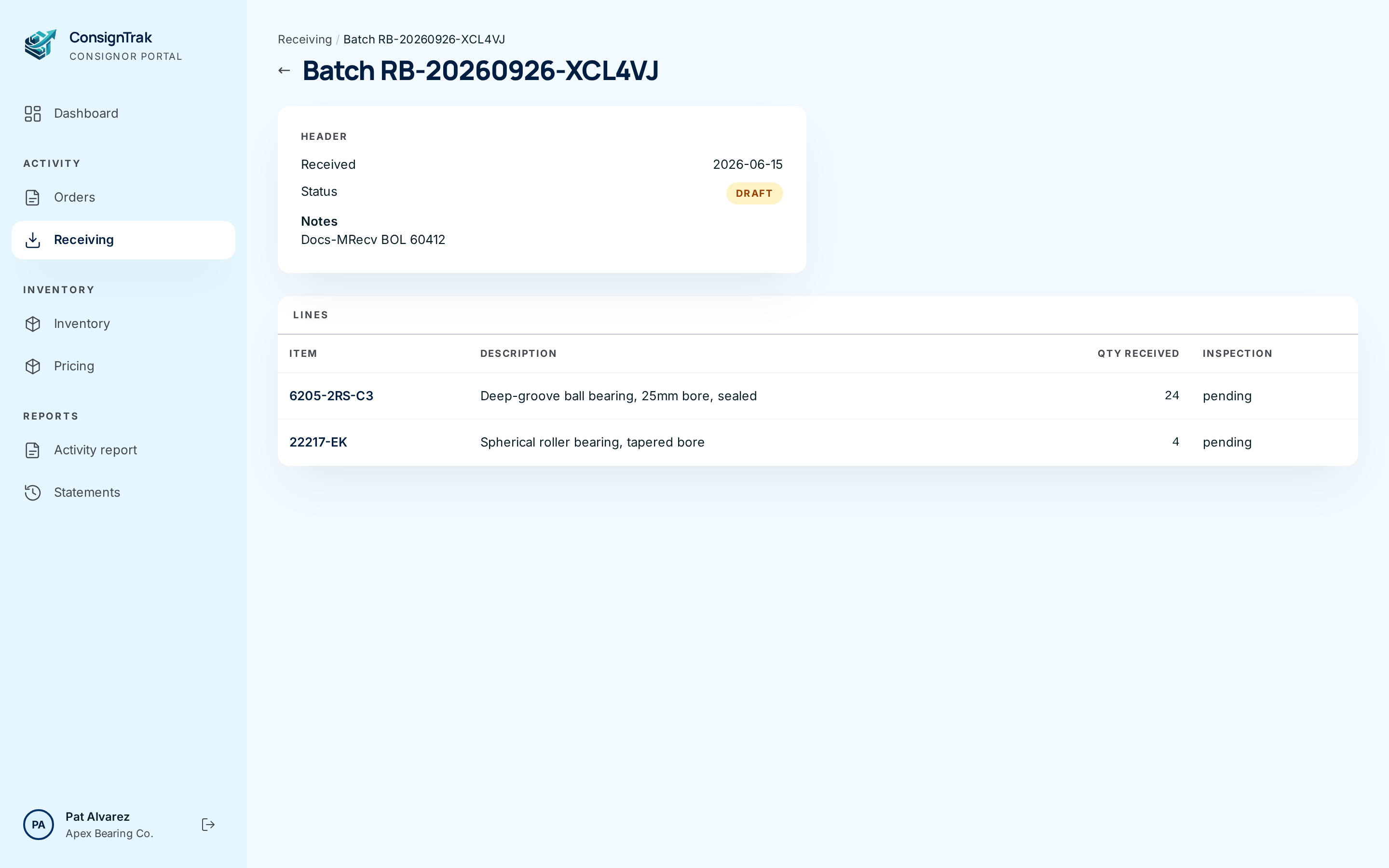
Read the Header for the Received date, the Status, the Posted date (once posted) and any Notes the warehouse added.
-
Read the Lines. Each shows the part number, description, Qty received and the Inspection result:
Inspection Meaning pending Not inspected yet. passed All the units passed and go into your stock. failed The units failed inspection and are held in quarantine, not added to your available stock. partial Some units passed and some failed. waived Accepted without inspection. You'll see this only on older batches. Click a part number to open the item in your inventory.
Download your receiving lines
- Choose Export ② for a CSV file, or XLSX for an Excel spreadsheet.
- Open the file. It has one row per receiving line for every batch received in the last 12 months, in every status.
| Column | What it holds |
|---|---|
| Batch number | The receiving batch. |
| Received date | The day the delivery arrived. |
| Batch status | draft, verified, posted or voided. |
| Item number, Item description | The part received. |
| Qty received | What the warehouse counted. |
| Qty expected | What your stock-transfer spreadsheet said was coming, if you sent one. |
| Qty passed, Qty failed | The inspection split. |
| Inspection status | As in the table above. |
| Posted date | When the stock was added to your inventory. |
Compare Qty expected with Qty received in the export. Any difference is a shortfall or an overage the warehouse counted.
Every field and option
| Field or control | What it means | Required | Default | What changes when you set it |
|---|---|---|---|---|
| Receiving (title), company — N batches | Your company and how many batches are shown. | — | — | Read-only. |
| Last 12 months | What the export covers. | — | — | Read-only. |
| Export / XLSX | Download your receiving lines as CSV or Excel. | — | — | Downloads a file. Nothing in ConsignTrak changes. |
| All | Every status. | — | Selected | Clears the filter. |
| Draft, Verified, Posted | Show only batches in those statuses. You can choose several. | No | None | Filters the list. |
| Batch # | The batch number, coloured by status. | — | — | Click the row to open the batch. |
| Supply Partner | Your manufacturer code and company name. | — | — | Read-only. |
| Date | The received date. | — | — | Read-only. |
| Lines | How many different items were received. | — | — | Read-only. |
| Total Qty | Total units counted across all lines. | — | — | Read-only. |
| No receiving batches found. | Nothing matches the tabs you chose. | — | — | Read-only. |
| Receiving breadcrumb, ← | Back to the list. | — | — | Leaves the page. |
| Batch number (title) | The batch you're looking at. | — | — | Read-only. |
| Header: Received, Status, Posted, Notes | Dates, status (Draft, Verified, Posted or Voided) and the warehouse's notes. | — | — | Read-only. |
| Lines: Item, Description, Qty received, Inspection | What was counted and how it inspected. | — | — | Click the part number to open the item. |
What happens next
- Viewing and exporting change nothing. Downloads are recorded in the warehouse's audit log.
- When a batch is posted, the passed quantities are added to your on-hand stock. You'll see them on your inventory and on your next statement.
- Failed units are held in quarantine and aren't added to your available stock. Agree with the warehouse office what should happen to them.
Common problems
I can't see an older delivery in the list. The list shows only your 25 most recent batches, and the count at the top is for those 25 (issue #1532). Use the export to see everything received in the last 12 months.
I can't open a batch with the keyboard. The batch number isn't a link yet (issue #1532). Click anywhere on the row with the mouse, or tap it on a phone.
"Receiving batch not found": "That receiving batch doesn't exist or may have been removed." The link is wrong, or the batch belongs to another supply partner.
A batch shows Voided. The warehouse cancelled a posting it made by mistake. The stock was taken back out of your inventory. Ask the warehouse office why if it isn't clear from the notes.