Your orders
What this is
The Orders page lists every order the warehouse has entered against your stock. It shows where each one is, from entered to shipped. Open an order to see its lines, where it ships to, its progress, its tracking numbers and its history. You can also download a spreadsheet of the last 12 months of order lines.
You use it to answer customer questions ("has my order shipped yet?") and to reconcile your own records, without contacting the warehouse.
Before you start
- Role: Supply Partner. You'll need a portal login from the warehouse. See Your window into the warehouse.
- Settings: none for viewing. The Awaiting Direct Shipment panel appears only on orders with a direct-ship part. See Recording a direct shipment.
- You'll need: nothing. The warehouse enters the orders. You see them as soon as they're saved.
Step by step
Find an order
-
Open Orders from the sidebar, under Activity. On a phone, tap the menu button at the top left first.
-
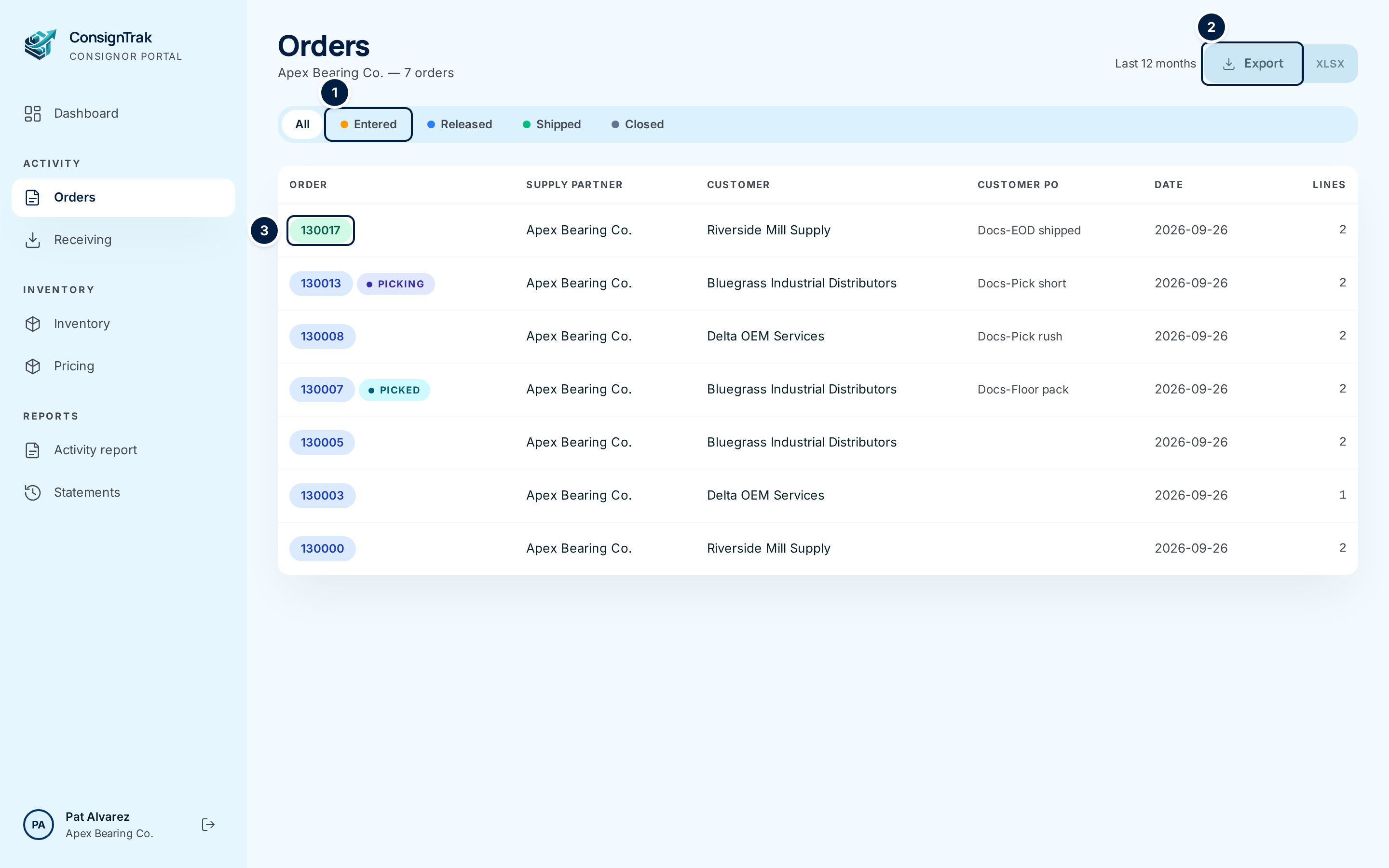
Narrow the list with the status tabs ①. Choose Entered, Released, Shipped or Closed to see only orders in that status. Choose a second tab to add it to the first, and choose a highlighted tab again to remove it. All clears the filter.
-
Read the order number ③. Its colour matches the status: amber for Entered, blue for Released, orange for Partially Shipped, green for Shipped, grey for Closed and red for Cancelled. A released order may also show Picking, Picked or Packed beside it. That tells you how far the warehouse floor has got.
-
Page through with Previous and Next at the bottom. The list shows 25 orders per page, newest first.
-
Open an order by clicking its number, or anywhere on its row.
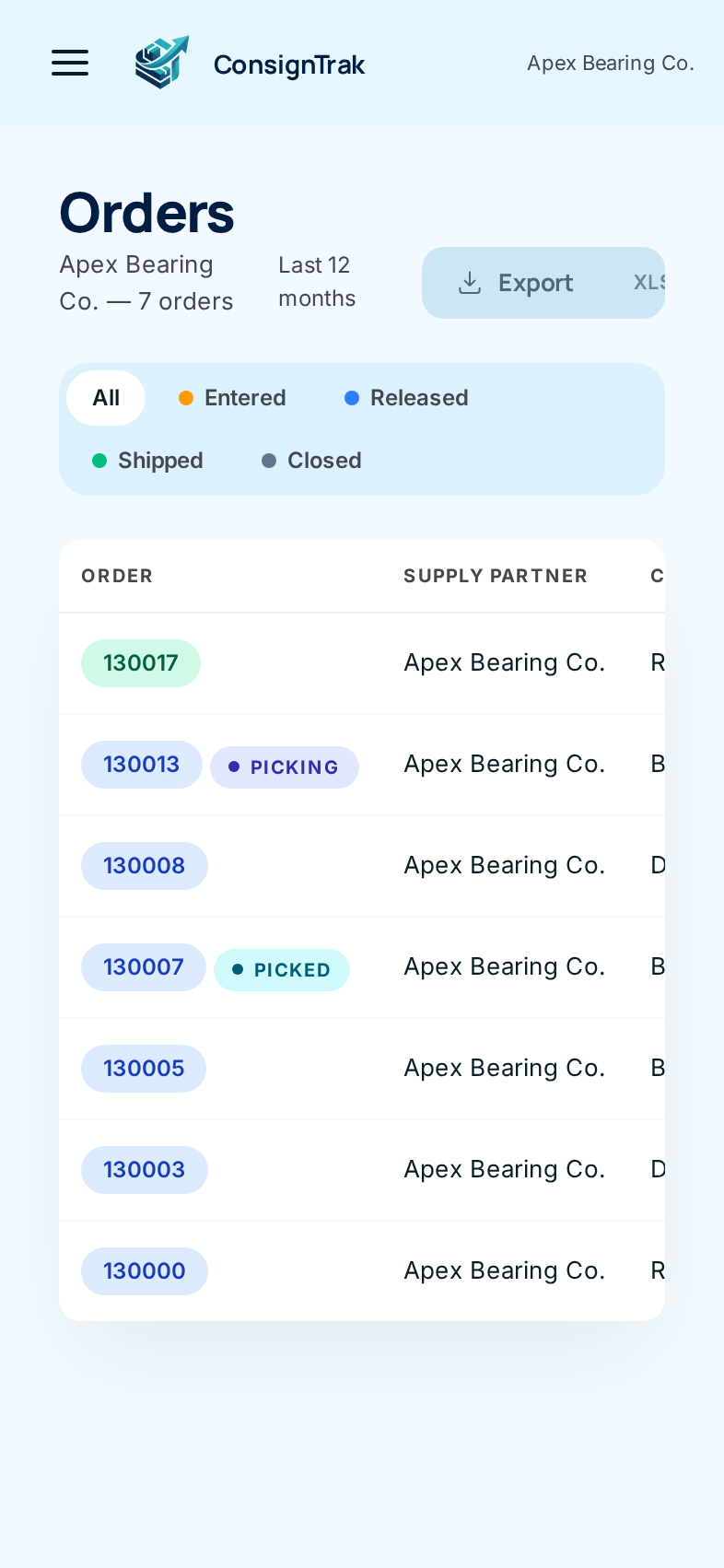
On a phone the table is wider than the screen. Swipe it sideways to see the customer, date and line count.
Read an order
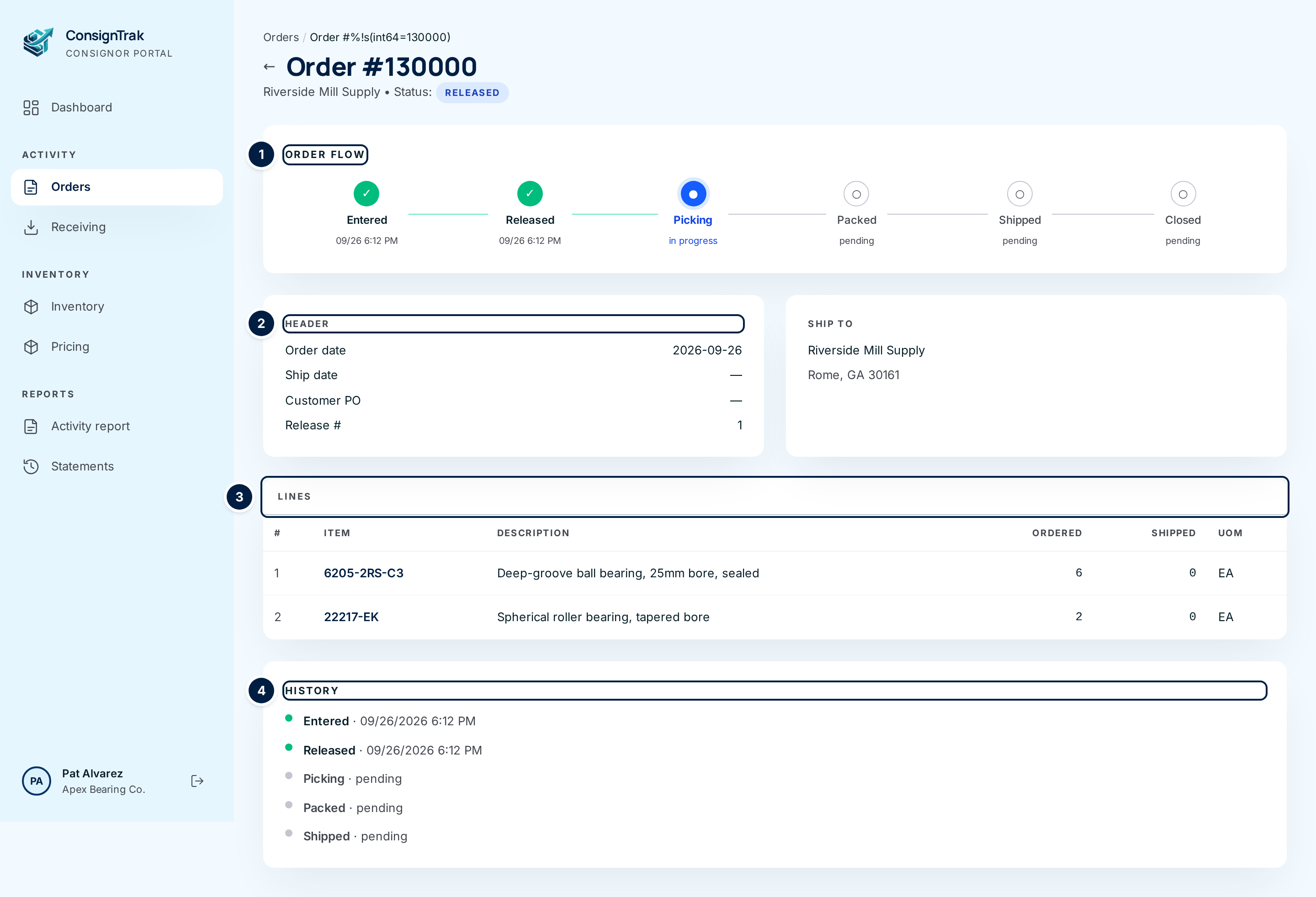
- Check the status under the order number. It shows the customer name, then a status label.
- Follow the Order Flow ①. Each step is ticked green with its date and time
once done. The next step to happen is blue and says in progress. Later
steps say pending. Click a step to jump to the part of the page about it.
- A Will Call badge means the customer collects the order. The last step is Picked Up instead of Shipped.
- A Direct ship badge means you ship the whole order yourself.
- + direct portion means you ship part of it. Click it to jump to the Awaiting Direct Shipment panel.
- Check the Header ② for Order date, Ship date, Customer PO and Release #. The release number is your own order sequence at the warehouse (see Release number). A dash means there's no value yet.
- Check Ship to for the delivery name and address.
- Read the Lines ③. Ordered is what the customer asked for. Shipped is what has gone so far. Click a part number to open that item in your inventory.
- Find tracking numbers in the Tracking panel. It appears once the warehouse has recorded a shipment. Tracking numbers from UPS, FedEx and USPS are links to the carrier's own tracking page, which opens in a new tab. A shipment of several boxes lists Box 1, Box 2 and so on.
- Read the History ④ for the date and time of each step. A cancelled order shows Cancelled with the reason the warehouse gave.
In the Order Flow, in progress marks the next step, not a step that has started. Just after release, Picking says in progress in the Order Flow while the History still says Picking · pending. The History changes to started when someone on the floor actually begins picking.
Download your order lines
- Choose Export on the Orders page ② for a CSV file, or the XLSX half of the same button for an Excel spreadsheet.
- Open the file. It has one row per order line for every order dated in the last 12 months, up to today. The status tabs don't affect it. It always includes every status.
The file is named after "orders", your company and the format.
| Column | What it holds |
|---|---|
| Order number | The order number. |
| Order date | The date the order was entered. |
| Status | entered, released, partial (partially shipped), shipped, closed or cancelled. |
| Customer code | The customer's account code at the warehouse. |
| Customer name | Left blank unless the warehouse has agreed to share customer names in your exports. See the note below. |
| Customer PO | The customer's purchase order number. |
| Item number, Item description, UoM | The part number, description and unit of measure on the line. |
| Qty ordered, Qty shipped | Ordered, and shipped so far. |
| Qty warehouse, Qty direct | How much of the line the warehouse ships, and how much you ship directly. |
| Unit price, Extended price | The price on the line, if one was recorded. |
The export leaves Customer name blank by default. That protects customer names when several supply partners at one warehouse sell to competing customers. The Orders pages themselves show the customer name today. There's no setting in the app to change the export yet. Ask the warehouse if you need names in it.
Recording a direct shipment
Some orders, or parts of them, ship from you straight to the customer instead of from the warehouse's shelves. The warehouse office sets this when it enters the order. Once you've sent the goods, record it here so the order can finish. The warehouse doesn't have to chase you for it.
The Awaiting Direct Shipment panel appears on an order when all of these are true:
- the order is Released or Partially Shipped;
- at least one line has a direct part that isn't marked shipped yet;
- your login is allowed to record direct shipments. Supply Partner logins are allowed by default. If you never see the panel, the warehouse may have turned this off for your login.
- Open the order and scroll to Awaiting Direct Shipment, or click + direct portion in the Order Flow.
- Type the tracking number in Tracking # (optional) on the line you shipped. You can leave it empty.
- Choose the carrier in Carrier (optional). Leave it on Auto-detect from tracking number and ConsignTrak works out UPS, FedEx or USPS from the number's format.
- Choose Mark shipped on that line.
Unlike most buttons in ConsignTrak, Mark shipped in the portal doesn't ask you to click again. It records the shipment immediately, and you can't undo it from the portal. Check you're on the right line first. If you marked the wrong one, contact the warehouse office.
Repeat for each line. Each line records its own tracking number.
The demo data used for this manual has no direct-ship order, so there's no screenshot of this panel. The office's view of the same panel is shown in Direct ship and split fulfillment.
Every field and option
Orders list
| Field or control | What it means | Required | Default | What changes when you set it |
|---|---|---|---|---|
| Orders (title), company — N orders | Your company name and how many orders match the current tabs. | — | — | Read-only. |
| Last 12 months | Tells you what the export covers. | — | — | Read-only. |
| Export | Downloads your order lines as CSV. | — | — | Downloads a file. Nothing in ConsignTrak changes. |
| XLSX | The same download as an Excel spreadsheet. | — | — | Downloads a file. |
| All | Shows orders in every status. | — | Selected | Clears the status filter. |
| Entered, Released, Shipped, Closed | Show only orders in the chosen statuses. You can choose several. | No | None | Filters the list. Choose again to remove. |
| Order | The order number, coloured by status. A released order may also show Picking, Picked or Packed. | — | — | Click to open the order. |
| Supply Partner | Your company. It's always the same here. | — | — | Read-only. |
| Customer | Who the order ships to. If the customer has no name on file, you see their account code. | — | — | Read-only. |
| Customer PO | The customer's purchase order number. Hidden on narrow screens. | — | — | Read-only. |
| Date | The order date. | — | — | Read-only. |
| Lines | How many lines the order has. Hidden on narrow screens. | — | — | Read-only. |
| Page X of Y, Previous, Next | Move between pages of 25 orders. Shown only when there's more than one page. Your status tabs are kept. | — | Page 1 | Shows another page. |
| No orders found. | Shown when nothing matches the tabs you chose. | — | — | Read-only. |
Order page
| Field or control | What it means | Required | Default | What changes when you set it |
|---|---|---|---|---|
| Orders breadcrumb and ← | Back to the Orders list. | — | — | Leaves the page. |
| Order #N (title), customer, Status: | The order number, the customer and the status: Entered, Released, Partially Shipped, Shipped, Closed or Cancelled. | — | — | Read-only. |
| Order Flow | Each step of the order, ticked when done, with in progress on the next step and pending on later ones. Not shown for cancelled orders. | — | — | Click a step to jump down the page. |
| Will Call, Direct ship badges | The customer collects, or you ship everything. | — | — | Read-only. |
| + direct portion | Part of the order ships from you. | — | — | Jumps to Awaiting Direct Shipment. |
| Header: Order date, Ship date, Customer PO, Release # | Key dates and references. A dash means none yet. | — | — | Read-only. |
| Ship to | Delivery name and address. | — | — | Read-only. |
| Lines: #, Item, Description, Ordered, Shipped, UOM | Each line of the order. Shipped counts up as the order ships. | — | — | Click the part number to open the item. |
| Awaiting Direct Shipment | Lines you ship yourself that aren't marked shipped yet. See Recording a direct shipment. | — | — | — |
| Item, Description, Qty (in that panel) | The line and the quantity you ship. | — | — | Read-only. |
| Tracking # (optional) | Your carrier tracking number for this line. | No | Empty | Saved with the shipment. It becomes a carrier link if the carrier is known. |
| Carrier (optional) | Auto-detect from tracking number, UPS, FedEx, USPS or Other. | No | Auto-detect from tracking number | Saved with the shipment. |
| Mark shipped | Records that you shipped this line. It works on the first click. | — | — | The line leaves the panel. See What happens next. |
| Tracking: Batch, Status, Packed, Tracking, Carrier, Captured | One row per shipment the warehouse sent: the pick batch number, its status, the pack date, the tracking number (one per box), the carrier and when the number was recorded. Some columns are hidden on narrow screens. | — | — | A tracking number link opens the carrier's site in a new tab. |
| History | Entered, Released, Picking, Packed, Shipped (or Picked Up) and Cancelled, each with a date and time or pending. Picking can show in progress or abandoned. | — | — | Read-only. |
Warehouse staff names are deliberately not shown anywhere on these pages.
What happens next
- Viewing or exporting changes nothing. Downloads are recorded in the warehouse's audit log.
- As the warehouse works the order, the Order Flow, History, Shipped quantities and Tracking panel update. Reload the page to see the latest.
- When you mark a direct line shipped: the line leaves the Awaiting Direct Shipment panel, and your tracking number is kept. No stock moves on the warehouse's shelves, because the goods came from you. When the last direct line is marked, the order becomes Shipped. The panel's wording says the order will "close". In fact it becomes Shipped, and the warehouse office closes it later.
- The warehouse office sees your shipment on the order straight away. It also drops off their list of direct shipments they're waiting for.
Common problems
I can't find an order. Check the status tabs. Choose All to clear them. Partially Shipped and Cancelled orders have no tab of their own, so they appear only under All.
The breadcrumb above the order says "Order #%!s(int64=130000)". That's a known display fault in the portal (issue #1530). The order number in the large title is correct.
"Order not found": "That order doesn't exist or may have been removed." The link is wrong, or the order belongs to another supply partner. You can only open your own orders.
The Customer name column in my export is empty. That's the default. See the note under Download your order lines.
My export doesn't include an old order. The export covers orders dated in the last 12 months only.
"Direct portion already shipped." Someone already marked that line, either you or the warehouse office. Reload the order.
"Order status does not allow marking direct shipment." The order is no longer Released or Partially Shipped. It may have been shipped, closed or cancelled since you opened the page. Reload it.
"Carrier must be UPS, FedEx, USPS, or Other." Choose a carrier from the list, or leave it on auto-detect.
"Line has no direct portion to ship.", "Line not found on this order." or "No lines selected." The page is out of date. Reload it and try again.
A split order became Shipped when I marked my part, but the warehouse hasn't shipped its part yet. Tell the warehouse office. This is a known problem being looked at (issue #1535).