The activity report
What this is
The activity report is a PDF record of the orders the warehouse shipped for you in a period you choose. It starts with a summary page listing each shipped order. After that comes one page per order, laid out like the printed release, showing exactly what went out.
Many supply partners file it with their ISO 9001 quality records. It shows that their agent, the warehouse, shipped what was ordered, when, and how. It's the same report the warehouse office can run for you. You can run it yourself whenever you need it.
Before you start
- Role: Supply Partner.
- Settings: none. If the warehouse has your logo on file, it prints on the report.
- You'll need: the period you want, at most 366 days.
Step by step
-
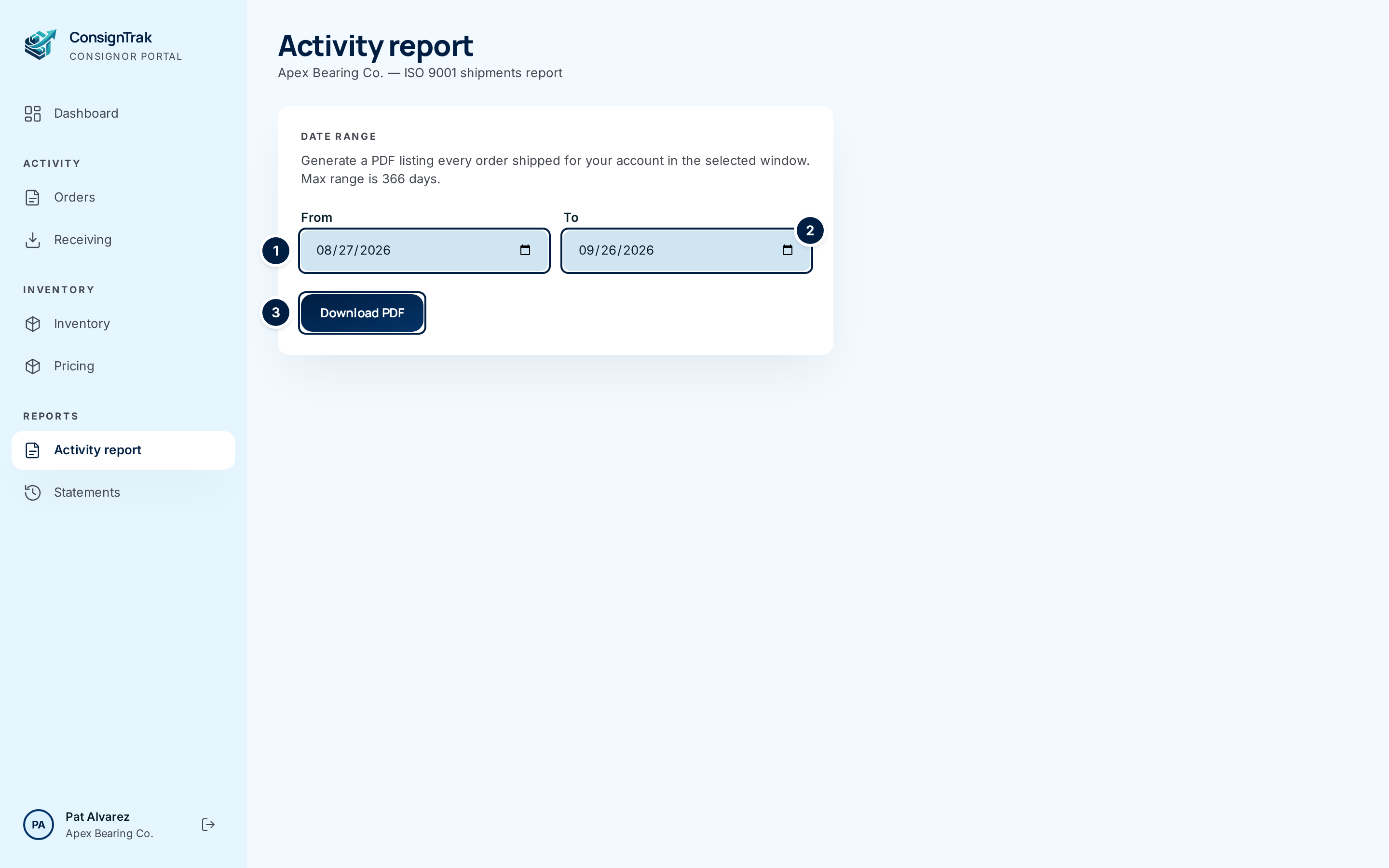
Open Activity report from the sidebar, under Reports.
-
Set the period. From ① starts as 30 days ago and To ② as today. Change either date to the period you need. Both days are included.
-
Choose Download PDF ③. Your browser downloads the PDF, named after your manufacturer code and the two dates. Open it from your downloads.
Reading the PDF
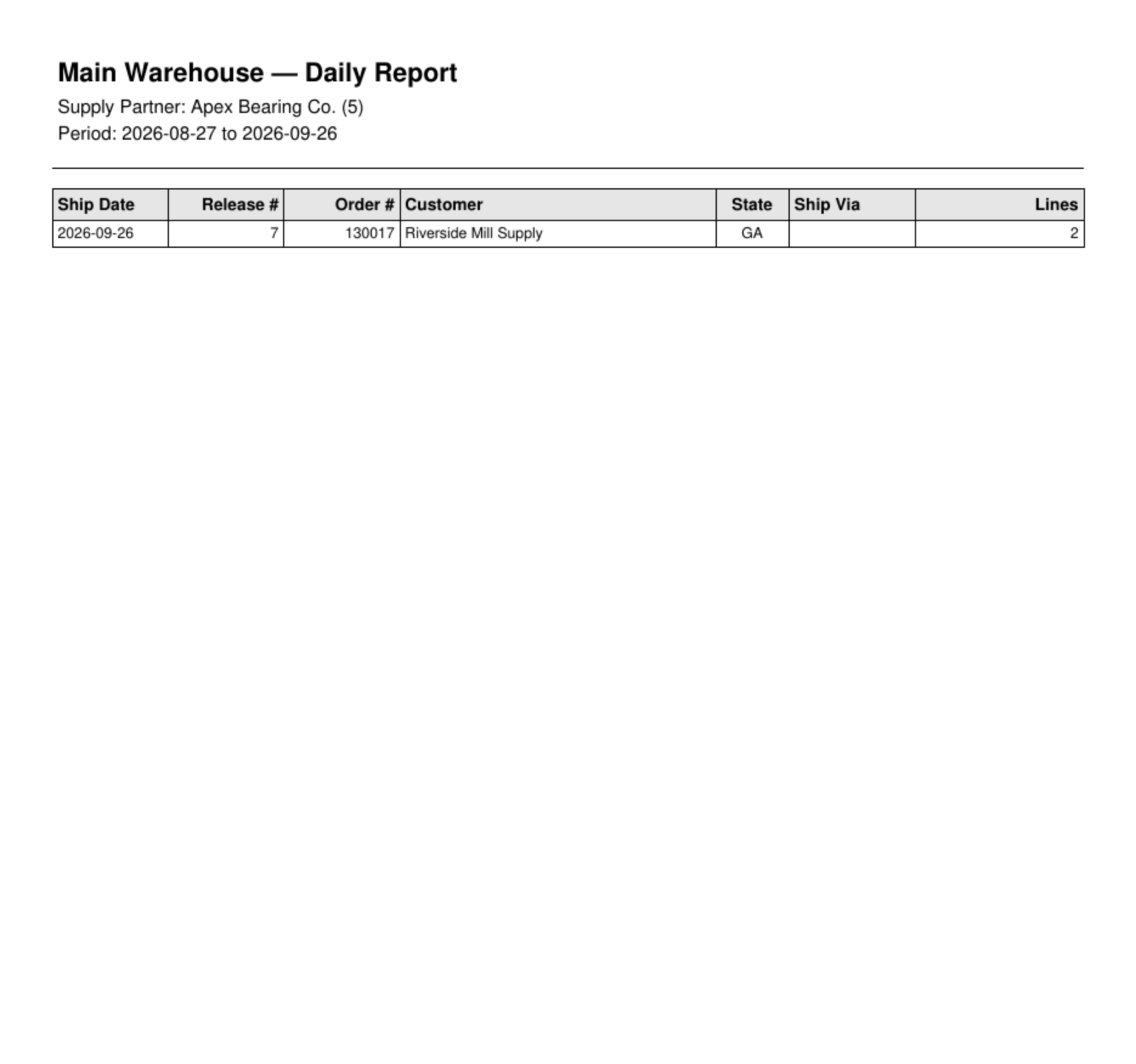
The demo data used for this manual has no shipped orders for Apex Bearing Co. yet, so this example shows the empty first page.
Page 1, the summary
- The heading, warehouse name — Daily Report. That's the report's fixed title, whatever period you chose.
- Supply Partner: your company name and manufacturer code.
- Period: the dates you chose.
- Your logo, top right, if the warehouse has it on file.
- One row per shipped order: Ship Date, Release #, Order #, Customer, State (the ship-to state), Ship Via and Lines.
- No shipments in this period. if there's nothing to list.
One page per order after that, headed Pick List:
- Your name, logo and Mfg Code (your manufacturer code).
- Order #, Ref (your authorization reference, if the order had one), Terms, Order Date, Ship Date, Print Date, Cust ID, Cust PO, Sales Rep, S/O # and Ship Via.
- SOLD TO and SHIP TO addresses.
- One row per line: Item No, W# (today this prints the ship-to state), Description, Ship Qty and Weight, then TOTALS for quantity and pounds.
- Carrier, Weight (lb) and Freight for the shipment. Tracking # and Packages always print a dash on this report today. For tracking numbers, open the order in the portal (see Your orders).
Every page's footer shows when the report was generated and by whom (your name), and Page X of Y.
The report lists your orders with the status Shipped. That includes orders where the warehouse has shipped its part and your direct-ship part is still to go. It picks orders by their order date, not their ship date. An order entered on 31 March and shipped on 2 April is on March's report. Orders the warehouse has since marked Closed are left out (issue #1533). If you need a complete record of an older period, run it soon after month end, or ask the warehouse office.
Every field and option
| Field or control | What it means | Required | Default | What changes when you set it |
|---|---|---|---|---|
| Activity report (title), company — ISO 9001 shipments report | Your company, and what the report is for. | — | — | Read-only. |
| Date range | Explains the report and its 366-day limit. | — | — | Read-only. |
| From | First day of the period, included. | Yes | 30 days ago | Sets the period's start. |
| To | Last day of the period, included. No more than 366 days after From. | Yes | Today | Sets the period's end. |
| Download PDF | Builds the report for the period and downloads it. | — | — | Downloads a PDF. Nothing in ConsignTrak changes. |
What happens next
- Nothing changes in ConsignTrak. The warehouse's audit log records that you downloaded the report and for which dates.
- The PDF is yours to keep. File it, print it, or send it to your auditor.
- Running the same period again later can give a different result, if orders in it have shipped or been closed since.
Common problems
"date range exceeds maximum of 366 days" Shorten the period to a year or less, or run two reports.
"invalid date range: end must be on or after start" To is earlier than From. Swap them.
"both 'from' and 'to' query parameters are required (YYYY-MM-DD)" One of the dates is empty. Fill in both.
An order I know shipped isn't on the report. Check its order date. It must fall inside your period. If the order is now Closed, it's left out (see Which orders are on it above).
The report shows customer names and addresses, but my export doesn't. The orders export hides customer names by default. The activity report doesn't (issue #1531).