Your inventory
What this is
The Inventory page lists every item the warehouse holds for you, with how many are on hand, committed to orders and still available. Open an item to see where it sits in the warehouse, what has shipped recently and every price you have published for it. You can download the whole list as a spreadsheet at any time.
Before you start
- Role: Supply Partner. You see only your own company's items.
- Settings: none. Customer names on Recent shipments show only if the warehouse has turned that on for you (see What happens next).
- You'll need: nothing. Items appear here once the warehouse has received them into stock.
Step by step
-
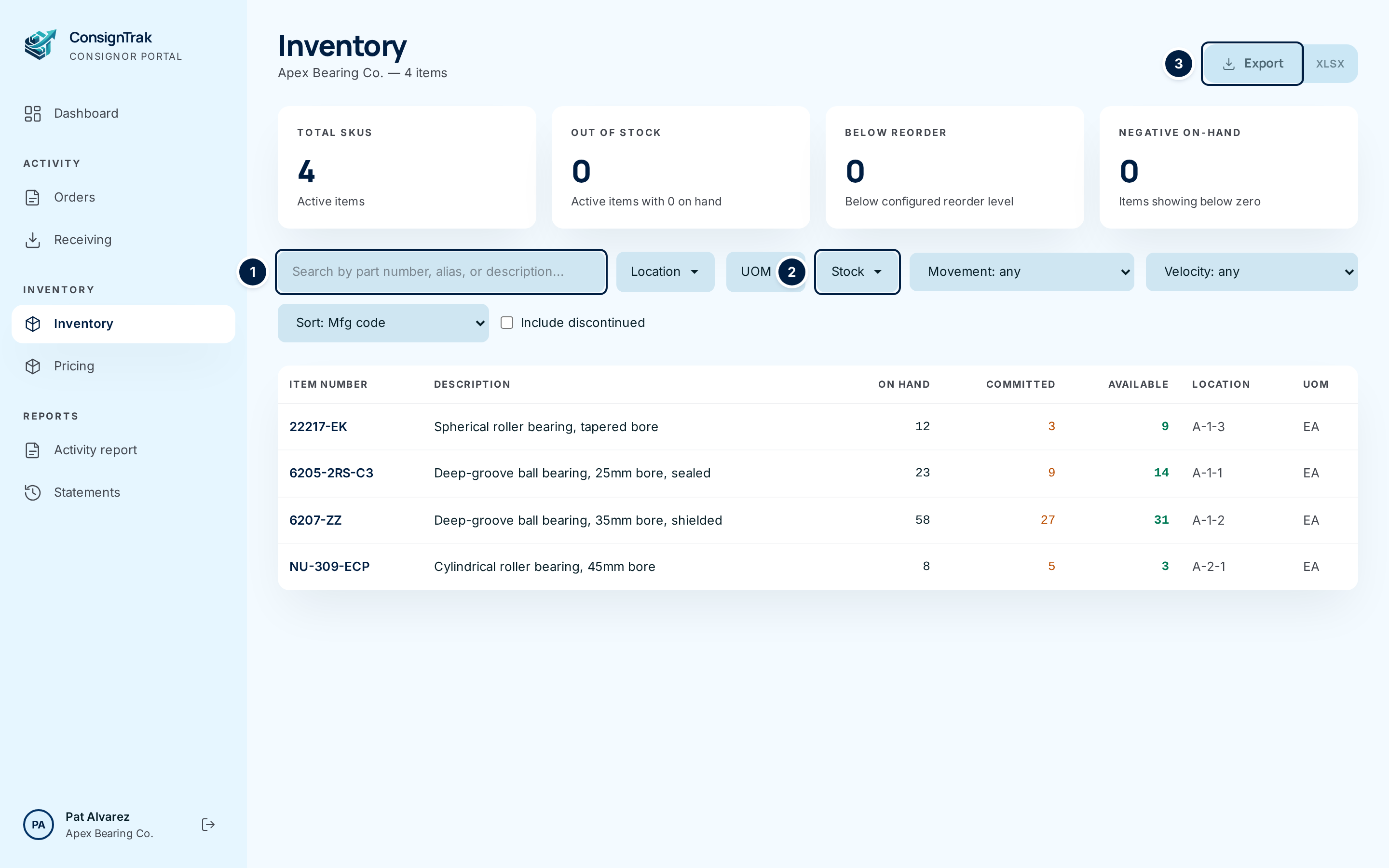
Open Inventory from the Inventory section of the portal sidebar. The count under the title says how many items match what you're looking at.
-
Check the cards across the top. Total SKUs counts your active items. Out of stock, Below reorder and Negative on-hand count items that need attention. They turn amber or red when the count isn't zero. Click a card to show just those items.
-
Search in the box ①. Type part of a part number, an alias or a description. The list updates as you type.
-
Narrow the list with the filters. Stock ② picks out problem items: out of stock, below reorder, negative on hand, oversold, or missing a price. Location, UOM, Movement, Velocity and Sort work the same way. Each filter you apply shows as a chip under the filters. Click the ✕ on a chip to remove it, or Clear all to start again.
-
Download the list with Export ③ for a CSV file, or XLSX for an Excel file. The file holds every item that matches your current filters.
-
Open an item by clicking its row.
-
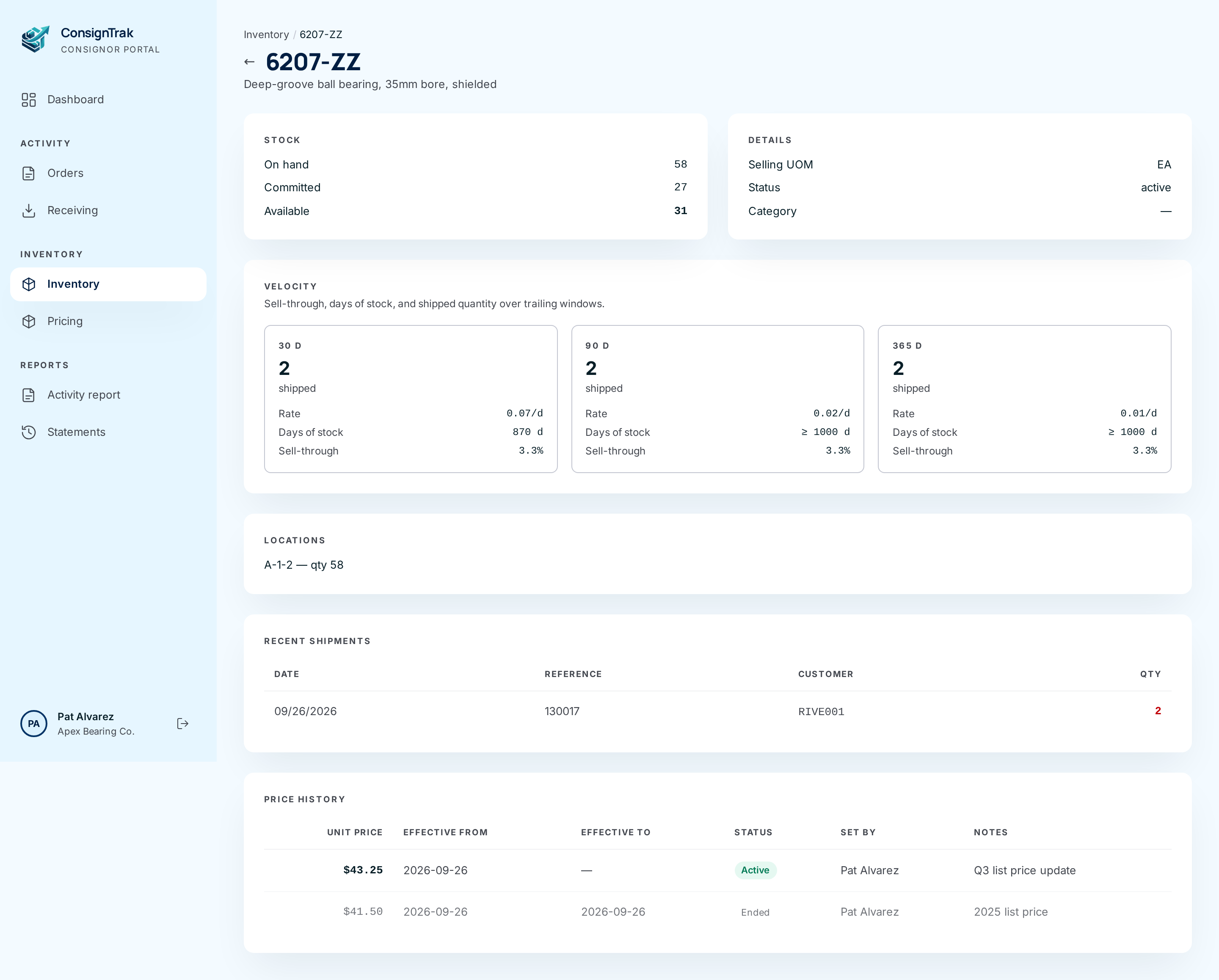
Read the item page from the top:
- Stock: on hand, committed, available, and the reorder level and unit weight when they're set.
- Details: the selling unit of measure, status and category.
- Velocity: how much shipped over the last 30, 90 and 365 days.
- Locations: each bin that holds the item, with the quantity in it.
- Recent shipments: the last ten shipments of this item to customers.
- Price history: every price you have published for the item.
-
Check the price timeline at the bottom. The newest price is first. The one in force is marked Active. Earlier ones are marked Ended and show the date they stopped.

-
Go back with the arrow beside the part number, or the Inventory link in the breadcrumb.
Every field and option
The Inventory list
| Field or control | What it means | Required | Default | What changes when you set it |
|---|---|---|---|---|
| Inventory (title) and item count | Your company name and how many items match. | — | — | Read-only. |
| Export | Downloads the matching items as a CSV file. | — | — | Starts a download. Nothing changes in ConsignTrak. |
| XLSX | Downloads the same list as an Excel file. | — | — | Starts a download. |
| Total SKUs card | How many active items you have at the warehouse. | — | — | Click to list active items only. |
| Out of stock card | Active items with nothing on hand. | — | — | Click to filter to them. Amber when above zero. |
| Below reorder card | Items whose on-hand quantity is under the reorder level set on the item. | — | — | Click to filter to them. Amber when above zero. |
| Negative on-hand card | Items the system shows below zero. This usually means a shipment was recorded before stock was received. | — | — | Click to filter to them. Red when above zero. |
| Search box | Finds items by part number, alias or description. | No | Empty | Filters the list as you type. |
| Category | Tick one or more categories, then Apply. Shows only when your items have categories. | No | All | Shows only items in the ticked categories. |
| Location | Tick one or more bins, then Apply. | No | All | Shows only items stored in those bins. |
| UOM | Tick one or more units of measure, then Apply. | No | All | Shows only items sold in those units. |
| Stock | Tick Out of stock, Below reorder, Negative on-hand, Oversold (more committed than on hand) or Missing price, then Apply. | No | None | Shows only items in the ticked groups. |
| Apply | Confirms the ticks in a Category, Location, UOM or Stock list. | — | — | Refreshes the list. |
| Movement | No movement in 30d / 90d / 180d / 365d (dead). | No | Movement: any | Shows items that haven't moved in that time. |
| Velocity | Fast (top quarter by shipments over a year), Slow (bottom quarter) or Dead (no shipments in a year). | No | Velocity: any | Shows items in that band. |
| Sort | Order by manufacturer code, item number, description, on hand, available or most recent movement. | No | Sort: Mfg code | Re-orders the list. |
| Include discontinued | Also list items you've discontinued. | No | Off | Adds discontinued items. |
| Filter chips, ✕ and Clear all | The filters in force. ✕ removes one, Clear all removes them all. | — | — | Refreshes the list. |
| Item Number | The part number. Click the row to open the item. | — | — | Opens the item page. |
| Description | The item's description. | — | — | Read-only. |
| On Hand, Committed, Available | See the three numbers. | — | — | Read-only. |
| Location | The item's main bin. Shown on wide screens. | — | — | Read-only. |
| UOM | The unit of measure the item is sold in. Shown on wide screens. | — | — | Read-only. |
| Page numbers | Move between pages when you have many items. | — | Page 1 | Shows the next page. |
The item page
| Field or control | What it means | Required | Default | What changes when you set it |
|---|---|---|---|---|
| ← arrow and Inventory breadcrumb | Back to the Inventory list. | — | — | Leaves the page. |
| Part number (title) and description | The item you're looking at. | — | — | Read-only. |
| Stock: On hand, Committed, Available | Current quantities. | — | — | Read-only. |
| Reorder level | The quantity at which the item counts as "below reorder". Shown only when set. | — | — | Read-only, unless editing is on. |
| Unit weight | Weight of one unit. Shown only when set. | — | — | Read-only. |
| Details: Selling UOM, Status, Category | The unit you sell in, whether the item is active or discontinued, and its category (— when none). | — | — | Read-only, unless editing is on. |
| Velocity: 30 d, 90 d, 365 d | For each window: the quantity shipped, the average Rate per day, Days of stock (how long what's on hand would last at that rate; — when nothing shipped) and Sell-through (shipped as a share of shipped plus on hand). | — | — | Read-only. |
| Locations | Each bin holding the item, with its quantity. | — | — | Read-only. |
| Recent shipments: Date, Reference, Customer, Qty | The last ten shipments of this item to customers. Receipts and adjustments aren't listed. Customer shows the customer's account code, and its name only if the warehouse shows you customer names. | — | — | Read-only. |
| Price history: Unit price, Effective from, Effective to, Status, Set by, Notes | Every price you've published for the item, newest first. Active is the price in force. Ended prices are greyed. Set by is the person who entered it. | — | — | Read-only. Change prices on the Pricing page. |
What's in the export
The file has one row per item and these columns: item ID, manufacturer code, supply partner name, item number, description, status, unit of measure, unit weight, primary location, quantity on hand, allocated and available, reorder level, and the dates it was last received, shipped and ordered. The item ID is an internal reference you can ignore. The spreadsheet's column headings still say "Manufacturer name" for the supply partner name. That is tracked in issue #1514.
What happens next
Nothing changes when you browse or export. Every export is recorded in the warehouse's audit trail.
The numbers change as the warehouse works: receiving adds to On hand, a new order adds to Committed, and shipping takes from both.
Customer names on Recent shipments are hidden unless the warehouse turns them on for your company. Several supply partners can share one warehouse and its customers, so the default is the account code only (see Portal behaviours with no on-screen switch).
Common problems
"No items found." — Your search or filters match nothing. Click Clear all, or check the spelling of the part number.
An item I sent to the warehouse isn't listed. — Items appear once the warehouse has received them. Check the portal's Receiving page, or tick Include discontinued in case the item was discontinued.
A number looks wrong. — The portal shows what the warehouse has recorded. Contact the warehouse. They can check the item's movement history.
The item page says "No prices recorded for this item." — You haven't published a price for it yet. See Prices.