Prices
What this is
The Pricing page is where you publish your list price for each item. Office staff at the warehouse see these prices as reference values. They don't create invoices; you still invoice your customers yourself. Each item has one price in force at a time. A new price automatically ends the old one, and every earlier price stays in the item's history.
This page covers prices one at a time. To change many at once, see Bulk price import or Bulk adjusting prices.
Before you start
- Role: Supply Partner.
- Settings: none on your side.
- You'll need: the item at the warehouse and active. You can price only your own active items.
Step by step
Find the items that need a price
-
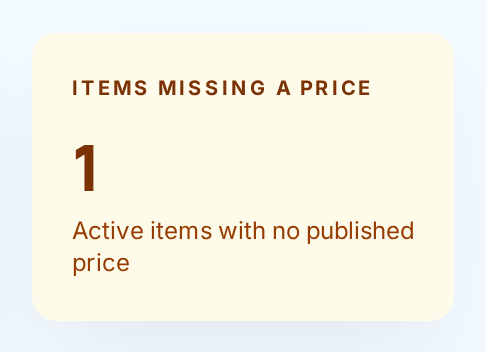
Look at the dashboard. The Items missing a price card counts your active items with no price in force. It turns amber when the count is above zero. An item whose only price is scheduled for later still counts as missing.
-
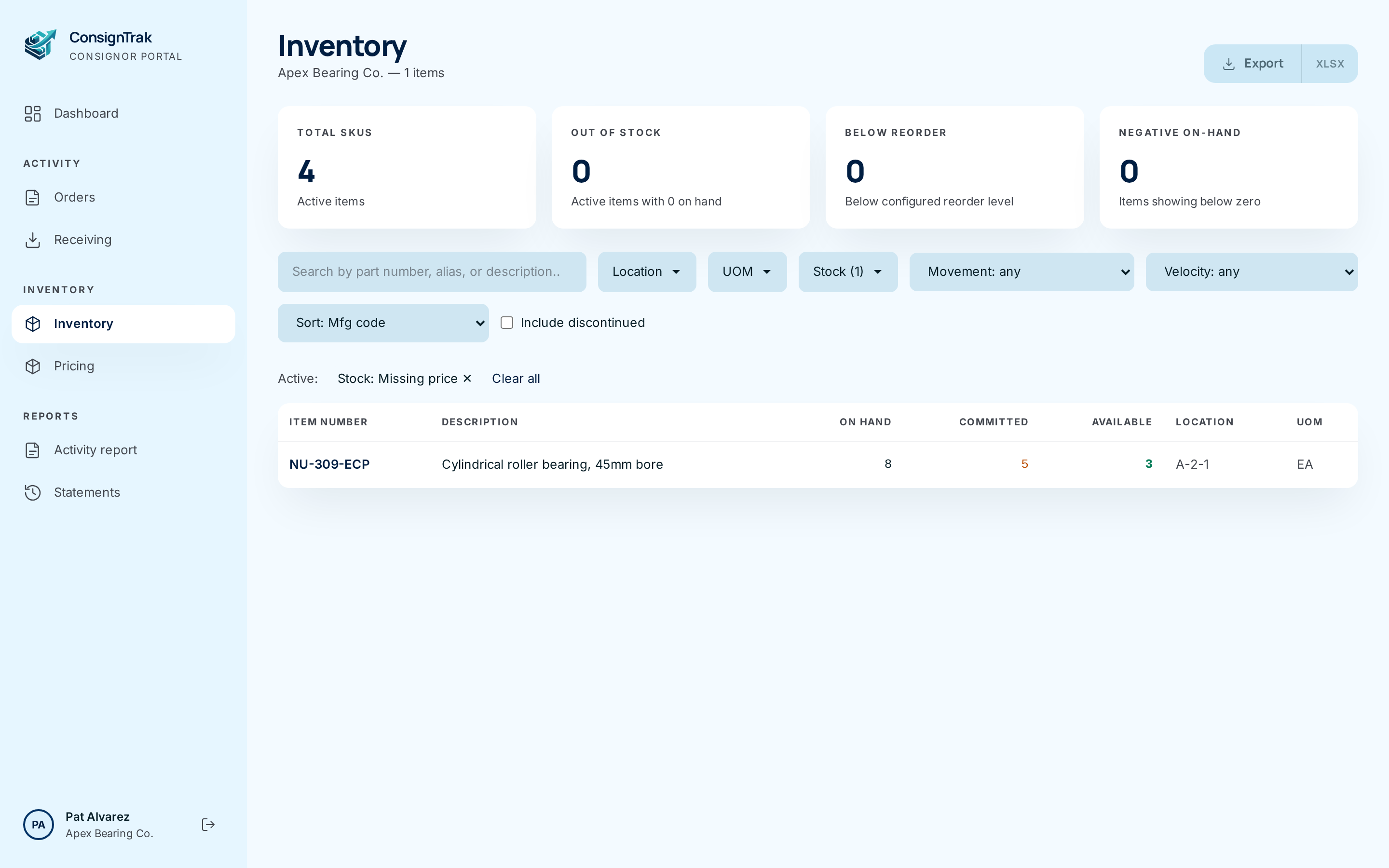
Click the card. Your Inventory list opens filtered to those items. You get the same list by ticking Missing price under Stock on the Inventory page.
Set a price for one item
-
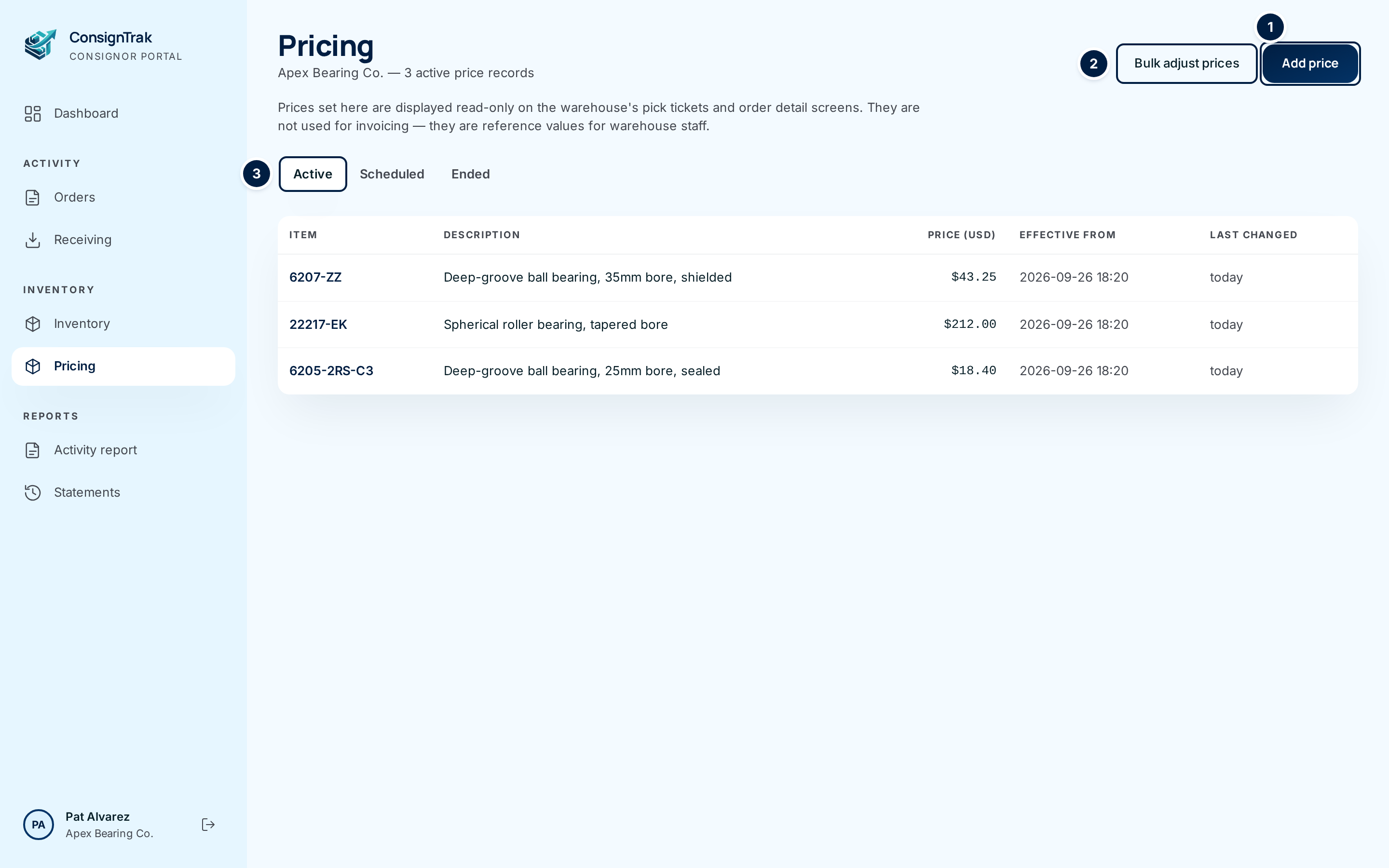
Open Pricing from the Inventory section of the portal sidebar. The list shows your Active prices ③ first.
-
Choose Add price ①.
-
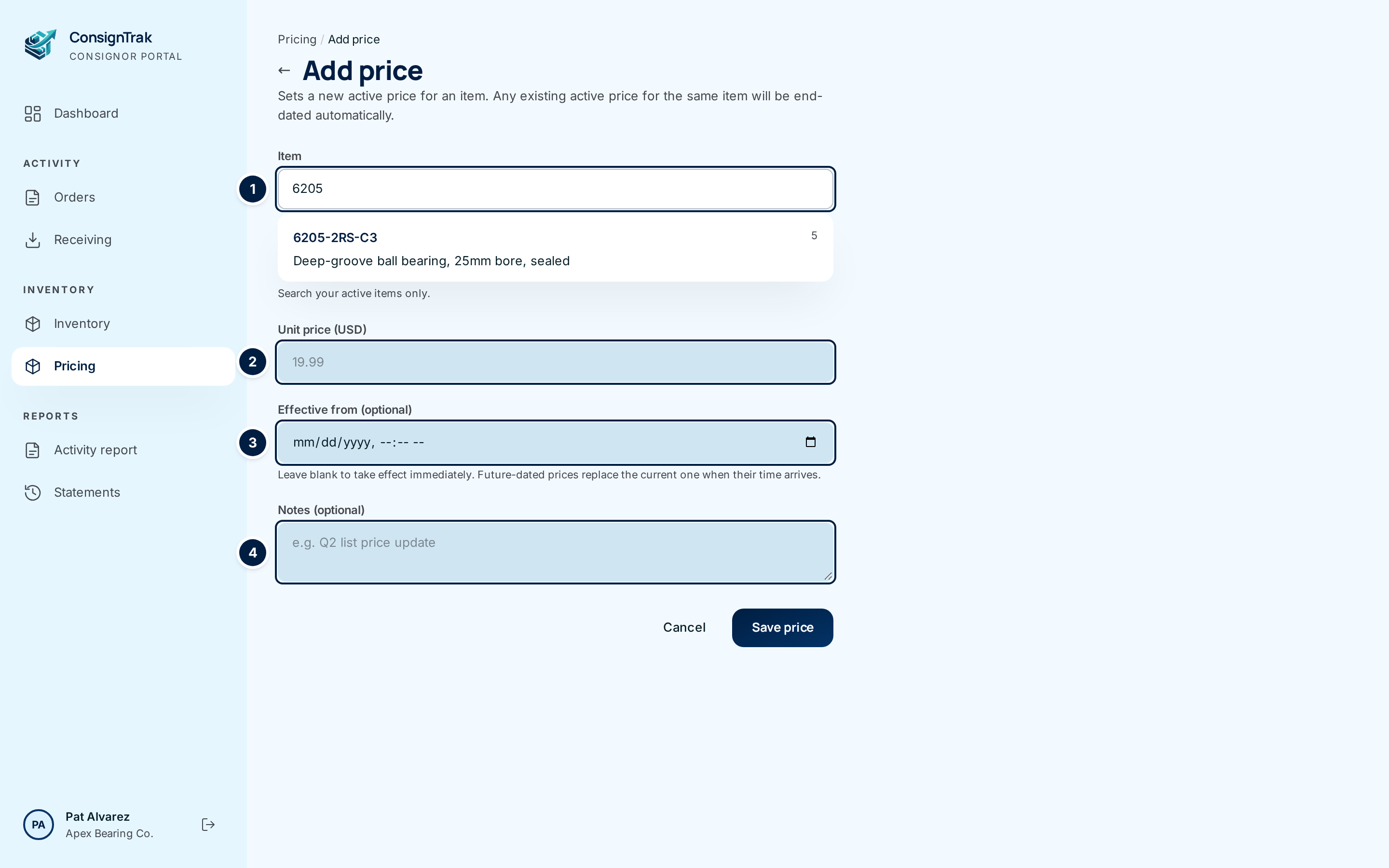
Find the item ①. Type part of the part number or description, then click the item in the list that appears.
-
Enter the unit price ② in US dollars, for example 19.99.
-
Leave Effective from blank ③ for the price to start now. To schedule it, pick a later date and time.
-
Add a note ④ if it helps, such as "Q3 list price update".
-
Choose Save price. ConsignTrak opens the new price's page. If the item already had a price in force, that price ends as this one starts.
Schedule a future price
-
Add the price as above, with a future date and time in Effective from.
-
Check the Scheduled list. Choose Scheduled at the top of the Pricing page. Your future price waits there. The current price stays in force until the scheduled time, then the new one takes over by itself.
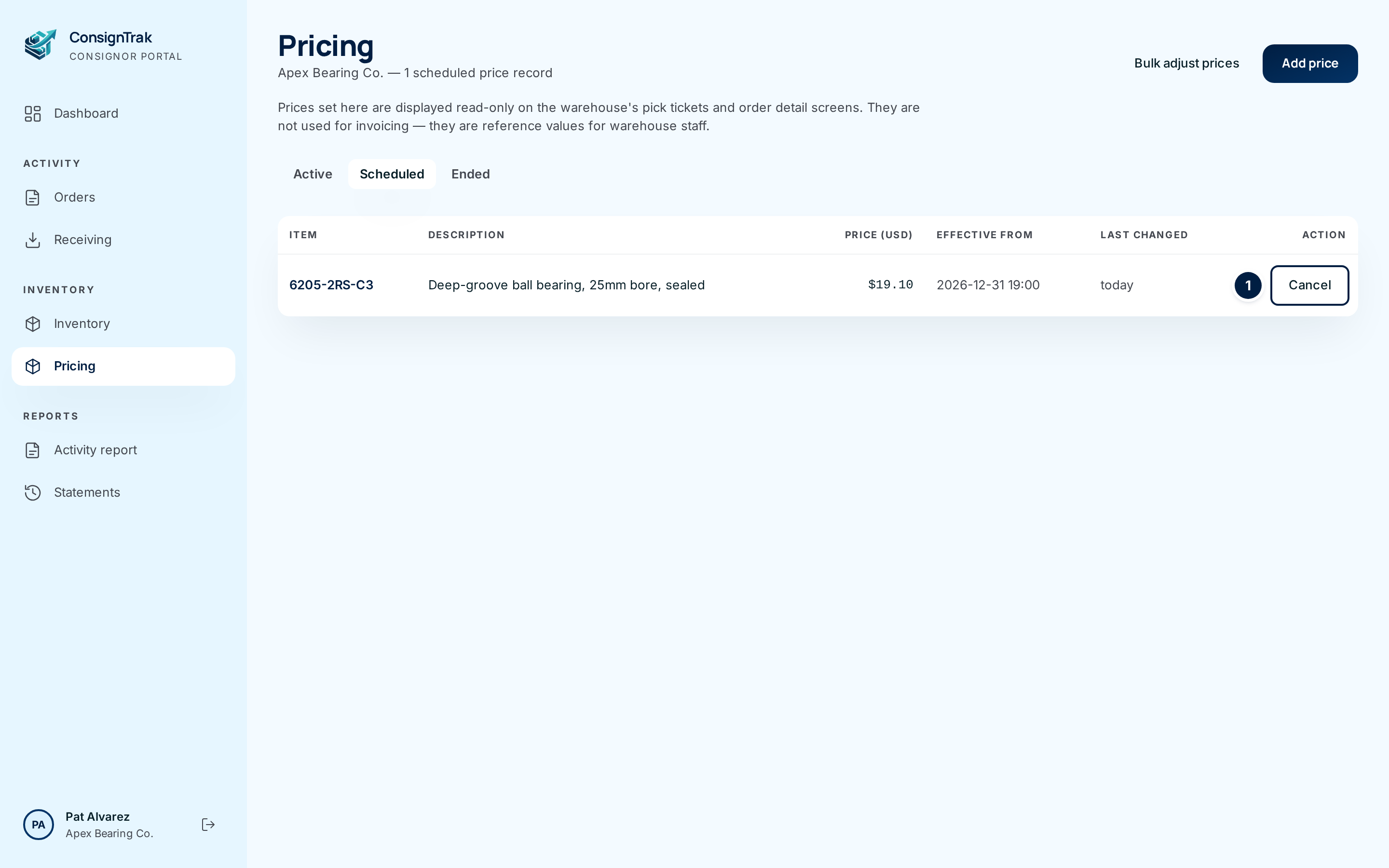
The time you type is currently read as UTC (Coordinated Universal Time), but lists show your local time. A price you scheduled for midnight on 1 January may show as 7 p.m. on 31 December. Pick a time that works either way, or check the Scheduled list after saving. This is issue #1550.
Cancel a scheduled price
- Choose Scheduled on the Pricing page.
- Choose Cancel ① on the price's row. The button turns red and asks you to click again. Click it a second time to confirm.
The scheduled price is removed. The price in force now stays in force with no end date.
Change, end or annotate a price
-
Open the price. Click its part number in the Active or Ended list.
-
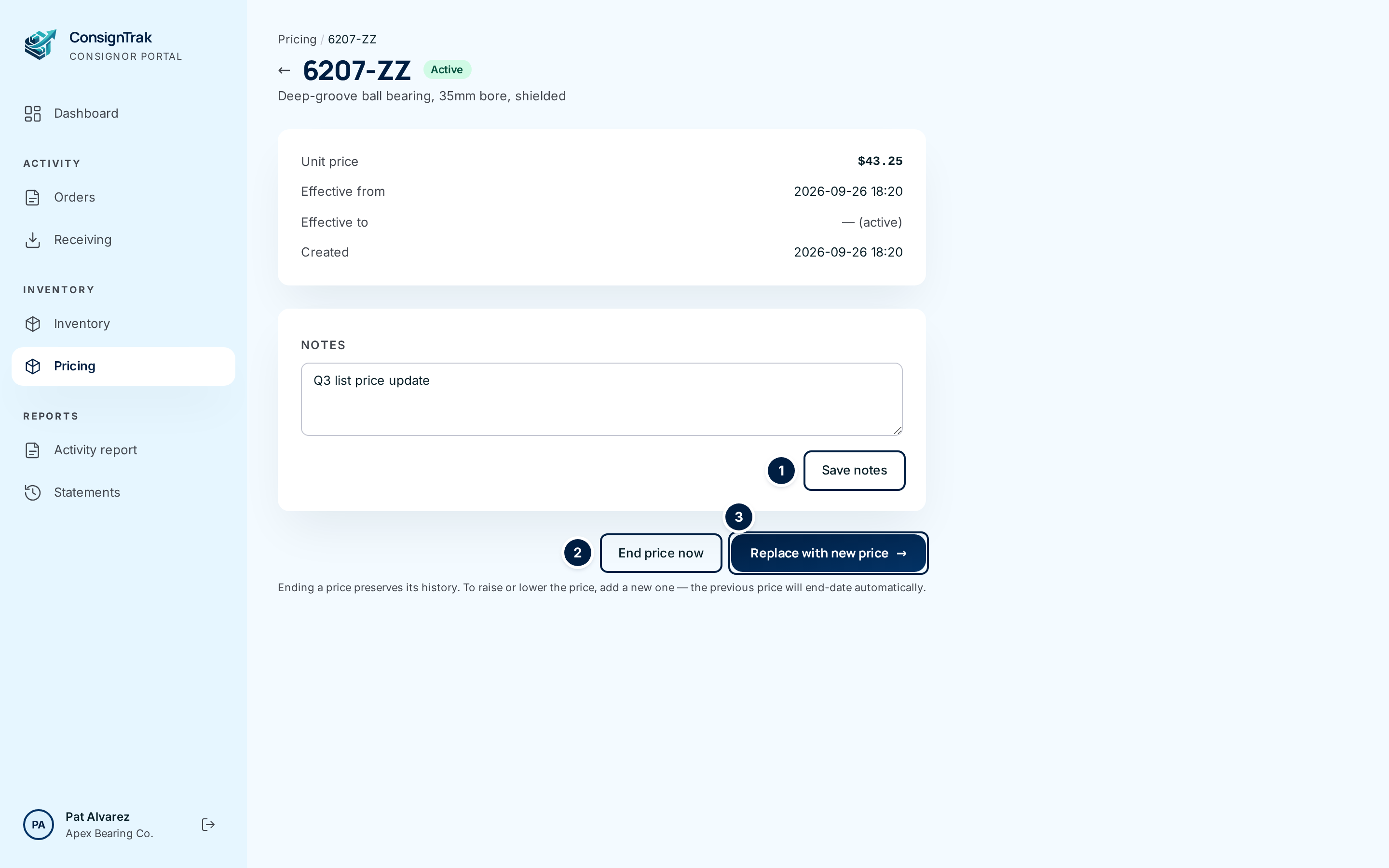
To change the price, choose Replace with new price ③. It opens the Add price form. Save the new price for the same item, and the old one ends by itself. You can't edit a price's amount or dates once saved.
-
To stop showing a price, choose End price now ②. The button changes and asks you to click again. Click it a second time to confirm. The item then has no price in force until you add one.
-
To keep a note, type in Notes and choose Save notes ①. Only the note changes.
Look back at old prices
Choose Ended at the top of the Pricing page. Each row shows when the price started and when it stopped. An item's full timeline is also on its inventory page, under Price history.
Every field and option
The Pricing list
| Field or control | What it means | Required | Default | What changes when you set it |
|---|---|---|---|---|
| Pricing (title) and record count | Your company and how many prices are in the list you're viewing. | — | — | Read-only. |
| Bulk adjust prices | Opens Bulk adjusting prices. | — | — | Leaves the page. |
| Add price | Opens the Add price form. | — | — | Leaves the page. |
| Active | Prices in force now. | — | Selected | Shows active prices. |
| Scheduled | Prices that start in the future. | — | — | Shows scheduled prices, each with Cancel. |
| Ended | Prices that have stopped. | — | — | Shows ended prices, with Effective to. |
| Item | The part number. Click to open the price. | — | — | Opens the price page. |
| Description | The item's description. | — | — | Read-only. |
| Price (USD) | The unit price in US dollars. | — | — | Read-only. |
| Effective from | When the price starts or started. | — | — | Read-only. |
| Effective to | When the price stopped. Ended list only. | — | — | Read-only. |
| Last changed | How long ago the price started, such as "today" or "3 months ago". An amber pill marks an active price older than 12 months. | — | — | Read-only. |
| Action: Cancel | Removes a scheduled price. Scheduled list only. Asks you to click again. | — | — | Deletes the scheduled price and keeps the current one in force. |
The dashboard's Prices unchanged 18+ months card counts active prices that haven't changed in a year and a half. Clicking it opens the Active list with a note explaining the amber pills.
The Add price form
| Field or control | What it means | Required | Default | What changes when you set it |
|---|---|---|---|---|
| Item | Search box for your active items. Type, then click a result. Results show the part number, manufacturer code and description, plus a match percentage for close spellings. | Yes | Empty | Chooses the item to price. |
| Unit price (USD) | The price per selling unit, in dollars. Up to four decimal places. | Yes | Empty | Becomes the item's price. |
| Effective from (optional) | When the price starts. | No | Blank, meaning now | A future time schedules the price. |
| Notes (optional) | A note for you and the warehouse office, such as the reason for the change. | No | Empty | Saved with the price. |
| Cancel and ← arrow | Back to the Pricing list without saving. | — | — | Nothing saved. |
| Save price | Saves the price. | — | — | Ends the item's current price and starts this one, now or at the scheduled time. |
A price's page
| Field or control | What it means | Required | Default | What changes when you set it |
|---|---|---|---|---|
| Part number, Active / Ended badge | The item and whether this price is in force. | — | — | Read-only. |
| Unit price, Effective from, Effective to, Created | The price, when it started and stopped ("— (active)" while in force), and when it was entered. | — | — | Read-only. |
| Notes | Your note on this price. Visible to your team and the warehouse office. | No | The note saved with the price | Edit and save to change it. |
| Save notes | Saves the note. | — | — | Changes only the note. |
| End price now | Stops the price immediately. Shown on active prices only. Asks you to click again. | — | — | The item has no price in force until you add one. |
| Replace with new price → | Opens the Add price form. Shown on active prices only. | — | — | Leaves the page. |
| ← arrow and Pricing breadcrumb | Back to the Pricing list. | — | — | Leaves the page. |
What happens next
- The new price shows at once in your Pricing list and in the item's Price history. The Items missing a price card goes down by one when you price an item that had none.
- If the warehouse has price display turned on, office staff see your price beside the item on its orders and on the printed release. It's there for reference only. The warehouse doesn't invoice from it.
- Nothing is ever deleted except a cancelled scheduled price. Ended prices stay in the history, so the price in force on any past date can be looked up.
- Every price you add, end, cancel or annotate is recorded in the warehouse's audit trail.
Common problems
"Pick an item and enter a price." — You saved without choosing an item from the search results, or without a price. Type in Item, click the item in the list, and enter a price.
"Price must be a non-negative number." or "Price must be non-negative." — The price was below zero or not a number. Enter an amount such as 19.99.
"Effective date must be later than the prior price." — The item already has a price starting at or after the time you entered. Choose a later Effective from, or leave it blank.
"Bad effective_from format." — The date and time couldn't be read. Pick them again with the date picker.
"Concurrent update detected. Try again." — Someone else changed this item's price at the same moment. Save again.
"Price is already ended." — That price had already stopped. There's nothing more to do.
"Price has already activated. Use End price now instead." — The scheduled time passed before you cancelled, so it's now the active price. Open it from the Active list and choose End price now, or add a new price.
No items found for "…" — Nothing among your active items matches what you typed. Check the part number, or check the item is active on your Inventory page.
My scheduled price shows a different time. — See the caution under Schedule a future price.