Bulk price import
What this is
Bulk price import updates many prices from one spreadsheet. Download your current prices, change them in Excel or any spreadsheet tool, and upload the file. ConsignTrak shows what each row will do before anything changes. Nothing is saved until you commit.
Before you start
- Role: Supply Partner.
- Settings: none.
- You'll need:
- the page's address. There's no link to it in the portal yet
(issue #1549).
Add /portal/pricing/import to the end of your portal address, for
example
https://<your warehouse's ConsignTrak address>/portal/pricing/import, and bookmark it. The warehouse can send you the full link. - a CSV or Excel (.xlsx) file with one sheet, and the columns below.
- the page's address. There's no link to it in the portal yet
(issue #1549).
Add /portal/pricing/import to the end of your portal address, for
example
The file layout
| Column | Required | What goes in it |
|---|---|---|
| Item number | Yes | Your part number, as it appears on your Inventory page. Dashes and spaces don't have to match exactly. |
| Unit price | Yes | The new price in dollars, such as 43.25. No currency sign needed. Zero is allowed; negative isn't. |
| Effective from | No | When the price starts, written like 2027-01-01 or 2027-01-01T08:00. Leave blank to start now. |
| Notes | No | Any note to keep with the price. |
The column headings must be on the first row. Other columns are ignored. The easiest start is the download in step 2, which already has the right layout.
Step by step
-
Open the Bulk price import page (see Before you start).
-
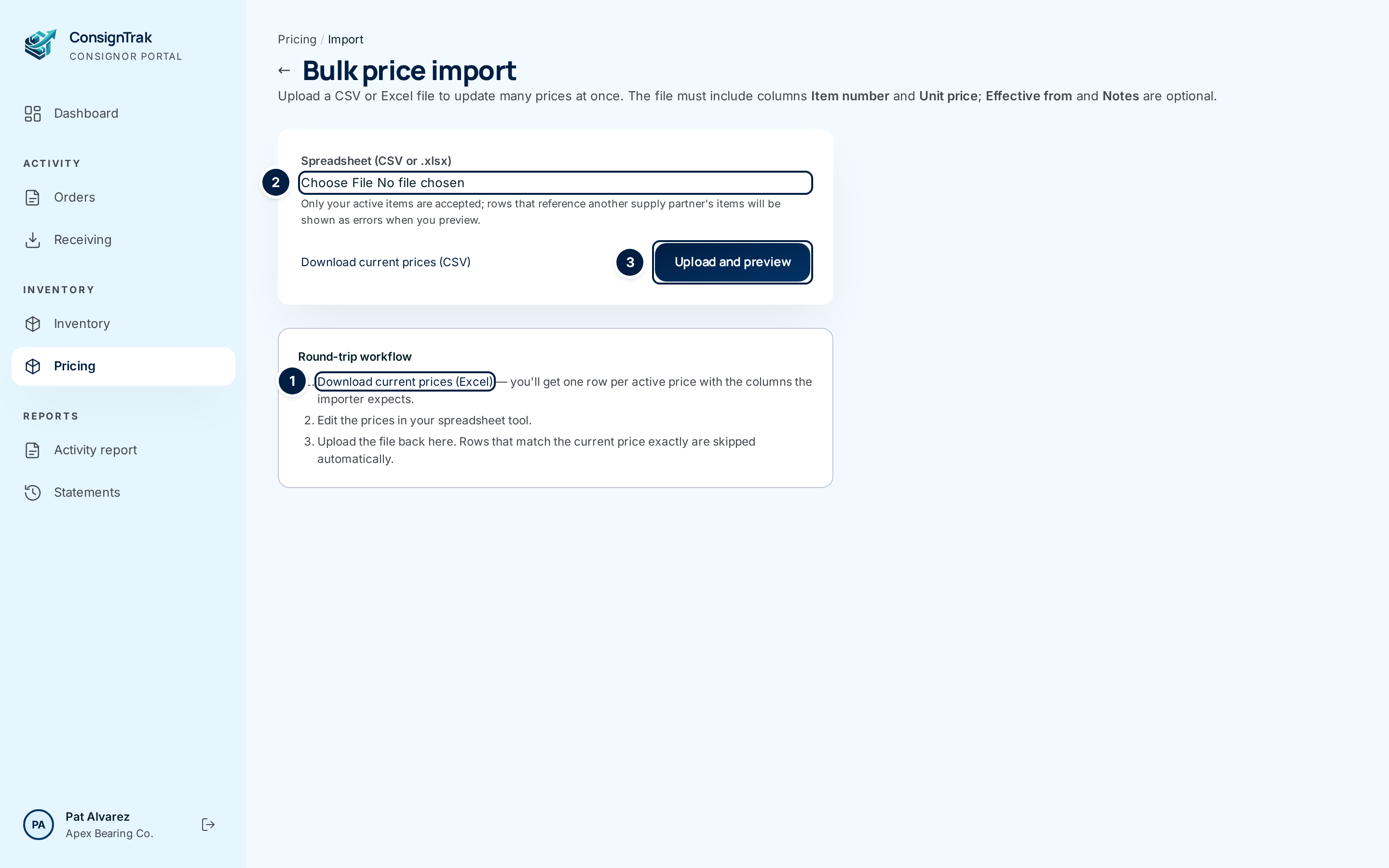
Download your current prices. Choose Download current prices (Excel) ①, or Download current prices (CSV). You get one row per price in force, with the columns the import expects.
-
Change the prices in your spreadsheet. Change Unit price, add Notes, or add rows for items that don't have a price yet. Leave rows you don't want to change as they are. They'll be skipped.
-
Choose the file ② and choose Upload and preview ③.
-
Read the preview. The counts at the top say how many rows will be inserted, updated or skipped, and how many have errors. Each row says what it will do:
Action Meaning Insert The item has no price in force. This row gives it one. Update The item has a price. This row replaces it, and the old one ends. Skip (no change) The price and note match what's already there, so nothing happens. Error The row can't be used. The reason is in Issues. 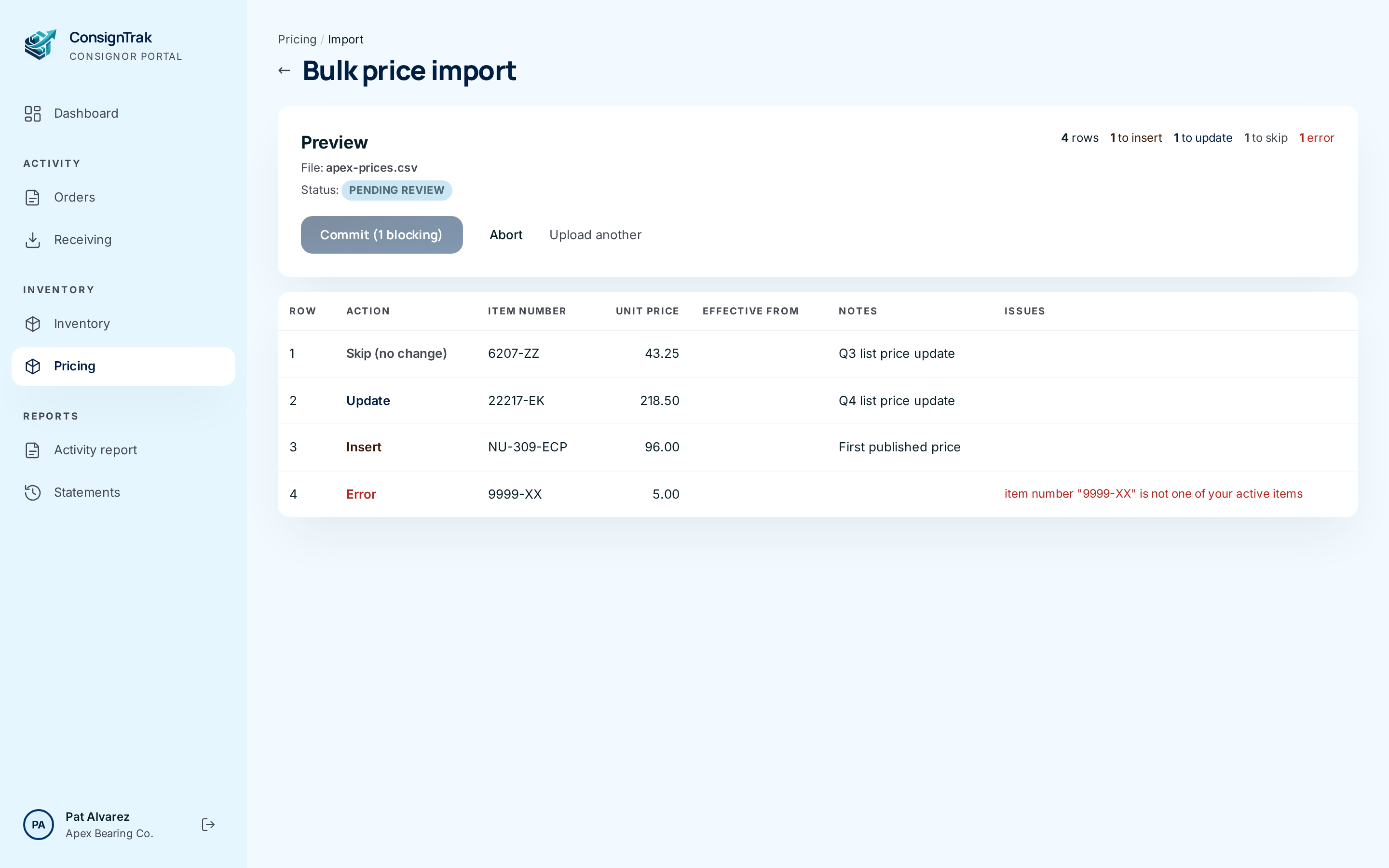
-
Fix any errors. If any row has an error, the commit button is greyed out and reads Commit (… blocking). Correct those rows in your spreadsheet, then choose Upload another and upload the file again.
-
Commit. When there are no errors, choose Commit … row(s) ①. The button changes and asks you to click again. Click it a second time to confirm. For a very large file (more than 5,000 rows), first tick I confirm this commit affects … rows.
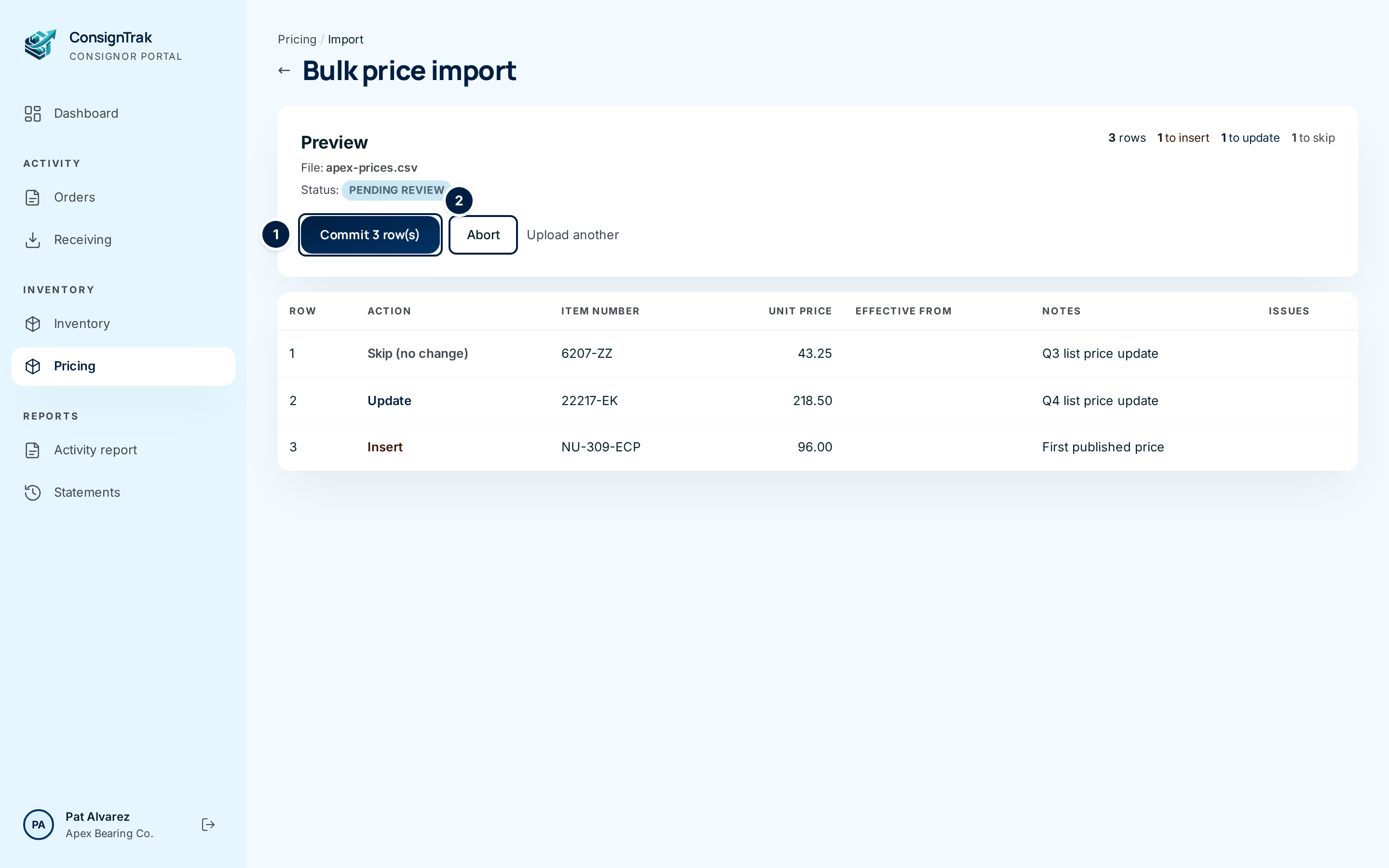
Changed your mind? Choose Abort ② and click again to confirm. The upload is discarded and no prices change.
-
Check the result. The page reports how many prices were created, updated and skipped, and the status changes to Committed. Choose Back to pricing to see them in your list.
Every field and option
Upload
| Field or control | What it means | Required | Default | What changes when you set it |
|---|---|---|---|---|
| ← arrow and Pricing breadcrumb | Back to the Pricing list. | — | — | Leaves the page. |
| Spreadsheet (CSV or .xlsx) | The file to upload. Only your active items are accepted. | Yes | None | Chosen file is read when you upload. |
| Download current prices (CSV) | Your prices in force, as a CSV file. | — | — | Starts a download. |
| Download current prices (Excel) | The same, as an Excel file. | — | — | Starts a download. |
| Upload and preview | Reads the file and shows the preview. | — | — | Creates a preview. No prices change. |
Preview
| Field or control | What it means | Required | Default | What changes when you set it |
|---|---|---|---|---|
| Preview: File, Status | The file's name and where the upload stands: Pending review, Committed or Aborted. | — | — | Read-only. |
| Counts: rows, to insert, to update, to skip, error | Totals for the whole file. | — | — | Read-only. |
| I confirm this commit affects … rows. | Extra check for files over 5,000 rows. | Yes, for large files | Unticked | Lets the commit go ahead. |
| Commit … row(s) | Saves every Insert and Update row. Asks you to click again. | — | — | Prices change. |
| Commit (… blocking) | Greyed out while any row has an error. | — | — | Nothing. Fix the errors and upload again. |
| Abort | Discards the upload. Asks you to click again. | — | — | Nothing changes. Status becomes Aborted. |
| Upload another | Starts again with a new file. | — | — | Leaves this preview. |
| Back to pricing | Shown after a commit or abort. | — | — | Opens the Pricing list. |
| Row | The row number in your file. | — | — | Read-only. |
| Action | Insert, Update, Skip (no change) or Error. | — | — | Read-only. |
| Item number, Unit price, Effective from, Notes | What the row says, as read from your file. | — | — | Read-only. |
| Issues | Why a row is in error, or a warning worth checking. | — | — | Read-only. |
What happens next
- Committed prices show at once on the Pricing page and in each item's Price history. Each Update ends the old price as the new one starts.
- Rows with a future Effective from go to the Scheduled list.
- Every committed import is recorded in the warehouse's audit trail.
- For how office staff see your prices, see Prices.
Common problems
These appear at the top of the page after you upload:
"No file uploaded." — Choose a file before Upload and preview.
"Upload is not a CSV or XLSX file." — Save the file as CSV or Excel workbook (.xlsx) and try again.
"Column validation failed: missing required column 'Item number'" (or 'Unit price') — The first row must hold the headings. Start from the download in step 2 to get them right.
"Workbook has more than one sheet — keep one sheet only." — Delete the extra sheets, or copy your prices into a new single-sheet workbook.
"Upload had no data rows." — The file has headings but no prices.
"Upload failed: file too large or malformed." — The file couldn't be read. Open it, save it again as CSV, and retry. Split very large files.
"Upload exceeded the row cap." — One file can hold up to 50,000 rows. Split it.
These appear in a row's Issues column:
item number "…" is not one of your active items — The part number doesn't match any of your active items. Check it against your Inventory page. Items belonging to other supply partners are always rejected.
Unit price "…" is not a number / must not be negative — Fix the price in that row.
Effective from "…" is not a recognized date — Write the date as 2027-01-01 or 2027-01-01T08:00.
Effective from must be later than the prior open price — That item already has a price starting at or after this date. Choose a later date, or leave the cell blank.
These appear after you commit or abort:
"This commit affects more than the large-commit threshold — tick the confirmation box and commit again." — Tick the confirmation box above the button and commit again.
"Session is already committed or aborted." — This upload was already finished, perhaps in another tab. Choose Upload another to start again.
"Session aborted. No prices were changed." — You aborted the upload. This is a confirmation, not a problem.