Bulk adjusting prices
What this is
Bulk adjust prices changes many prices by the same percentage in one step. Use it for the regular "everything goes up 4% on 1 January" update. You choose the percentage, how to round, when it starts, and which items it covers. ConsignTrak shows every old and new price before anything is saved.
Before you start
- Role: Supply Partner.
- Settings: none.
- You'll need: prices already in force. The adjustment works from your active prices, so items with no price, or only a scheduled price, aren't included. Give those a price first (see Prices).
Step by step
-
Open Pricing from the portal sidebar and choose Bulk adjust prices.
-
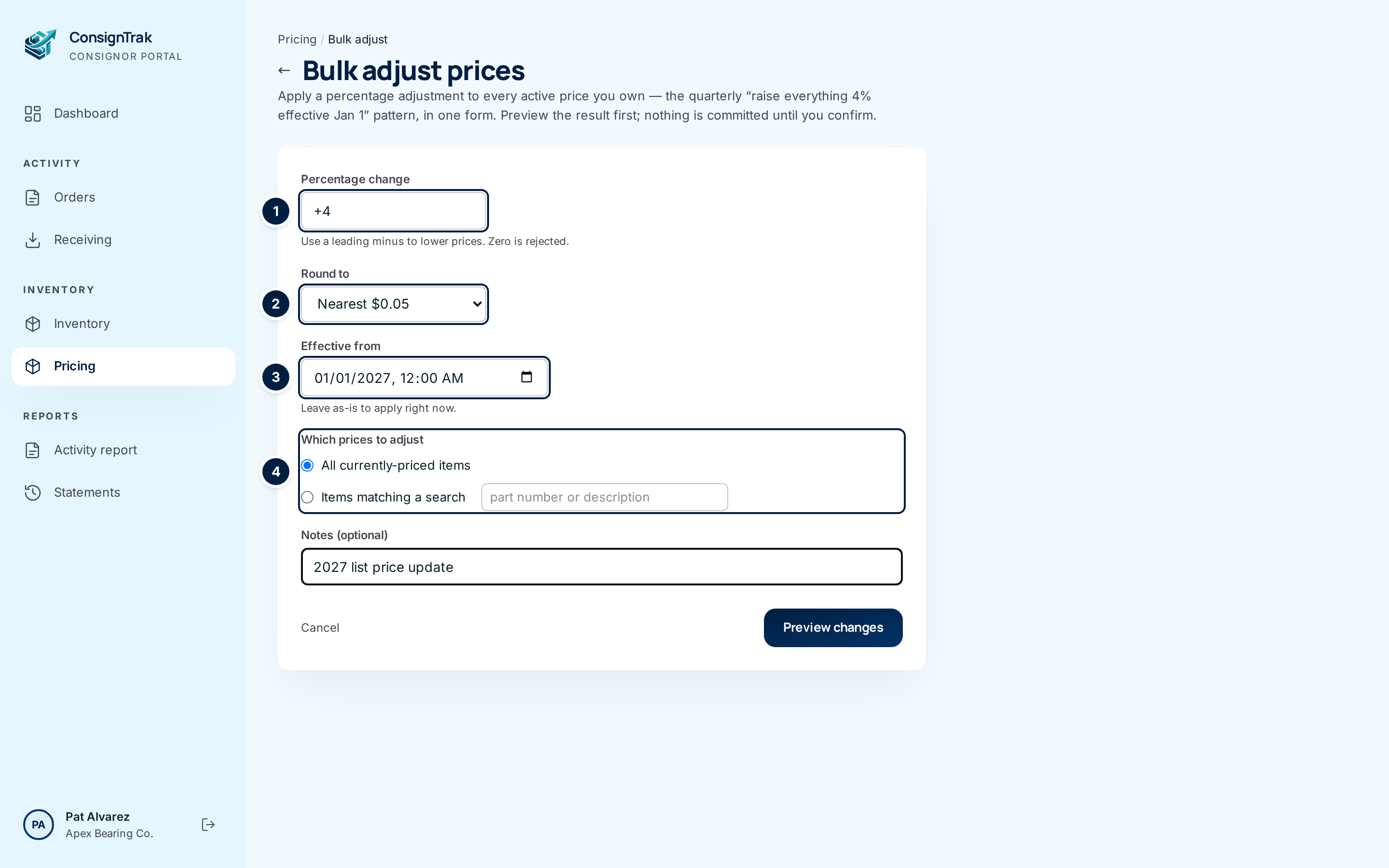
Enter the percentage ①. Type 4 or +4 to raise prices by 4%. Type -2.5 to lower them by 2.5%.
-
Choose the rounding ②: to the nearest cent, 5 cents or 10 cents.
-
Set when it starts ③. The box starts with the current date and time, which means now. Pick a later date and time to schedule the new prices. A time that's already passed also means now.
-
Choose which prices to adjust ④. All currently-priced items covers every active price. Items matching a search covers only items whose part number or description contains the text you type in the box beside it.
-
Add a note if you like, such as "2027 list price update". It's saved on every new price.
-
Choose Preview changes. Nothing is saved yet.
-
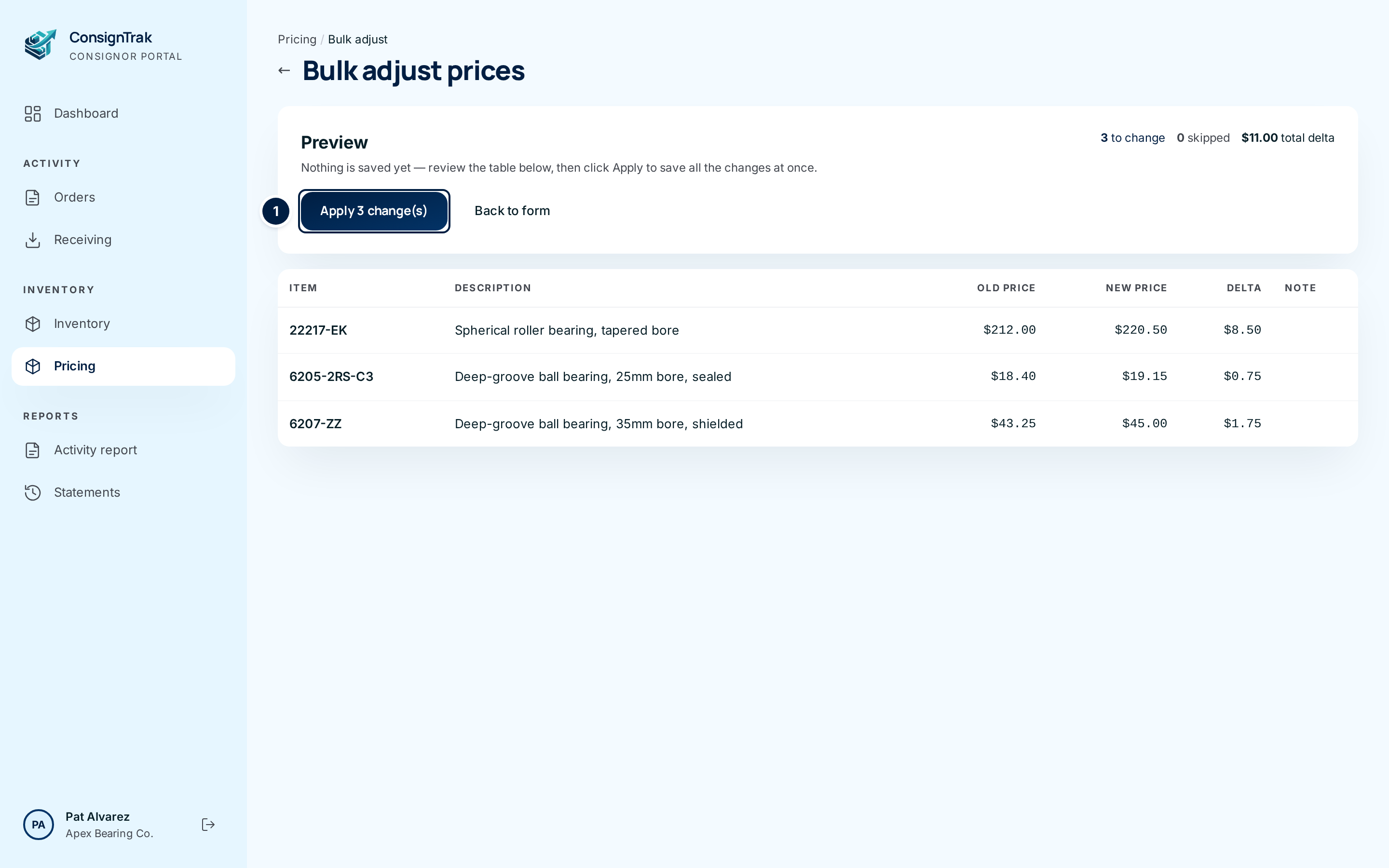
Check the preview. Each row shows the Old price, New price and Delta (the difference). The summary gives how many prices will change, how many are skipped, and the total of all the differences. Skipped rows show the reason in Note.
-
Apply. Choose Apply … change(s) ①. The button changes and asks you to click again. Click it a second time to confirm. To change your settings instead, choose Back to form.
There's no single undo. To reverse an adjustment, run another one the other way, or restore the old prices with a bulk price import. Note that +4% then −4% doesn't land exactly on the old price. Download your prices first if you may need to go back.
Every field and option
The form
| Field or control | What it means | Required | Default | What changes when you set it |
|---|---|---|---|---|
| ← arrow and Pricing breadcrumb | Back to the Pricing list. | — | — | Leaves the page. |
| Percentage change | How much to change each price. A leading minus lowers prices. Zero isn't allowed. | Yes | Empty | Sets the change applied to every price in scope. |
| Round to | Nearest cent ($0.01), Nearest $0.05 or Nearest $0.10. | Yes | Nearest cent ($0.01) | Rounds each new price. |
| Effective from | When the new prices start. | No | Now | A future time schedules the new prices. See the caution below the table. |
| All currently-priced items | Adjust every active price. | One choice | Selected | Scope is all your active prices. |
| Items matching a search and its search box | Adjust only items whose part number or description contains this text. | One choice | — | Scope is the matching items. |
| Notes (optional) | Saved on each new price. Up to 200 characters. | No | Empty | Appears in each item's price history. |
| Cancel | Back to the Pricing list. | — | — | Nothing saved. |
| Preview changes | Works out the new prices and shows them. | — | — | Nothing saved. |
The time you type is currently read as UTC (Coordinated Universal Time), but lists show your local time, so a scheduled change can start a few hours early or late. This is issue #1550.
The preview
| Field or control | What it means | Required | Default | What changes when you set it |
|---|---|---|---|---|
| to change, skipped, total delta | How many prices will change, how many won't, and the sum of all differences in dollars. | — | — | Read-only. |
| Apply … change(s) | Saves every changed price. Asks you to click again. | — | — | Prices change. |
| Nothing to apply | Greyed out when no price would change. | — | — | Nothing. |
| Back to form | Returns to an empty form. | — | — | Nothing saved. |
| Item, Description | The item. | — | — | Read-only. |
| Old price, New price, Delta | The price now, the price after the change, and the difference. | — | — | Read-only. |
| Note | Why a row is skipped: would go negative, exceeds the price ceiling, or no change after rounding. | — | — | Read-only. |
What happens next
- You return to the Pricing list with a message such as "Adjusted 3 price(s); 0 skipped."
- Each changed item gets a new price. The old one ends as the new one starts, and stays in the item's Price history.
- If you picked a future start, the new prices wait in the Scheduled list and take over at that time.
- Skipped items keep their current price.
- The change is recorded in the warehouse's audit trail.
Common problems
"Enter a percentage." / "Percentage must be a number." — Type a number such as 4 or -2.5, without a % sign.
"Percentage must be non-zero." — Zero would change nothing. Enter the percentage you want.
"Enter a search term, or pick All items." — You chose Items matching a search but left the search box empty.
"Too many rows in scope (max 5000). Narrow the scope with a search filter." — One adjustment covers up to 5,000 prices. Use Items matching a search to split the work into groups.
"Concurrent update detected — re-run the preview and apply again." — Prices changed between your preview and apply, perhaps from another tab or a colleague. Preview again, check it, and apply.
"Bad effective-from format." — Pick the date and time again with the date picker.
"No active prices match your selection." — None of your priced items match the search, or you have no active prices yet.
A row says "no change after rounding". — The change is smaller than the rounding step. Choose a finer rounding or a larger percentage.