The portal dashboard
What this is
The dashboard is the first page you see after signing in to the Supply Partner portal. It answers the everyday questions at a glance. How much of your stock is here? Is anything out or running low? Which items have no price? What's being shipped and received? Most tiles and rows are links, so you can go straight to the records behind a number.
Every number counts your items and orders only (see Your data only).
Before you start
- Role: Supply Partner. You need a portal account from the warehouse (see Your window into the warehouse).
- Settings: none.
- You'll need: nothing else. The dashboard fills itself from the warehouse's records.
Step by step
-
Sign in. The dashboard opens. To come back to it from anywhere, choose Dashboard at the top of the menu, or the ConsignTrak logo.
-
Read the stock tiles across the top. Each tile turns amber (or red, for negative stock) when it needs your attention. Choose a tile to open your inventory list filtered to exactly those items.
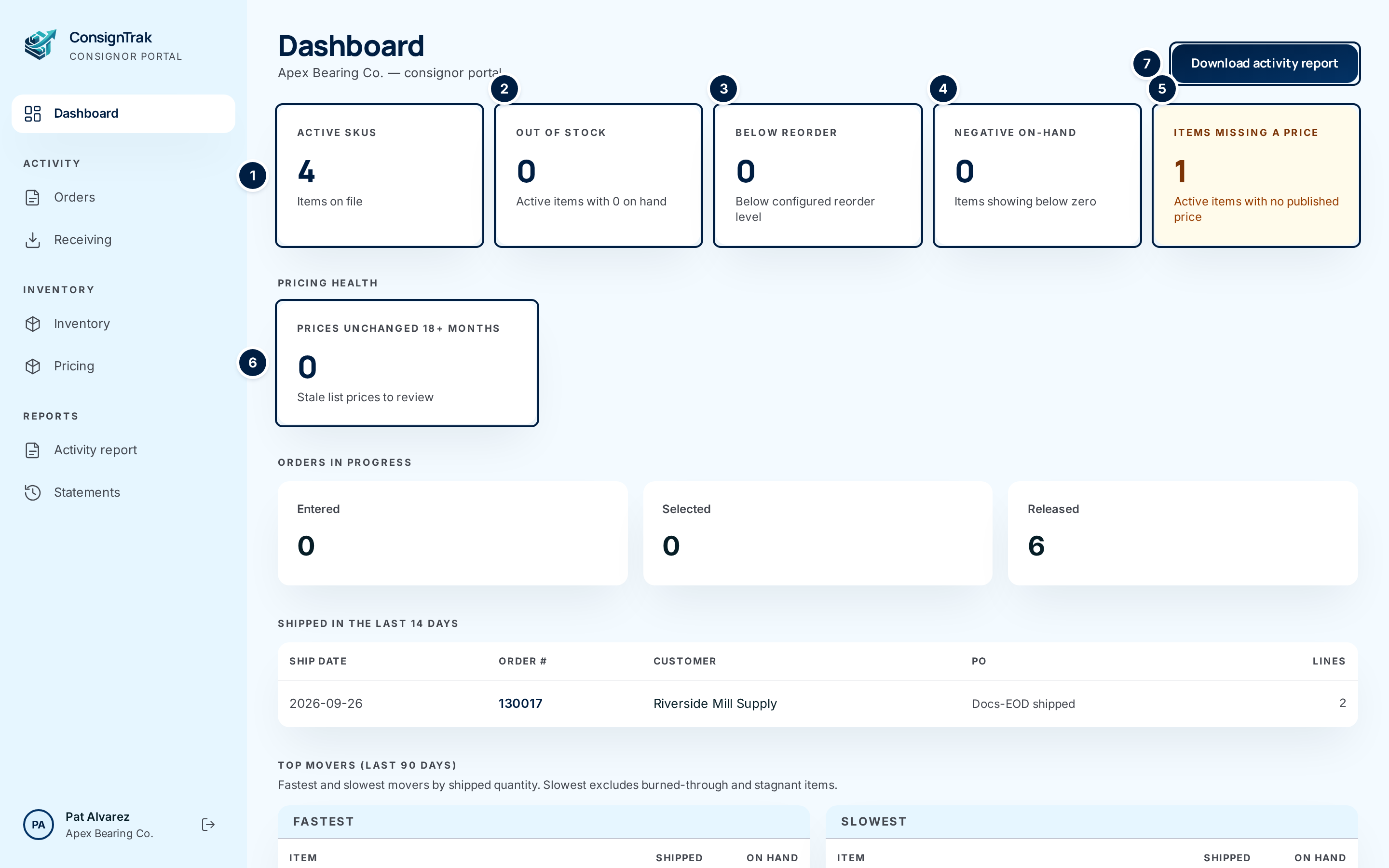
# Tile Counts Choosing it opens ① Active SKUs, Items on file Your items that aren't discontinued. Your inventory list. ② Out of stock Active items with 0 on hand. Turns amber when it's above 0. Inventory filtered to out-of-stock items. ③ Below reorder Items whose on-hand quantity has fallen below the reorder level set for them. Items with no reorder level are never counted. Turns amber when it's above 0. Inventory filtered to items below reorder level. ④ Negative on-hand Items the records show as below zero, including discontinued ones, usually because something shipped before its receiving was entered. Turns red when it's above 0; tell the warehouse. Inventory filtered to negative items. ⑤ Items missing a price Active items with no price in force today. An item whose only price starts in the future, or has ended, counts as missing. Turns amber when it's above 0. Inventory filtered to unpriced active items. ⑥ Prices unchanged 18+ months (under Pricing health) Prices in force today that took effect more than 18 months ago. They're worth a review. Turns amber when it's above 0. Your price list, showing active prices. ⑦ Download activity report — The activity report page, where you choose dates and download the PDF. Why missing prices matterThe warehouse prints your list price on its paperwork. Until an item has a price, it goes out without one. Set prices on the Pricing page (see Inventory & pricing).
-
Scroll down for orders, shipments, top movers and receivings.
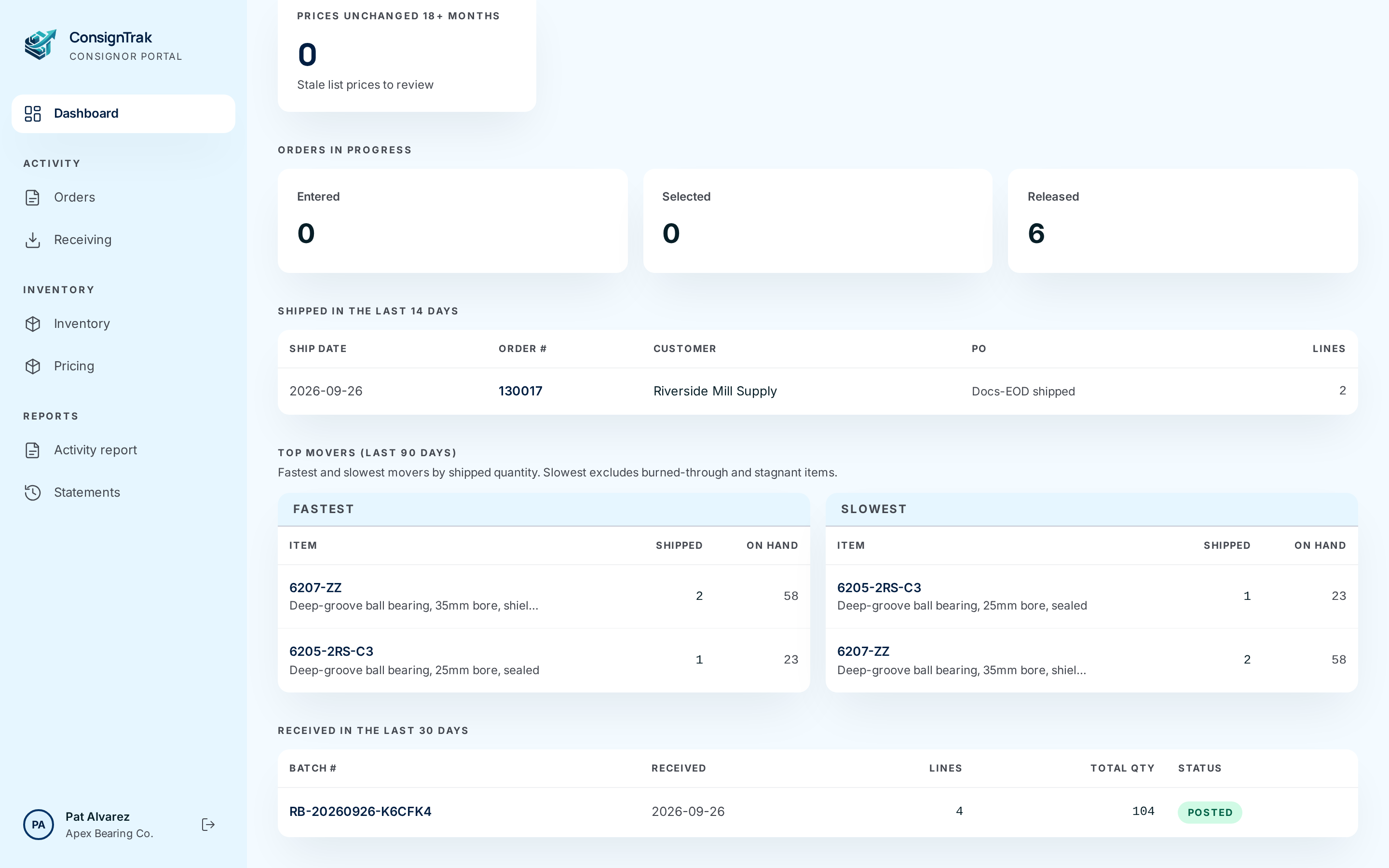
- Orders in progress has three tiles. Each one opens your orders list
filtered to that status.
- Entered means the warehouse has taken the order but hasn't released it to the floor yet.
- Selected always reads 0 today. It counts a status the system no longer uses (#1538).
- Released means the order is with the warehouse floor for picking, packing and shipping.
- Orders that have partly shipped aren't counted in any tile yet (#1538). Find them on the Orders page.
- Shipped in the last 14 days lists up to 10 of your orders that finished shipping in the last two weeks, newest first. Choose a row to open the order.
- Top movers (last 90 days) shows your five Fastest and five Slowest items by quantity shipped. Slowest leaves out items with nothing on hand, because they sold through rather than sat. It also leaves out items that didn't ship at all. Discontinued items are left out of both lists. Choose a row to open the item.
- Received in the last 30 days lists deliveries of your goods the warehouse has received. Choose a row to open the receiving.
- Orders in progress has three tiles. Each one opens your orders list
filtered to that status.
-
Use the menu on the left to reach everything else.
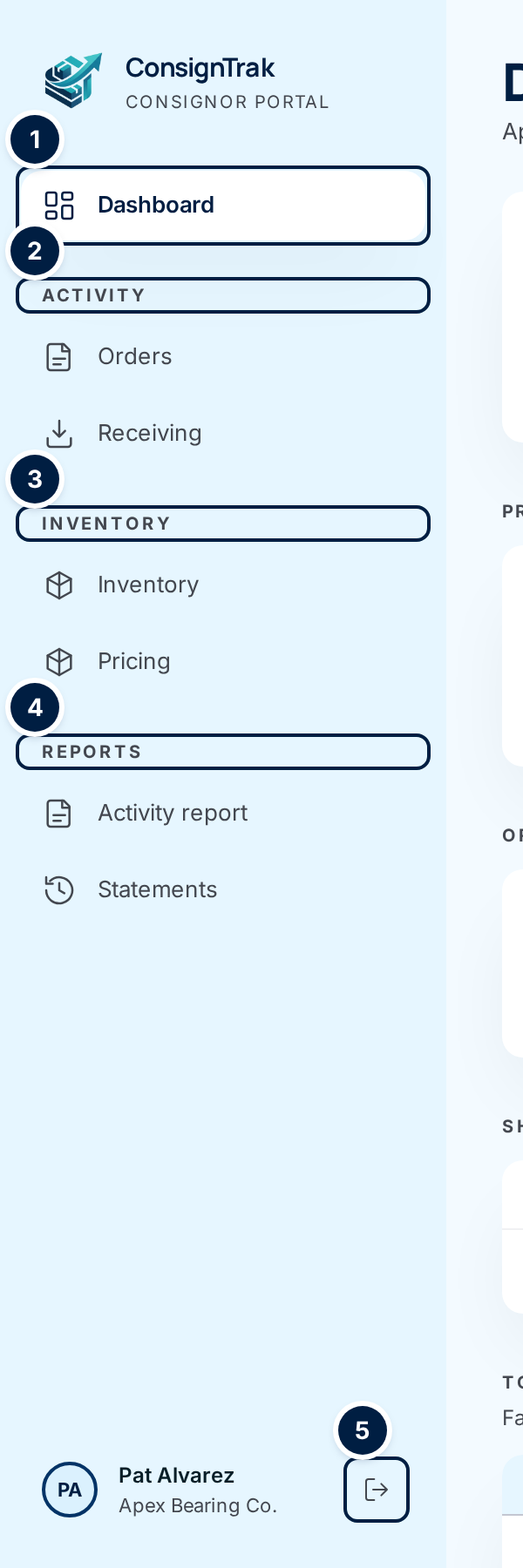
- ① Dashboard brings you back here.
- ② Activity has Orders and Receiving.
- ③ Inventory has Inventory and Pricing.
- ④ Reports has Activity report and Statements.
- ⑤ Sign out is the icon beside your name. It ends your session straight away. It doesn't ask you to confirm.
-
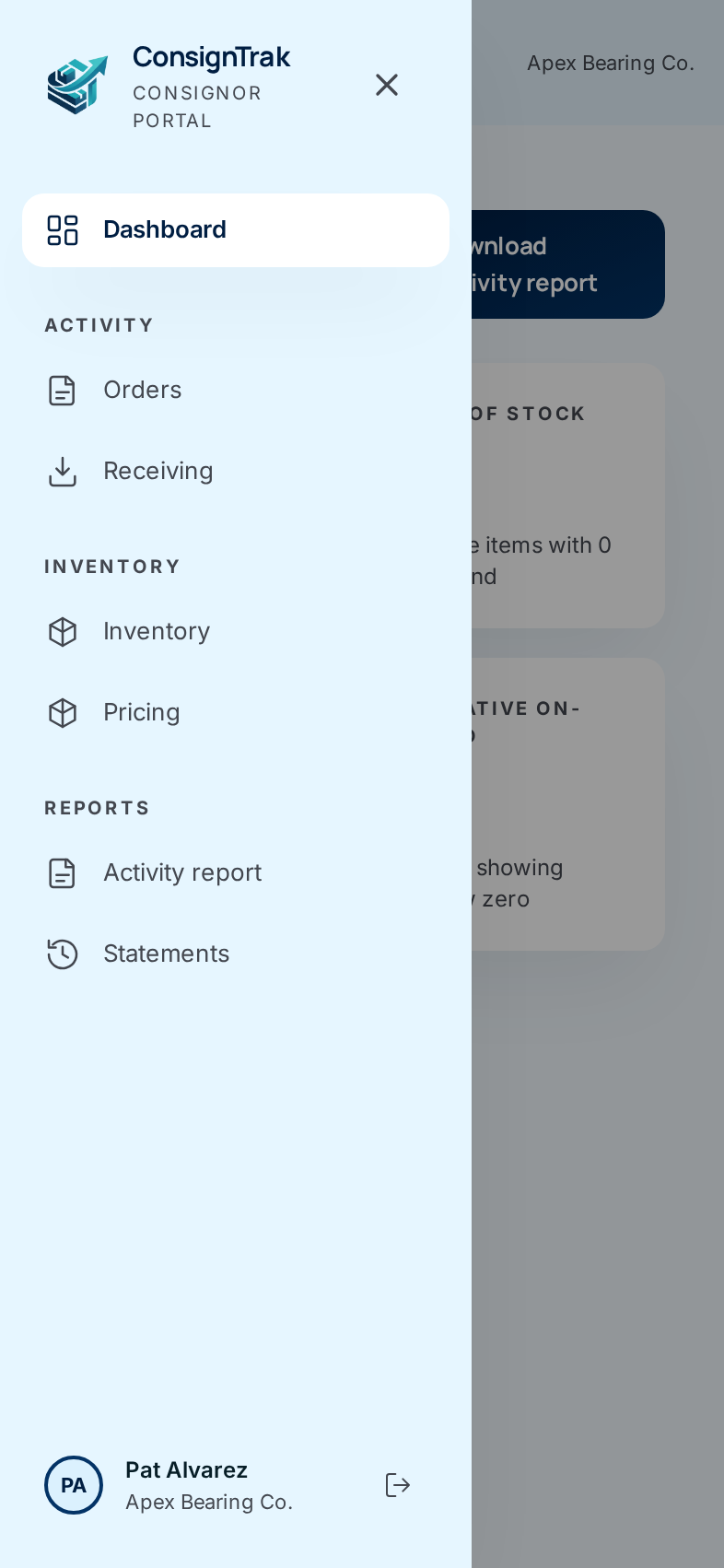
On a phone, the menu is folded away. Choose ☰ at the top left to open it, and ✕ to close it. Your company name shows at the top right.
Every field and option
| Field or control | What it means | Required | Default | What changes when you set it |
|---|---|---|---|---|
| Dashboard (title) | The page name. The line underneath shows your company name followed by consignor portal (#1479). | — | — | Read-only. |
| Download activity report | Opens the activity report page. | — | — | Leaves the dashboard. |
| Active SKUs | Count of your active items. | — | — | Opens your inventory list. |
| Out of stock | Active items with nothing on hand. | — | — | Opens the list filtered to them. |
| Below reorder | Items under their reorder level. | — | — | Opens the list filtered to them. |
| Negative on-hand | Items showing below zero. | — | — | Opens the list filtered to them. |
| Items missing a price | Active items with no price in force today. | — | — | Opens the list filtered to them. |
| Pricing health, Prices unchanged 18+ months | Current prices older than 18 months. | — | — | Opens your price list, active prices only. |
| Orders in progress: Entered, Selected, Released | Open orders by stage. Selected is always 0 today. | — | — | Opens your orders list filtered to that stage. |
| Shipped in the last 14 days: Ship date, Order #, Customer, PO, Lines | The date it shipped, the warehouse's order number, the customer, the customer's purchase order number, and how many lines the order has. No shipments in the last 14 days. when empty. | — | — | Choose a row to open the order. |
| Top movers (last 90 days): Fastest, Slowest, with Item, Shipped, On hand | Part number and description, quantity shipped in 90 days, and quantity on hand now. No shipments in the last 90 days. or Not enough movement to rank. when empty. | — | — | Choose a row to open the item. |
| Received in the last 30 days: Batch #, Received, Lines, Total qty, Status | The receiving's number and date, how many lines it had, the total units, and where it stands: Draft (being counted), Verified (checked), Posted (added to your stock) or Voided (cancelled). No receivings in the last 30 days. when empty. | — | — | Choose a row to open the receiving. |
| Dashboard (menu) | Returns here. | — | — | Opens the dashboard. |
| Activity: Orders, Receiving | Your orders and your deliveries. | — | — | Opens that list. |
| Inventory: Inventory, Pricing | Your items and stock, and your price list. | — | — | Opens that page. |
| Reports: Activity report, Statements | The movements PDF and your period statements. | — | — | Opens that page. |
| ConsignTrak logo, Consignor Portal label | Returns to the dashboard. | — | — | Opens the dashboard. |
| Your initials, name and company | Who's signed in, and for which supply partner. | — | — | Read-only. |
| Sign out (icon) | Ends your session. | — | — | Takes you to the sign-in page. |
| ☰ Open menu / ✕ Close menu (phone and narrow windows) | Shows or hides the menu. | — | Closed | Nothing else changes. |
Dates show as year-month-day, for example 2026-06-15.
What happens next
- Nothing changes when you look. The dashboard only reads your records. The warehouse can see that you visited, and when.
- The numbers are live. Each time you open or refresh the dashboard, it counts again from the warehouse's latest records.
- After 4 hours your session ends and the next page you open asks you to sign in again.
Common problems
A number looks wrong. Out of stock and Below reorder count only your active items, but the list they open can also show discontinued items, so it can list more than the tile says. Negative on-hand counts discontinued items too. For Negative on-hand, tell the warehouse. It usually means a delivery hasn't been entered yet.
Below reorder is 0 but I'm low on stock. An item is only counted once it has a reorder level set. Ask the warehouse to set one, or set it yourself on the item if they've turned on portal edits.
Selected always shows 0. That's expected today; see #1538.
A customer's name shows here but not on an item's history. The item page hides customer names unless the warehouse has agreed to show them. The dashboard shows them anyway. This difference is being looked at (#1543).
I was sent to the sign-in page. Your 4-hour session ended. Sign in again.
Internal Server Error when the dashboard opens. Something failed while counting your figures. Refresh the page. If it keeps happening, contact the warehouse office.