The Supply-Partner Activity Report
What this is
The activity report answers a supply partner's most common question: "What happened to my stock?" It has two parts:
- The activity page — an on-screen ledger of every stock movement for the partner (receipts, releases, adjustments, counts, returns) that you can filter by date and type.
- The PDF report — a printable shipments record for ISO 9001 quality files: a summary of every order shipped for the partner in the period, followed by one page per order showing what went out. It carries the partner's logo.
Office staff use it for monthly or quarterly reviews, audits, and to answer a partner's questions without phoning around.
Before you start
- Role: Office or Administrator.
- Settings: none. For the partner's logo to print on the PDF, set it on the partner's edit form (see Creating and editing).
- You'll need: the supply partner, and the period you want to report on. The period can be at most 366 days.
Step by step
-
Open the supply partner's hub (Supply Partners in the sidebar, then the partner) and choose Activity Report at the top.
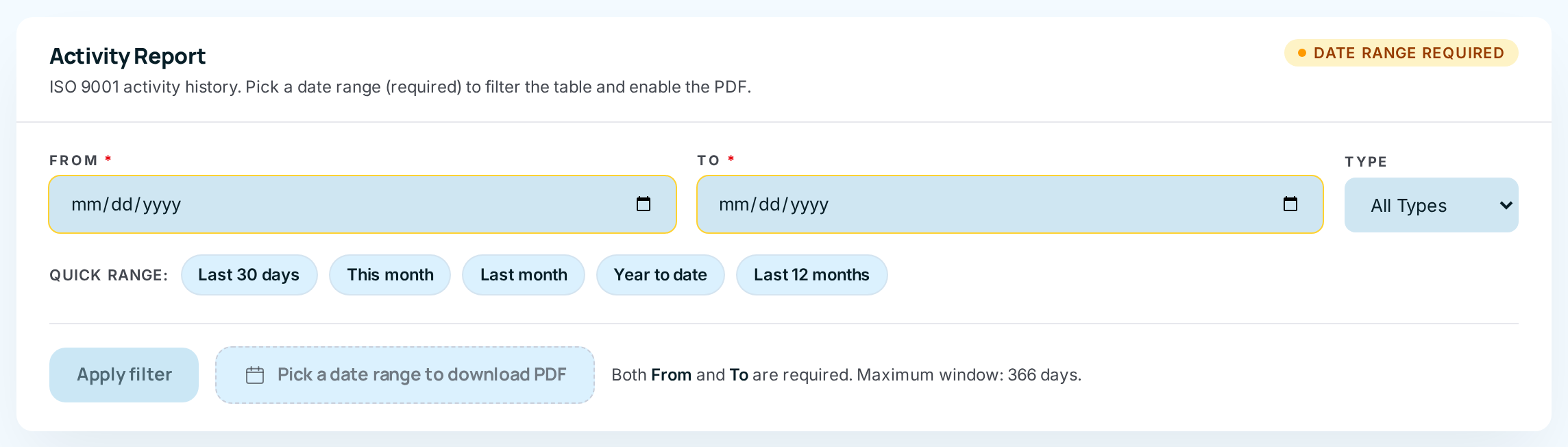
The page opens with no range chosen: the table shows the partner's whole history, newest first, and the PDF button is locked.
-
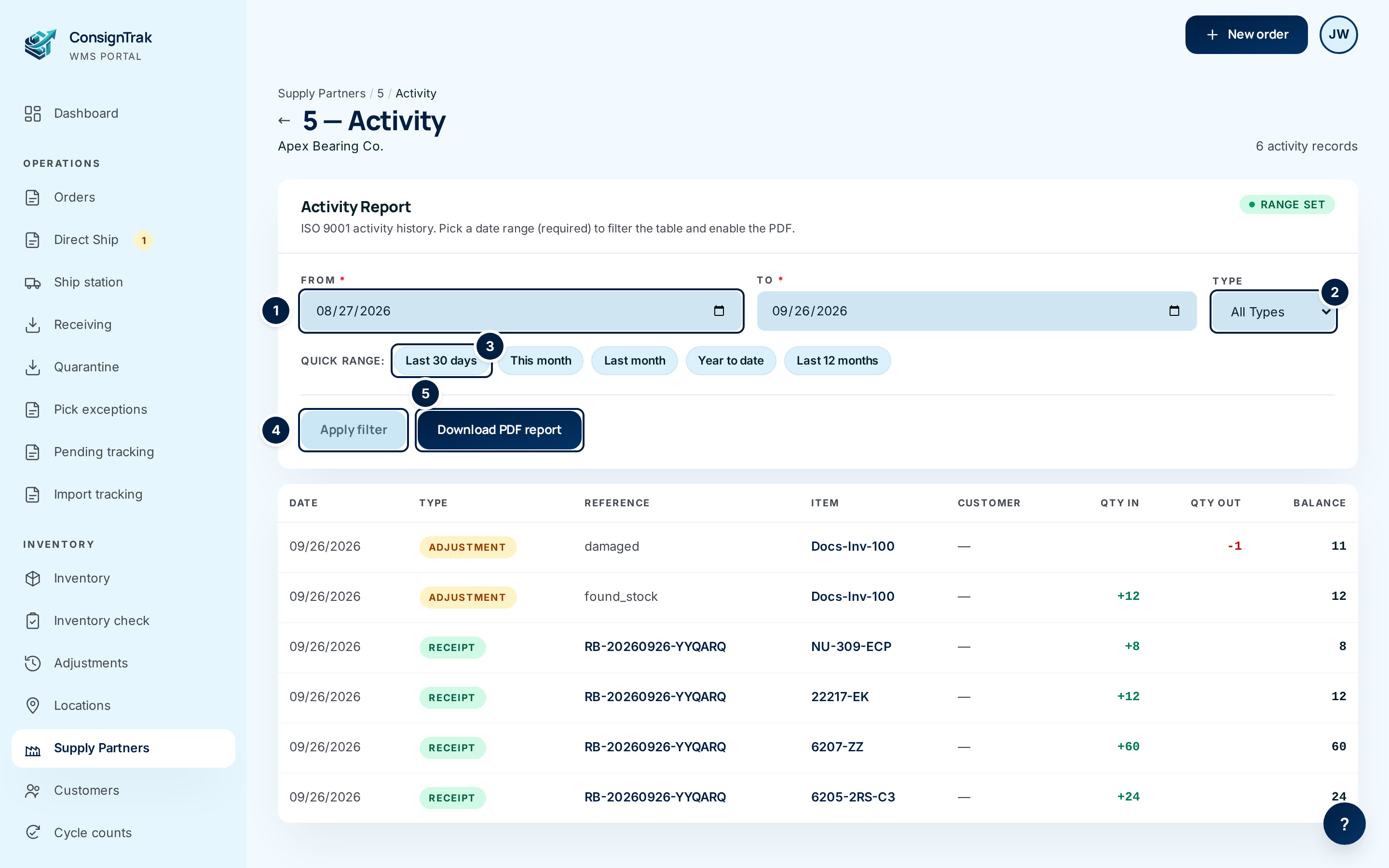
Pick the period. Type From and To dates ①, or choose a Quick range ③ — Last 30 days, This month, Last month, Year to date or Last 12 months. The badge changes to Range set and the PDF button unlocks.
-
Narrow by type if you want ② — for example Adjustment to find any corrections made in the period.
-
Choose Apply filter ④ to reload the table for that period.
-
Read the table. Each row is one movement of one item: the date, the type, the order / receiving / count it came from (click to open it), the part number, the customer where there is one, and the quantity in (green) or out (red). Balance is that item's on-hand quantity straight after the movement.
-
Choose Download PDF report ⑤. The PDF opens in a new tab; save it or print it.
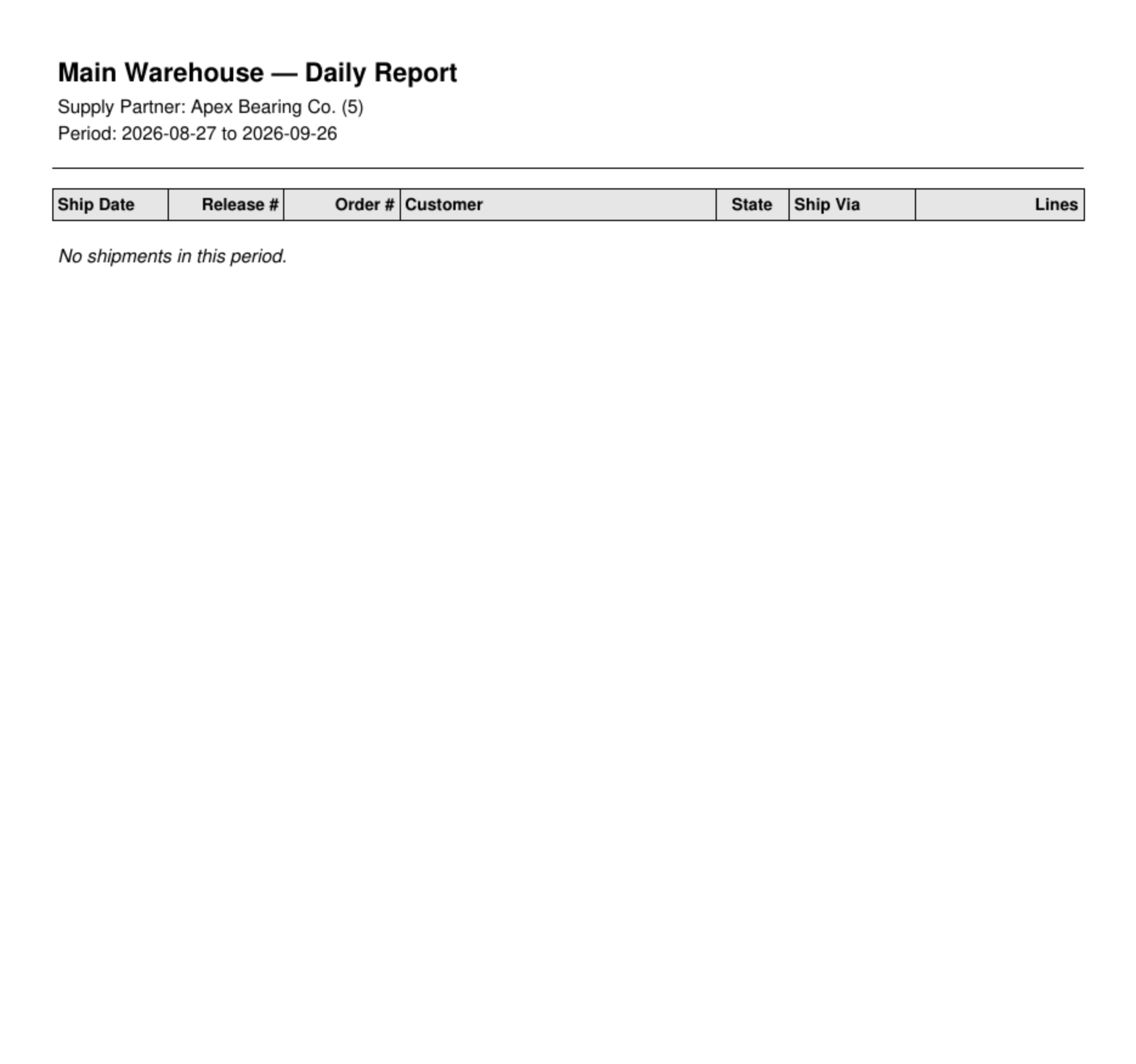
The demo data has no shipped orders yet, so this example shows the report's empty first page.
Reading the PDF
- Page 1 — the summary. The warehouse name, Supply Partner: name and code, Period:, the partner's logo (top right, if set), then one row per shipped order: Ship Date, Release #, Order #, Customer, State (ship-to state), Ship Via, Lines. With no shipments it says No shipments in this period.
- One page per order after that — laid out like the printed release: the partner's name, logo and manufacturer code, order and customer details (order date, ship date, customer ID, customer PO, sales rep, ship via), SOLD TO and SHIP TO addresses, then each line with Item No, W#, Description, Ship Qty and Weight, totals, and the carrier, packages, weight and freight.
- Every page's footer says when the report was generated and by whom, and "Page X of Y".
The PDF lists orders for this partner that are Shipped, including orders where the warehouse has shipped its part and the partner's own direct-ship part is still pending. It picks orders by their order date within the period. Entered, released and cancelled orders are left out — the report is an after-the-fact record of what the warehouse actually moved.
When to send it
- Monthly or quarterly, matching the partner's statement cadence — many partners file it with their ISO 9001 records.
- When a partner asks what shipped against their stock.
- Before an audit, for the audit period (up to a year at a time).
Partners with portal access can also run their own activity report from the portal (see Orders, receiving & reports).
Every field and option
| Field or control | What it means | Required | Default | What changes when you set it |
|---|---|---|---|---|
| Code — Activity (title), partner name, N activity records | Which partner, and how many movements match your filters. | — | — | Read-only. |
| ← (back arrow) and breadcrumb | Back to the partner's hub. | — | — | Leaves the page. |
| Date range required / Range set badge | Whether both dates are filled in. | — | Date range required | Changes as you type. |
| From * | First day of the period (inclusive). | Yes, for the PDF | Empty | Filters the table after Apply filter; sets the PDF period. |
| To * | Last day of the period (inclusive). No more than 366 days after From. | Yes, for the PDF | Empty | As above. |
| Type | All Types, Sale, Receipt, Release, Adjustment, Cycle Count or Return. | No | All Types | Filters the table only — the PDF always covers shipments, whatever you choose here. |
| Quick range: Last 30 days, This month, Last month, Year to date, Last 12 months | Fill in From and To for you (counting back from today). | — | — | Sets the dates and unlocks the PDF; choose Apply filter to reload the table. |
| Apply filter | Reloads the table with your dates and type. | — | — | Refreshes the table. |
| Download PDF report / Pick a date range to download PDF | Downloads the ISO 9001 PDF for the period. Locked until both dates are set. | — | Locked | Opens the PDF in a new tab. The file is named after the manufacturer code and the dates. |
| Date | When the movement happened. | — | — | Read-only. |
| Type (column) | Receipt, Sale, Release, Adjustment, Cycle count, Return — or Quarantine for stock that failed inspection on receipt. | — | — | Read-only. |
| Reference | The order, receiving or cycle count behind the movement, as a link (or a dash). | — | — | Opens that record. |
| Item | The part number, as a link. | — | — | Opens the item. |
| Customer | The customer, for outgoing movements (or a dash). | — | — | Read-only. |
| Qty In / Qty Out | Quantity added (green, +) or removed (red, −). | — | — | Read-only. |
| Balance | That item's on-hand quantity after this movement. It's per item, not a total for the partner. | — | — | Read-only. |
| Previous / Next | Page through the table, 50 rows at a time. Your filters are kept. | — | — | Shows the next page. |
What happens next
- Nothing in ConsignTrak changes when you view or download the report.
- The PDF is a file on your computer. Send it to the partner by email, or let them download it themselves in the portal.
- To dig into a movement, click its reference to open the order, receiving or cycle count.
Common problems
The PDF button stays grey. — Both From and To must be filled in.
"date range exceeds maximum of 366 days" — Shorten the period to a year or less, or run two reports.
"invalid date range: end must be on or after start" — To is earlier than From. Swap them.
The PDF title says "Daily Report" even for a whole month. — That's the report's fixed heading; the Period: line underneath is the range it covers.
I filtered by Adjustment but the PDF shows shipments. — Correct: the type filter only affects the on-screen table. The PDF is always the shipments record.
An order I shipped this month isn't on the PDF. — The PDF picks orders by their order date. An order entered last month and shipped this month is on last month's report.
"Quarantine" rows. — These are real movements: stock that failed inspection on receipt. Open the receiving to see why (see Exceptions & quarantine).