Giving a supply partner portal access
What this is
The supply-partner portal lets people at a supply partner sign in and check their own stock, orders, receivings, statements and activity report without calling the warehouse. You give someone access by inviting them as a Supply Partner User tied to one supply partner. They receive a link, set their own password, and from then on see only that partner's records.
This page is the short version from the supply partner's side. The full guide to users is Users & roles; what the partner sees once they're in is the portal guide.
Before you start
- Role: Administrator.
- Settings: for the invite to arrive by email, the warehouse's email sending must be set up. If it isn't, you can copy the link and send it yourself.
- You'll need: the supply partner already set up in ConsignTrak (see Creating and editing), and the person's name and email address.
Step by step
-
Open your account menu (your initials, top right) and choose Users, then Invite user.
-
Fill in Display name (their full name), Username (what they'll sign in with) and Email.
-
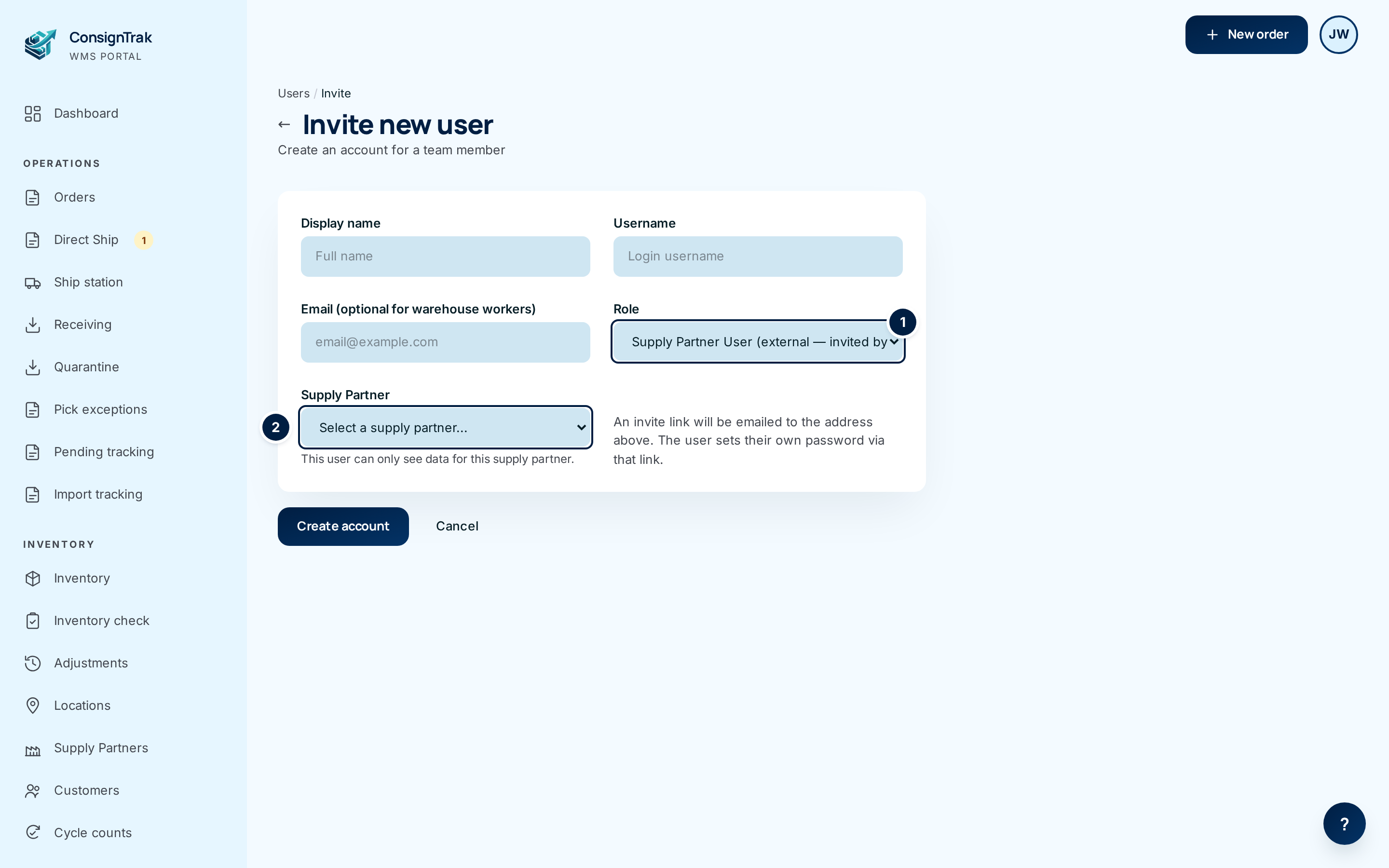
Choose the Role ① Supply Partner User (external — invited by email). The password field disappears and a Supply Partner list appears.
-
Choose the Supply Partner ② they work for. This user can only see data for this supply partner.
-
Choose Create account. ConsignTrak saves the user and shows the invite page.
-
Check the invite went out. If it says Invite email sent successfully., you're done. If it says Email not sent — please deliver this link manually., choose Copy link and send the Set-password link to the person yourself (or use Open in email client).
-
Choose Done — back to users.
The person opens the link, sets a password, and lands in the portal.
Every field and option
| Field or control | What it means | Required | Default | What changes when you set it |
|---|---|---|---|---|
| Display name | The person's name, as shown in ConsignTrak. | Yes | — | Shown on screens and reports they generate. |
| Username | What they sign in with. | Yes | — | Their sign-in name. |
| Where the invite is sent. | Yes, for a Supply Partner User | — | Receives the set-password link. | |
| Role — Supply Partner User (external — invited by email) | Portal access only, for someone outside the warehouse. | Yes | Select a role… | Swaps the password field for the Supply Partner list. |
| Supply Partner | The one partner whose records this person can see. | Yes | Select a supply partner… | Everything they see in the portal is limited to this partner. |
| Create account | Creates the user and prepares the invite. | — | — | Opens the invite page. |
| Cancel | Leaves without creating anyone. | — | — | Back to the users list. |
| Set-password link / Copy link | The one-time link. It expires in 72 hours and stops working once used. | — | — | Copies the link. |
| Open in email client | Starts an email with the link in your mail program. | — | — | Opens your email app. |
| Generate a new link | Makes a fresh link and cancels the old one. Use it only if the first link expired or didn't work. | — | — | The previous link stops working. |
Anyone holding the set-password link can set this account's password until it's used. Send it only to the person it's for.
What happens next
- The person appears on the Users list as a Supply Partner User.
- Once they set their password they can sign in and use the portal — see the portal guide.
- What they can do there also depends on three per-partner behaviours that don't have an on-screen switch yet — for example, whether they can edit item descriptions and whether they see customer names. See Portal behaviours with no on-screen switch.
Common problems
"Email is required for consignor users (the invite link is emailed)" — Fill in Email. A Supply Partner User can't be created without one.
"Supply partner is required for consignor users" — Choose the partner in the Supply Partner list.
"Username, display name, and role are required" — Fill in all three.
The link has expired. — On the Users list, choose Resend invite on that person's row. A new link is made and the old one stops working (see Users & roles).
The partner has two people who need access. — Invite each one separately, choosing the same supply partner.