Creating and editing a supply partner
What this is
Before the warehouse can hold stock, take orders or receive shipments for a company, that company has to exist in ConsignTrak as a supply partner. The New Supply Partner form creates it with the basics. The Edit form then adds the rest — including the statement cadence and the logo, which exist only on the edit form.
Before you start
- Role: Administrator. Office users can see supply partners but can't create or edit them.
- Settings: none.
- You'll need: the partner's manufacturer code — the short identifier they carried in the previous system (for example "5"). Agree it before you start: it can't be changed later. For the logo, a PNG or JPG file under 5 MB.
On a phone, the Edit screen shows only Name, Short name and Notes — and saving it currently wipes the partner's rep code, commission rate, selling agency, shipping agency, freight billing info and logo. Until this is fixed, always edit supply partners from a desktop or laptop browser. (Reported as issue #1502.)
Step by step
Create the supply partner
-
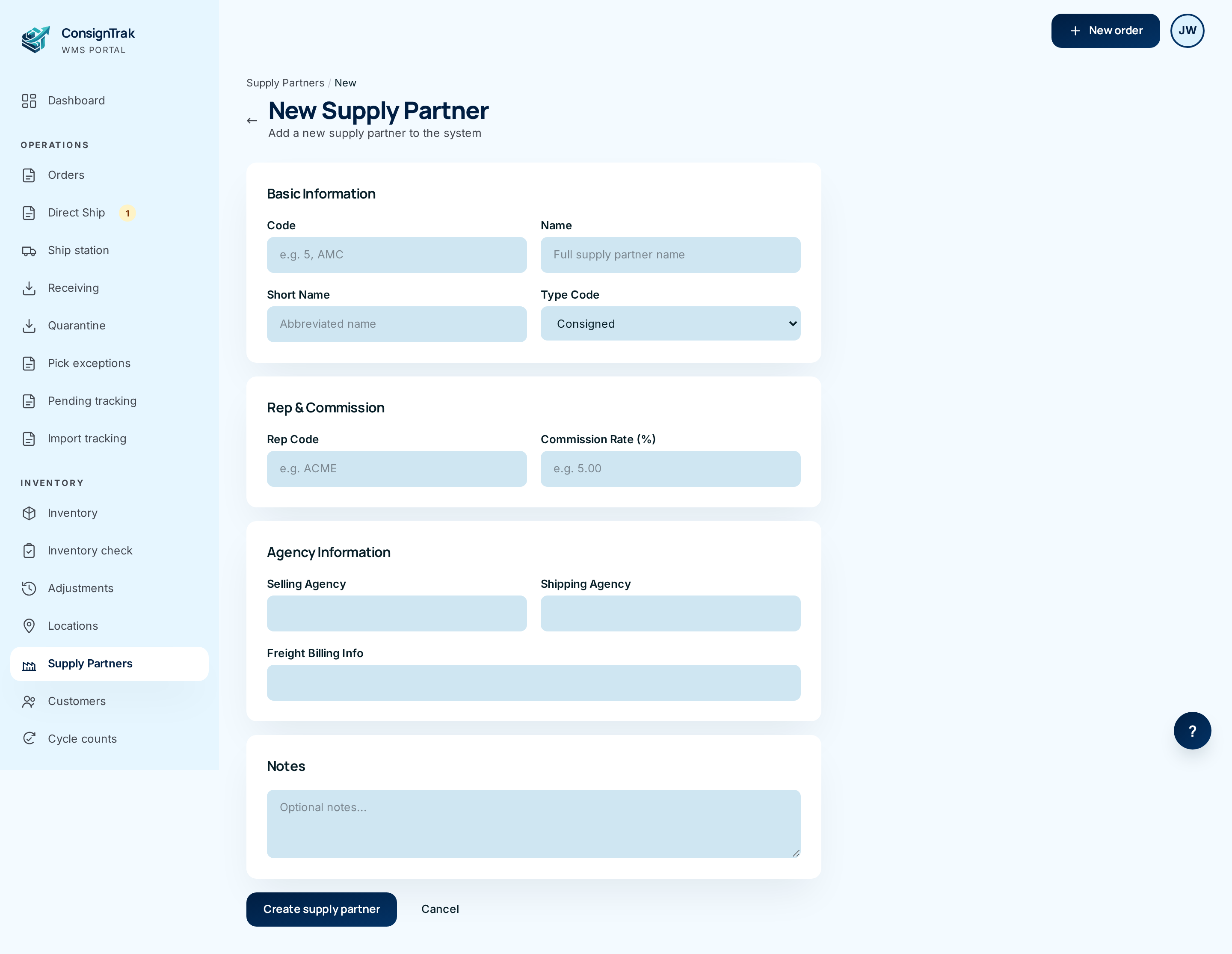
Open Supply Partners from the sidebar and choose New supply partner.
-
Type the Code — the manufacturer code, up to 10 characters.
-
Type the Name — the company's full name.
-
Fill in anything else you know (every field is explained in the table below). Only Code and Name are required.
-
Choose Create supply partner. ConsignTrak opens the new partner's hub page.
Edit it and finish the setup
-
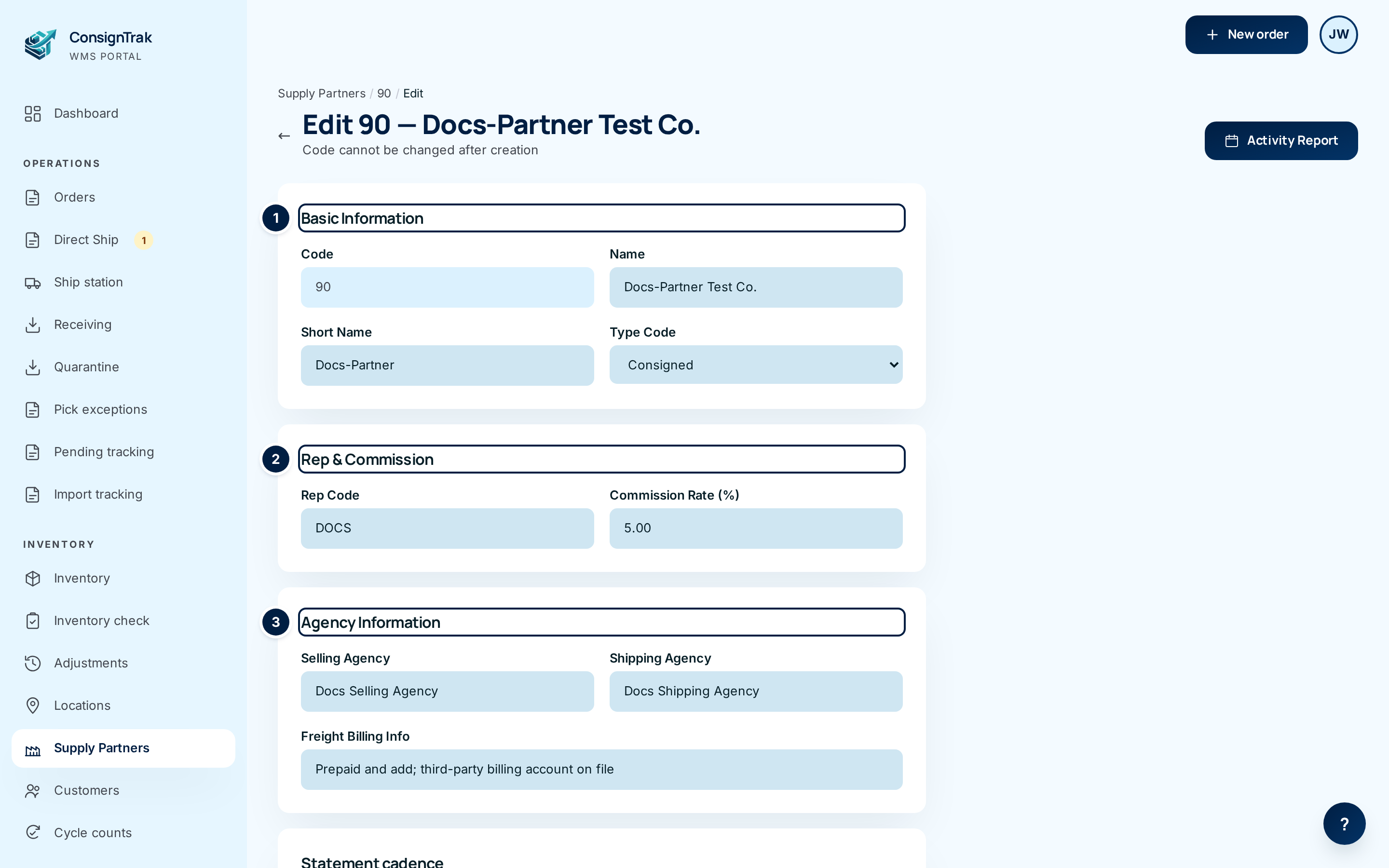
Choose Edit at the top of the partner's hub.
-
Change anything in ① Basic Information, ② Rep & Commission or ③ Agency Information. Code is shown greyed out — it can't be changed.
-
Scroll down to the statement cadence and logo.
-
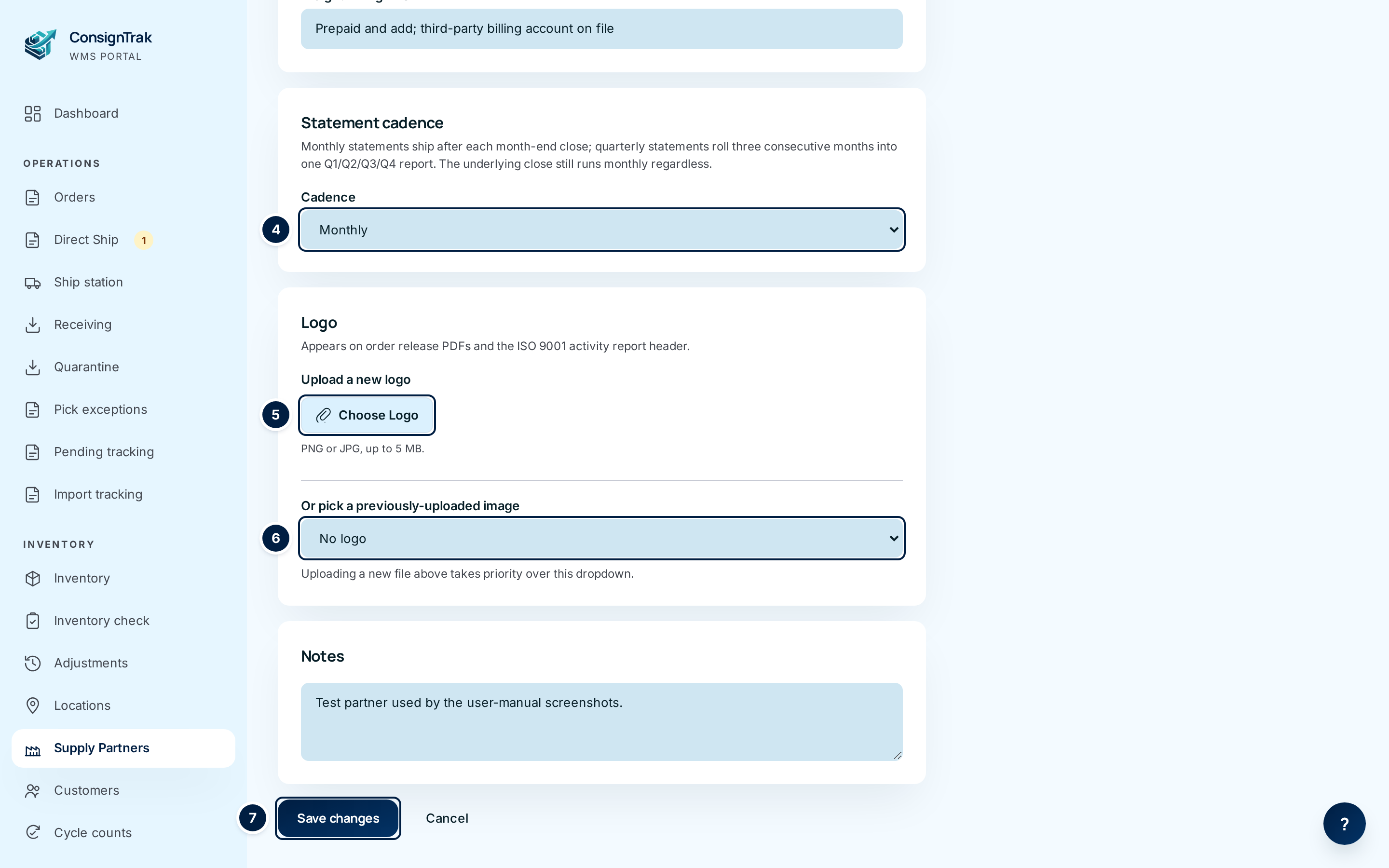
Choose the Cadence ④ — Monthly or Quarterly statements.
-
Add a logo: choose Choose Logo ⑤ and pick a PNG or JPG file, or pick an image already uploaded for this partner from the list ⑥.
-
Choose Save changes ⑦. ConsignTrak saves and returns you to the hub.
Every field and option
| Field or control | What it means | Required | Default | What changes when you set it |
|---|---|---|---|---|
| Code | The partner's manufacturer code: the short identifier from the previous system, e.g. "5" or "AMC". Up to 10 characters; must be unique. On the edit form it's shown read-only. | Yes | — | Shown on every screen next to the partner's name and printed as "Mfg Code" on releases. Can never be changed — to "change" it you'd have to create a new partner. |
| Name | The company's full name. | Yes | — | Shown throughout ConsignTrak, on releases and on the Activity Report. |
| Short Name | An abbreviation. | No | Empty | Shown in the hub's Details panel. |
| Type Code | Consigned — the partner owns the stock (the normal case). Buy/Sell — the warehouse owns the stock outright. | Yes | Consigned | Shown on the list and hub. It doesn't change how orders, receiving or picking work today. |
| Rep Code | The rep agency's identifier for this partner — useful for matching records in your CRM. | No | Empty | Shown on the list and hub. |
| Commission Rate (%) | The commission percentage, 0–100, two decimals (type 5 for 5%). | No | Empty | Shown on the hub. Reference only — ConsignTrak doesn't calculate or pay commissions. Leaving it blank clears it. |
| Selling Agency | Who sells for this partner. | No | Empty | Shown in the hub's Agency Info panel. Reference only — not printed on releases or reports. |
| Shipping Agency | Who arranges this partner's shipping. | No | Empty | Shown in Agency Info. Reference only. |
| Freight Billing Info | How freight is billed for this partner (prepaid, collect, third-party account…). | No | Empty | Shown in Agency Info as Freight Billing. Reference only. |
| Cadence (Statement cadence) — edit form only | How often the partner's statement is issued: Monthly (one per closed month) or Quarterly (one per calendar quarter, once all three months are closed). The warehouse still closes the books every month either way. | Yes | Monthly | Changes which statements the partner sees in the portal's Statements page. See Accounting periods. |
| Choose Logo (Upload a new logo) — edit form only | Upload the partner's logo. PNG or JPG, up to 5 MB. A wide logo (roughly 3:1) prints best. | No | — | Becomes the partner's logo, and is saved to the partner's documents. An upload wins over the list below. |
| Or pick a previously-uploaded image — edit form only | Choose an image already in this partner's documents, or No logo. | No | The current logo | Sets the logo. No logo removes it. |
| Current (logo preview) | The logo in use now. Shown only when there is one. | — | — | Read-only. |
| Notes | Anything the team should know: preferred contact, escalation rules, special handling. | No | Empty | Shown in the hub's Notes panel. |
| Create supply partner (new form) | Saves the new partner. | — | — | Creates the partner and opens its hub. |
| Save changes (edit form) | Saves your edits. | — | — | Updates the partner and returns to the hub. |
| Cancel | Leaves without saving. | — | — | Back to the list (new) or the hub (edit). |
| ← (back arrow) and breadcrumb | Same as Cancel. | — | — | Leaves without saving. |
| Activity Report (edit form) | Opens the partner's activity page. | — | — | Leaves without saving. |
Where the logo appears: on printed releases for this partner's orders, at the top of the Activity Report, and on the partner's statements in the portal. If the file can't be read, those documents simply print without a logo.
What's not on this form. Three portal and picking behaviours are stored on each supply partner but have no on-screen switch — see Portal behaviours with no on-screen switch. There is also no way yet to mark a supply partner Inactive from the screen; the list's Inactive tab shows partners made inactive by other means.
What happens next
- The partner appears on the Supply Partners list (on the Active tab) and in every "choose a supply partner" list — orders, receiving, items, users.
- ConsignTrak starts the partner's own release number sequence, which numbers this partner's orders separately from every other partner's.
- The creation and every later save are recorded in the audit trail.
- Next steps: add the partner's items (see Inventory & items), add contacts on the hub, and, if they'll use the portal, give them portal access.
Common problems
"Code and name are required" — Fill in both Code and Name, then choose Create supply partner again. Everything else you typed is kept.
"A manufacturer with this code already exists" — Another supply partner already uses that code (check the All tab — it may be inactive). Codes must be unique; choose a different one or use the existing partner.
"Failed to create manufacturer" or "Failed to update supply partner" — Something went wrong saving. Try again; if it keeps happening, tell your administrator.
"Name is required" — You cleared the name on the edit form. Type it back in and save.
"Logo must be a PNG or JPG image." — Only .png, .jpg or .jpeg files
work (SVG and PDF don't). Save the logo as PNG and upload again.
"Logo upload failed: …" — The file couldn't be stored; the rest of the message says why. Check the file is a normal PNG or JPG under 5 MB and try again.
The logo looks squashed or tiny on the PDF. — Re-export it at roughly 3:1 (wide rather than square) and upload it again.
Rep code, commission and agency details disappeared. — Someone probably saved the partner from a phone (see the caution above). Re-enter them from a desktop browser; the audit trail shows who saved the partner and when.