Supply Partners
What this is
A supply partner is the company that owns the consigned stock the warehouse holds. Nearly everything in ConsignTrak is grouped by supply partner: items, orders, receivings and reports.
Supply Partners in the sidebar opens the list of every partner. Choosing one opens its hub: a single page with the partner's details, stock count, recent orders, recent stock movements, agency details, contacts and links to everything else about that partner.
This section covers:
- this page — the list and the hub;
- Creating and editing a supply partner;
- The Supply-Partner Activity Report;
- History and the audit-chain anchor;
- Giving a supply partner portal access;
- Portal behaviours with no on-screen switch.
Before you start
- Role: Office or Administrator can open the list and the hub. Only an Administrator sees New supply partner, Edit and the Audit Chain Anchor panel.
- Settings: none.
- You'll need: nothing — the list shows every supply partner already set up.
Step by step
-
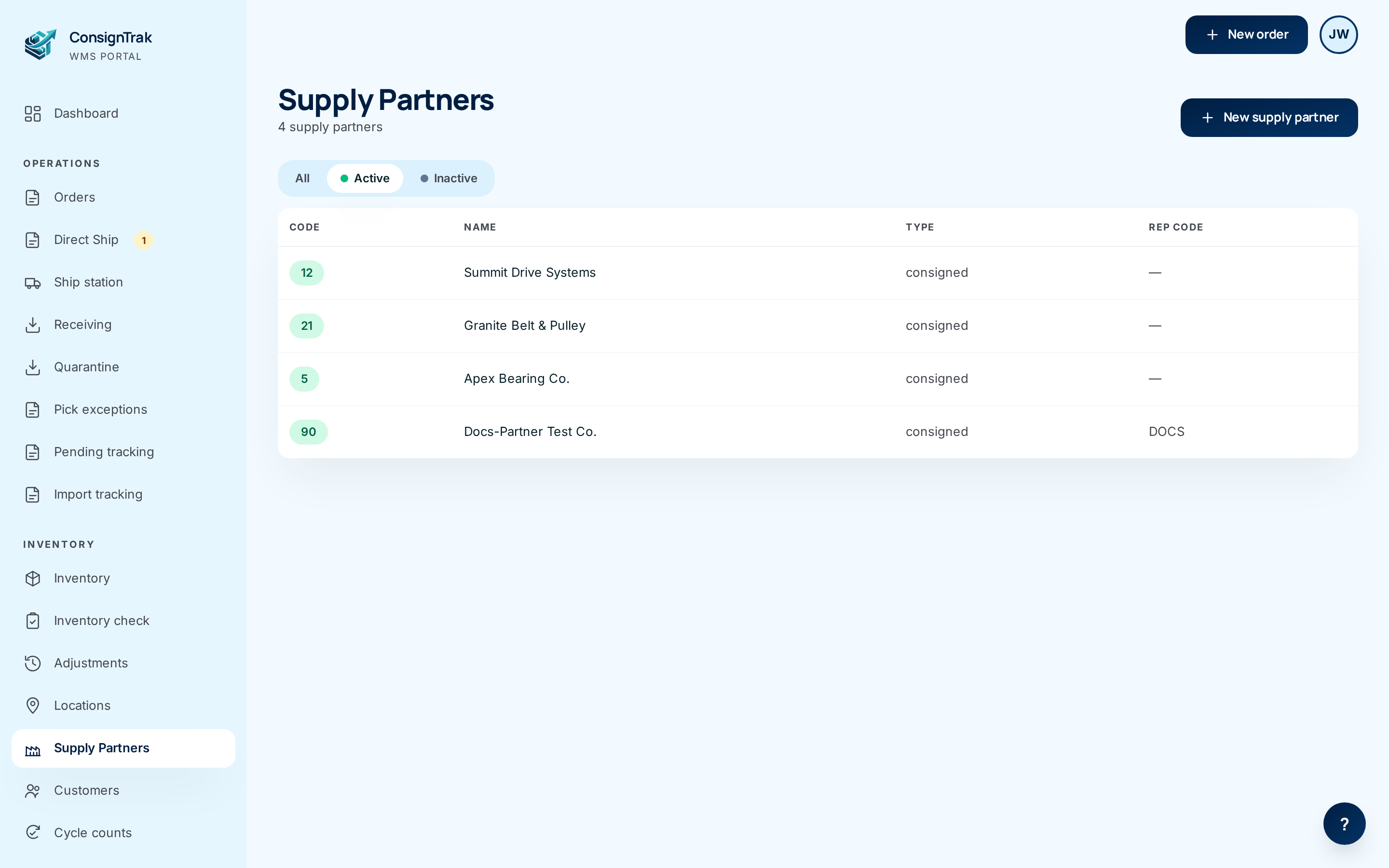
Open Supply Partners from the Inventory section of the sidebar. The list opens on the Active tab.
-
Switch tabs to see All partners or only Inactive ones. The colour of the code pill tells you the status at a glance: green for active, grey for inactive.
-
Choose a row to open that partner's hub.
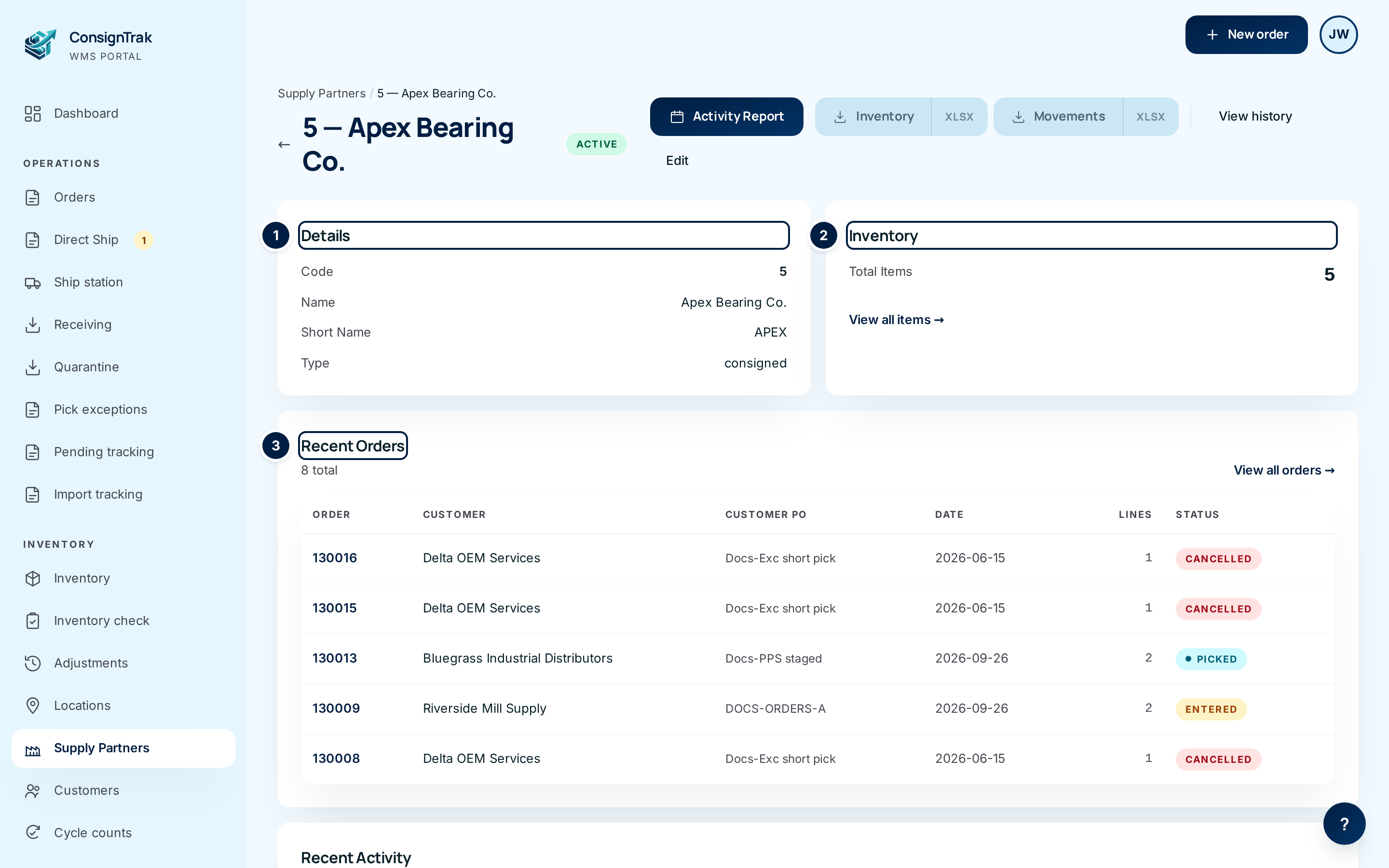
- ① Details — code, name, short name, type, rep code and commission rate.
- ② Inventory — how many items this partner has, and View all items → to open the inventory list filtered to them.
- ③ Recent Orders — the latest orders against this partner's stock. Choose a row to open the order, or View all orders → for the full list (see step 5).
-
Use the buttons across the top to go further.

- ① Activity Report — the ISO 9001 report for a date range (see The Supply-Partner Activity Report).
- ② Inventory and Movements — download this partner's current stock, or its stock movements, as a CSV file. The small XLSX half of each button downloads the same thing as an Excel spreadsheet.
- ③ View history — the partner's archive from the previous system (see History and the audit-chain anchor).
- ④ Edit — change the partner's details (Administrator only).
-
Scroll down for the rest of the hub.
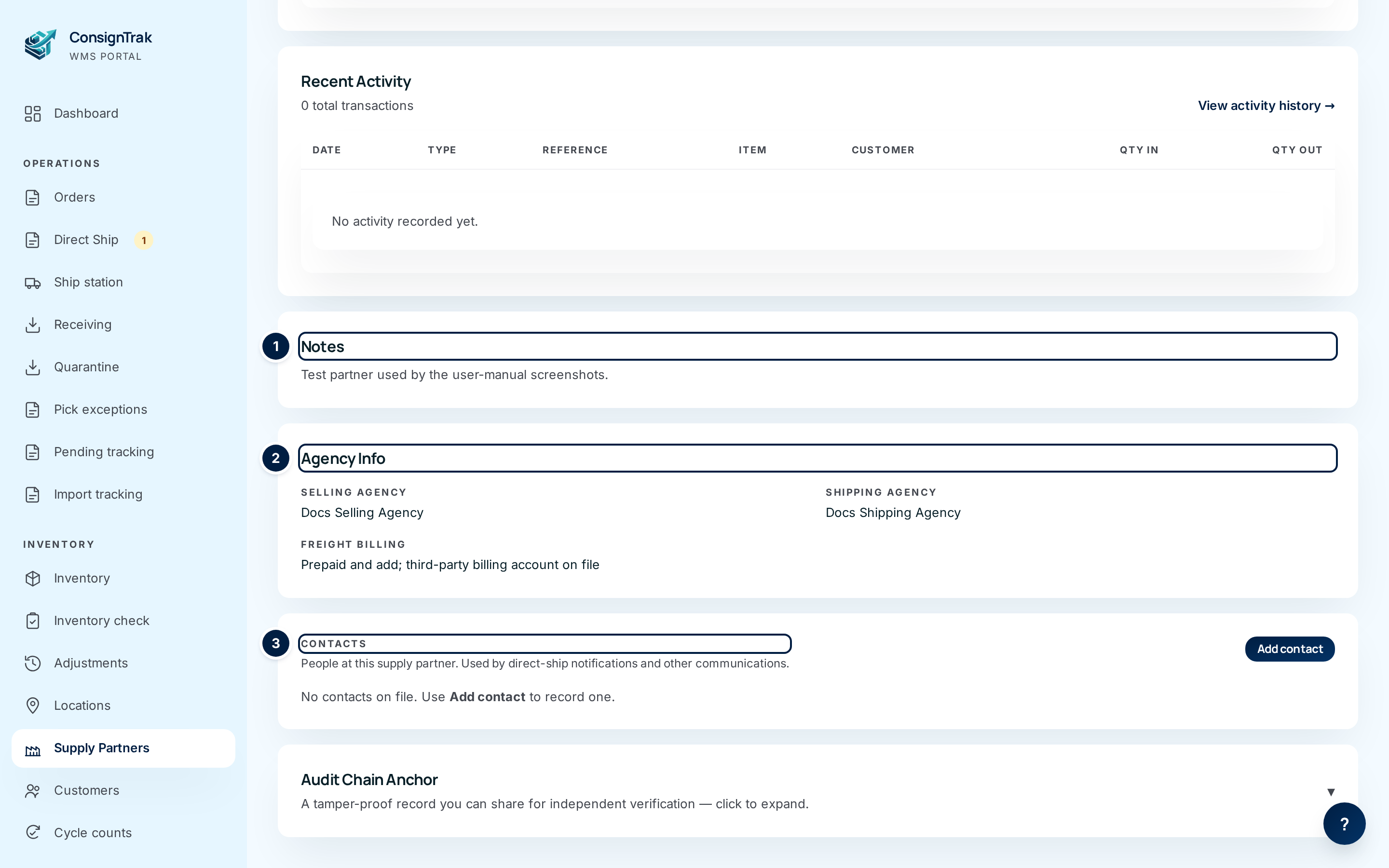
- Recent Activity — the latest stock movements (receipts, releases, adjustments, counts, returns). The reference links to the order, receiving or cycle count behind the movement. View activity history → opens the Activity Report page.
- ① Notes — shown only when the partner has notes.
- ② Agency Info — selling agency, shipping agency and freight billing, each shown only when filled in.
- ③ Contacts — the people at this partner. Administrators see Add contact and, on each row, Edit, Deactivate and Remove. These contacts are used for direct-ship notices and other messages to the partner. Remove only unlinks the person from this partner; Deactivate hides them everywhere until reactivated.
- Audit Chain Anchor — Administrators only; see History and the audit-chain anchor.
-
Open the orders sub-list with View all orders → to see every order for this partner.
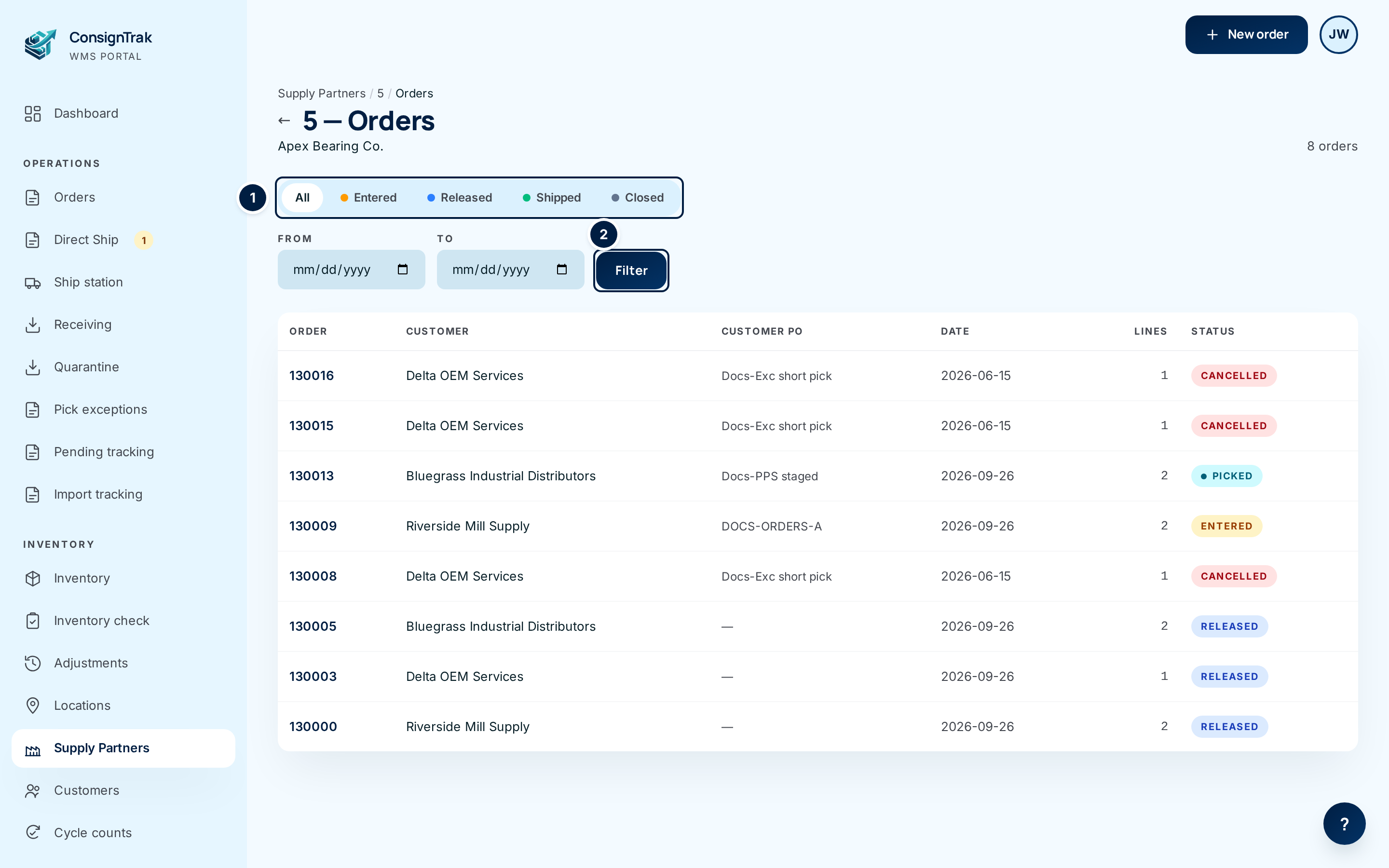
Choose a status tab ①, or set From and To dates and choose Filter ② to narrow by order date. Choose a row to open the order.
Every field and option
The list
| Field or control | What it means | Required | Default | What changes when you set it |
|---|---|---|---|---|
| Supply Partners (title) and N supply partners | How many partners the current tab shows. | — | — | Read-only. |
| New supply partner | Opens the new-partner form. Administrator only. | — | — | See Creating and editing. |
| All / Active / Inactive tabs | Which partners to list. | — | Active | The list shows only partners with that status. |
| Code | The partner's manufacturer code, in a pill coloured by status (green active, grey inactive). | — | — | Read-only. |
| Name | The partner's full name. | — | — | Read-only; choose the row to open the hub. |
| Type | Consigned or Buy/Sell. | — | — | Read-only. |
| Rep Code | The rep code, or a dash when none. | — | — | Read-only. |
The hub
| Field or control | What it means | Required | Default | What changes when you set it |
|---|---|---|---|---|
| Code — Name (title) and status pill | Which partner you're looking at, and whether it's Active. | — | — | Read-only. |
| ← (back arrow) and breadcrumb | Back to the list. | — | — | Leaves the page. |
| Activity Report | Opens the activity page and ISO 9001 PDF. | — | — | Leaves the page. |
| Inventory / XLSX | Downloads this partner's current stock as CSV / Excel. | — | — | Downloads a file. |
| Movements / XLSX | Downloads this partner's stock movements as CSV / Excel. | — | — | Downloads a file. |
| View history | Opens the archive from the previous system. | — | — | Leaves the page. |
| Edit | Opens the edit form. Administrator only. | — | — | Leaves the page. |
| Details panel | Code, Name, Short Name, Type, Rep Code, Commission Rate (the last three only when filled in). | — | — | Read-only. |
| Inventory panel — Total Items | Number of items belonging to this partner. | — | — | Read-only. |
| View all items → | The inventory list filtered to this partner. | — | — | Leaves the page. |
| Recent Orders — N total | Total number of orders for this partner. | — | — | Read-only. |
| View all orders → | The orders sub-list (below). | — | — | Leaves the page. |
| Order columns: Order, Customer, Customer PO, Date, Lines, Status | The order number, the customer (or their account code if the name is blank), the customer's PO, order date, number of lines and status (Entered, Released, Picking, Picked, Packed, Shipped, Closed, Cancelled). Customer PO and Lines hide on narrow screens. | — | — | Choose a row to open the order. |
| Recent Activity — N total transactions | Total stock movements recorded for this partner. | — | — | Read-only. |
| View activity history → | Opens the Activity Report page. | — | — | Leaves the page. |
| Activity columns: Date, Type, Reference, Item, Customer, Qty In, Qty Out | When, what kind of movement (Receipt, Sale, Release, Adjustment, Cycle count, Return, or Quarantine for stock that failed inspection), the order / receiving / cycle count it came from (a link), the part number (a link to the item), the customer where there is one, and the quantity in (green, +) or out (red, −). | — | — | Links open the record. |
| Notes panel | Free-form notes from the edit form. Shown only when present. | — | — | Read-only. |
| Agency Info panel — Selling Agency, Shipping Agency, Freight Billing | Reference details from the edit form, each shown only when filled in. | — | — | Read-only. |
| Contacts panel — Add contact, and per row Edit, Deactivate, Remove | People at the partner: Name, Title, Email, Phone, Role, Primary. Changing contacts is Administrator only. | — | — | Adds or changes a contact. Deactivate and Remove each ask you to click again. |
| Audit Chain Anchor | A shareable proof the partner's history hasn't been altered. Administrator only. | — | Collapsed | Click to expand. See History and the audit-chain anchor. |
The orders sub-list
| Field or control | What it means | Required | Default | What changes when you set it |
|---|---|---|---|---|
| Code — Orders (title), partner name and N orders | Which partner, and how many orders match. | — | — | Read-only. |
| ← (back arrow) and breadcrumb | Back to the hub. | — | — | Leaves the page. |
| All / Entered / Released / Shipped / Closed tabs | Filter by order status. Released includes orders being picked or packed. | — | All | The table shows only that status. |
| From / To | Order-date range, inclusive. Both are optional. | No | Empty | Narrows the list after you choose Filter. |
| Filter | Applies the dates (and keeps the current tab). | — | — | Reloads the list. |
| Order, Customer, Customer PO, Date, Lines, Status | Same columns as Recent Orders on the hub. | — | — | Choose a row to open the order. |
| Previous / Next | Page through long lists. Filters are kept. | — | — | Shows the next page. |
What happens next
Nothing changes when you look at these pages. From here you usually go on to:
- enter an order for this partner (see Orders);
- check or receive the partner's stock (see Inventory & items);
- run and send the partner's Activity Report.
The supply partner owns the stock; the warehouse is their agent. That's why orders, stock and reports are always kept per partner, and why a supply partner using the portal only ever sees their own records.
Common problems
I don't see New supply partner or Edit. — Those are Administrator only. Ask an Administrator to make the change.
A partner is missing from the list. — The list opens on Active. Choose All or Inactive.
"No orders for this supply partner yet." — No orders have been entered against this partner. Orders from the previous system are under View history instead.