Pending tracking
What this is
When a packer can't scan a shipping label — it's torn, smudged, or from a carrier the phone doesn't recognise — they flag the shipment for the office and ship it anyway. The shipment then waits in the Pending tracking queue until someone in the office types in the tracking number from each box. The same Edit tracking page is also where anyone fixes a wrong number.
Before you start
- Role: Office or Administrator to see the queue. Warehouse users can't see the queue, but they can open Edit tracking from an order's page to fix a number they scanned wrong.
- Settings: none.
- You'll need: the tracking number printed on each box's label. The carrier's shipping software, or a copy of the label, is the easiest source.
If your user account is limited to one supply partner, you see only that supply partner's shipments.
Step by step
-
Open Pending tracking from the Operations section of the sidebar ①. The amber number beside it is how many shipments are waiting. Import tracking ② sits just below it.
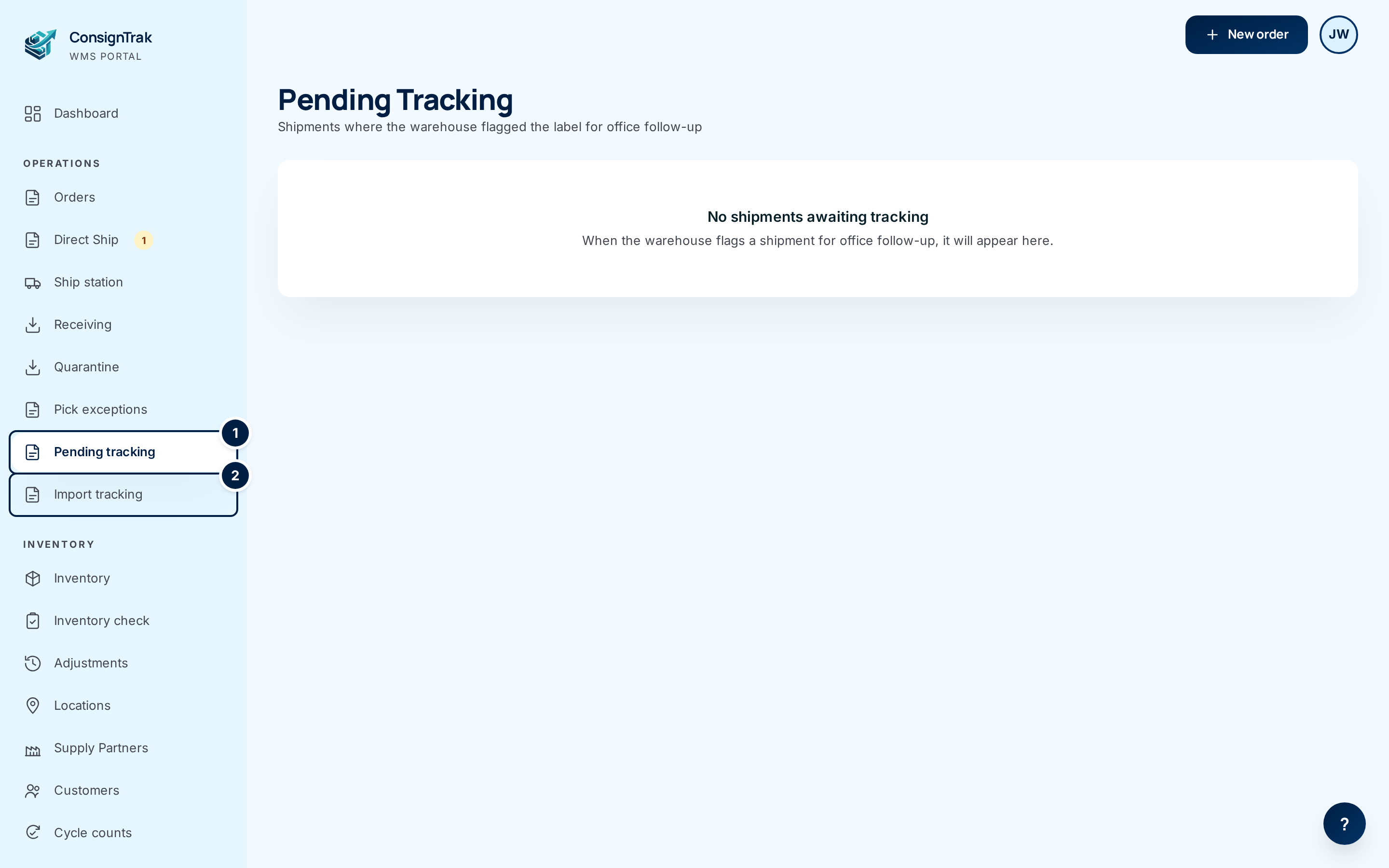
An empty queue says No shipments awaiting tracking — that's the goal.
-
Find the shipment. Each row shows the order number, the customer, the supply partner, and when it was flagged. The small circle with initials is the person who flagged it; point at it to see their full name.
-
Choose Enter tracking on the row. The Edit tracking page opens for that shipment.
A flagged shipment shows an amber Flagged for office note: "Warehouse couldn't scan the label."
-
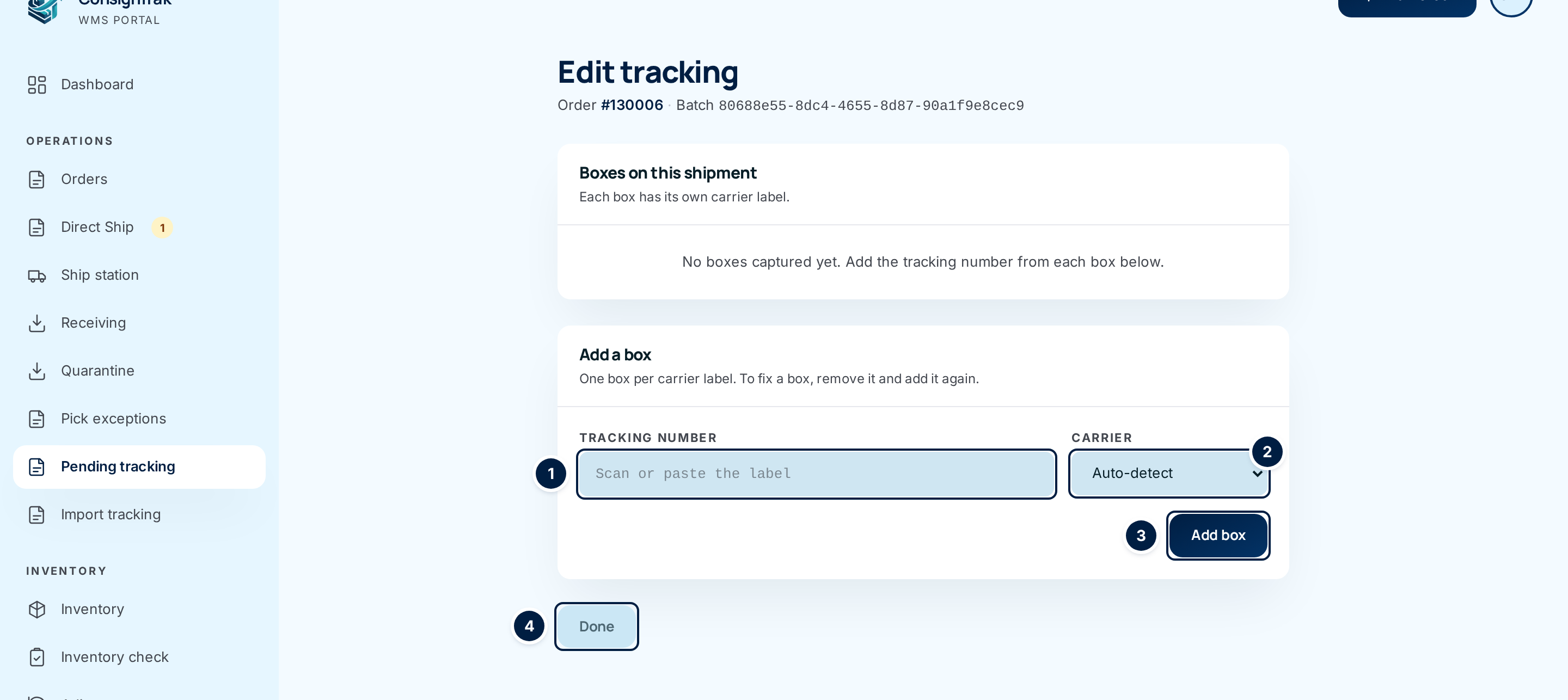
Type or paste the first box's number into Tracking number ①. Copy it exactly — leading zeros matter. Spaces and dashes are fine.
-
Leave Carrier ② on Auto-detect for UPS, FedEx and USPS numbers. Choose the carrier yourself only if ConsignTrak doesn't recognise the number, or choose Other for a regional or freight carrier.
-
Choose Add box ③. The page reloads with the number listed as Box 1 under Boxes on this shipment, and the form is ready for the next one.
-
Repeat for every box on the shipment. Each label is its own box.
-
Choose Done ④ to go back to the queue. The shipment is gone from it.
Correcting or removing a box
There's no edit button on a box. To fix a wrong number, remove the box and add it again.
- Open the shipment's Edit tracking page — from the queue, or with Edit Tracking in the order's Tracking section.
- Choose Remove beside the wrong box. The button turns red and asks you to click again — click it a second time to confirm.
- Add the correct number with Add box.
If you remove every box from a shipment the warehouse flagged, it goes straight back into the Pending tracking queue.
Every field and option
Pending tracking queue
| Field or control | What it means | Required | Default | What changes when you set it |
|---|---|---|---|---|
| Pending tracking (sidebar, with count) | Opens the queue. The amber number is how many rows are waiting; it refreshes every minute and disappears at zero. | — | — | — |
| Batch | The warehouse's reference for this shipment. Shown on wide screens only. | — | — | Read-only. |
| Order (link) | The order number. Opens the order, where you can see the ship-to address. | — | — | Opens the order. |
| Customer | Who the shipment went to. | — | — | Read-only. |
| Supply Partner | Whose stock shipped. Shown on wider screens. | — | — | Read-only. |
| Flagged | When the shipment was flagged, with the initials of who flagged it. | — | — | Read-only. |
| Action — Enter tracking | Opens Edit tracking for this shipment. | — | — | Opens the edit page. |
| Action — Reconciliation flag (amber pill) | A shipment a carrier reported that ConsignTrak has no record of. See Automatic carrier updates. The Order column shows the reference the carrier sent instead of a link. | — | — | No action on this row. |
Edit tracking
| Field or control | What it means | Required | Default | What changes when you set it |
|---|---|---|---|---|
| Order #… (link, in the heading) | The order this shipment belongs to. The long code after Batch is ConsignTrak's internal reference; you can ignore it. | — | — | Opens the order. |
| Boxes on this shipment | Every box already recorded, numbered Box 1, Box 2… with its carrier. The count badge shows how many. | — | — | Read-only. |
| Tracking number link (on a box) | Opens the carrier's tracking page in a new tab, when ConsignTrak knows the carrier's site. | — | — | Leaves ConsignTrak. |
| Remove (on a box) | Takes that box off the shipment. Asks you to click again. | — | — | The box is removed; the others renumber. |
| Add a box / Add another box | The form for the next label. The heading changes once a box exists. | — | — | — |
| Tracking number | The number printed on one box's label. | Yes | Empty | — |
| Carrier | Auto-detect, UPS, FedEx, USPS or Other. Auto-detect works out the carrier from the number's format. | No | Auto-detect | Sets the carrier stored with the box and which tracking site its link opens. |
| Add box | Saves the number as a new box. Adding a number that's already on the shipment does nothing. | — | — | A box is added; the shipment leaves the queue. |
| Done | Office users and Administrators go back to the queue. Warehouse users go back to the order. | — | — | Nothing is saved by Done itself. |
What happens next
- The shipment leaves the queue as soon as it has at least one box.
- The numbers appear in the order's Tracking section, on the supply partner's portal view of the order, and on the end-of-day shipment report.
- Nothing about the order's status or stock changes. The shipment was already confirmed as shipped when the warehouse flagged it.
- ConsignTrak records who added or removed each box, and when.
Shipments only land here when a scan failed, so a long queue usually means nobody is checking it. Look at least once a day. If one packer flags often, they may need a refresher on scanning labels.
Common problems
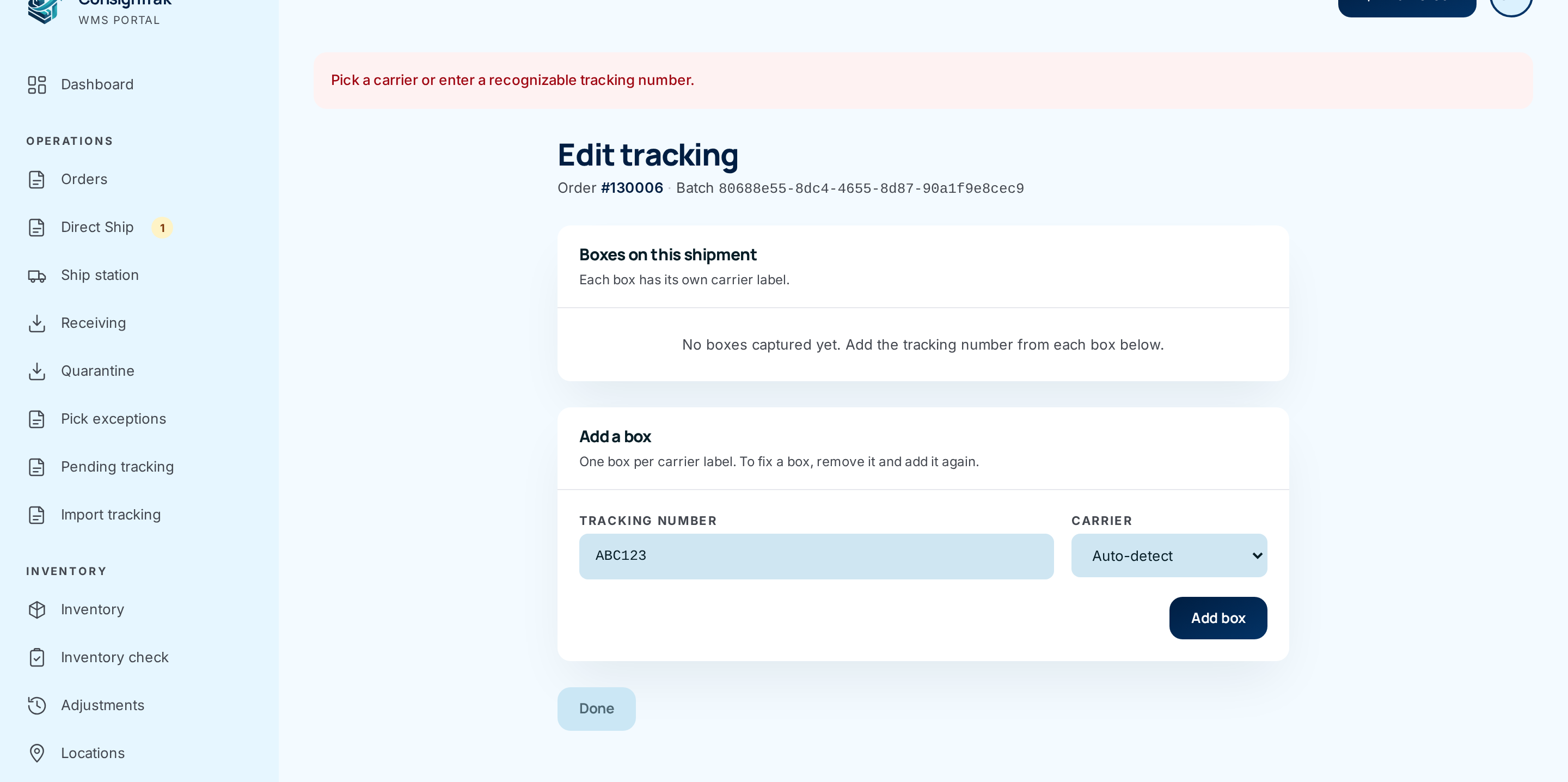
"Pick a carrier or enter a recognizable tracking number." — Auto-detect couldn't tell which carrier the number belongs to. Check you copied it correctly, then choose the carrier from Carrier (or Other) and choose Add box again.
"Tracking number is required." — The field was empty. Type the number and try again.
The shipment isn't in the queue. — Only shipments the warehouse flagged land here. A shipment confirmed with a scanned label, or one that already has a box, won't. Open the order and use Edit Tracking instead. The end-of-day shipment report's Tracking pending count catches any shipped order still missing a number.
A "Reconciliation flag" row won't go away. — There's no way to clear these rows from the screen yet (we've reported it). Tell your administrator; see Automatic carrier updates.
The customer says the tracking link doesn't work. — The number was probably mistyped. Remove the box and add it again with the number from the label.