Multi-box shipments
What this is
One order often ships in more than one box, and each box gets its own carrier label. ConsignTrak keeps every box's tracking number on the shipment — Box 1, Box 2, Box 3 — instead of just one number per order. This page explains how boxes are numbered, how to fix one, and who sees them.
Before you start
- Role: anyone can see boxes on an order. Office users, Administrators and Warehouse users can add and remove them.
- Settings: none.
- You'll need: a shipment that has been packed.
Step by step
Boxes are usually added by the warehouse as they label each one — every scan adds the next box (see Packing, shipping & pickup). To see or change them from the office:
-
Open the order and scroll to its Tracking section. Each shipment is a row; when it has more than one box, each number is labelled Box 1, Box 2 and so on. Click a number to open the carrier's tracking page.
-
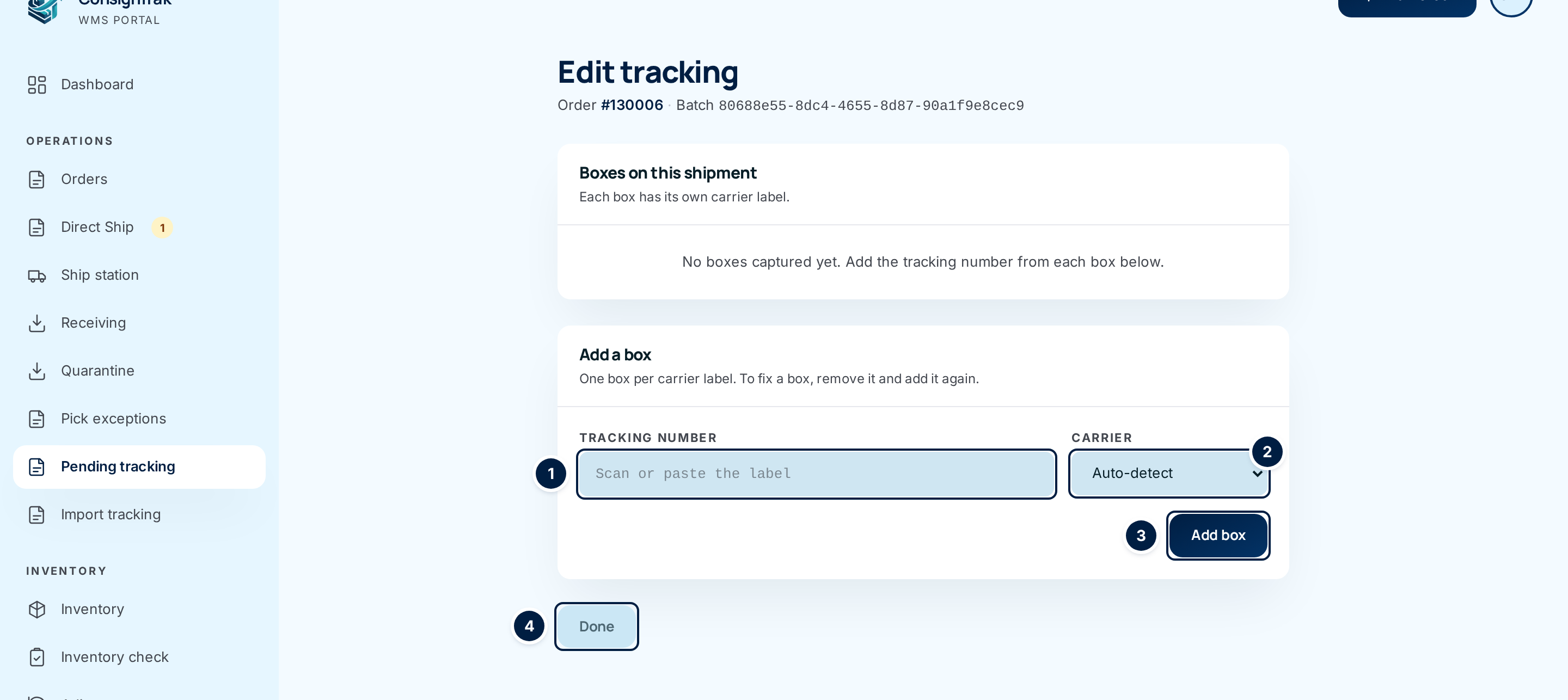
Choose Edit Tracking on the shipment's row to add or remove a box. The page and its fields are described in Pending tracking.
-
Add each missing label with Tracking number and Add box. The page stays open so you can add several in a row.
-
Remove a wrong box with Remove beside it. The button turns red and asks you to click again — click it a second time to confirm. Then add the right number.
Every field and option
The controls are the ones on Edit tracking — see the full table on Pending tracking. On the order page:
| Field or control | What it means | Required | Default | What changes when you set it |
|---|---|---|---|---|
| Tracking (column) | Every box's number on this shipment, labelled Box 1, Box 2… when there's more than one. Shows "flagged for office" when the warehouse couldn't scan, or a dash when there's nothing yet. | — | — | Links open the carrier's site. |
| Carrier / Captured | The carrier, and when and by whom the number was recorded. On shipments with several boxes these describe Box 1. | — | — | Read-only. |
| Edit Tracking | Opens Edit tracking for this shipment. Visible to Office users, Administrators and Warehouse users. | — | — | — |
How boxes are numbered
- Boxes are numbered in the order they were added.
- Box 1 is the first box still on the shipment. Anywhere that has room for only one number — the Carrier and Captured columns, for example — shows Box 1.
- Remove a box and the rest close up: remove Box 1 and the old Box 2 becomes Box 1.
- Adding a number that's already on the shipment doesn't create a second box, whether it was scanned twice, imported twice or sent twice by the carrier.
Who sees the boxes
| Who | Where | What they see |
|---|---|---|
| Office and Administrator | The order's Tracking section; the end-of-day shipment report | Every box, with links, and Edit Tracking |
| Warehouse | The phone's ship screen while shipping; the order page | Every box scanned so far, with Remove; Edit Tracking on the order |
| Supply partner | Their portal's view of the order | Every box's number and carrier tracking link. They can't change them. |
| Customer | — | ConsignTrak doesn't send tracking to customers. The supply partner or the office passes the numbers on. |
What happens next
- Adding or removing a box never changes stock or the order's status.
- A shipment the warehouse flagged returns to Pending tracking if all its boxes are removed.
- A box removed by mistake can simply be added again.
Common problems
The same number shows on two boxes. — It can't: a repeated number is ignored. If two boxes look alike, compare the last digits; one was probably mistyped. Remove it and add the correct one.
The warehouse scanned a label from the wrong order. — Remove that box on this shipment and add it on the right order's Edit tracking page.
The supply partner only sees one number. — Only boxes that were captured show. Check the order's Tracking section and add the missing labels.