Importing tracking from WorldShip and FedEx
What this is
If the warehouse prints labels from UPS WorldShip or FedEx Ship Manager, those programs already know every tracking number from the day. Instead of typing them in, the office exports the day's shipments to a file and uploads it. ConsignTrak reads each row, finds the order by its order number, shows you what it will do, and adds the boxes when you choose Commit.
Use it for any carrier that can export a spreadsheet — it's also the fallback for carriers ConsignTrak doesn't hear from automatically (see Automatic carrier updates).
Before you start
- Role: Office or Administrator.
- Settings: none in ConsignTrak. The carrier software needs a one-time export setup (below).
- You'll need:
- The shipments already packed or shipped in ConsignTrak. Rows for orders still being picked are skipped.
- The ConsignTrak order number typed into each label's reference field at ship time. This is the only thing that ties a row to an order.
One-time setup in the carrier software
UPS WorldShip
-
Open WorldShip and choose Import/Export Data → Connection Assistant. Choose Create a new map for Export.
-
Set the data type to Shipment and the data source to By File, pointing at a folder the office computer can reach (for example
C:\UPS\Export). -
Choose the Microsoft Text Driver and name the map ConsignTrak Export.
-
Tick Include Header Row and use a comma as the delimiter.
-
Add these columns, in this order, naming each header exactly as shown in the first column:
Column header WorldShip tab WorldShip field order_reference Package Reference Number 1 tracking_number Package Tracking Number service Shipment Information Service Type weight_lbs Package Package Weight package_count Shipment Information Number of Packages freight_charge Package Package Reference Charge void_flag Package Void Indicator
Every day after that:
- At ship time: type the ConsignTrak order number into Reference 1 before processing the package.
- At end of day: in UPS OnLine Connect, choose Automatic Export During End Of Day → ConsignTrak Export. WorldShip writes the file to your export folder.
FedEx Ship Manager
-
Open Reports → Shipment History in Ship Manager Software.
-
Pick the day's date range and choose Export to CSV.
-
Choose these fields, in this order:
Column header Ship Manager field order_reference Customer Reference tracking_number Master Tracking Number service Service Type weight_lbs Billed Weight freight_charge Net Charge
Ship Manager doesn't export package count or a void column. Leave them out; ConsignTrak doesn't need them.
Every day after that:
- At ship time: type the ConsignTrak order number into Customer Reference before printing the label. It prints on the label and comes back in the export.
- At end of day: export the day's Shipment History to CSV.
Only order_reference and tracking_number are required. ConsignTrak also recognises the carriers' own names for them — "Reference Number 1", "Customer Reference", "Order Number", "Tracking Number", "Master Tracking Number" — so a file with those headers works too. Other columns are kept with the import for reference but don't change anything.
Step by step
-
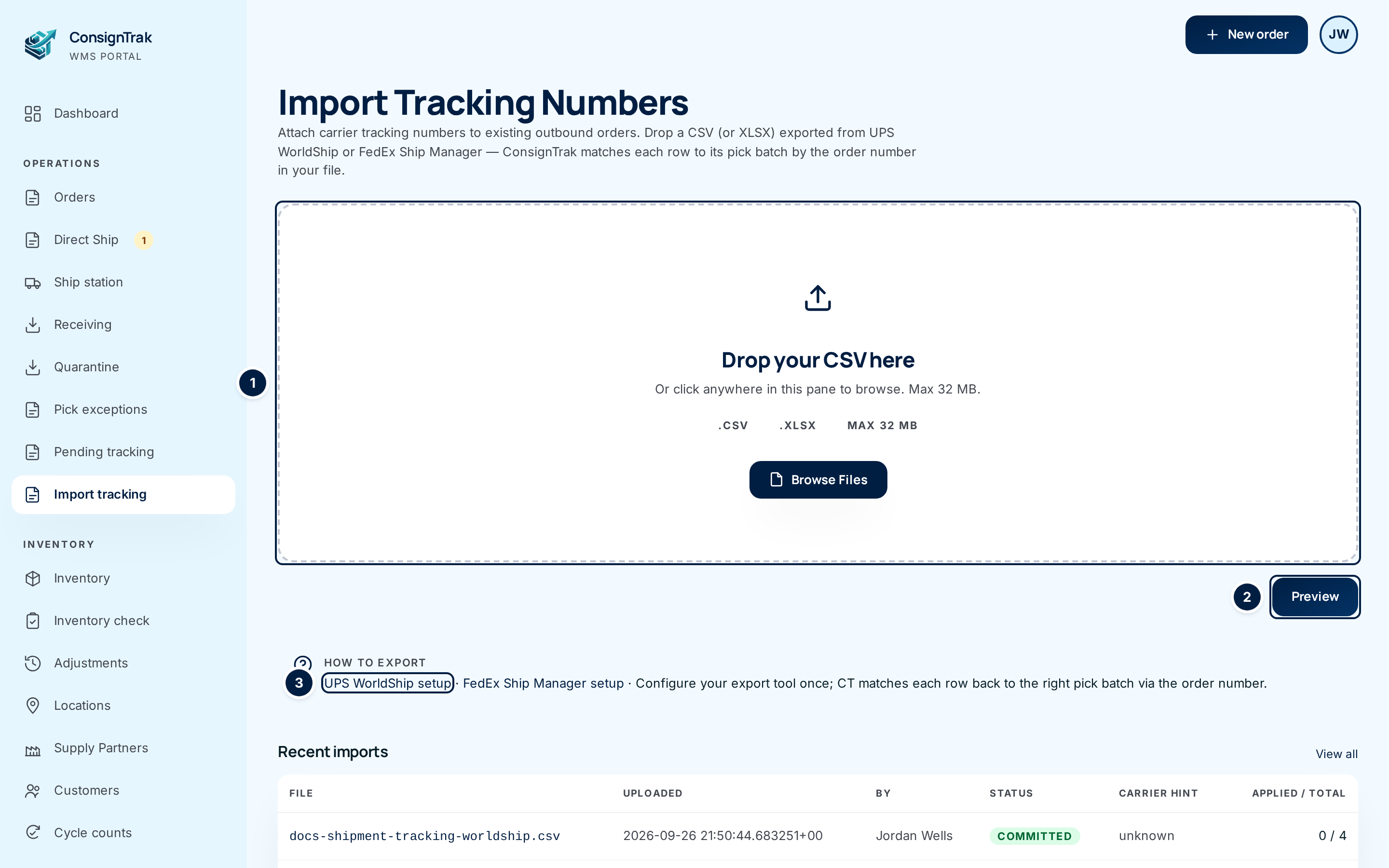
Open Import tracking from the Operations section of the sidebar.
-
Drop the file onto the dashed area ①, or click anywhere in it to browse. CSV and Excel (.xlsx) files up to 32 MB work. The area changes to show the file's name and size; click again to choose a different one. The UPS WorldShip setup and FedEx Ship Manager setup links ③ open the setup steps above inside ConsignTrak.
-
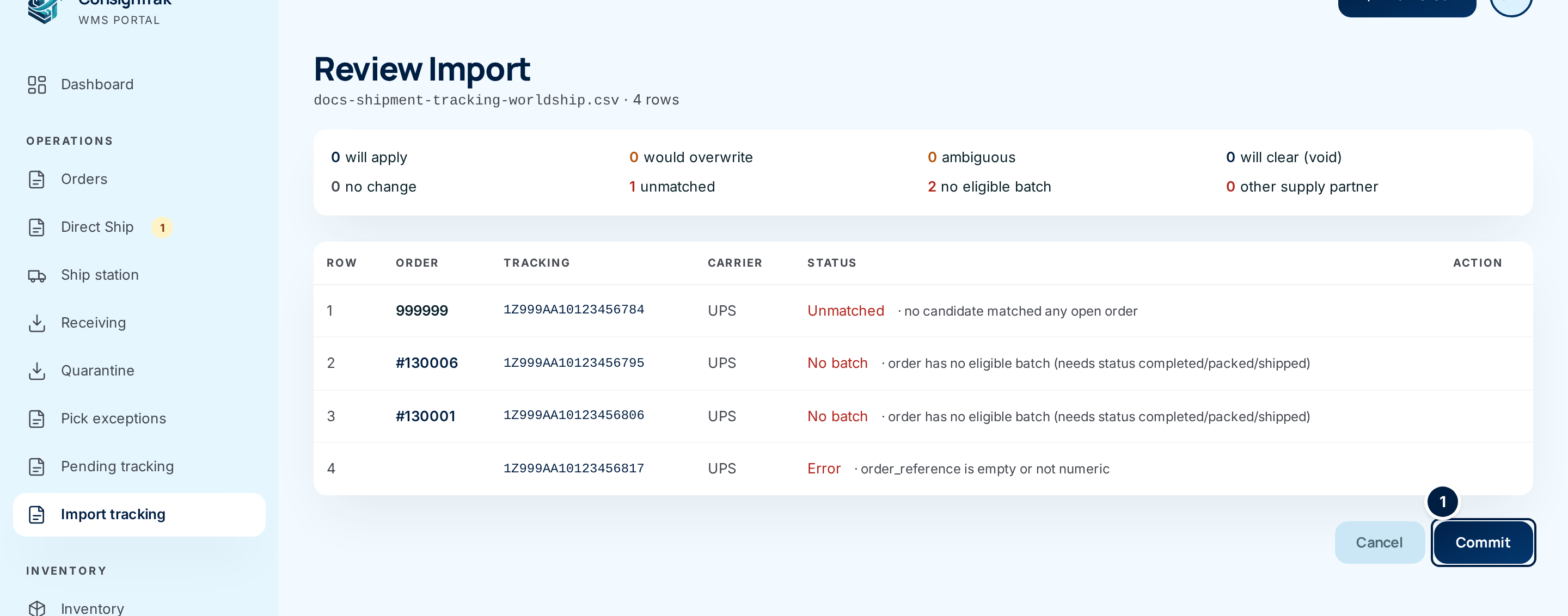
Choose Preview ②. Nothing is saved to any order yet — ConsignTrak reads the file and opens Review Import.
-
Read the summary at the top. It counts the rows in each status (the statuses are explained under Every field and option). The example above is a file where nothing could be applied: one order number doesn't exist, two orders haven't been packed yet, and one row has no order number.
-
Check the rows. Each row shows the order it matched (a link), the tracking number, the carrier and a status. A short note after the status explains it.
-
Choose a shipment for any Ambiguous row. When an order went out in more than one shipment, the row's Action menu lists them — pick the right one. A row left on Pick batch… is skipped.
-
Choose Commit. ConsignTrak adds a box for every Matched row, removes a box for every Void (clear) row, and opens the import's record.
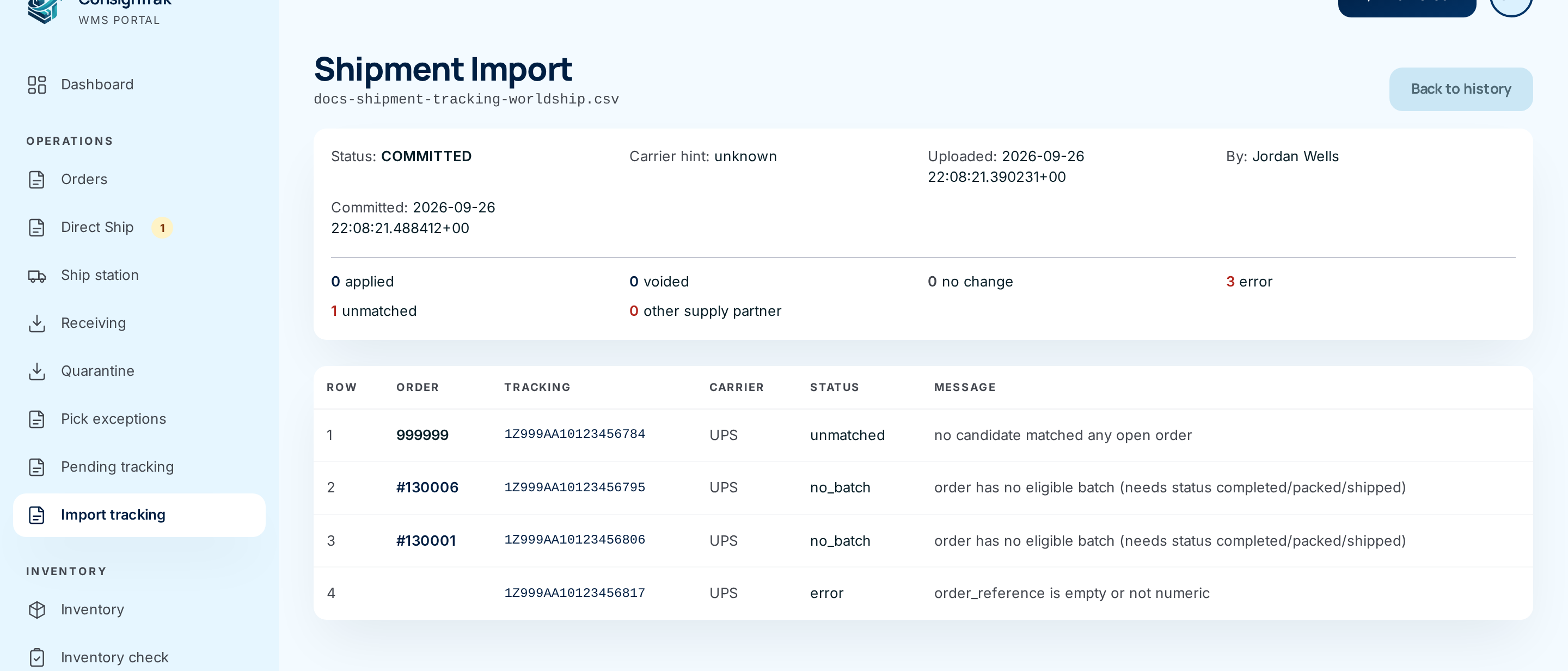
To back out without changing anything, choose Cancel instead.
Import history
The five most recent imports are listed under Recent imports on the Import tracking page. View all opens Shipment Imports, the full history.
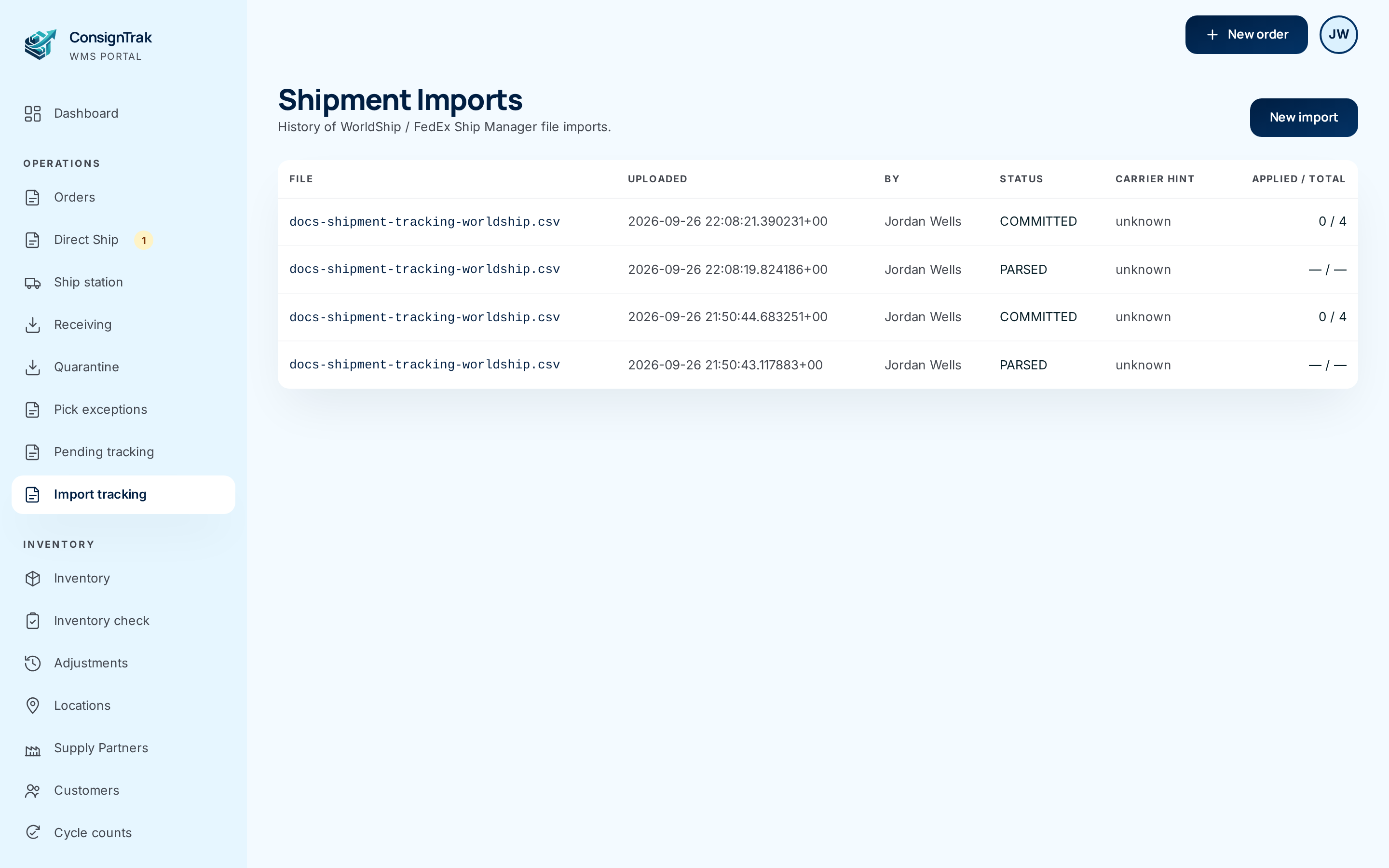
Click a file name to open its record. Back to history returns to the list; New import starts another upload.
Every field and option
Import Tracking Numbers
| Field or control | What it means | Required | Default | What changes when you set it |
|---|---|---|---|---|
| Drop your CSV here (file area) | Where the file goes. Drag it in, click anywhere in it, or choose Browse Files. Accepts .csv and .xlsx up to 32 MB. | Yes | Empty | Shows the chosen file's name and size. |
| Preview | Reads the file and opens Review Import. | — | — | Nothing is applied yet. |
| UPS WorldShip setup / FedEx Ship Manager setup | Open the export setup steps in ConsignTrak's help. | — | — | — |
| Recent imports | The last five imports. Hidden until there's one. | — | — | — |
| View all | Opens the full import history. | — | — | — |
| File (link) | The uploaded file's name. Opens that import's record. | — | — | — |
| Uploaded / By | When, and by whom. Automatic carrier updates show ConsignTrak Carrier Ingestion here. | — | — | Read-only. |
| Status | PARSED — previewed but never committed. COMMITTED — applied. | — | — | Read-only. |
| Carrier hint | Which program ConsignTrak thinks made the file, if it can tell. | — | — | Read-only. |
| Applied / Total | How many rows were applied out of how many in the file. | — | — | Read-only. |
Review Import
| Field or control | What it means | Required | Default | What changes when you set it |
|---|---|---|---|---|
| File name · rows · "detected as…" | The file you uploaded, its row count, and the program it came from when ConsignTrak recognises it. | — | — | Read-only. |
| will apply | Rows that will add a new box to a shipment. | — | — | — |
| would overwrite | Always zero: a new number now adds a box rather than replacing one. | — | — | — |
| ambiguous | Rows whose order has more than one shipment; you pick which. | — | — | — |
| will clear (void) | Rows marked void in the file whose box is on the shipment; that box will be removed. | — | — | — |
| no change | The box is already on the shipment (common when you upload the same file twice), or a void row names a box that isn't there. | — | — | Skipped. |
| unmatched | No order has that order number. | — | — | Skipped. |
| no eligible batch | The order exists but hasn't been packed yet. | — | — | Skipped. |
| other supply partner | The order belongs to a supply partner your account can't see. | — | — | Skipped. |
| Row | The line in your file, not counting the header. | — | — | — |
| Order | The order number from the file — a link when it matched an order. | — | — | Opens the order. |
| Tracking | The tracking number from the file — a link to the carrier's site when ConsignTrak knows it. | — | — | Leaves ConsignTrak. |
| Carrier | The carrier worked out from the number. | — | — | Read-only. |
| Status | Matched, Void (clear), No change, Ambiguous, No batch, Unmatched, Other supply partner or Error, followed by a short note. Error means the row itself is unusable — no order number, or no tracking number on a row that isn't a void. | — | — | — |
| Action — Pick batch… menu | Only on Ambiguous rows. Lists the order's shipments by batch number, status and who packed it. | For that row to apply | Pick batch… (skip) | The row applies to the shipment you pick. |
| Overwrite warning and I've reviewed the overwrite rows and want to apply them. | A leftover from an older version; it no longer appears, because nothing is overwritten. | — | — | — |
| Cancel | Back to the upload page. The preview stays in history as PARSED. | — | — | Nothing is applied. |
| Commit | Applies every applicable row. | — | — | Boxes are added or removed; opens the import's record. |
Shipment Imports (history) and Shipment Import (one import)
| Field or control | What it means | Required | Default | What changes when you set it |
|---|---|---|---|---|
| New import | Opens the upload page. | — | — | — |
| File, Uploaded, By, Status, Carrier hint, Applied / Total | As on the upload page's Recent imports. | — | — | Read-only. |
| Back to history | Returns to the list. | — | — | — |
| Status, Carrier hint, Uploaded, By, Committed | The import's details. Committed appears once it's applied. | — | — | Read-only. |
| applied, voided, no change, error, unmatched, other supply partner | What happened to each row when it was committed. Rows that were No batch, Error or an Ambiguous row left unpicked count as error. | — | — | Read-only. |
| Row, Order, Tracking, Carrier, Status, Message | Each row's final outcome. The Status column uses short codes here (for example no_batch for No batch). | — | — | Links open the order or the carrier's tracking page. |
If your account is limited to one supply partner, you see only the imports and rows that touched that supply partner's orders.
What happens next
- Each applied row adds a box to the shipment, exactly as if it had been scanned. It shows on the order, in the supply partner's portal and on the end-of-day report.
- If the shipment was waiting in Pending tracking, it leaves the queue.
- A void row removes that box from the shipment.
- No stock or order status changes — tracking is information about a shipment that has already gone out.
- The import stays in history, with its file, for later reference.
Rows already applied come back as No change. So if you fix a problem — say, finish packing an order — you can export again and re-upload; only the new rows apply.
Common problems
"The file must include order_reference and tracking_number columns (or recognized aliases — see the setup guide)." — The header row doesn't have an order-number column or a tracking-number column. Check the export map against the tables above.
"The file has no header row." / "The uploaded file is empty." — Turn on Include Header Row in WorldShip, or re-export.
"Could not detect the delimiter. Export as CSV (comma-separated) and try again." — The file isn't comma-, tab- or pipe-separated. Export as CSV or Excel.
Unmatched — "no candidate matched any open order". The order number in the reference field didn't match any order. Usually a typo at ship time. Find the order and add the box on its Edit tracking page.
No batch — "order has no eligible batch". The order exists but isn't packed yet in ConsignTrak. Finish packing and shipping it, then re-upload the file.
Error — "order_reference is empty or not numeric". The reference field was blank or had no digits in it. The label went out without the order number; add the box by hand.
Other supply partner — The order belongs to a supply partner your account can't see. Ask someone with access to that supply partner to upload the file.
Ambiguous row applied as an error — You committed without choosing a shipment in its Pick batch… menu. Upload the file again and pick one.
I need to remove a tracking number from FedEx data. — Ship Manager exports
have no void column. Remove the box on the shipment's Edit tracking page,
or add a void_flag column with Y on that row before uploading.