Automatic carrier updates
What this is
For supply partners whose FedEx or UPS shipping account has been connected to ConsignTrak, tracking numbers arrive on their own. When a label is created, the carrier tells ConsignTrak, and ConsignTrak adds the box to the right shipment — nobody scans or uploads anything. Once a day ConsignTrak also checks with the carrier that it hasn't missed any shipments; that check is called reconciliation.
This page is for office staff: what you'll see, and what to do when it doesn't work. Connecting a carrier account and watching its health are Administrator jobs — see Carriers, wallboard & end-of-day.
Before you start
- Role: Office or Administrator to see the results in Pending tracking and Import tracking.
- Settings: an Administrator must have connected the supply partner's FedEx or UPS account. Supply partners without one aren't covered — use scanning or file imports.
- You'll need: the ConsignTrak order number on every label, in the label's reference field (Reference 1 in UPS software, Customer Reference for FedEx). That's how the carrier's report finds its order.
Step by step
There's nothing to press. Here's what happens, and where you can see it.
-
The label is created. The warehouse (or the supply partner) prints a FedEx or UPS label with the order number in the reference field.
-
The carrier reports it.
- FedEx sends ConsignTrak a message as soon as the label exists.
- UPS is asked: about once a minute, ConsignTrak checks UPS for every open order of that supply partner.
-
ConsignTrak finds the order — by order number first, then by the customer's PO number, and finally by the ship-to address.
-
The box is added to the order's packed or shipped shipment, exactly as if it had been scanned. It shows in the order's Tracking section and in the supply partner's portal. If the warehouse had flagged the shipment, it leaves Pending tracking.
-
Each report is logged in the import history. Open Import tracking → View all: carrier reports appear as files named like
fedex-webhook-….jsonorups-poll-….json, uploaded by ConsignTrak Carrier Ingestion. Open one to see which order it matched, or why it didn't.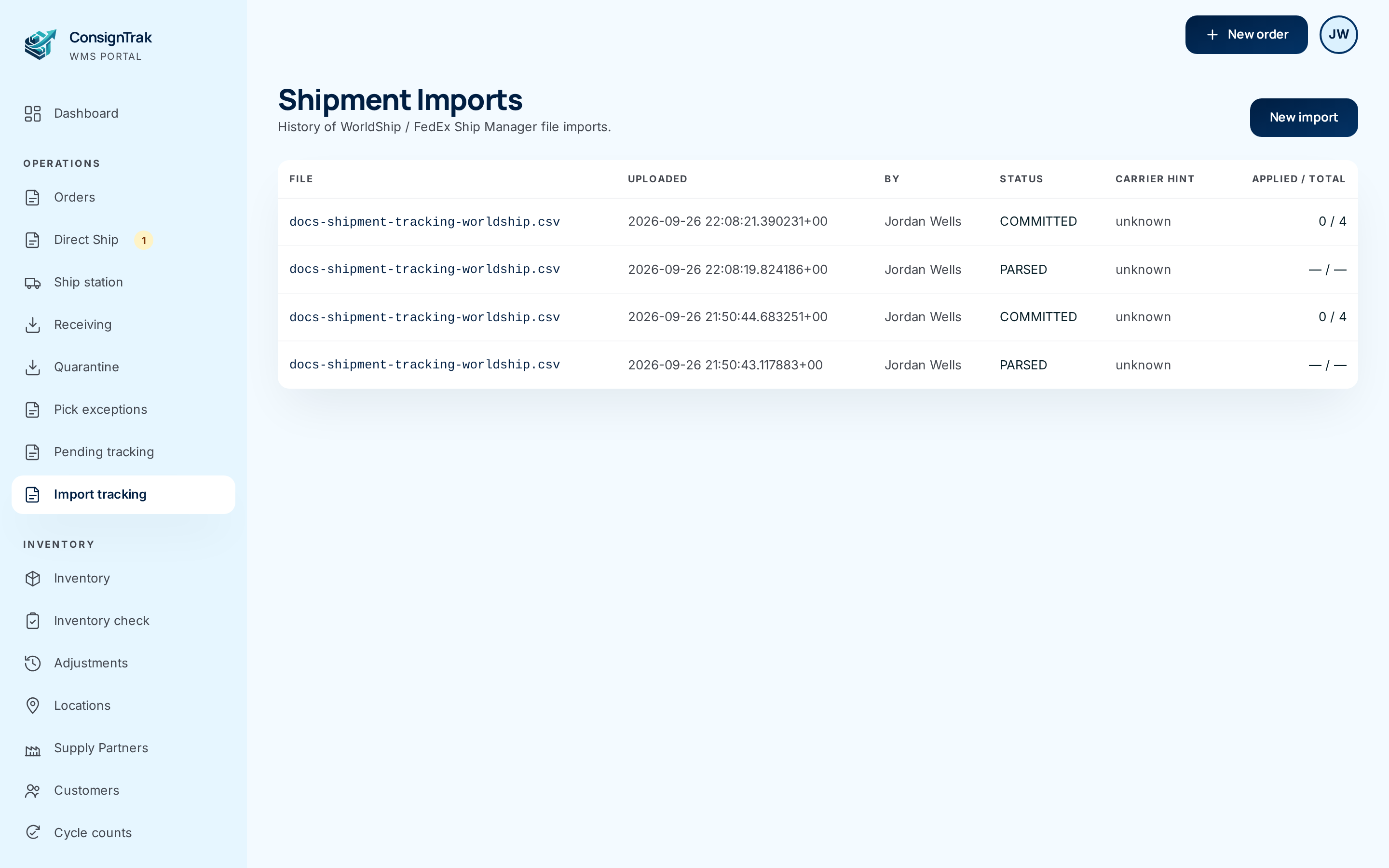
-
Once a day, ConsignTrak reconciles. It asks each connected carrier for the supply partner's recent shipments and compares them with what it has received. A shipment the carrier knows about but ConsignTrak never heard of is added to the Pending tracking queue with an amber Reconciliation flag.
What "reconciled" means
A box is reconciled when ConsignTrak's record and the carrier's record agree: the carrier's shipment is on the right order in ConsignTrak. You never have to mark anything reconciled. You only need to act when reconciliation finds a gap — a Reconciliation flag row.
When a box never shows up
- Check the order's Tracking section. If the shipment says "flagged for office" or has fewer boxes than labels, the carrier report didn't match.
- Look for the report in Import tracking → View all. A carrier report marked unmatched means the reference on the label didn't match any order — usually a typo, or the order number was left off.
- Add the box by hand on the shipment's Edit tracking page, from the label or the carrier's website.
- For a Reconciliation flag row in Pending tracking, the Order column shows the reference the carrier had. Find that order (or the order the shipment really belongs to) and add the box on its Edit tracking page.
- If nothing arrives for any order of a supply partner, the connection itself may be down. Tell your Administrator; the carrier health page shows whether reports are coming in.
There's no way to clear a Reconciliation flag row from the screen yet, even after you've added the box. Tell your administrator when you've dealt with one. (We've reported this.)
Every field and option
This feature has no screen of its own. What you see of it:
| Field or control | What it means | Required | Default | What changes when you set it |
|---|---|---|---|---|
| Reconciliation flag (pill in Pending tracking) | The carrier reported a shipment ConsignTrak has no record of. The Order column shows the carrier's reference instead of a link. | — | — | No action on the row. |
| ConsignTrak Carrier Ingestion (in By) | The name carrier reports are logged under in import history. It isn't a person and can't sign in. | — | — | Read-only. |
fedex-webhook-….json / ups-poll-….json / reconciliation-….json (in File) | One carrier report, or one daily reconciliation gap. Open it for the matched order and outcome. A reconciliation entry stays PARSED — it's a flag, not something to commit. | — | — | Opens the record. |
What happens next
- Matched reports add boxes immediately; there's nothing to approve.
- A report for an order that isn't packed yet, or that has more than one shipment, isn't applied — add that box by hand.
- The same label reported twice never adds a second box.
- No stock or order status changes; tracking is information about a shipment that has already gone out.
Common problems
The box showed up on the wrong order. — The reference on the label was another order's number, or the address match chose the wrong one. Remove the box on this order's Edit tracking page and add it to the right order.
UPS numbers show up late. — UPS doesn't send reports; ConsignTrak asks about once a minute per supply partner, and UPS may take a while to know about a new label. Give it a few minutes before adding the number by hand.
A carrier we use isn't covered. — Only FedEx and UPS report automatically. For USPS, freight and regional carriers, scan the label at shipping or use a file import.