Importing a stock-transfer spreadsheet
What this is
Supply partners usually email a spreadsheet before a shipment — a stock transfer or packing list saying what's coming and how many. Instead of typing every line, upload that file. ConsignTrak reads it in the supply partner's own layout, matches each part number to your items, shows you what it found, and creates a Draft receiving batch with one line per matched row. Nothing touches stock until that batch is inspected and posted, exactly like a batch you typed.
The first time you import from a supply partner, you tell ConsignTrak which column is which. It can remember that, so the next file from the same supply partner goes straight to the review.
Before you start
- Role: Office or Administrator.
- Device: a desktop or laptop. Import isn't available on a phone — if you open it there, ConsignTrak sends you back to Receiving with "Spreadsheet import is available on the desktop site."
- You'll need:
- the file — Excel (.xlsx, or the older .xls) or .csv, up to 10,000 rows on a sheet;
- it must have a column of part numbers and a column of quantities;
- the items on it already in the item master (see Inventory & items). Rows for unknown parts are skipped, not created.
Step by step
-
Open the import. Go to Receiving in the sidebar and choose Import spreadsheet.
-
Upload the file. Choose the Supply Partner ① — part numbers are only matched against that supply partner's items. Choose the file under Spreadsheet File ②, then Upload & Parse ③.
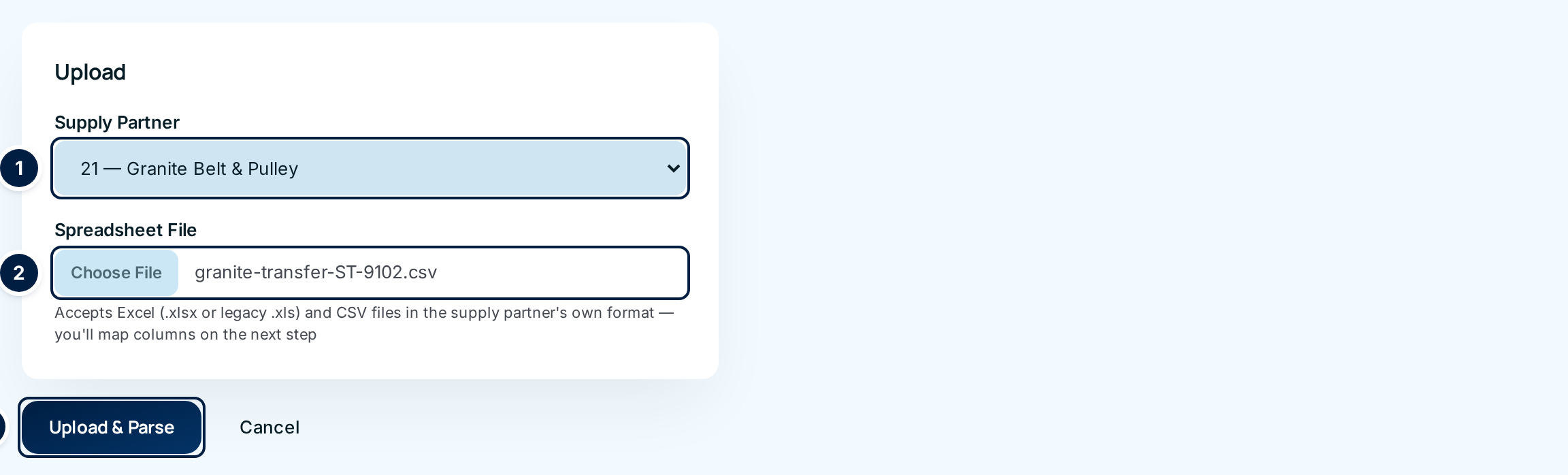
If this supply partner has a saved mapping that fits the file, you skip straight to step 5.
-
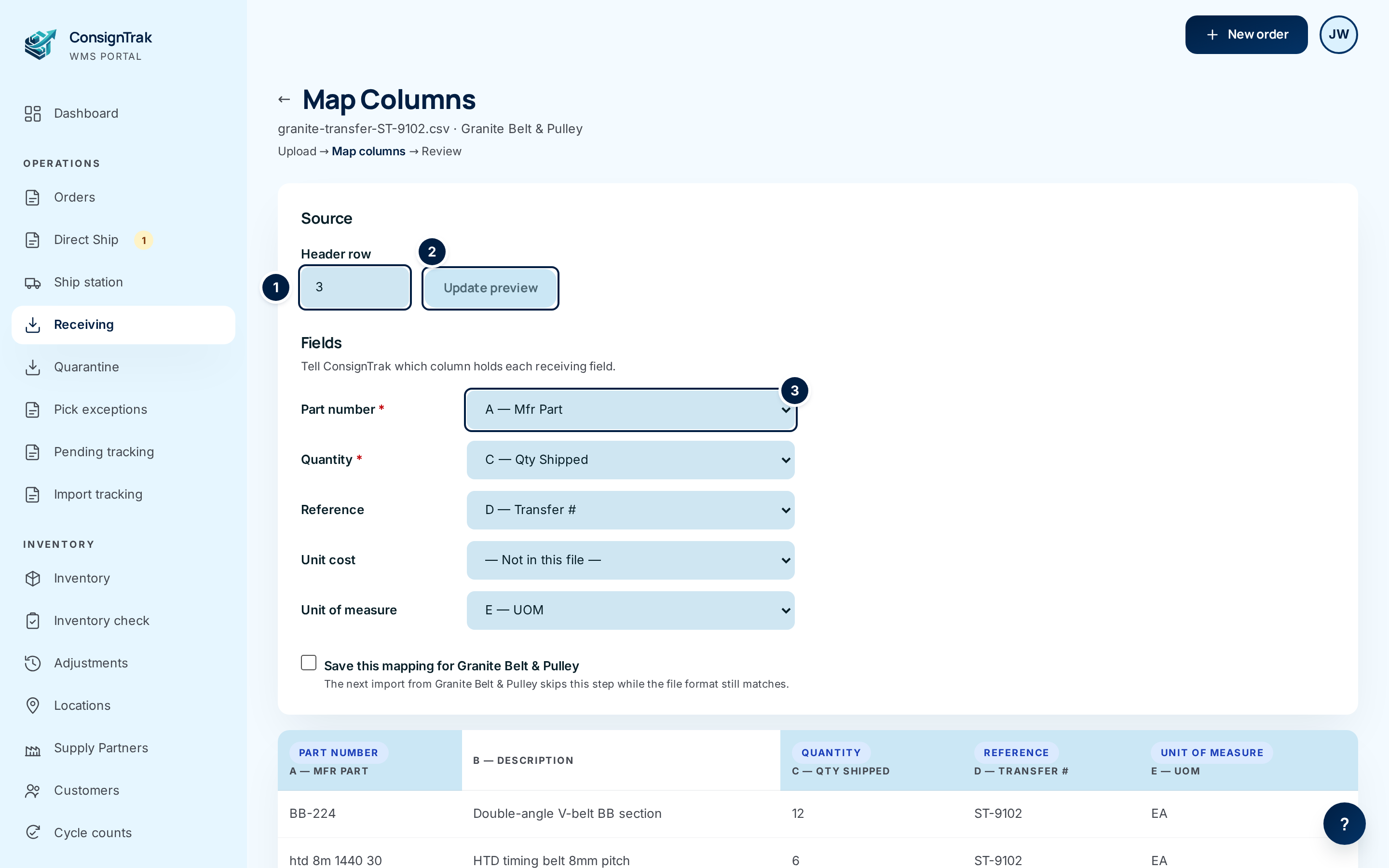
Tell ConsignTrak where the header is. The Map Columns page shows the file name and supply partner, and the steps Upload → Map columns → Review. Many files have a logo or a title above the real column titles. Set Header row ① to the row number that holds the titles, then choose Update preview ②. If the workbook has more than one sheet, pick the right one in Worksheet first.
-
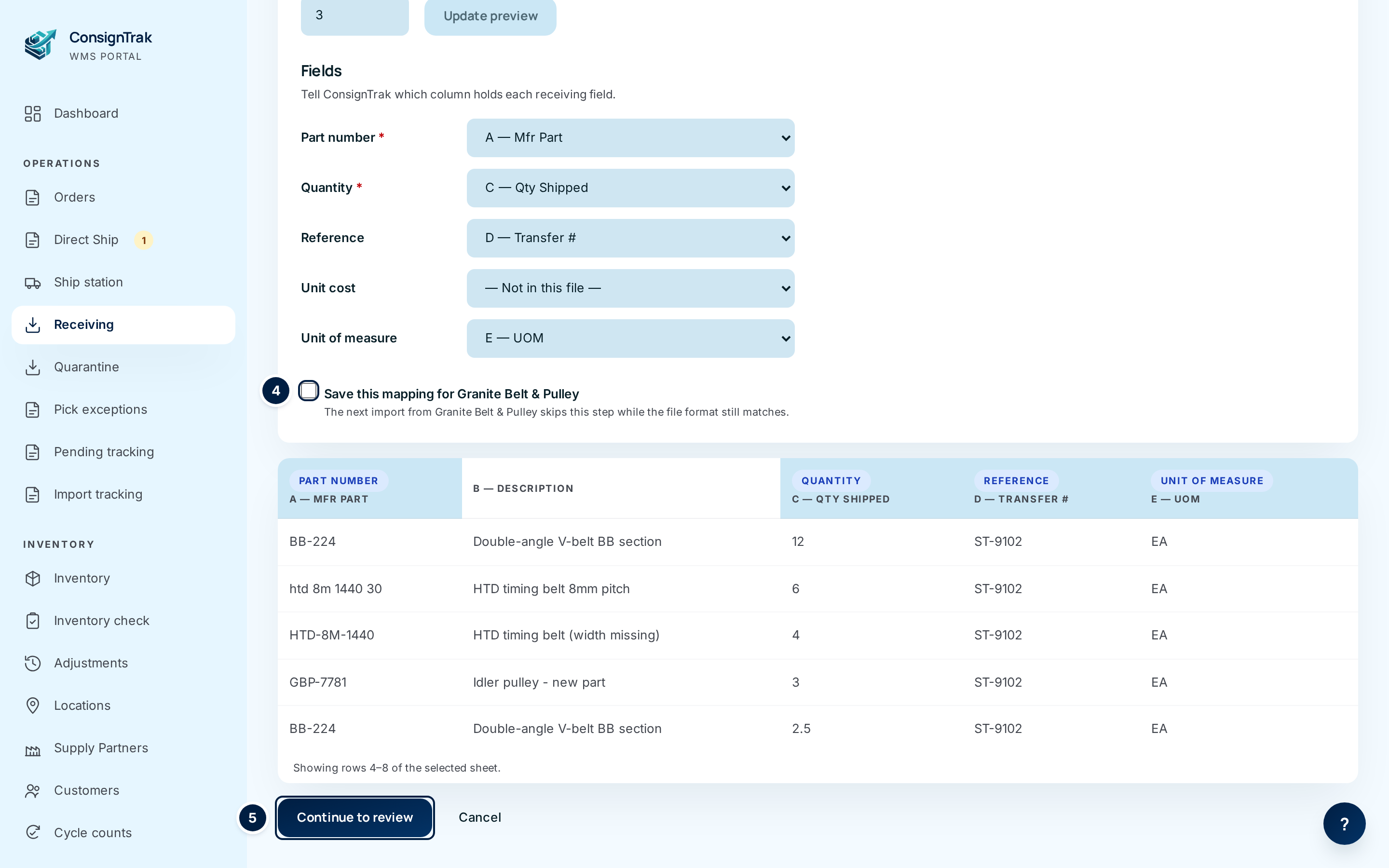
Match the fields to columns. For each field, choose the column that holds it. Part number ③ and Quantity are required; Reference, Unit cost and Unit of measure are optional — leave them on — Not in this file — if the file doesn't have them. ConsignTrak makes a first guess from the column titles; check it. The preview table below shows the first rows of data, with each mapped column tinted and labelled so you can see at a glance that quantities are really quantities.
Leave Save this mapping for … ④ ticked to remember the layout for this supply partner, then choose Continue to review ⑤.
-
Review what was found. Each row of the file is listed with what it matched. Read down the Status ③ column:
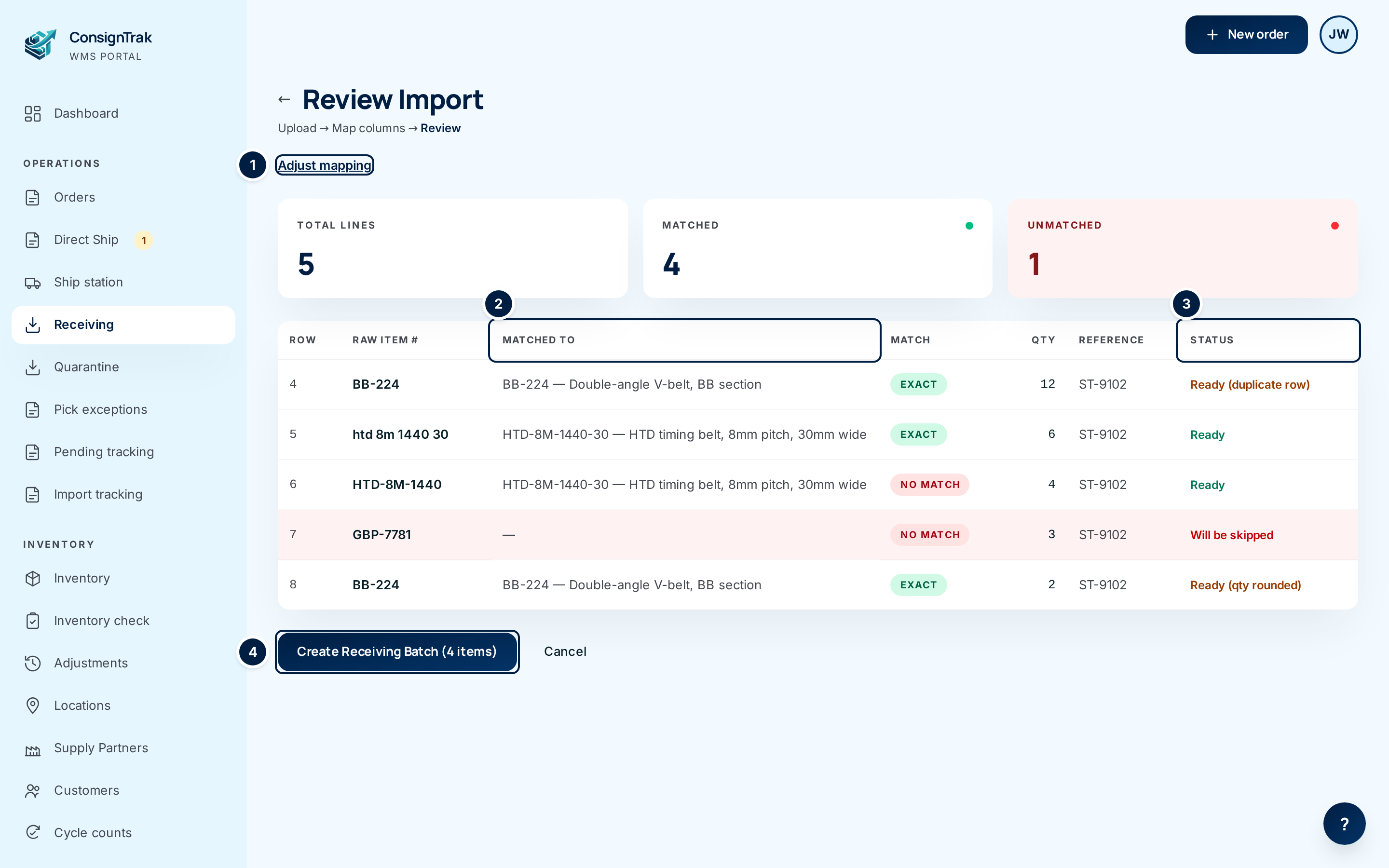
- Ready — becomes a line.
- Ready (duplicate row) — the same part number is in the file more than once; each row becomes its own line. Remove the extra line on the batch if it's a mistake.
- Ready (qty rounded) — the quantity wasn't a whole number (2.5); it will be staged as the whole number shown.
- Ready (UOM warning) — the unit of measure in the file, or on the item, isn't a standard code. The line still comes in.
- Will be skipped — no item matched. The row won't be in the batch.
- invalid quantity — the quantity cell isn't a number. The row is skipped.
Check Matched To ② for anything amber: a Fuzzy match with a percentage means ConsignTrak found a close, not exact, part number. At 90% and above it's usually right; below that, check it. If the part numbers themselves look wrong — a column of quantities where the part numbers should be — choose Adjust mapping ① to go back a step.
-
Create the batch. Choose Create Receiving Batch (N items) ④. ConsignTrak creates a Draft batch and opens it.
-
Finish the batch like any other. The imported batch has today's date and the note "Imported from spreadsheet". Its lines have no put-away location yet — set one with Bulk location or Edit on each line. When the goods arrive, count them and change Qty where your count differs; the supply partner's figure stays underneath as exp N, in amber when it doesn't match. Then carry on with Inspecting and Posting.
Fixing rows that didn't come in
| What you see | Why | What to do |
|---|---|---|
| Will be skipped, part number looks right | The part isn't in the item master for this supply partner, or it's written in a way ConsignTrak can't recognise. | Choose Cancel, add the item — or add the supply partner's spelling as an alias on the existing item (see Inventory & items) — and upload the file again. Or create the batch now and add that line by hand. |
| Will be skipped on most rows | The Part number field points at the wrong column. | Choose Adjust mapping and fix it. |
| invalid quantity | The cell has text or a range in it. | Fix the cell in the file and upload again, or add the line by hand after creating the batch. |
| A row is Ready but the quantity cell was empty or 0 | Rows with no quantity are dropped when the batch is created, without a message, even though they're counted in the button. (Tracked as issue #1506.) | Check the batch's line count against the file after creating it. |
When a part number in the file is the beginning of a longer part number — "HTD-8M-1440" for item "HTD-8M-1440-30" — the review shows the item under Matched To and Ready, but a red No Match pill. That row will become a line. Check the matched item is right; if not, remove the line on the batch. (Tracked as issue #1503.)
Saved mappings
- There's one saved mapping per supply partner. Saving again replaces it.
- A saved mapping is used automatically while the file still fits it — the mapped column titles are still there on the sheet the mapping names. The review page then says "Applied the saved column mapping for …", with an Adjust mapping link if this one file is different.
- If the supply partner changes their layout, Map Columns opens again with an amber note — "The saved mapping for … didn't fully match this file — re-map: …" — naming the fields to fix. The fields that still fit are already filled in.
- A mapping can only be saved if every mapped column has a title. If not, the import carries on and the review says the mapping wasn't saved.
- There's no screen for deleting a saved mapping. To change it, run an import through Adjust mapping with the save box ticked. An administrator can also remove it through the ConsignTrak API.
Every field and option
Import Stock Transfer
| Field or control | What it means | Required | Default | What changes when you set it |
|---|---|---|---|---|
| ← (back arrow) / Cancel | Back to Receiving without uploading. | — | — | — |
| Upload | The form's heading. | — | — | — |
| Supply Partner | Whose stock is on the file. | Yes | Select supply partner... | Part numbers are matched only against this supply partner's items; the batch belongs to them; their saved mapping is used. |
| Spreadsheet File | The .xlsx, .xls or .csv file, in the supply partner's own layout. | Yes | — | — |
| Upload & Parse | Reads the file. | — | — | Opens Map Columns, or the review if a saved mapping fits. |
Map Columns
| Field or control | What it means | Required | Default | What changes when you set it |
|---|---|---|---|---|
| ← (back arrow) | Back to the upload page. | — | — | Nothing is saved. |
| File name · supply partner, Upload → Map columns → Review | Which file you're mapping, and where you are. | — | — | Read-only. |
| Source | Heading for where the data sits in the file. | — | — | — |
| Worksheet | Which sheet holds the lines, with its row count. Only shown for workbooks with more than one sheet. | — | First sheet | Choose Update preview after changing it. |
| Header row | The row number with the column titles. | — | 1 | Choose Update preview after changing it. |
| Update preview | Re-reads the columns and sample rows from the chosen sheet and header row, and re-guesses the fields. | — | — | Refreshes the page. |
| Fields | Heading: "Tell ConsignTrak which column holds each receiving field." | — | — | — |
| Part number * | The column with the supply partner's part numbers. | Yes | Best guess | Used to match items. |
| Quantity * | The column with quantities shipped. | Yes | Best guess | Becomes each line's quantity and its expected quantity. |
| Reference | Transfer, PO or packing-list number. | No | Best guess, or Not in this file | Stored on each line. |
| Unit cost | Cost per unit. | No | Best guess, or Not in this file | Stored on each line; updates item cost when posted. |
| Unit of measure | The unit code on each row. | No | Best guess, or Not in this file | Only checked for a warning; it doesn't change the item. |
| Column choices | Each reads "letter — column title", or "(no header)". | — | — | — |
| Save this mapping for … | Remember these choices for this supply partner. | No | Ticked | Next matching file skips this page. Replaces any earlier saved mapping. |
| Sample table | The first eight data rows under the header row; mapped columns are tinted and labelled. "Showing rows … of the selected sheet." | — | — | Read-only. |
| Continue to review | Applies the mapping. | — | — | Opens Review Import. |
| Cancel | Back to the upload page. | — | — | Nothing is saved. |
Review Import
| Field or control | What it means | Required | Default | What changes when you set it |
|---|---|---|---|---|
| ← (back arrow) / Cancel | Back to the upload page without creating a batch. | — | — | — |
| Blue note | "Applied the saved column mapping for …" or "Mapping saved for …". | — | — | Read-only. |
| Adjust mapping | Reopens Map Columns for this file. | — | — | — |
| Total Lines / Matched / Unmatched | Rows read, rows that found an item, rows that didn't. | — | — | Read-only. |
| Row | The row number in the file, to find it in the spreadsheet. | — | — | Read-only. |
| Raw Item # | The part number exactly as in the file. | — | — | Read-only. |
| Matched To | The item found, with its description. | — | — | Read-only. |
| Match | Exact (green), Fuzzy (NN%) (amber, row tinted), No Match (red, row tinted). See the caution above about prefix matches. | — | — | Read-only. |
| Qty / Reference | As read from the file. | — | — | Read-only. |
| Status | Ready, one of the Ready warnings, Will be skipped, or an error. Hover a warning for detail. | — | — | Read-only. |
| Create Receiving Batch (N items) | Creates the Draft batch from the Ready rows. | — | — | Opens the new batch. |
What happens next
- A Draft receiving batch exists for the supply partner, dated today, noted "Imported from spreadsheet", with one line per imported row. Each line remembers the file's quantity as its expected quantity.
- Stock is unchanged until the batch is inspected and posted.
- If you ticked the save box, the supply partner's mapping is stored for next time.
- The file itself isn't kept. If you want it on record, attach it (see Documents).
Common problems
"Please choose a spreadsheet file to upload." — Choose a file before Upload & Parse.
"file is not a readable spreadsheet (.xlsx or .csv)" — The file is a PDF, an image, or damaged. Ask the supply partner for Excel or CSV, or open it in Excel and save it as .xlsx.
"couldn't read this legacy Excel .xls file — open it in Excel and save it as .xlsx, then upload again" — Do exactly that.
"manifest has more than 10000 rows on one sheet" / "File too large" — Split the file into smaller files and import each one.
"Map both the part number and quantity columns before continuing." — Both are required. Choose a column for each.
"No data rows below the header row — check the header row number." — The header row is set too low, or the sheet only has titles. Lower Header row and choose Update preview.
"Row N is past the end of this sheet — lower the header row number." — The header row number is bigger than the sheet.
"The worksheet or header row changed — check the column mapping below, then continue." — You changed the sheet or header row and chose Continue to review without updating the preview. Check the fields and continue again.
"Import session expired — please re-upload the spreadsheet." — The review waited more than an hour. Upload the file again.
"Another request already processed this import session." — The batch was already created, from another tab or a double click. Look for it in the Receiving list rather than importing again.
"The mapping wasn't saved — mapped columns need header text so the next file can be recognized." — One of the columns you chose has no title. The import still works; the mapping just isn't remembered.