Posting to inventory
What this is
Posting is the moment received stock becomes real. Until then, a receiving batch is only a record of what came in the door. When you choose Post to Inventory, ConsignTrak adds the passed units to each item's stock at its put-away location, sends the failed units to quarantine, and records a movement for every line — all in one step, so stock and its history can never disagree. If a batch was posted by mistake, Void Batch reverses it.
Before you start
- Role: Office or Administrator.
- Settings: none.
- You'll need: a Verified batch with no lines left in Pending Inspection (see Inspecting a receiving batch).
Step by step
-
Open the batch from Receiving in the sidebar. Check that the Pending Inspection group is gone and the passed and failed counts look right.
-
Post it. Choose Post to Inventory. The button turns red and reads Click again to Confirm — click it a second time.
 Posting changes stock
Posting updates on-hand quantities straight away and can't be edited afterwards. The only way back is Void Batch, below.
-
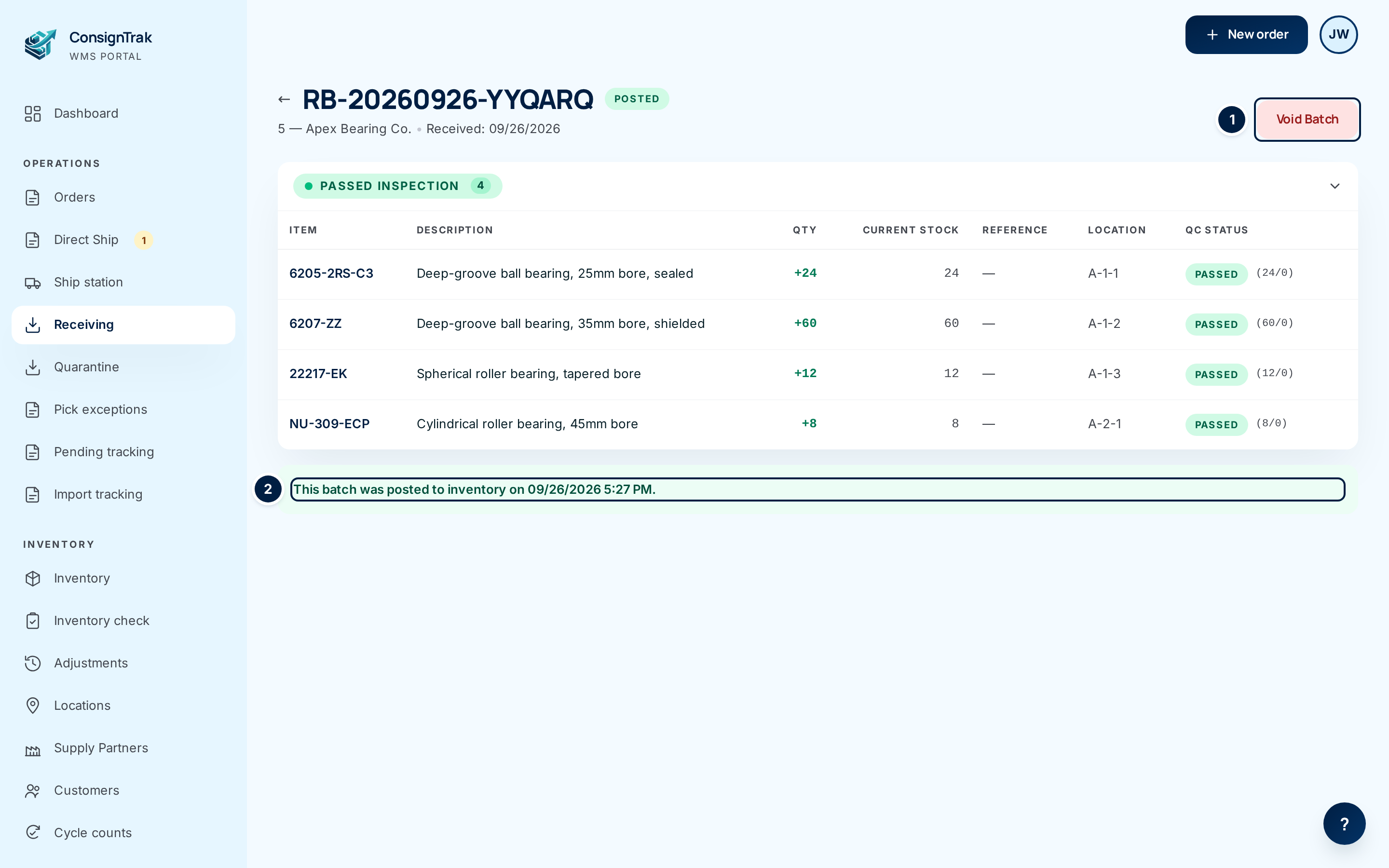
Check the result. The batch is now Posted. A green banner ② says when it was posted. The lines are read-only; failed and partial lines show Manage in quarantine →, which opens that line's quarantine record. Void Batch ① is the only action left.
Undoing a post: Void Batch
Use this when a whole batch should never have been posted — the wrong supply partner, a duplicate of a batch already posted, a shipment that was sent back. For a single wrong count, adjust the item instead.
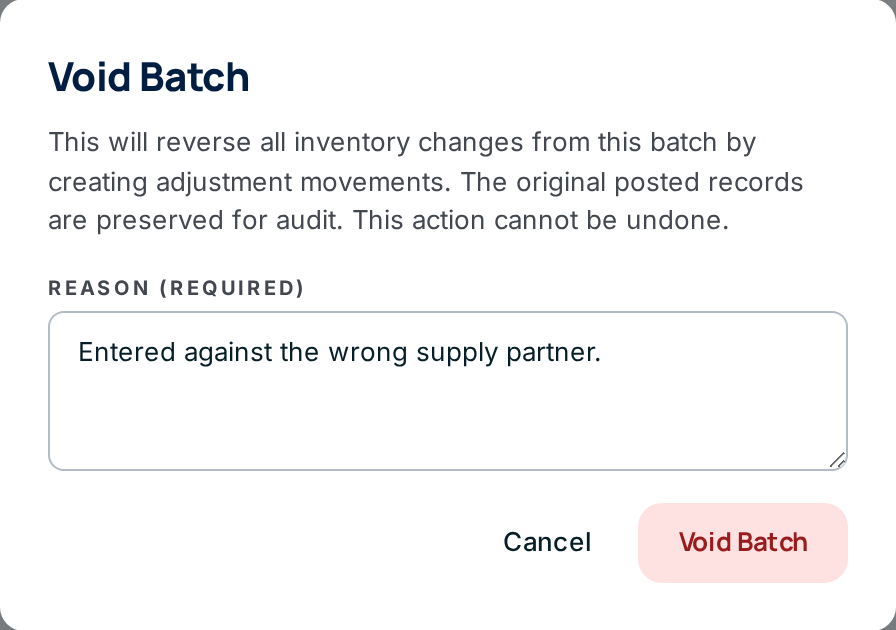
- Open the posted batch and choose Void Batch. A form opens over the page.
- Type the Reason. It's required, and it's kept with the batch for good.
- Choose Void Batch in the form, or Cancel to leave it as it is.
A voided batch can't be posted again. If the stock really did arrive, create a new batch for it.
Every field and option
| Field or control | What it means | Required | Default | What changes when you set it |
|---|---|---|---|---|
| Post to Inventory (Verified) | Posts every line. Asks you to click again (red). | — | — | Status becomes Posted; stock changes as described below. |
| Posted pill | The batch is in stock. | — | — | Read-only. |
| This batch was posted to inventory on … | Date and time of the post. | — | — | Read-only. |
| Manage in quarantine → | Shown on failed and partial lines of a posted batch. | — | — | Opens that line's quarantine record. |
| Void Batch (Posted) | Opens the void form. | — | — | — |
| Reason (required) | Why the batch is being voided. | Yes | — | Added to the batch notes as "Void receiving batch …: your reason". |
| Void Batch (in the form) | Reverses the batch. | — | — | Status becomes Voided. |
| Cancel (in the form) | Closes the form. | — | — | Nothing changes. |
| Voided pill and banner | "This batch has been voided. Inventory changes were reversed." with the reason under it. | — | — | Read-only. |
What happens next
When you post, for every line, in one step:
- Passed units are added to the item's on-hand quantity and to the line's location. ConsignTrak records a receipt movement against the supply partner, and the item's history shows it with the line's reference number.
- Failed units go to the quarantine location. They're recorded as a movement too, but they don't count as on-hand or available — they wait on the Quarantine page for the office to decide what happens to them (see Exceptions & quarantine).
- The item's last received date becomes the batch's received date.
- If the line has a cost, the item's last cost becomes that cost and its average cost is recalculated.
- If the item had no primary location yet, the line's location becomes its primary location.
- The stock shows up at once in item search, on orders, and in the supply partner's portal.
When you void:
- Every passed and failed quantity is taken back out, each with its own adjustment movement carrying your reason. The original receipt movements stay in the history — nothing is deleted.
- Costs are not put back, because later receipts may already have changed them.
- If some of the stock has already shipped, on-hand can drop below zero. Check the items afterwards and count them if needed.
Common problems
"Cannot post batch: one or more lines are still pending QC. Inspect or waive each line first." — This shows on a plain page. Go back and inspect every line still under Pending Inspection. (Waive is no longer offered; tracked as issue #1505.)
"A reason is required to void a batch" — Type a reason in the form before choosing Void Batch.
"Only posted batches can be voided" — The batch was already voided, or was never posted. Reload the page to see its current status.
I don't see Post to Inventory or Void Batch. — They need an Office or Administrator role. Post to Inventory also only appears once the batch is Verified.