Inspecting a receiving batch
What this is
Before received stock goes on the shelf, someone checks it: are the parts the right ones, and are any damaged? In ConsignTrak that's the QC (quality check) step. Ready to Inspect locks the batch's lines so the counts can't drift while you inspect, then you record, line by line, how many units failed. Everything that didn't fail passes. Failed units don't vanish — when the batch is posted they go to quarantine, where the office decides what to do with them.
Before you start
- Role:
- Ready to Inspect and Revert to Draft: Office or Administrator.
- Inspecting lines: Office, Warehouse or Administrator.
- Settings: none.
- You'll need: a Draft batch with at least one line (see Receiving a shipment), and the goods in front of you.
Step by step
-
Lock the batch. Open the Draft batch and choose Ready to Inspect. The button turns amber and reads Click again to Confirm — click it a second time. The status pill changes to Verified.
-
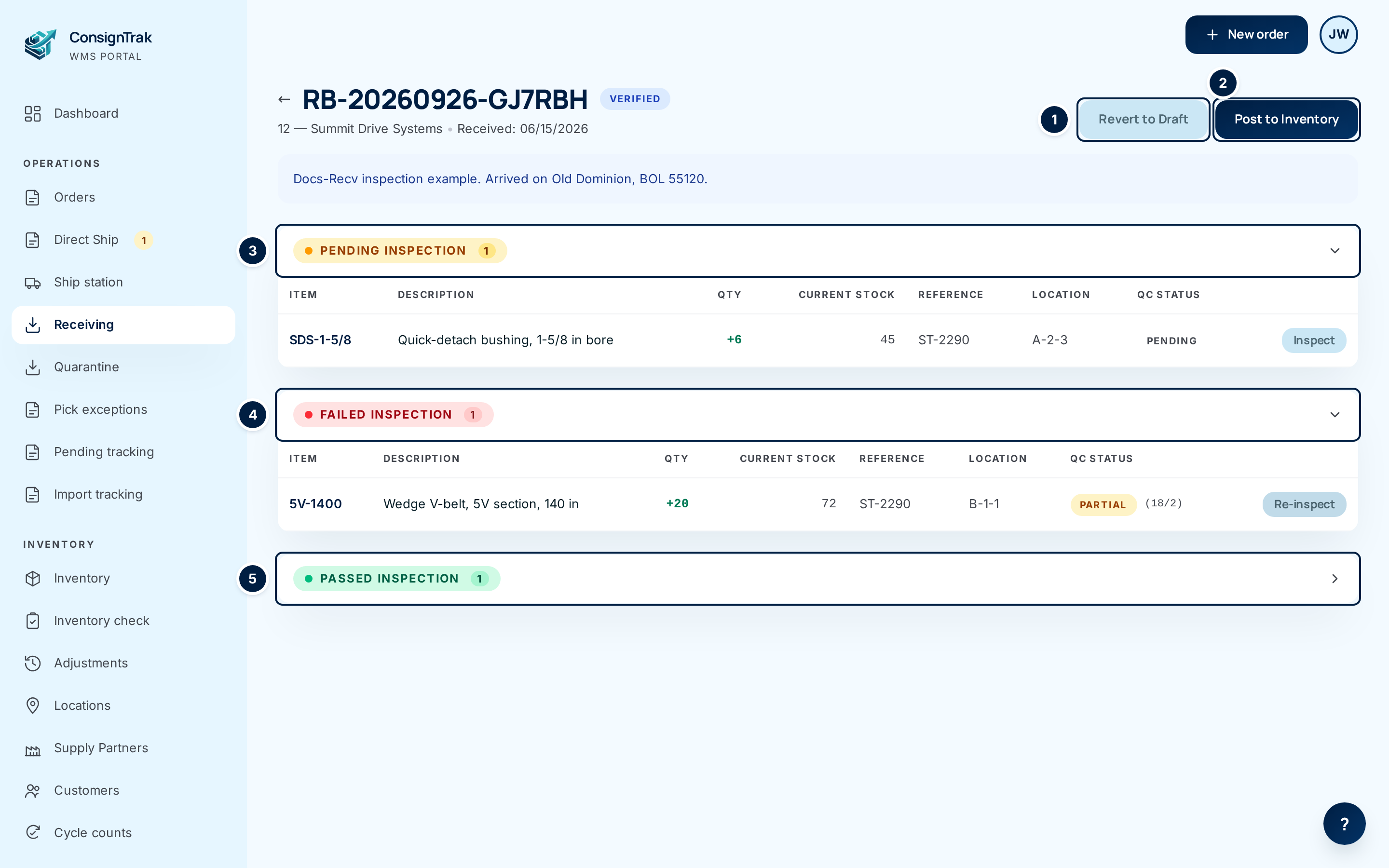
Find what's left to inspect. A Verified batch shows Revert to Draft ① and Post to Inventory ② in the header, and the lines in three groups: Pending Inspection ③ still need checking, Failed Inspection ④ had some or all units fail, Passed Inspection ⑤ are clear. Passed starts folded — click its heading to open it.
-
Inspect a line. Choose Inspect on the line. The line opens up:
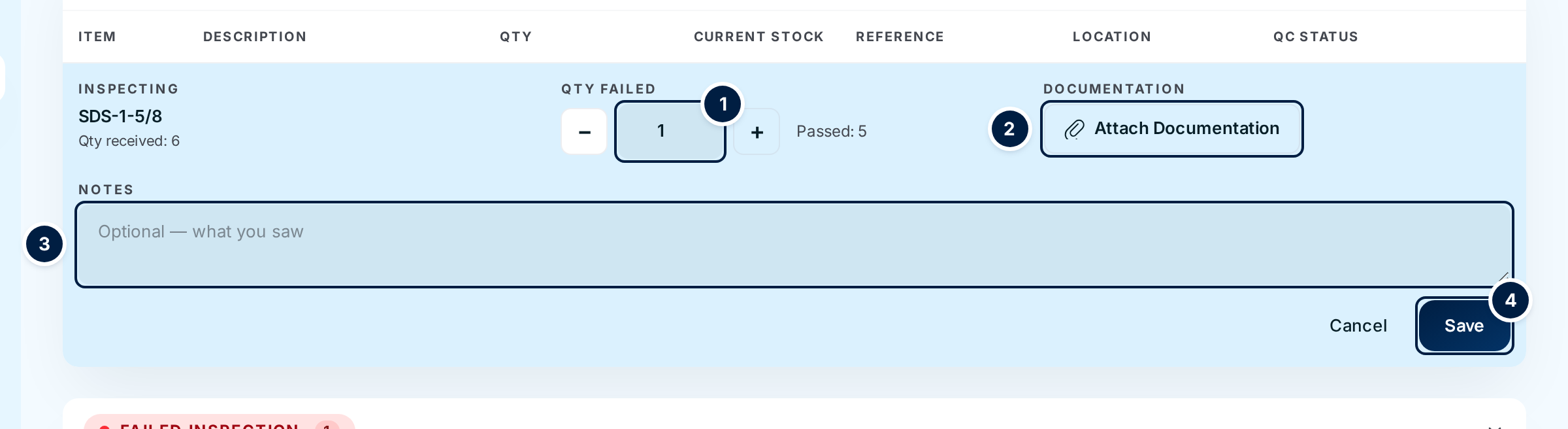
- Set Qty Failed ① — type it, or use − and +. Passed beside it works itself out: received minus failed. Leave it at 0 if everything is good.
- Choose Attach Documentation ② to add photos or a PDF of the damage. On a tablet or phone the button reads Take a Photo and opens the camera. Each file uploads as soon as you choose it and appears as a thumbnail.
- Write what you saw in Notes ③ — "two belts with cracked backing" is far more useful to the supply partner than "damaged".
- Choose Save ④.
The line moves to Passed Inspection (nothing failed), Failed Inspection marked partial (some failed), or Failed Inspection marked failed (all failed). The numbers in brackets beside the pill are passed/failed.
-
Correct a result if you need to. Choose Re-inspect on any inspected line and save new numbers. The last save wins.
-
Repeat until Pending Inspection is empty. Then the batch is ready to post — see Posting to inventory.
If you find a wrong count or the wrong item, choose Revert to Draft, fix the line, then Ready to Inspect again. The button asks you to click again. Reverting clears every line's inspection result, failed count and notes, so all lines go back to pending and have to be inspected again. Photos you attached stay on the line.

Every field and option
| Field or control | What it means | Required | Default | What changes when you set it |
|---|---|---|---|---|
| Ready to Inspect (Draft) | Locks the lines for inspection. Asks you to click again. | — | — | Status becomes Verified. No lines can be added, edited or removed. |
| Verified pill | The batch is locked and being inspected. | — | — | Read-only. |
| Notes banner | The batch's notes, shown across the top once it's past Draft. | — | — | Read-only. |
| Revert to Draft | Unlocks the lines. Asks you to click again. | — | — | Status back to Draft; every inspection result is cleared. |
| Post to Inventory | Posts the batch. See Posting to inventory. | — | — | — |
| Pending Inspection / Failed Inspection / Passed Inspection | Lines grouped by result, with a count. Click a heading to fold or unfold it. | — | Pending and Failed open, Passed folded | — |
| Inspect / Re-inspect | Opens the inspection form for a line. Reads Inspect while the line is pending. | — | — | Shows the form. |
| Inspecting / Re-inspecting (…) | Which line you're inspecting, its previous result, and Qty received. | — | — | Read-only. |
| Qty Failed | Units that failed inspection. From 0 up to the quantity received. | Yes | 0, or the previous result | Decides how many go to quarantine when posted. |
| − / + | Take one off or add one to Qty Failed. | — | — | Same as typing. |
| Passed: N | Received minus failed. | — | — | Worked out for you. |
| Documentation — Attach Documentation (desktop) / Take a Photo (tablet and phone) | Add damage photos or a PDF to this line. Several files at once are fine. | No | — | Files upload straight away and stay with the line, the batch and, later, the quarantine record. |
| Notes | What you saw. | No | — | Saved with the line; shows in quarantine for failed units. |
| Save | Records the result. | — | — | The line moves to its group; QC Status shows passed, partial or failed. |
| Cancel | Closes the form without saving. | — | — | — |
| QC Status | pending, passed, partial (some failed), failed (all failed). Old batches may show waived — that option has been retired. | — | pending | Read-only. |
The rest of the lines table is described on Receiving a shipment.
What happens next
- Inspecting changes nothing in stock. Results only take effect when the batch is posted.
- On posting, passed units go into available stock at the line's location; failed units go to the quarantine location and appear on the Quarantine page (see Exceptions & quarantine). From a posted batch, Manage in quarantine → on a failed or partial line takes you straight there.
- The supply partner sees the passed and failed counts on their receiving in the portal.
Common problems
"Qty passed + qty failed must equal qty received, and both must be non-negative" — You entered more failed units than were received, or a negative number. Set Qty Failed between 0 and the received quantity.
"Batch must be verified before inspection" — Someone reverted the batch to Draft while you had the form open. Reload the page; choose Ready to Inspect again when the lines are right.
"Cannot mark an empty batch as ready to inspect; add at least one line first." — This shows on a plain page. Go back, add at least one line, then try again. (Tracked as issue #1505.)
"Only verified batches can be reverted to draft" — The batch has already been posted (or reverted by someone else). A posted batch can only be voided — see Posting to inventory.
I don't see Ready to Inspect or Revert to Draft. — Those need an Office or Administrator role. Warehouse users can still inspect lines once the office has locked the batch.