Will-call pickups
What this is
A will-call order is one the customer, or their driver, collects from the warehouse counter instead of it being shipped. It's picked like any other order but never packed. It waits in a staging area until the customer arrives, and the handoff is recorded with a photo. This page shows where the office sees those orders and what the pickup records.
Before you start
- Role: Office or Administrator to follow the orders from the desk. Recording the pickup is done on a phone or tablet by any Warehouse, Office or Administrator user.
- Settings: none.
- You'll need: an order with Freight terms set to WILL CALL when it's entered (see Orders). That setting is what makes it a will-call order.
Step by step
-
Release the order as usual. It joins the pick queue with a Will call tag. The picker can filter for them with the Will call chip. When they finish, their button reads Release to customer pickup queue instead of handing off to packing, and they set the goods on a staging area.
-
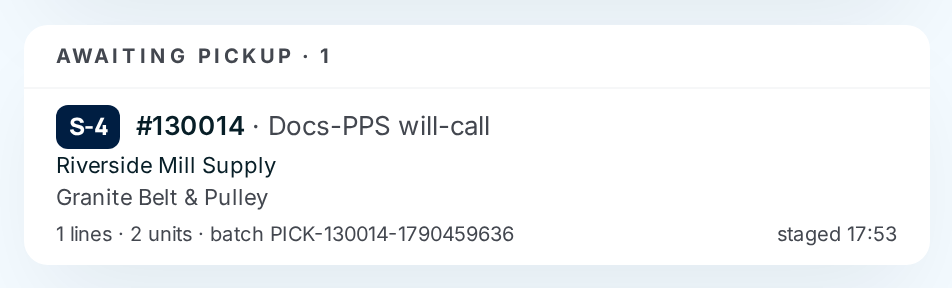
See who's waiting to be collected. Open Ship station in the Operations section of the sidebar. Awaiting pickup lists every will-call order that's ready, with its staging area and the time it was staged. The list only appears when at least one order is waiting.
-
Open an order to check on it. Choosing a row opens the order's page. The handoff itself isn't done from the desk.
-
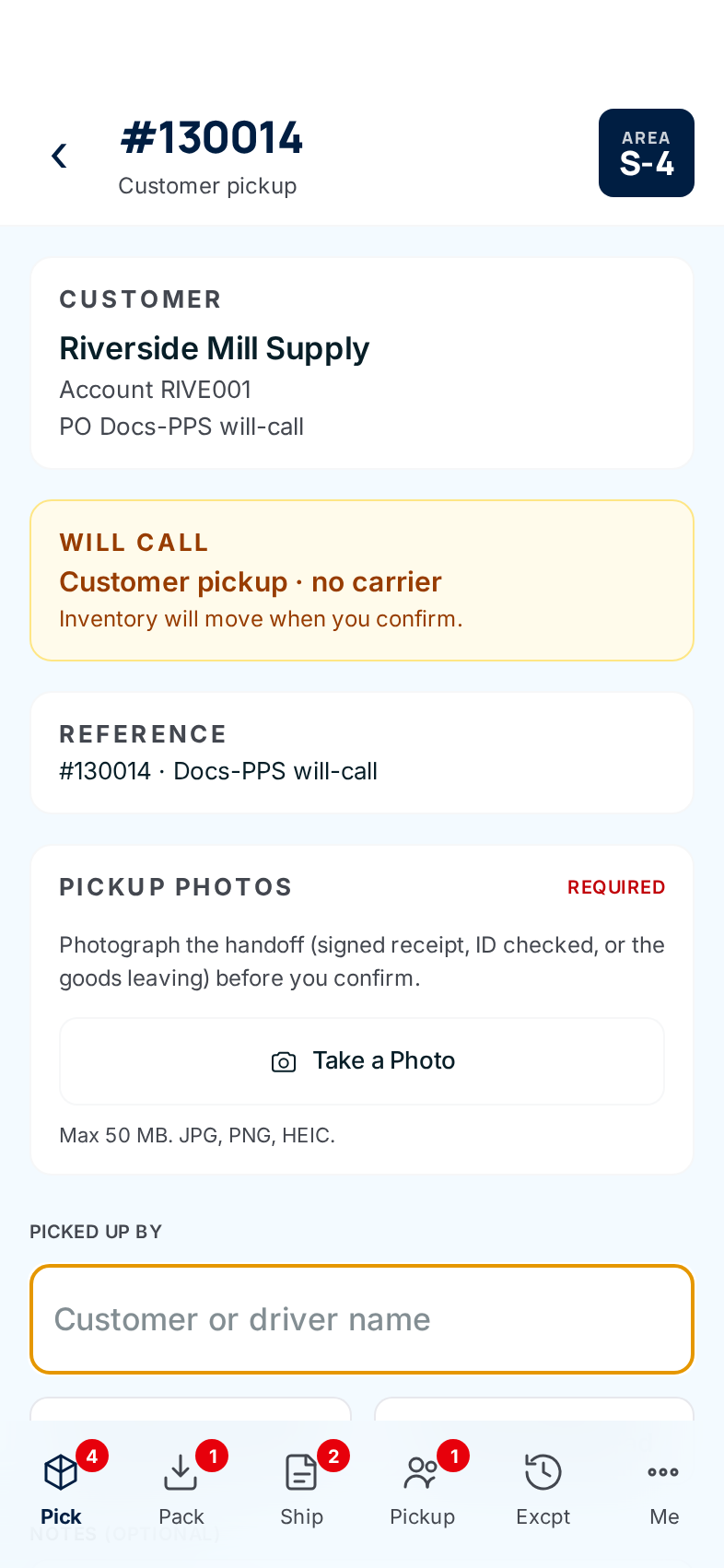
Hand the goods over at the counter. On a phone, the warehouse opens Pickup from the bottom bar. Office and Administrator users find the Pickup tile on their phone's home screen. They open the order and see the customer, the area the goods are in, and the reference numbers.
-
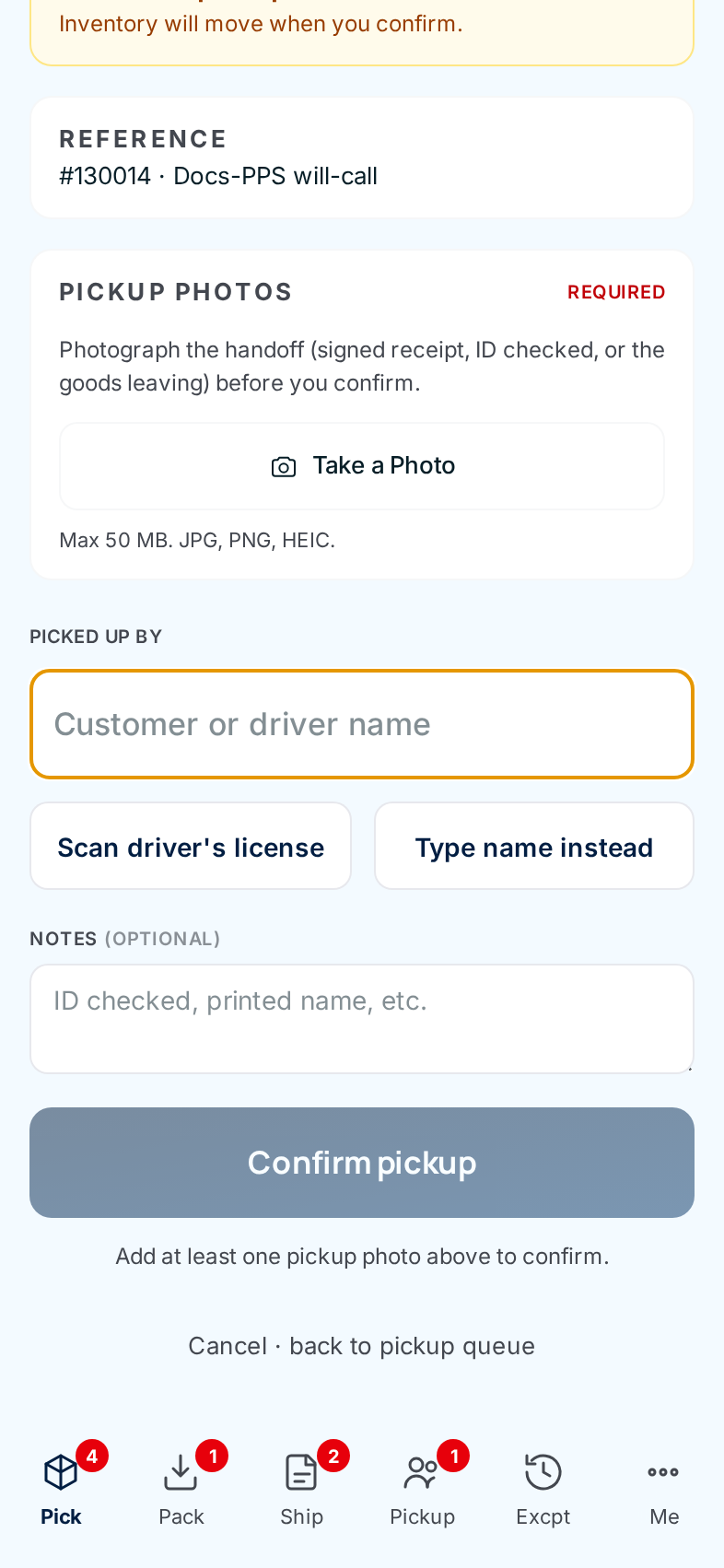
Take the proof-of-pickup photo. Under Pickup photos, choose Take a Photo and photograph the handoff: a signed receipt, the ID checked, or the goods leaving. The photo saves as soon as it's taken. Take more if useful.
-
Record who collected it. Tap a recent name if the same driver has collected for this customer before, type the name, or choose Scan driver's license to read the name off the licence. Add Notes if needed.
-
Confirm the pickup. Confirm pickup stays greyed out until there's at least one photo. Tap it, then tap again when it turns red to confirm.
Every field and option
Awaiting pickup (Ship station)
| Field or control | What it means | Required | Default | What changes when you set it |
|---|---|---|---|---|
| Awaiting pickup · n | How many will-call orders are ready and waiting. | — | — | Hidden when there are none. |
| Area badge (for example S-4) | The staging area the goods are on. | — | — | Read-only. |
| Order row | Order number and PO, Rush/High tag, customer, supply partner, lines, units, batch, and staged time. | — | — | Opens the order's page. |
Pickup screen (phone)
| Field or control | What it means | Required | Default | What changes when you set it |
|---|---|---|---|---|
| Customer | The customer's name, account and PO. | — | — | Read-only. Check it against who's at the counter. |
| Will Call notice | Customer pickup · no carrier. Inventory will move when you confirm. | — | — | Read-only. |
| Pickup photos · Take a Photo | Proof of the handoff. Opens the camera directly. | Yes, at least one | — | Each photo saves on capture and shows as a thumbnail. |
| Picked up by | The customer's or driver's name. Recent names for this customer appear as buttons above it. | Yes | Empty | Saved on the order. |
| Scan driver's license / Type name instead | Fills the name from the licence barcode, or goes back to typing. | No | — | Only the name is kept. No licence details are stored. |
| Notes (optional) | Anything worth recording, such as "ID checked". | No | Empty | Saved on the order. |
| Confirm pickup | Releases the goods to the customer. Asks you to tap again. | — | — | The order is complete and stock leaves. |
| Cancel · back to pickup queue | Leaves without confirming. | — | — | Nothing is recorded. |
What happens next
- The order counts as shipped. It moves to Shipped in Orders. The order's page shows a Pickup card with Picked Up At, Picked Up By and Notes in place of shipping details. No shipped date or tracking is recorded, because nothing went on a truck.
- The photos are kept on the order. They appear on the order's Pickup photos card.
- Stock leaves at the moment of confirmation, with a stock movement for each line. Short or skipped lines go on backorder exactly as they do for a shipment (see The ship station).
- The staging area frees up.
The supply partner owns the goods until they reach the customer. With no carrier and no tracking number, the photo is the only proof that the handoff happened and who received it.
Common problems
"Add at least one pickup photo above to confirm." — No photo has been taken yet. Choose Take a Photo first.
"Enter the customer or driver name to confirm pickup." — Picked up by was left empty.
"Cannot release goods — order is blocked" — A pick exception on this order is waiting for the office. Resolve it in Pick exceptions, then try again.
A will-call order isn't in Awaiting pickup. — It hasn't finished picking yet. Check the pick queue and the order's Order Flow.