The pick queue from the office
What this is
The pick queue is the warehouse's to-do list: every released order that nobody has started picking yet. Pickers work it on their phones. The office can't pick from a desk, but can see the queue, change what comes first, and spot orders that are stuck.
Before you start
- Role: Office or Administrator to see and change priorities. Warehouse users see the same queue on their phones.
- Settings: none.
- You'll need: at least one released order with a line that ships from the warehouse. Lines the supply partner ships directly never reach the pick queue (see Direct ship).
Step by step
-
Watch the flow on the dashboard. The In flight cards on the dashboard count batches at each stage. The Active pickers table below them shows who is picking what right now.

-
Open the queue the way the warehouse sees it. On a desktop, the pick screens show a short notice instead of the queue. Choose switch to mobile view in that notice to load the phone layout in your browser.

-
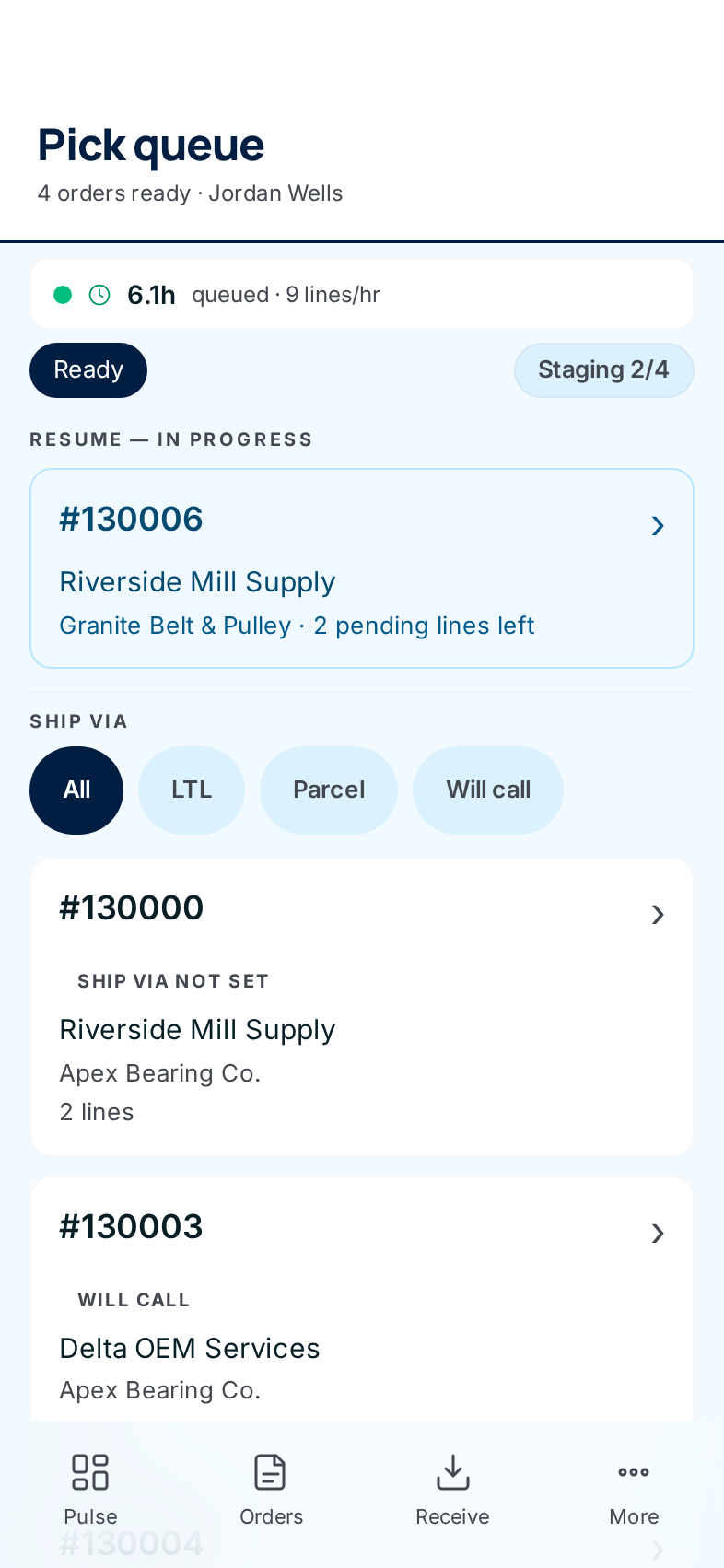
Read the queue from the top. Orders are listed most urgent first, then oldest first. Each card shows the order number, how it ships, the customer, the supply partner and the number of lines. A picker taps a card and then Start picking.
-
Move an order up if it's urgent. Open the order in Orders and set its Priority to Rush or High. It jumps ahead of every Normal order in the queue.
-
Follow a stuck order. Open the order itself. The Order Flow steps show when picking started, and a red banner appears if a pick exception has paused it.
How the queue is ordered and how batches form
- One order, one batch. When a picker taps Start picking, ConsignTrak creates a pick batch for that order alone. The batch carries only the order's warehouse lines, each with its bin.
- Most urgent first. Rush orders come first, then High, then Normal. Within each priority, the order entered earliest comes first.
- Leaving the queue. An order drops out of the queue the moment its batch starts. It appears in Resume — in progress at the top until the picker finishes, so an interrupted pick can be picked up again.
- Coming back. If the office sends a line back for re-picking while resolving an exception, the batch appears under Resume — in progress again.
Every field and option
| Field or control | What it means | Required | Default | What changes when you set it |
|---|---|---|---|---|
| switch to mobile view (link, on the desktop pick screens) | Loads the phone layout of the pick screens in your browser. | — | — | You see exactly what the warehouse sees. It's for checking, not for picking at a desk. |
| Ready label and Staging 2/4 chip (phone queue) | Ready labels the list of orders waiting to be picked. The staging chip shows how many staging areas are full out of how many exist, and turns red when every area is full. | — | — | Read-only. The staging chip only appears when staging areas exist. |
| 7.8h queued · 7 lines/hr strip (phone queue) | Roughly how many hours of picking are waiting at the current pace. Green is fine, amber means the queue is running low, red means act now. | — | — | Read-only. Refreshes every minute. |
| Resume — in progress | Batches already started and not yet finished, with how many lines are left. | — | — | Tapping one takes the picker back to the next unpicked line. |
| Ship via chips: All, LTL, Parcel, Will call | Filter the queue by how the order ships. | No | All | Only orders of that kind are listed. Choose the active chip again, or All, to clear it. |
| Order card | Order number, ship-via, customer, supply partner, line count. Rush and High orders carry a colored tag. | — | — | Opens the order's pick summary with Start picking. |
| Dashboard In flight cards | Counts of batches being picked, waiting for a packer, packed and waiting to ship, and orders shipped today. | — | — | Read-only. |
The other desktop pick screens (a single pick line, pick done, blocked, mispick, pack, done) show the same notice with the same switch to mobile view link. The warehouse side of each is covered in Picking.
What happens next
- When a picker starts, the order's Order Flow shows Picking and the dashboard counts it under Picking in progress.
- When the picker finishes, the batch goes to a staging area or straight to the packer.
- Nothing leaves stock yet. On-hand drops only when the order ships.
Common problems
An order isn't in the queue. — Check that it's Released, and that at least one line ships from the warehouse. An order whose pick has already started is under Resume — in progress, not in the list.
The dashboard says "Released >24h, no picker". — An order has sat unpicked for a day. Raise its priority, or ask the floor why it's been skipped.
An order already picked still shows Start Pick on its page. — Don't press it. ConsignTrak only resumes a pick that is still in progress. Starting again on an order that has already been picked opens a second batch for the same order. This has been reported to the ConsignTrak team.