The ship station
What this is
The Ship station is the desktop screen for the last step: recording that a packed order has left with a carrier. You pick an order from the queue, enter the tracking number for each box, and confirm. The warehouse can do the same from a phone; the Ship station is for whoever sits at the shipping desk or prints the labels.
Before you start
- Role: Office, Administrator or Warehouse.
- Settings: none.
- You'll need: an order that has been picked and packed. Packing happens on a phone (see Pack verification). Will-call orders never come here; they're handed over at the counter (see Will-call pickups).
Step by step
-
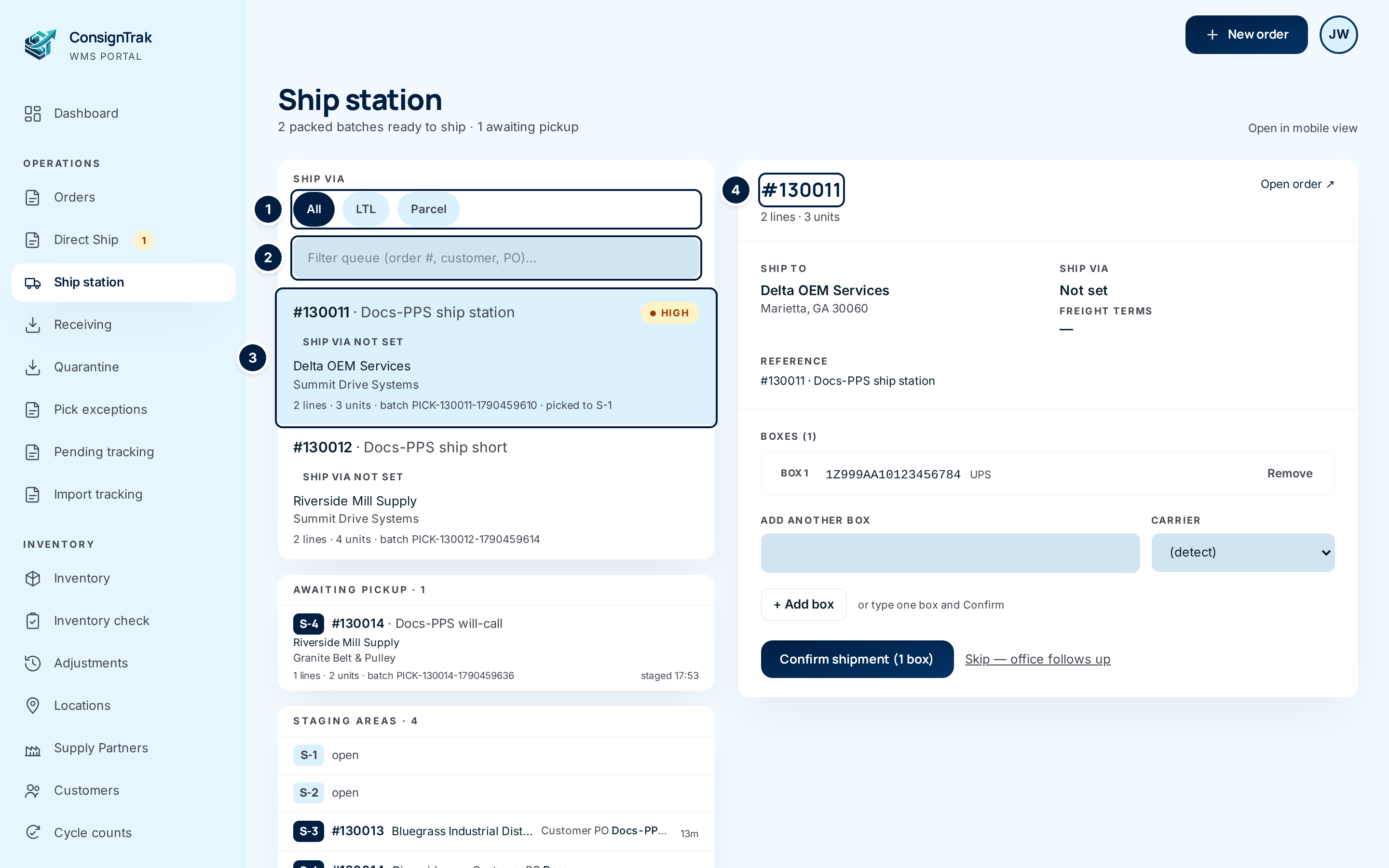
Open the Ship station. Choose Ship station in the Operations section of the sidebar. The left side lists every packed order waiting to ship, most urgent first, then the one packed longest ago.
-
Narrow the list if you need to. Use the Ship via chips ① to show only LTL or Parcel orders, for example everything going on the freight truck. Type in the filter box ② to find an order by number, customer, PO or supply partner.
-
Choose the order. Click its row ③, or move through the list with the ↑ and ↓ keys. Its details open on the right ④. Check Ship to, Ship via and Freight terms against the label. An amber Use this account box means the freight is billed to someone else's carrier account. Use the account number it shows.
-
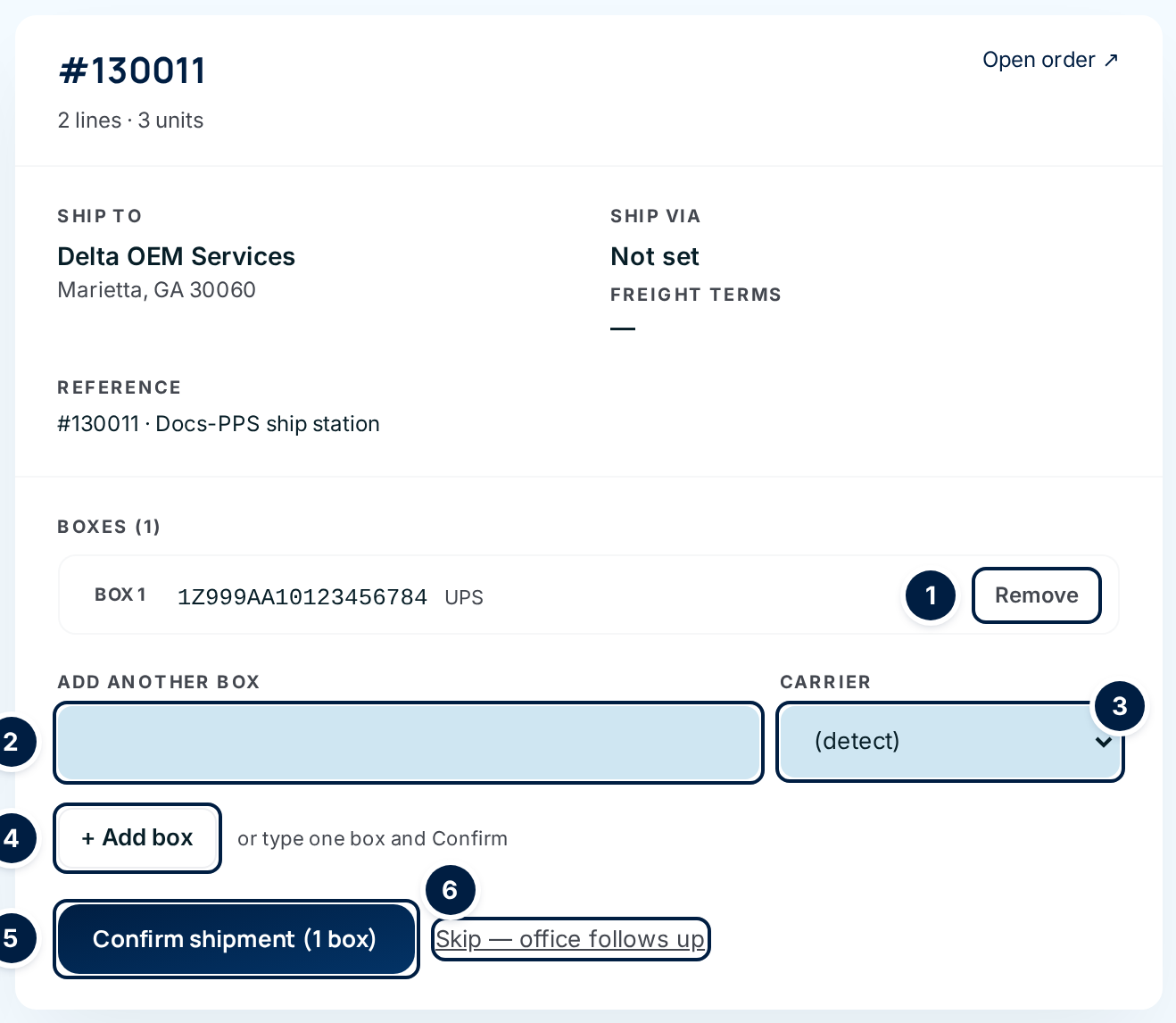
Enter the first tracking number. From here on, the numbers refer to the picture below. Scan or type the number into Tracking number ②. ConsignTrak recognises UPS, FedEx and USPS numbers as you type and sets Carrier ③ for you. For anything else, choose Other.
-
Add every box. For a one-box shipment you can go straight to the next step. For more boxes, choose + Add box ④ after each number. Each box is listed under Boxes with its number and carrier, and the field is relabelled Add another box.
-
Fix a wrong number before you ship. Choose Remove ① next to the box. The button turns red and asks you to click again. Click it a second time to confirm, then add the box again with the right number. Boxes can't be edited in place.
-
Confirm the shipment. Choose Confirm shipment ⑤. It shows how many boxes it will record. The order is marked shipped, it leaves the queue, and the next order in the queue opens on the right.
-
No tracking number yet? Choose Skip — office follows up ⑥. The link turns into a question, Ship without tracking? Choose Skip and ship to ship the order and put it on the pending tracking list. Choose Cancel to go back.

Short picks and lines nobody picked
When an order ships with less than was ordered, ConsignTrak doesn't lose the difference. It puts the missing quantity on backorder for the customer.
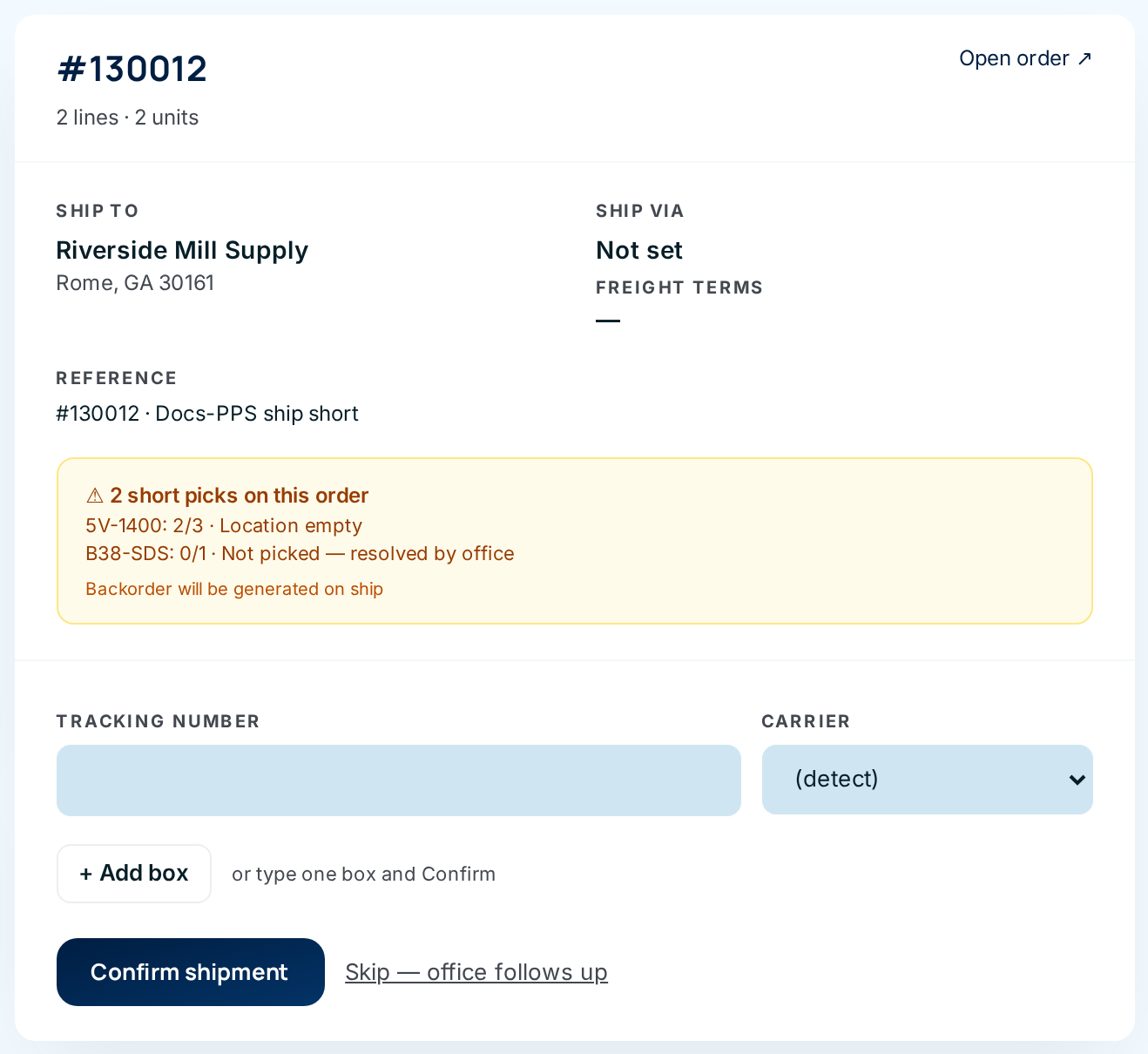
The amber box above the form lists every line that won't ship in full, with the reason:
| What happened on the floor | What the box says | What goes on backorder at ship |
|---|---|---|
| The picker found fewer than needed | 2/3 · Location empty (or Damaged, Miscounted on hand, Other) | The shortfall (1 in this example) |
| The picker skipped the line, leaving it for someone else | the line with 0 picked | The whole warehouse quantity for that line |
| The office resolved a short pick with Ship partial, backorder remainder before the picker reached this line | 0/1 · Not picked — resolved by office | The whole unpicked quantity |
That last row is how the office ends a stalled pick. Resolving a pick exception with Ship partial, backorder remainder tells ConsignTrak the picker is done. Every line the picker hadn't reached yet is marked short with the reason Not picked — resolved by office. The order moves on to packing without the picker coming back to finish.
Once you confirm, the short and unpicked quantities are on backorder and the shipped quantities have left stock. If a line should still be picked, send it back for re-picking from the exception before the order is packed.
Every field and option
| Field or control | What it means | Required | Default | What changes when you set it |
|---|---|---|---|---|
| Ship via chips: All, LTL, Parcel | Filter the queue by how the order ships. | No | All | Only those orders are listed. The filter stays on as you ship one after another. |
| Filter queue (order #, customer, PO)… | Narrows the list as you type. Also matches supply partner and batch number. | No | Empty | Hides rows that don't match. |
| Queue row | Order number and PO, Rush/High tag, ship-via, customer, supply partner, lines, units, batch and where it was staged (picked to S-1, or at a shipping lane). | — | — | Opens the order on the right. |
| Open in mobile view | Loads the phone layout of the ship screens. | — | — | Shows what the warehouse sees. |
| Open order ↗ | The order's own page. | — | — | Opens the order. |
| Ship to, Ship via, Freight terms, Reference | Where it's going, the carrier and service, who pays freight, and the order number and customer PO. Ship via says Not set if the order has none. | — | — | Read-only. Change them on the order. |
| Use this account (amber) | The carrier account to bill. For third-party freight it names the party paying. | — | — | Read-only. |
| Boxes (n) | The boxes already added, each with tracking number and carrier. | — | — | Read-only list. |
| Remove | Takes that box off the shipment. Asks you to click again. | — | — | The box and its tracking number are removed. |
| Tracking number / Add another box | The carrier's tracking number for one box. | Yes, at least one box to confirm | Empty | Sets Carrier automatically when it recognises the format. |
| Carrier | (detect), UPS, FedEx, USPS or Other. | No | (detect) | Your choice overrides the detected carrier. |
| + Add box | Saves the number as a box and clears the field for the next one. | — | — | The box appears under Boxes. |
| Confirm shipment ((n boxes)) | Records the shipment. | — | — | The order ships, stock leaves, the next order opens. |
| Skip — office follows up | Ships without a tracking number. Shows Skip and ship and Cancel. | — | — | With Skip and ship, the order ships and is flagged on the pending-tracking list. |
| ⚠ Flagged for office | The warehouse couldn't capture tracking on the phone and asked the office to. | — | — | Enter the number and confirm to clear the flag. |
| ✓ Already shipped and Edit tracking ↗ | Someone shipped this order already. | — | — | Edit tracking opens the tracking correction screen. |
| Recently shipped | Orders shipped in the last hour, newest first, with their tracking number and time. | — | — | Read-only. |
| Edit ↗ (Recently shipped) | Correct a tracking number after shipping. Shown only to users allowed to correct tracking. | — | — | Opens the tracking correction screen. |
| Awaiting pickup | Will-call orders waiting at the counter. See Will-call pickups. | — | — | Rows open the order. |
| Staging areas | What's sitting on each staging area. See Staging areas (office). | — | — | — |
What happens next
- The order is shipped. Its Order Flow shows Shipped, and the order moves to Shipped in Orders.
- Stock leaves. On-hand drops by the quantity actually picked on each line, and ConsignTrak records a stock movement for each line against the supply partner.
- Backorders are recorded for short, skipped and office-resolved lines, as in the table above.
- Tracking shows on the order. Every box is listed in the order's Tracking table, numbered when there's more than one.
- Skipped tracking goes to the pending-tracking list, where the office adds it later. Corrections after shipping are covered in Shipment tracking.
Common problems
"Add at least one box, or use Skip for office follow-up." — You chose Confirm shipment with no box added and nothing in the tracking field. Enter a number, or use Skip — office follows up.
"Pick a carrier or enter a recognizable tracking number." — ConsignTrak couldn't tell the carrier from the number. Choose it in Carrier, or Other, and try again.
"Enter a tracking number to add a box." — + Add box was chosen with an empty field.
"Tracking saved but shipment did not complete. Office can finish from /admin/shipments/pending-tracking." — The boxes were saved but the shipment wasn't. The most common reason is an open pick exception on the order. Resolve it in Pick exceptions, then finish the shipment from Pending tracking.
The order I want isn't in the queue. — It isn't packed yet (check the pack queue), it's a will-call order (see Awaiting pickup), or a Ship via filter is hiding it. Choose All.