Reprinting documents
What this is
The release is the printed sheet the warehouse picks from. It carries the order and release numbers, the lines, and the bins to pick from. You can print it again at any point after the order is released: a torn copy, a second picker, or a fresh copy that shows where the goods are staged now. The same order page also prints the supply partner's own packing list, if one is attached.
Before you start
- Role: Office or Administrator — reprinting the release uses the same permission as releasing it.
- Settings: none.
- You'll need: an order that has been released. Before release, the order page offers Edit in the same spot instead of Print Release.
Step by step
-
Open the order. Find it in Orders, or choose Open order ↗ from the Ship station.
-
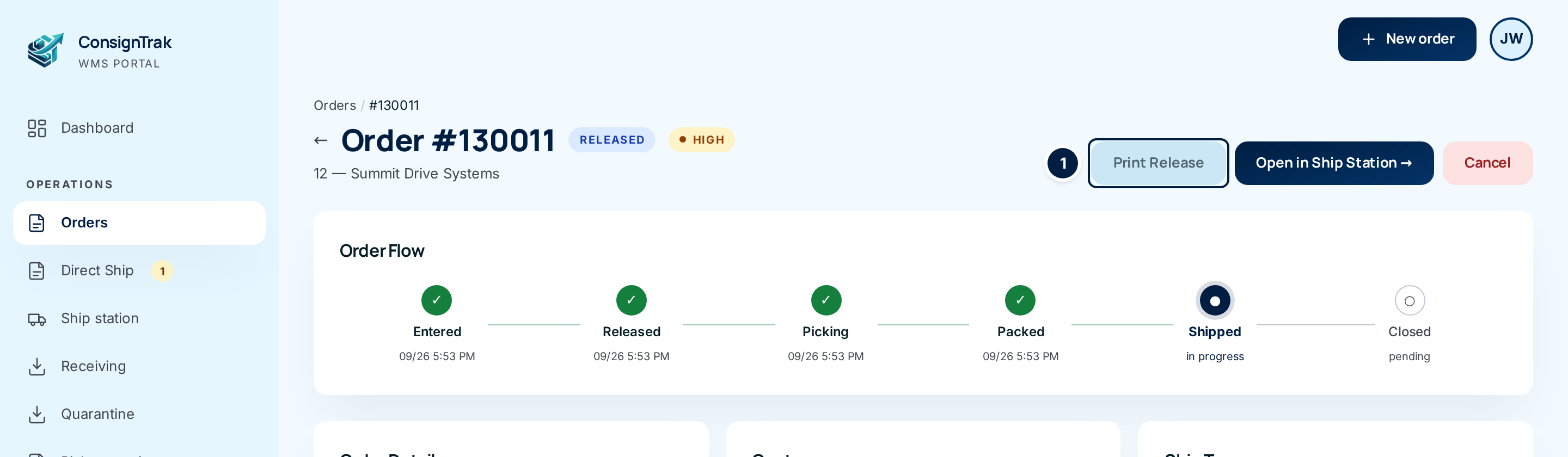
Choose Print Release ①. It's the first button at the top right of the order. The release opens as a PDF in a new tab. Print it from there.
-
Check the staging area on the reprint. If the order has been picked and set down in a staging area, the reprint shows STAGED IN AREA: and the area code in bold under the order details. If the packer moved the cartons to a shipping lane, it reads IN SHIPPING LANE: instead. That line lets someone carrying the paper walk straight to the goods.
-
Print the supply partner's packing list. Scroll to the Supply Partner Packing List card on the order and choose Print. The file opens in a new tab. The warehouse is also prompted to print it on the pack screen, so you only need this for a replacement copy.
Every field and option
| Field or control | What it means | Required | Default | What changes when you set it |
|---|---|---|---|---|
| Print Release | Opens the release PDF in a new tab. | — | — | Nothing changes in ConsignTrak. Printing again doesn't create a new release number. |
| Open in Ship Station → | Appears once the order is packed. Opens it selected in the Ship station. | — | — | — |
| Supply Partner Packing List · file name | The attached packing list and who uploaded it, and when. | — | — | Opens the file. |
| Print (packing list) | Opens the packing list in a new tab for printing. | — | — | — |
| Attach packing list / Replace | Uploads the supply partner's packing list, as a PDF or a JPG or PNG image up to 50 MB. | — | — | The warehouse is prompted to print it at pack time. |
| Delete (packing list) | Removes the attached packing list. Asks you to click again. | — | — | The pack-screen print prompt disappears. |
Attaching and managing order documents in general is covered in Documents.
What happens next
Nothing changes. Reprinting is read-only: the order's status, numbers and stock are untouched.
Pack photos and pickup photos aren't printed documents, but they live on the same order page. The Pack photos and Pickup photos cards show them as thumbnails. Click one to view it full size.
Common problems
There's no Print Release button. — The order hasn't been released yet. Edit sits in its place until you release it.
The reprint has no staging area line. — The order hasn't been staged yet, the picker handed it directly to the packer, or it has already shipped. The line only prints while the goods are waiting in an area or lane.
There's no packing list card. — The card shows only on orders with a line that ships from the warehouse. Orders shipped entirely by the supply partner don't need one.