Pack verification
What this is
Packing is ConsignTrak's recorded quality check. Before an order can be marked packed, the packer ticks every line on their phone to say the goods in front of me match this line. ConsignTrak saves each tick with who made it and when. This page explains that gate from the office's side: what the packer sees, what stops an order being packed, and where the result shows up.
Before you start
- Role: anyone can view the pack queue. Packing itself is done on a phone or tablet by a Warehouse, Office or Administrator user.
- Settings: none. The check is always on.
- You'll need: an order that has been picked and handed off to packing.
Step by step
-
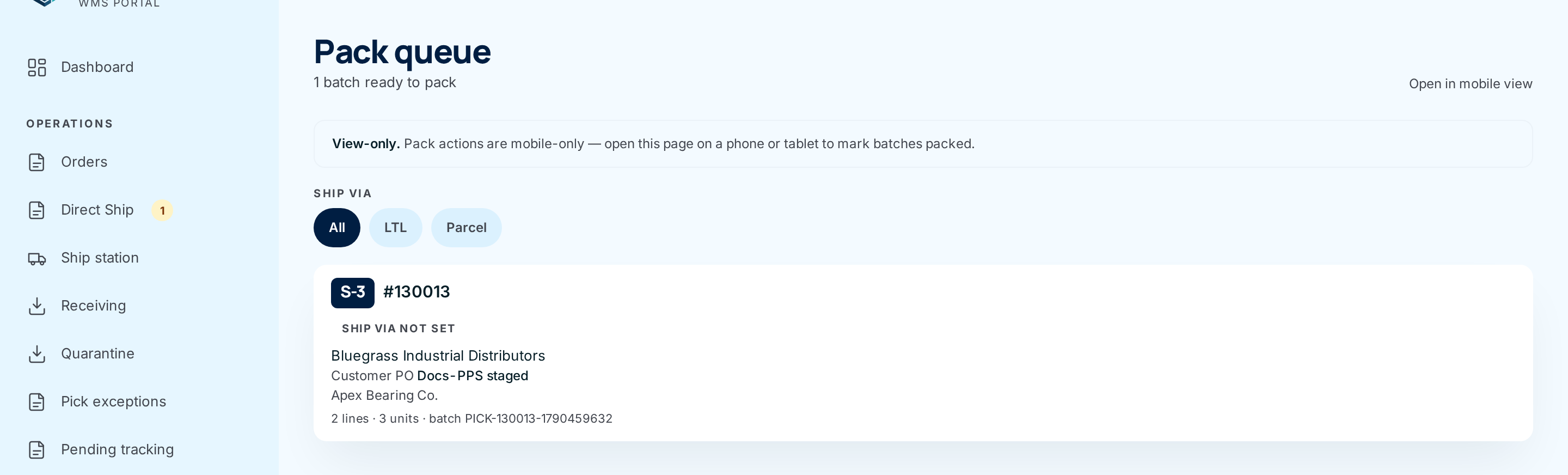
See what's waiting to be packed. From the dashboard, choose the Awaiting packer card. The Pack queue lists every picked order waiting for a packer, led by the staging area it sits in. On a desktop this list is view-only.
-
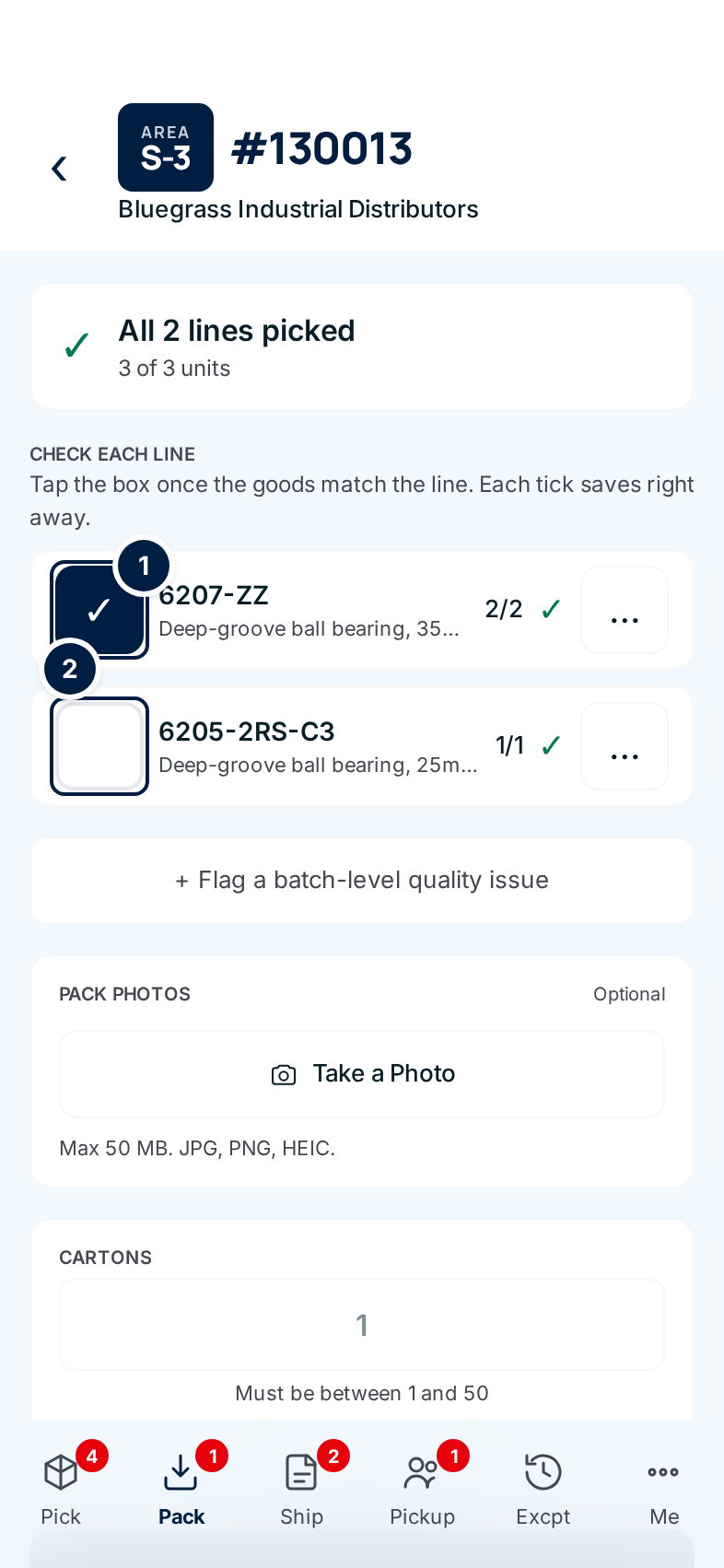
Know what the packer does. On the phone, the packer opens the order and works down Check each line. They tap the box ① beside a line once the goods match it. An unticked box ② is a line not yet checked. Each tap saves straight away, so flagging a problem or taking a photo in between doesn't lose the ticks.
-
Let the gate do its job. Mark packed stays greyed out until every line is ticked. If the packer finds a problem, they flag it from the ⋯ menu on the line instead of ticking it (see What happens next).
-
Check who packed it. After packing, open the order. The Tracking table shows the date it was packed and who packed it.
Every field and option
Pack queue (desktop, view-only)
| Field or control | What it means | Required | Default | What changes when you set it |
|---|---|---|---|---|
| View-only notice | Packing can't be done from a desktop. | — | — | — |
| Open in mobile view | Loads the phone layout of the pack screens. | — | — | Lets you watch a pack in progress. |
| Ship via chips: All, LTL, Parcel | Filter the list by how the order ships. Will-call orders are never packed, so they never appear. | No | All | Only those orders are listed. |
| Area badge (for example S-3) or Direct handoff | Where the picked order is waiting, or that the picker handed it straight to the packer. | — | — | Read-only. |
| Order row | Order number, Rush/High tag, ship-via, customer, customer PO and supply-partner order number, supply partner, lines, units and batch. | — | — | Read-only. |
Pack screen (phone) — the packer's side is covered in full in Packing, shipping & pickup. The parts that matter to the office:
| Field or control | What it means | What the office should know |
|---|---|---|
| Check each line box | The goods match this line. | Saved with the packer's name and time. Locked once the order is packed. |
| Mark packed | Finishes packing. | Refused until every line is ticked, and while the order has an open pick exception. |
| Flag mispick / Flag quality issue (⋯ menu) | The goods don't match, or are damaged or mislabelled. | Opens a pick exception for you to resolve. A mispick stops packing until you do. |
| Pack photos | Optional photos of the packed goods. | Appear on the order's Pack photos card. |
| Supply partner packing list | Shown when the order has the supply partner's own packing list attached. | The packer prints it and puts it in the box. |
| Cartons | How many cartons, 1 to 50. | Recorded with the pack. |
What happens next
- The order moves to the Ship station. Once packed, it appears in the Ship station queue and its staging area frees up.
- A tick is undone when the line is re-picked. If you resolve an exception with Send back for re-pick, that line's tick is cleared, and the packer must check it again after the re-pick.
- A flagged line pauses the order. The order's page shows a red banner, and the packer's phone says Cannot pack — order is blocked until the office resolves the exception.
The goods belong to the supply partner, and the warehouse answers to them for what went out. A line-by-line record of who checked what, and when, settles "that wasn't in the box" disputes without anyone relying on memory.
Common problems
"Check every line first" (on the packer's phone) — A line wasn't ticked when Mark packed was pressed. The packer ticks the remaining lines and tries again.
"Cannot pack — order is blocked" — An open short pick, mispick or quality flag is waiting for the office. Resolve it in Pick exceptions.
I want to see which lines are ticked from my desk. — The office order page doesn't list the ticks yet. It shows only who packed the order and when. While the order is still waiting to be packed, choose Open in mobile view on the pack queue and open the order to see the ticks. Don't tick boxes there yourself unless you're checking the goods in person. This gap has been reported to the ConsignTrak team.