Searching and filtering orders
What this is
The Orders list is where the office finds orders: the one a customer is calling about, everything still waiting to be released, or this week's orders for one supply partner. It shows every order, newest first, with a search box and filters above it.
Before you start
- Role: Office, Administrator or Warehouse (Warehouse users can look but not change orders).
- Settings: none.
- You'll need: nothing.
Step by step
-
Open Orders from the Operations section of the sidebar.
-
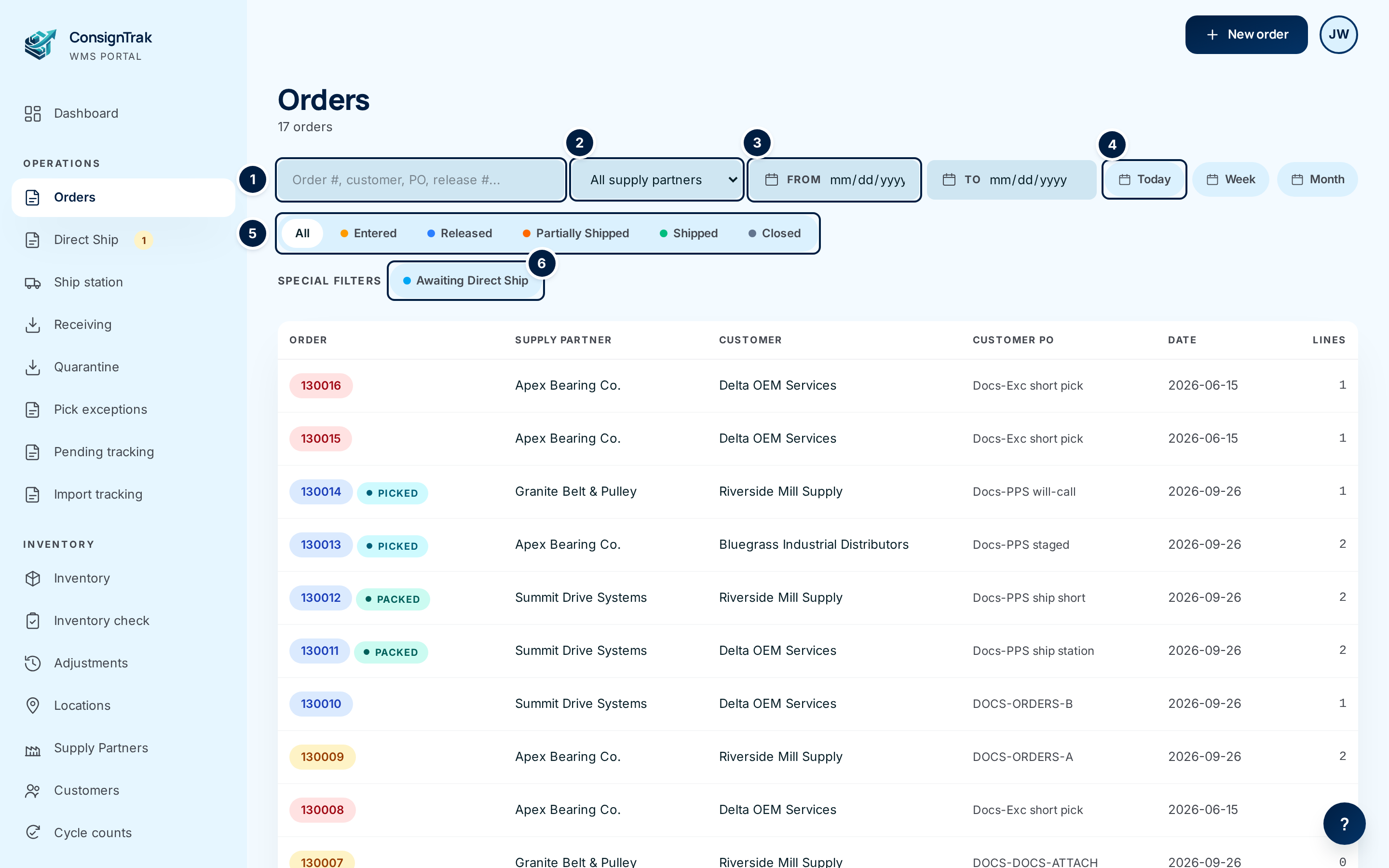
Search ①. Type an order number, customer name, customer PO number, or either release number. The list updates as you type.
-
Narrow by supply partner ② if you only want one supply partner's orders.
-
Narrow by date ③. Choose From and To dates, or one of the shortcuts ④: Today, Week (this week so far) or Month (this month so far). Dates are the order date.
-
Choose a status tab ⑤. Tabs can be combined: choose Entered, then Released, and you see both. Choose a tab again to turn it off. All turns them all off.
-
Find orders waiting on a supply partner ⑥ with Awaiting Direct Ship: released or partly shipped orders with a direct line not yet shipped.
-
Open an order by choosing its number, or anywhere on its row.
Filters that arrive from other pages
Links on the dashboard and the operations wallboard open the Orders list already filtered — for example, rush orders that have waited more than a day. Those filters show as chips under the search bar. Choose a chip's ✕ to drop that one filter.
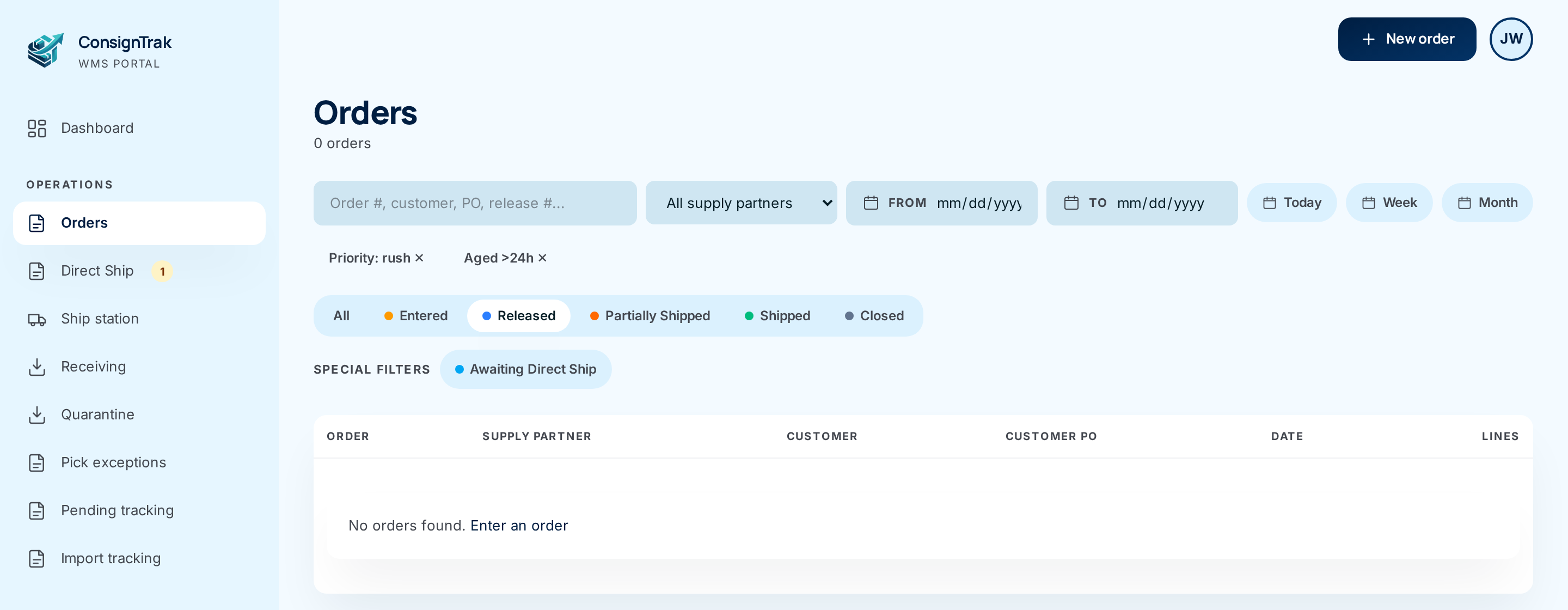
Every filter is part of the page address. Set up the view you check every morning — say, Entered only — and bookmark it.
Every field and option
| Field or control | What it means | Required | Default | What changes when you set it |
|---|---|---|---|---|
| n orders (under the title) | How many orders match the current filters. | — | — | Read-only. |
| Search (Order #, customer, PO, release #...) | Matches order number, customer name, customer PO, release number or original release number. Part of a number or name is enough. | No | — | Filters as you type. |
| All supply partners | Narrows to one supply partner. Not shown to supply partner users, who only ever see their own. | No | All | Filters the list. |
| From, To | An order-date range. Either end can be left open. | No | — | Filters the list. |
| Today, Week, Month | Shortcuts that fill in From and To for today, this week so far, or this month so far. The active one is highlighted. | No | — | Sets the dates. |
| Clear search and dates | Clears the search, dates and supply partner. Keeps the status tabs and any chips. Only shown when there's something to clear. | — | — | — |
| Priority: … ✕, Status: open ✕, Aged >…h ✕ | Filters that came from a dashboard or wallboard link: a priority, all unfinished orders (Entered, Released, Partially Shipped), or orders older than so many hours. | — | — | ✕ removes that filter. |
| All | Turns off every status tab and Awaiting Direct Ship. | — | On | Shows every order, including cancelled ones. |
| Entered, Released, Partially Shipped, Shipped, Closed | Status tabs, each with its colour dot. Choose several to see them together. See Order statuses. | No | Off | Filters the list. There's no Cancelled tab — cancelled orders show under All. |
| Awaiting Direct Ship (Special filters) | Released or partly shipped orders with a supply-partner-direct line not yet shipped. | No | Off | On its own, lists just those orders. Combined with a status tab, it adds them to that tab's orders rather than narrowing it. |
| Order | The order number. Its colour is the status. Picking, Picked or Packed beside it shows warehouse progress on a released order. | — | — | Opens the order. |
| Supply Partner | Whose stock. | — | — | Read-only. |
| Customer | Who it ships to (the account number if the customer has no name). | — | — | Read-only. |
| Customer PO | The customer's PO number. Hidden on narrow screens. | — | — | Read-only. |
| Date | The order date. | — | — | Read-only. |
| Lines | How many lines. Hidden on narrow screens. | — | — | Read-only. |
| Enter an order (when nothing matches) | Opens the New Order form. | — | — | — |
| Page links | Move between pages of results. Filters are kept. | — | — | — |
What happens next
Nothing changes when you search or filter; the list is read-only. Choose an order to open its detail page.
Common problems
"No orders found." — the filters are too narrow. Choose Clear search and dates and All, then search again.
I can't find a cancelled order. — cancelled orders don't have a tab. Choose All and search for it.
Searching a part number finds nothing. — the Orders search doesn't look at lines. Search by customer, PO or order number instead.
Awaiting Direct Ship shows more orders than I expected. — when a status tab is also chosen, the two are added together. Choose All first, then Awaiting Direct Ship on its own.
The supply partner filter is missing. — you're signed in as a supply partner user; you only see that supply partner's orders anyway.