Releasing an order
What this is
Releasing hands an order to the warehouse. Until you release it, an order is only in the office's hands: the floor can't see it. When you choose Release, ConsignTrak gives the order its release numbers, puts its warehouse lines in the pick queue, and makes the printed release available — the sheet the warehouse picks from and the paperwork that travels with the order.
Before you start
- Role: Office or Administrator.
- Settings: none.
- You'll need: an Entered order with its lines added and checked (see Entering an order).
Once released, the order is locked: lines can't be added, removed or changed. Make sure every line is right, and that the order has lines at all — ConsignTrak doesn't stop you releasing an empty order.
Step by step
-
Open the order and check its lines, quantities and shipping details.
-
Choose Release (top right). The button turns amber and says Click again to Confirm.

-
Click it a second time to release. If you don't, it goes back to normal after a few seconds.
-
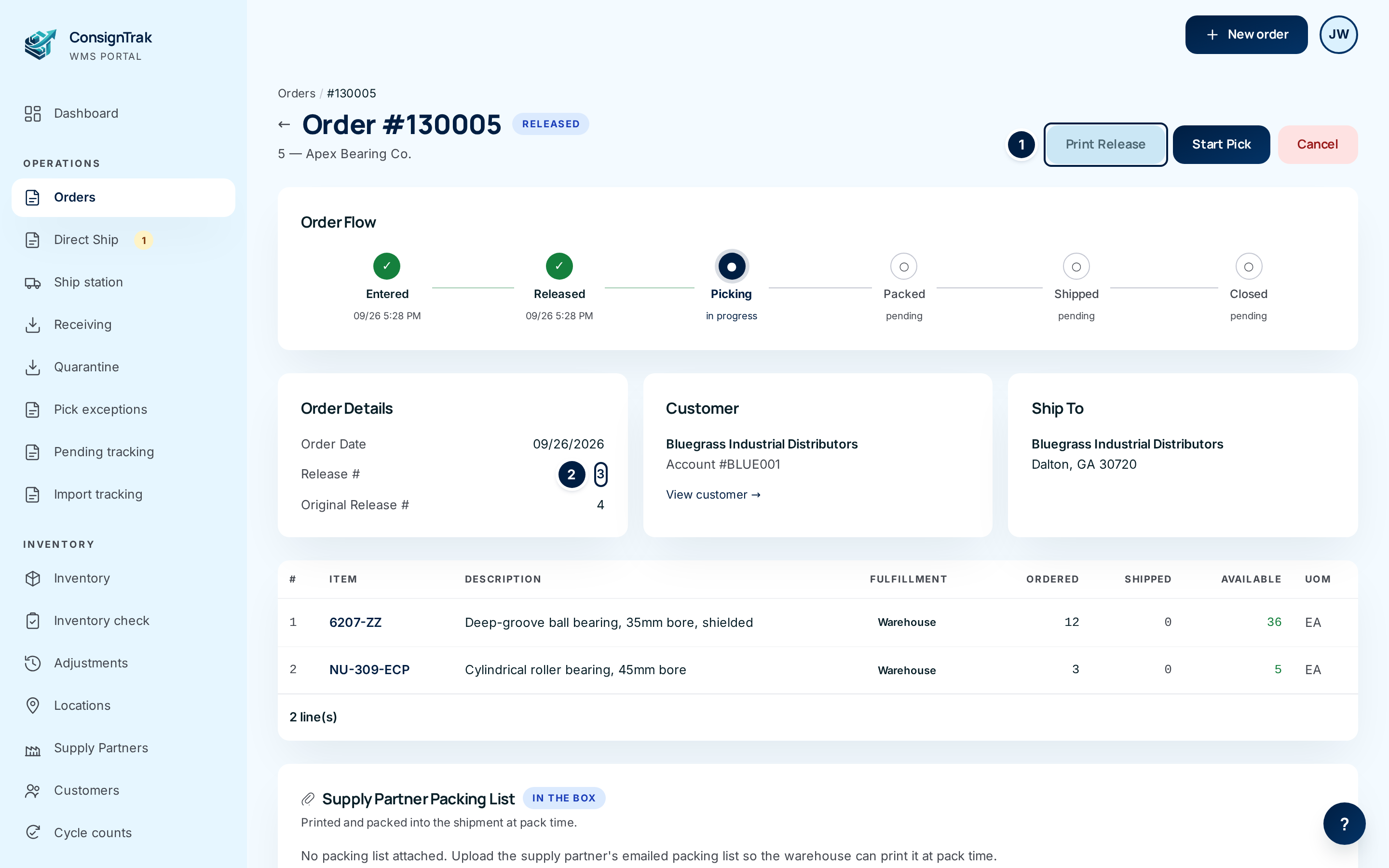
Check the result. The tag changes to Released, and Order Details now shows the Release # and Original Release #. The buttons change to Print Release, Start Pick and Cancel.
-
Print the release if your warehouse works from paper. Choose Print Release ①. The release opens as a PDF in a new tab; print it from there. You can print it again at any time, from any status after release.
What's on the printed release
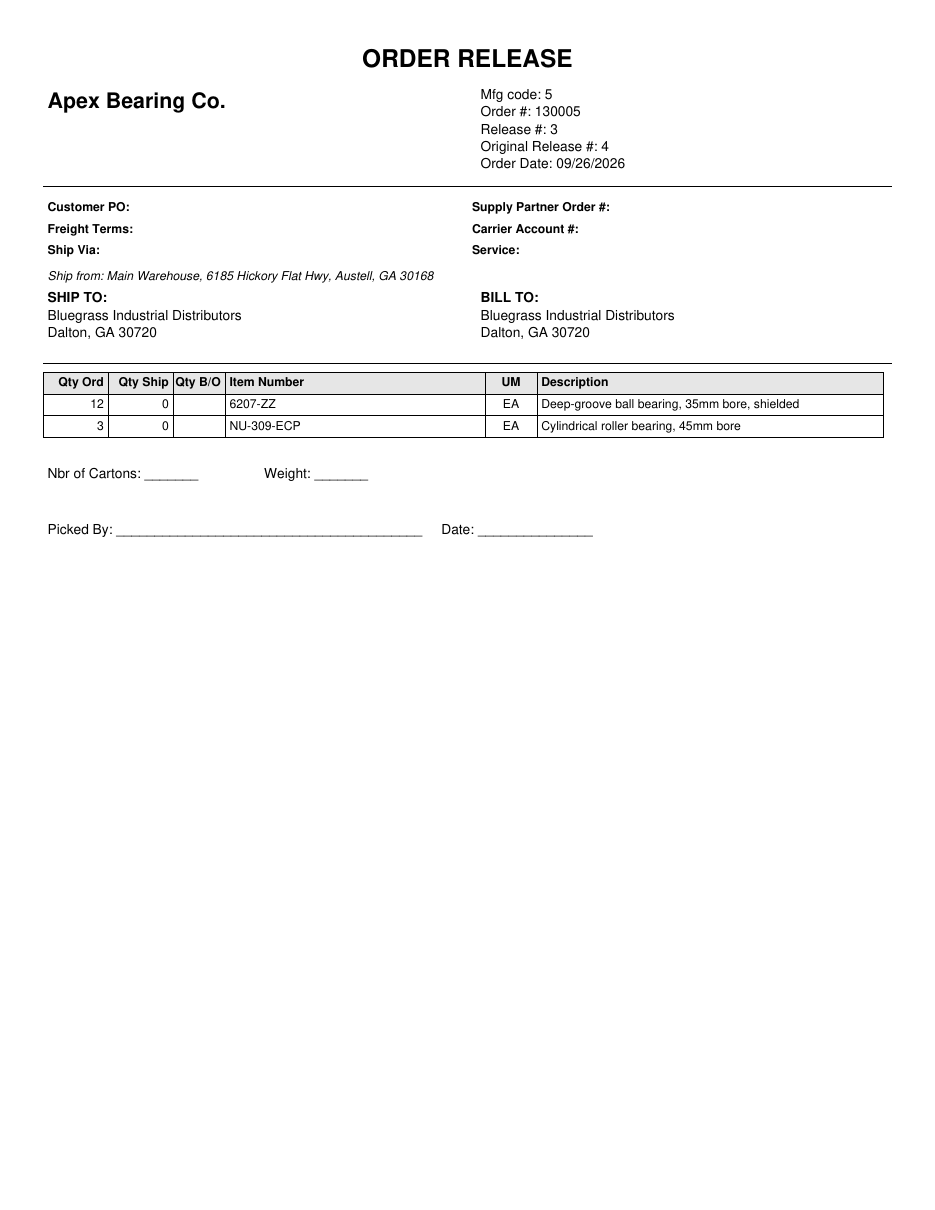
| Part of the release | What it shows |
|---|---|
| ORDER RELEASE and the banner under it | The shipping mode in capitals — for example PARCEL · UPS GROUND, an LTL carrier, or WILL CALL — so the floor sees at arm's length how it leaves. No banner when no carrier was chosen. |
| Supply partner name (and logo) | The release carries the supply partner's brand, not the warehouse's, because it can go in the box. A logo prints when one has been uploaded on the supply partner. |
| Mfg code, Order #, Release #, Original Release #, Order Date | The supply partner's manufacturer code, the order number, and the two release numbers. |
| STAGED IN AREA or IN SHIPPING LANE | On a release reprinted after the order was picked, where the stack is waiting (see Staging areas). |
| Customer PO, Supply Partner Order #, Freight Terms, Carrier Account #, Ship Via, Service | From the order form. |
| FOR CUSTOMER PICKUP - DO NOT SHIP | A boxed warning on will-call orders. |
| Ship from | The warehouse's name and address. |
| SHIP TO and BILL TO | The delivery address, and who's billed. For third-party freight, BILL TO is the third party; otherwise it's the customer. |
| SPECIAL INSTRUCTIONS and the shipping point | From the order form. |
| Line table: Qty Ord, Qty Ship, Qty B/O, Item Number, UM, Description | One row per line. Qty Ship and Qty B/O (backordered) are filled in on a reprint after shipping. When prices are shown, Disc %, Unit Price, List $ (SP) (the supply partner's list price, when set) and Extended columns and an ORDER TOTAL are added. |
| PICK FROM WAREHOUSE and SHIPS MANUFACTURER DIRECT - DO NOT PICK | On orders with supply-partner-direct lines, the table splits in two so the picker never picks the direct lines. (The heading still says "manufacturer"; it means the supply partner.) |
| Nbr of Cartons, Weight, Picked By, Date | Blanks for the warehouse to fill in by hand. |
Every field and option
| Field or control | What it means | Required | Default | What changes when you set it |
|---|---|---|---|---|
| Release | Sends the order to the warehouse. Click-twice confirm: the armed button says Release this order? This generates the pick list., or, with direct lines, …Warehouse portion will appear on the pick list; direct portion will be marked awaiting direct shipment. | — | — | Status Released; release numbers assigned; warehouse lines join the pick queue. |
| Print Release | Opens the release PDF in a new tab. Shown on every status after Entered. | — | — | Nothing changes; reprint as often as you need. |
| Start Pick | Opens the pick screen for this order. Usually the warehouse does this on a phone. | — | — | See Picking. |
| Release # (Order Details) | The order's number in this supply partner's own count. | — | — | Read-only. |
| Original Release # (Order Details) | The order's number in the count across all supply partners. | — | — | Read-only. |
What happens next
- The order moves to Released and the History card records who released it and when.
- Release # and Original Release # are assigned. Neither is ever reused (see Release numbers).
- Warehouse lines appear in the warehouse's pick queue, sorted by priority. No stock moves yet; it was already committed when the lines were added.
- Supply-partner-direct lines show in the order's Awaiting Direct Shipment panel and on the Direct Ship page, ready for you to tell the supply partner (see Direct ship and split fulfillment).
- The order can no longer be edited. You can still change its priority, add attachments, or cancel it.
Common problems
"This Will Call order has no warehouse quantity to pick up. Change the freight terms or add a warehouse line, then release." — a will-call order where every line ships direct from the supply partner. There's nothing for the customer to collect. Change Freight Terms, or add a warehouse line.
"Failed to release order" — something went wrong while numbering the order. Reload the order: if it now says Released, it worked. If not, try again, and tell your administrator if it keeps failing.
The button didn't release the order. — the first click only arms it. Click Release twice.
I released the wrong order. — cancel it (see Editing and cancelling). Its release numbers aren't reused.
Print Release shows a "not allowed" page. — printing releases is limited to Office and Administrator users.