Order detail
What this is
Every order has its own page. It's where the office adds lines and releases the order, and where anyone can see the whole story afterwards: where it's going, who's paying the freight, what the warehouse has done, tracking numbers, photos and paperwork. Panels only appear when they have something to show, so a new order's page is short and a shipped order's page is long.
Before you start
- Role: anyone who can see orders. Changing the order needs Office or Administrator. Warehouse users also see the office buttons, but can't use them.
- Settings: Price, List $ and Extended columns show only when Show prices throughout the application is on (see System configuration).
- You'll need: an order. Open it from the Orders list, the dashboard, or a supply partner's or customer's page.
Step by step
-
Open the order. The top of the page shows who, what and how.
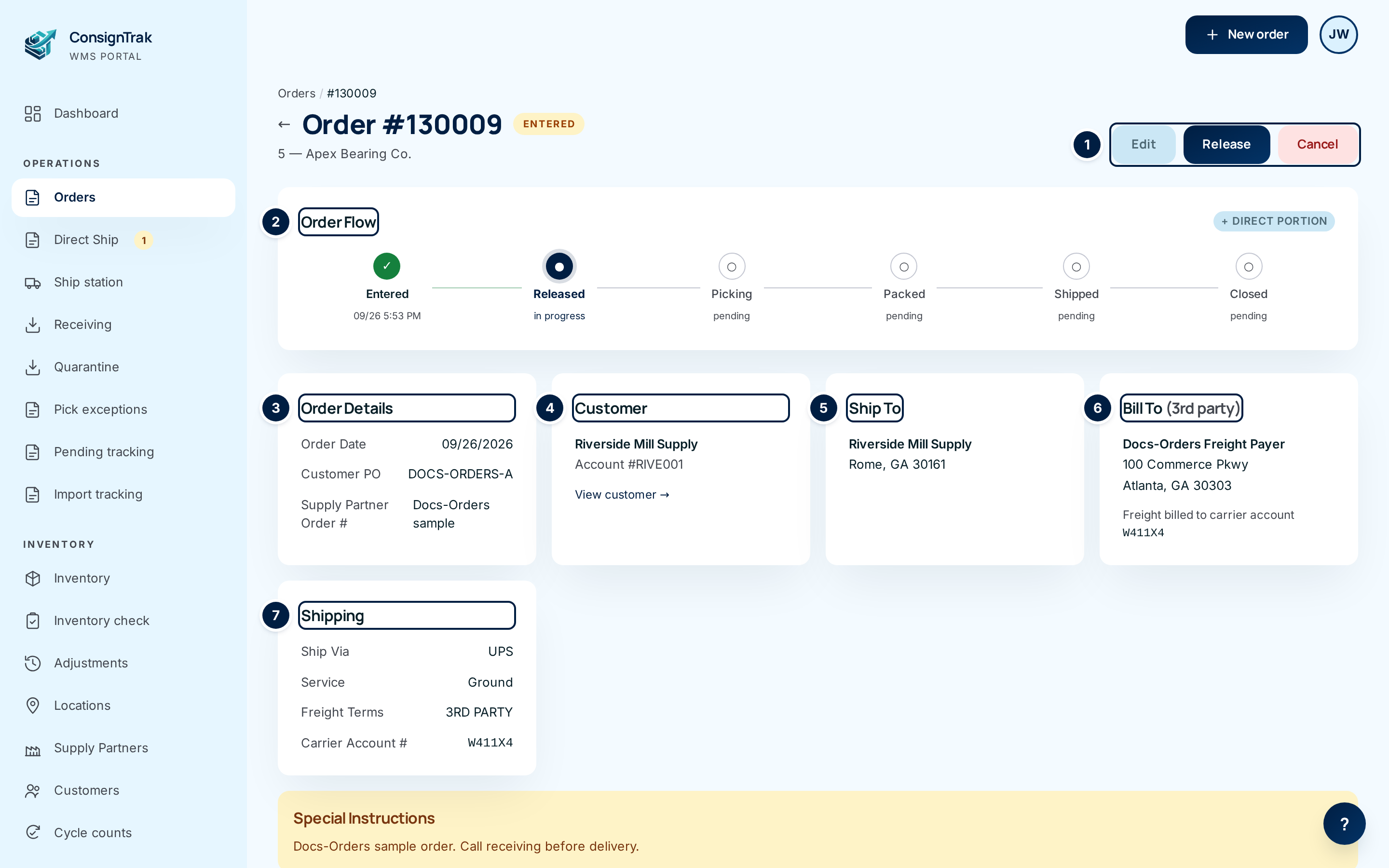
- ① Action buttons — what you can do next. They change with the status (see the table below).
- ② Order Flow — where the order is (see Order statuses).
- ③ Order Details — date, PO numbers, release numbers, ship date.
- ④ Customer — who ordered. View customer → opens their page.
- ⑤ Ship To — where it's going.
- ⑥ Bill To (3rd party) — who pays the freight, on third-party orders.
- ⑦ Shipping — carrier, service, freight terms and account.
-
Scroll down for the lines. Under any Special Instructions, the add-line form (Entered orders only) and the line table show what's on the order and how each line ships.

-
Check the warehouse's progress. After release, Tracking lists each pick for the order, its status, and the tracking numbers once shipped.

-
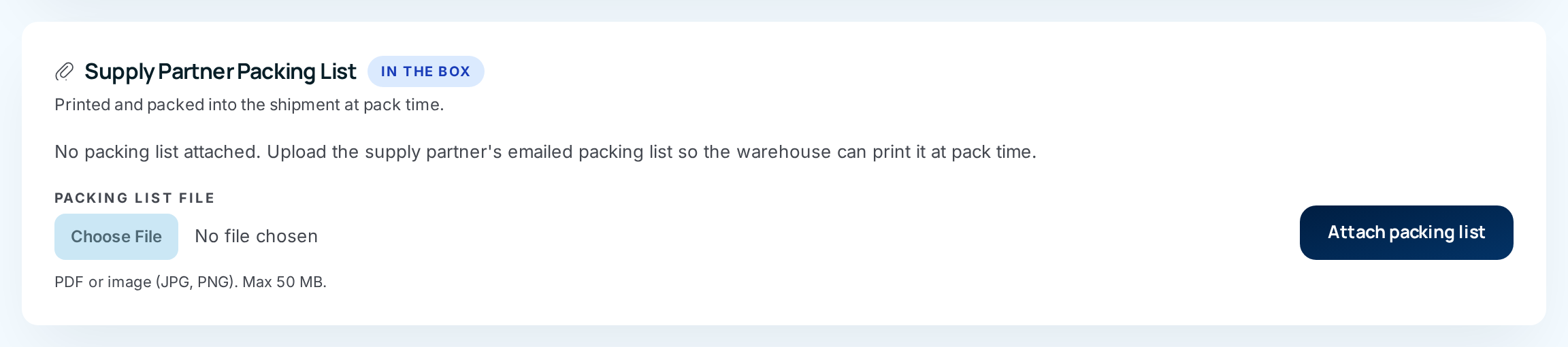
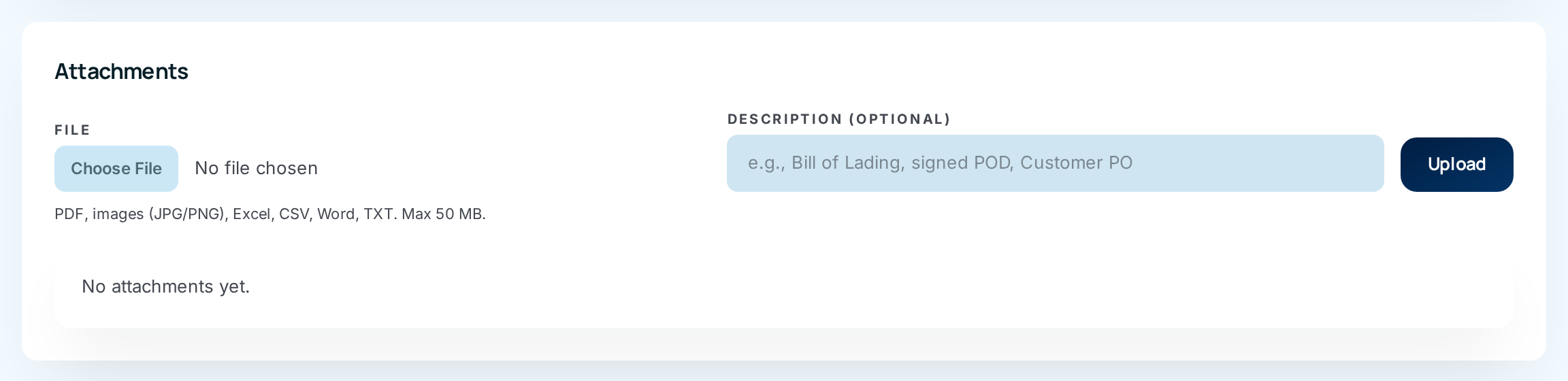
Attach paperwork. The Supply Partner Packing List card holds the supply partner's own packing list, which the packer prints and puts in the box. Attachments holds anything else: the customer's PO, a bill of lading, a signed delivery receipt.
-
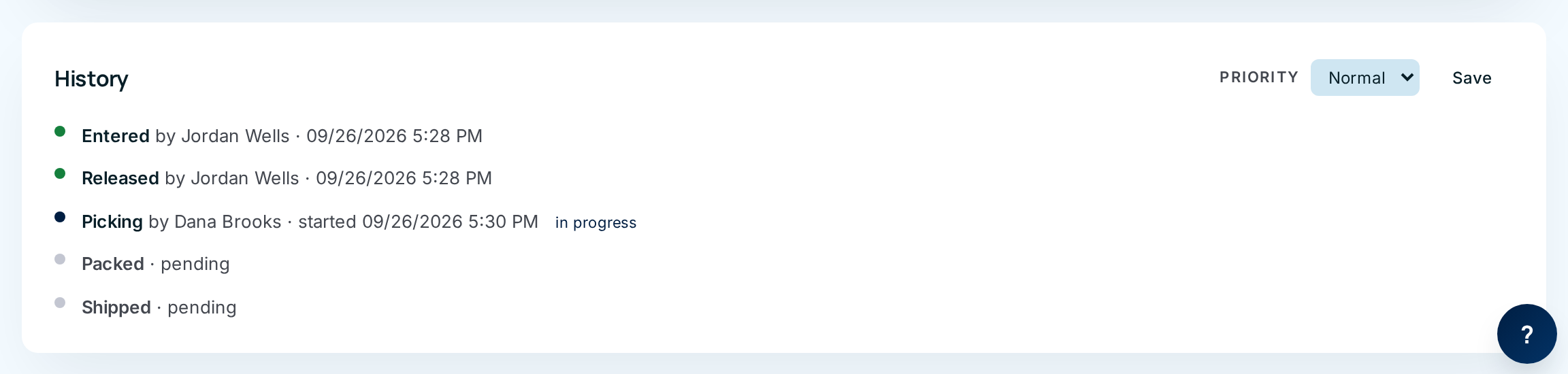
Read the History at the bottom for who did each step and when.
Every field and option
Top of the page
| Field or control | What it means | Required | Default | What changes when you set it |
|---|---|---|---|---|
| Orders / #… (breadcrumb) and ← | Back to the Orders list. | — | — | — |
| Order #… and the status tag | The order number and status. Rush or High tags show priority. | — | — | Read-only. |
| Supply partner (manufacturer code — name) | Whose stock. Opens the supply partner's page. | — | — | — |
| Edit | Change the order's details. Entered only. | — | — | See Editing and cancelling. |
| Print Release | Opens the printed release. Every status after Entered. | — | — | See Releasing an order. |
| Release | Sends the order to the warehouse. Entered only. Click-twice confirm. | — | — | Order becomes Released. |
| Start Pick | Opens the pick screen. Released orders with warehouse lines. | — | — | See Picking. |
| Open in Ship Station → | The order is picked and packed; opens it in the Ship Station to ship. | — | — | See Pick, pack and ship. |
| Close | Finishes a Shipped order. One click, no confirmation. | — | — | Order becomes Closed and read-only. |
| Cancel | Cancels the order. Entered, Released or Partially Shipped. Click-twice confirm. | — | — | See Editing and cancelling. |
Banners
| Panel | When it shows | What it means |
|---|---|---|
| Order blocked (red) with Short pick exception, Mispick exception or Quality exception links | A picker reported a problem. | Packing, shipping and pickup are paused until the office resolves it. Each link opens the exception. Awaiting supply partner since… means it's waiting on the supply partner. See Pick exceptions. |
| Pick exception history | Once an exception is closed. | One line per exception: the kind (a link), how it was resolved (or Undone by picker), who flagged and resolved it and when, and any note. |
Order Flow and the information cards
| Field or control | What it means |
|---|---|
| Order Flow steps | Ticked (done, with date and time), dark blue (in progress — the step the order is waiting on) or hollow (pending). Each step links to the matching part of the page. Will Call, Direct ship or + direct portion badges show how the order ships. Hidden on cancelled orders. |
| Order Details — Order Date, Customer PO, Supply Partner Order #, Release #, Original Release #, Ship Date | Release numbers appear after release; Ship Date after shipping. Empty fields are left out. |
| Customer — name, Account #, View customer → | The customer who ordered, even when it ships somewhere else. |
| Ship To and the Drop ship tag, View customer's locations | The delivery address. Drop ship means one of the customer's other addresses. |
| Bill To (3rd party) and Saved payer tag | Third-party freight orders only: who's billed and Freight billed to carrier account …. Saved payer means it came from the customer's address book. |
| Shipping — Ship Via, LTL Carrier, Service, Freight Terms, Carrier Account #, Ship From | How it ships. Only filled-in fields show. |
| Pickup — Picked Up At, Picked Up By, Notes | Replaces Shipping once a will-call order has been collected. |
| Special Instructions (amber) | The order's notes for the warehouse. |
Lines
| Field or control | What it means | Required | Default | What changes when you set it |
|---|---|---|---|---|
| Add Line Item / + Add another line | Adds lines. Entered orders only. | — | — | See Entering an order for every field. |
| # | Line number. | — | — | — |
| Item | Part number, as written when the line was added. Opens the item. | — | — | — |
| Description | The item description. | — | — | — |
| Fulfillment | Warehouse, Supply Partner Direct · Pending / Shipped, or Split · WH n / Dir n. See Direct ship. | — | — | — |
| Ordered | Quantity ordered. | — | — | — |
| Shipped | Quantity the warehouse has shipped. Shown after release. | — | — | — |
| Available | The item's free stock right now. Red with ⚠ when it's less than ordered; — when unknown. | — | — | — |
| UOM | Unit of measure. | — | — | — |
| Price, List $ (Set by supply partner), Extended | Unit price entered on the order, the supply partner's own list price (read-only), and quantity × price. Footer shows the total. Only with prices shown, on wide screens. | — | — | — |
| Remove | Deletes a line. Entered only. Click-twice confirm. | — | — | Frees the line's committed stock. |
| n line(s) (footer) | How many lines. | — | — | — |
Awaiting Direct Shipment
Shown after release while a supply-partner-direct part hasn't shipped: the Notify / Re-notify button, Item, Description, Qty, Tracking # (optional), Carrier (optional), Mark shipped, and for two or more lines Tracking # (optional, applies to all), Carrier and Mark all … lines shipped. Every control is explained in Direct ship and split fulfillment.
Tracking, photos and freight
| Field or control | What it means | Required | Default | What changes when you set it |
|---|---|---|---|---|
| Tracking — Batch | The pick's reference. Wide screens only. | — | — | — |
| Status | Where the pick is: in progress, completed (picked, with the staging area it's waiting in, or direct handoff), packed, shipped or cancelled (was at … if it had been staged). Shown in capitals, as the system stores it. | — | — | — |
| Packed | When and by whom. | — | — | — |
| Tracking | Tracking numbers, one per box (Box 1, Box 2…). Each links to the carrier's site. ⚠ flagged for office means the packer couldn't capture one. | — | — | — |
| Carrier, Captured | The carrier, and when and by whom the number was recorded. | — | — | — |
| Edit Tracking | Fix or add tracking numbers. Office and Administrator. | — | — | See Shipment tracking. |
| Pack photos | The packer's photos, per pick. Choose one to enlarge; use ‹ › to step through, Download to save, × to close. | — | — | — |
| Pickup photos | Will-call orders: the proof-of-pickup photo. Same viewer. | — | — | — |
| Freight / LTL — Carrier, PRO# | After shipping: the freight company and its PRO (tracking) number for truck shipments, and who recorded them. | — | — | — |
| Carrier and PRO# / freight tracking boxes, Save | Record or change the LTL details. Office and Administrator. Leave both blank and save to clear. | No | — | Shown on the order. Parcel (UPS/FedEx) shipments don't need this. |
| Attach BOL / proof of delivery | Jumps to Attachments to upload the bill of lading. | — | — | — |
Paperwork and history
| Field or control | What it means | Required | Default | What changes when you set it |
|---|---|---|---|---|
| Supply Partner Packing List (In the box) | The supply partner's own packing list for this order. Shown on orders with warehouse lines. | — | — | — |
| File name link, Print | Opens the packing list in a new tab to view or print. | — | — | — |
| Delete (packing list) | Removes it. Click-twice confirm. | — | — | The packer is no longer prompted to print it. |
| Packing list file and Attach packing list / Replace | Upload the list: PDF, JPG or PNG, up to 50 MB. | Yes, to upload | — | The pack screen prompts the packer to print it and put it in the box. |
| Attachments — File, Description (optional), Upload | Add any document: PDF, image, Excel, CSV, Word or text, up to 50 MB. | File, to upload | — | Appears in the grid below. |
| Attachment tiles | Images and PDFs open in the viewer; other files download. Each shows name, description, size and upload time. | — | — | — |
| × on a tile | Removes the attachment. Click-twice confirm. | — | — | — |
| History | Entered, Released, Picking, Packed, Shipped (or Picked Up), Cancelled — each with who and when, or pending. Packed links to the Ship Station while it's waiting to ship. Cancellations show the reason if one was given. | — | — | Read-only. |
| Priority and Save (History card) | Change the priority until the order ships. Office and Administrator. | No | Current | Re-sorts the pick queue. |
What happens next
The page updates as the order moves. Every button that changes the order records who did it and when; you'll see it in History and in the audit trail. Attachments and packing lists are kept with the order.
Common problems
A button leads to a "not allowed" page. — you're signed in as a Warehouse user. The office buttons show, but only Office and Administrator users can use them.
"Unit price must be a number" / "Unit price must be between 0 and 99,999,999." — fix the price on the line you're adding.
The upload was refused. — check the file type and size against the note under the upload box (50 MB at most).
I can't see prices. — prices are switched off for the whole system. Ask your administrator.
There's no Tracking card. — the order hasn't been released and started yet, or it's all supply-partner direct.