Entering an order
What this is
Entering an order is how an emailed or phoned-in order gets into ConsignTrak. It's done in two parts. First you fill in the order form: who the order is for, whose stock it draws on, and how it ships. Then, on the order's own page, you add the lines, one item at a time. The order waits as Entered until you release it to the warehouse.
Before you start
- Role: Office or Administrator. Warehouse users can view orders but not enter them.
- Settings: the Unit Price box on each line appears only when Show prices throughout the application is on (see System configuration).
- You'll need: the supply partner and its items set up (see Supply Partners and Inventory & items). The customer can already exist, or you can add it from the form.
You can create an order's header on a phone, but lines are only added on the desktop order page. Most offices enter orders at a desk.
Step by step
-
Open the form. Choose New order at the top right of any page. It's always there, whatever page you're on.
-
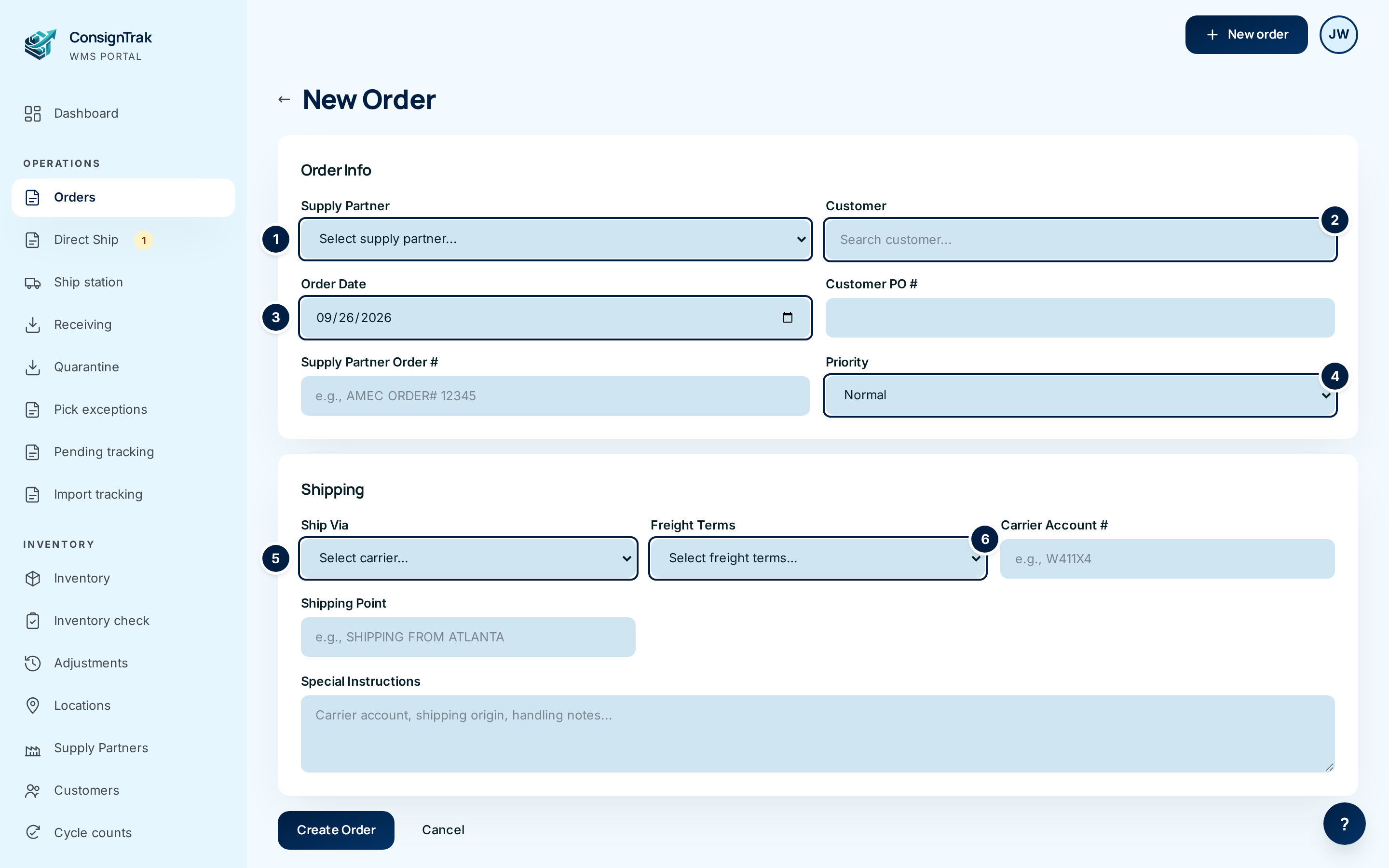
Choose the supply partner ①. This is the company whose stock ships. It decides which items you can add and which release-number sequence the order uses. It can't be changed after you save, so check it against the emailed order.
-
Find the customer ②. Start typing a name, account number or any other name the customer is known by. Pick the right match from the list. A card under the box confirms the customer you chose and their town.
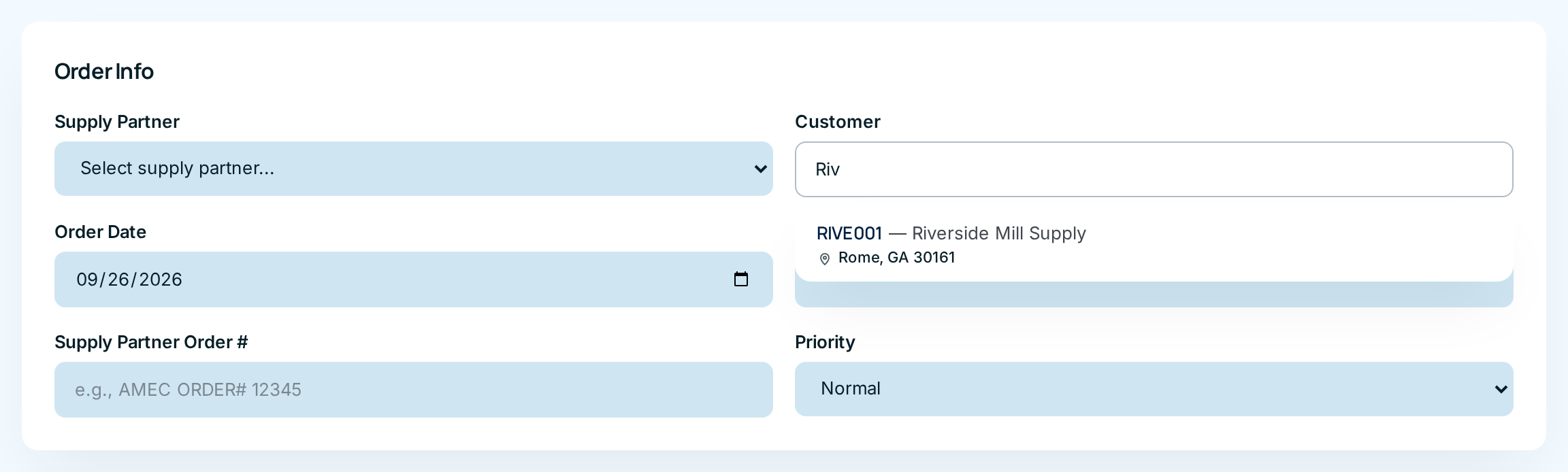
If the customer isn't in ConsignTrak yet, the list says No customers match and offers Add new customer. Choose it to open a short form (see Adding a customer from the order below).
-
Choose where it ships. If the customer has saved drop-ship addresses, a Ship to box appears under the customer. Leave Customer's default address selected, or choose one of the saved addresses. To send this order somewhere new, choose + Add drop-ship location and fill in the address; it's saved on the customer for next time.
-
Check the order date ③. It defaults to today. Change it if you're entering an older order from paper.
-
Fill in the references. Type the customer's Customer PO # and the supply partner's own order number in Supply Partner Order #. Both print on the release and make the order easy to find later.
-
Set the priority ④ if the order is urgent. High and Rush move it up the warehouse's pick queue.
-
Fill in shipping. Choose the carrier in Ship Via ⑤:
- UPS or FedEx — a Service box appears; choose the service level (Ground, Next Day Air and so on).
- LTL Freight — an LTL Carrier box appears; type the freight company's name.
- Will Call — the customer collects the order. Freight Terms switches to Will Call by itself.
Then choose Freight Terms ⑥ (who pays the carrier), and type the Carrier Account # and Shipping Point if the order gives them.
-
Bill freight to a third party, if the order says so. Choose 3rd Party in Freight Terms. A Third-party billing box opens.
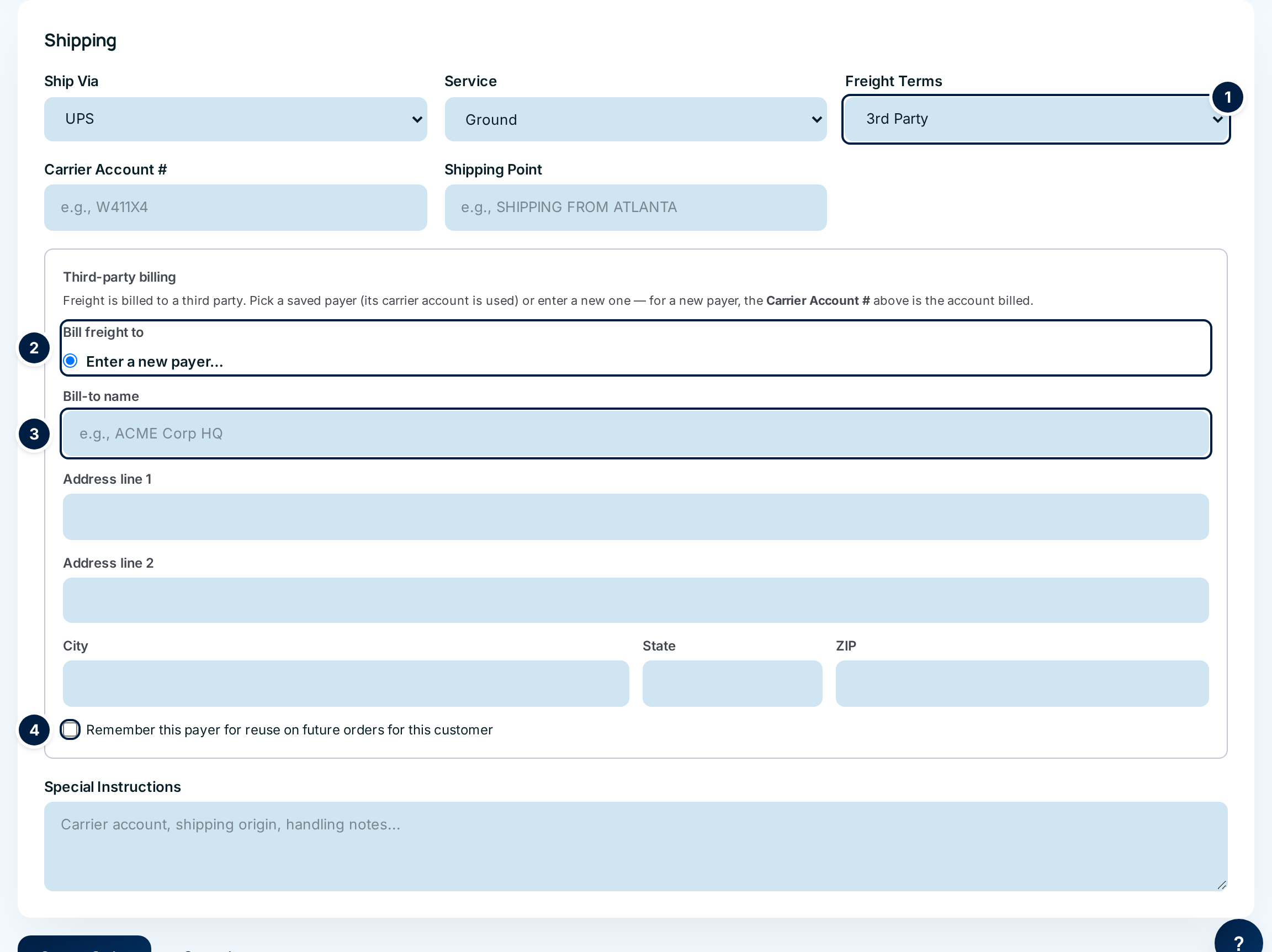
- If this customer has saved payers, they're listed under Bill freight to ②. Choose one; its address and carrier account are used and the fields below are hidden.
- Otherwise leave Enter a new payer… selected and fill in Bill-to name ③, the address, city, state and ZIP. The Carrier Account # above is the account that's billed.
- Tick Remember this payer for reuse on future orders for this customer ④ to save the payer to the customer's address book. Next time it appears in the list.
-
Add any special instructions. Anything in Special Instructions prints on the release and shows in amber on the order: "needs liftgate", "call before delivery".
-
Save the order. Choose Create Order. ConsignTrak saves it as Entered and opens the order's page.
-
Add the lines. On the order's page, in Add Line Item:
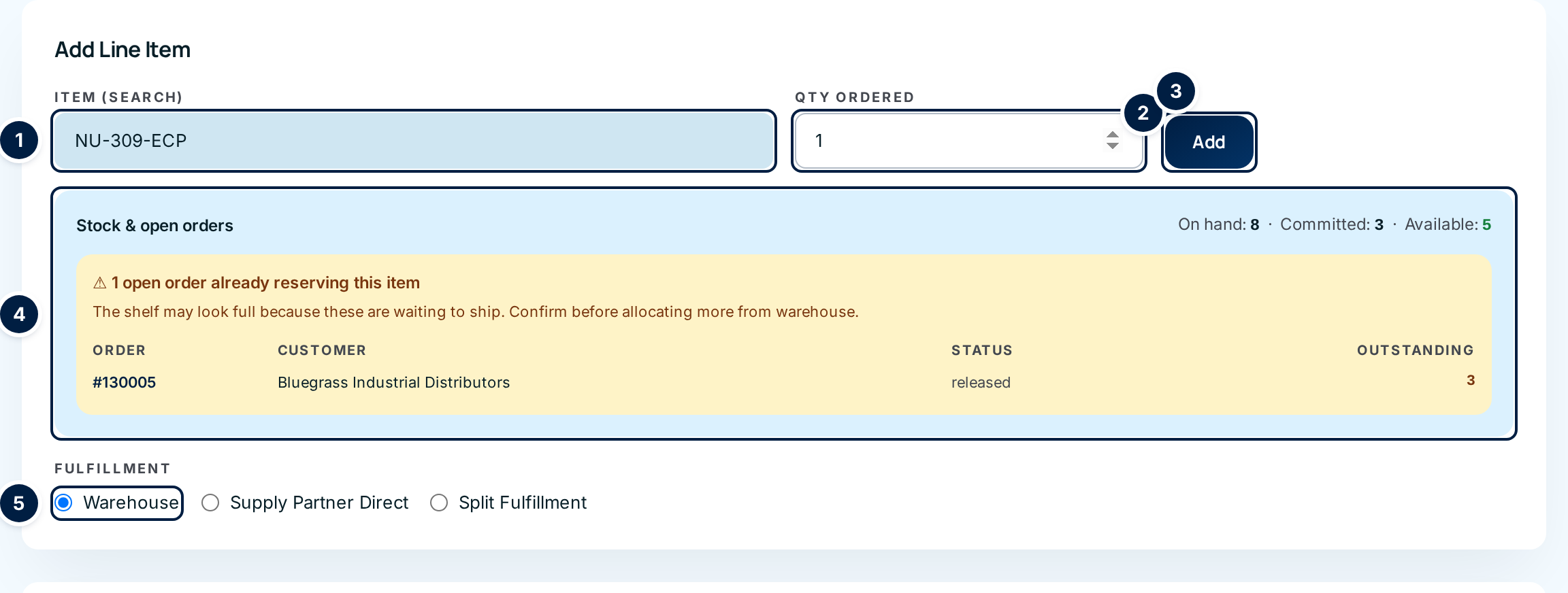
- Type the part number in Item (search) ①. Only this supply partner's items are listed. Choose the right one.
- Read the Stock & open orders panel ④. It shows how many are on the shelf, how many are already promised to other orders, and how many are free. If other open orders are holding this item, they're listed, so you don't promise the same stock twice.
- Type the Qty Ordered ②.
- Leave Fulfillment ⑤ on Warehouse for stock the warehouse ships. If the supply partner is shipping some or all of it themselves, see Direct ship and split fulfillment.
- Choose Add ③. The line appears in the table below. Repeat for each line.
Adding the same item again with the same fulfillment choice adds to the existing line instead of making a second one.
Adding a customer from the order
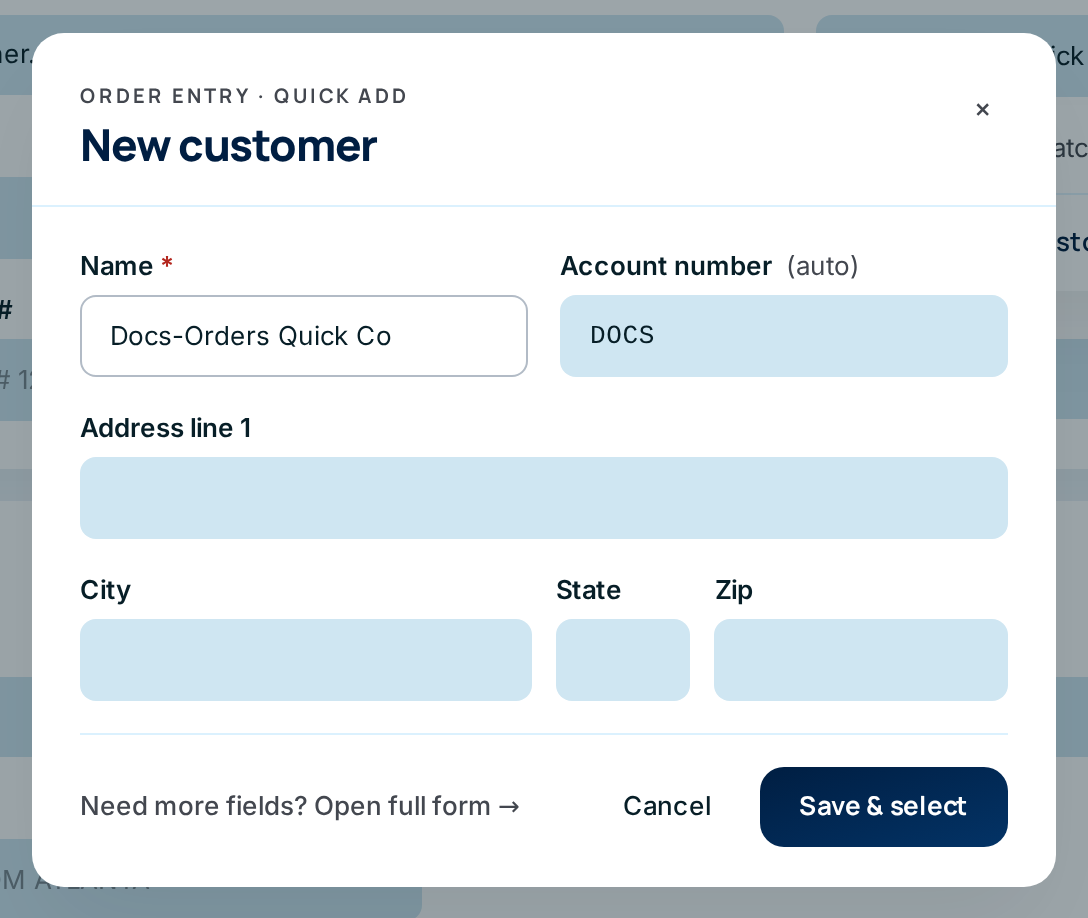
Choosing Add new customer from the customer search opens a short New customer form on top of the order:
| Field | What to enter |
|---|---|
| Name | The company name. Pre-filled with what you typed. |
| Account number (auto) | A suggested account code, made from the start of the name. Change it if it's already taken or your warehouse uses another scheme. |
| Address line 1, City, State, Zip | The customer's main address. Optional here. |
Choose Save & select to create the customer and put them straight on the order. Cancel or × closes the form without saving. Need more fields? Open full form → leaves the order and opens the full customer form (see Customers).
Every field and option
The New Order form
| Field or control | What it means | Required | Default | What changes when you set it |
|---|---|---|---|---|
| ← (back arrow) | Back to the Orders list without saving. | — | — | Nothing is saved. |
| Supply Partner | Whose stock this order ships. Shows manufacturer code and name. | Yes | Select supply partner... | Limits the item search to this supply partner; sets the release-number sequence. Can't be changed later. |
| Customer | Search box for the company the order ships to. Matches name, account number and other known names. | Yes | — | Shows the Selected customer card, loads drop-ship addresses and saved third-party payers. |
| Add new customer (in the search results) | Appears when nothing matches. Opens the quick-add form. | — | — | Creates the customer and selects it. |
| Ship to — Customer's default address / a saved address | Where the order goes. Only shown when the customer has saved drop-ship addresses. | No | Customer's default address | Prints as the ship-to on the release; the order shows a Drop ship tag. |
| + Add drop-ship location | Adds a new delivery address to the customer, from the order. | — | — | Saves the address on the customer and selects it. |
| Order Date | When the order was placed. | Yes | Today | Shown on the order and the release; used by the date filters. |
| Customer PO # | The customer's purchase order number. | No | — | Prints on the release; searchable. |
| Supply Partner Order # | The supply partner's reference for this order. | No | — | Prints on the release; helps match the order to the supply partner's records. |
| Priority | Normal, High or Rush. | No | Normal | High and Rush move the order up the pick queue and show a coloured tag. |
| Ship Via | The carrier: UPS, FedEx, LTL Freight or Will Call (your administrator can add more). | No | Select carrier… | Shows Service or LTL Carrier; prints a banner (Parcel, LTL, Will call) at the top of the release. |
| Service | The UPS or FedEx service level: Ground, Next Day Air, 2nd Day Air, 3-Day Select (UPS); Ground, Priority Overnight, 2Day, Express Saver (FedEx). | No | Select service… | Prints on the release. Only shown for UPS and FedEx. |
| LTL Carrier | The freight company's name for an LTL shipment. | No | — | Prints on the release. Only shown for LTL Freight. |
| Freight Terms | Who pays the carrier: Will Call (customer collects), Collect (customer pays on delivery), Prepaid (the supply partner pays), Prepaid & Add (the supply partner pays and adds it to their invoice), 3rd Party (someone else pays). | No | Select freight terms… | Will Call and Ship Via keep each other in step. 3rd Party opens the billing box. A will-call release prints FOR CUSTOMER PICKUP - DO NOT SHIP. |
| Carrier Account # | The carrier account to bill (UPS or FedEx number). | No | — | Prints on the release; the warehouse uses it on the shipping label. For a new third-party payer, this is the account billed. |
| Shipping Point | A "ship from" line for the release, such as SHIPPING FROM ATLANTA. | No | — | Prints on the release. |
| Bill freight to (saved payers / Enter a new payer…) | This customer's saved third-party payers. Only with 3rd Party. | No | Enter a new payer… | A saved payer's address and account are copied onto the order. |
| Bill-to name, Address line 1, Address line 2, City, State, ZIP | The third party's billing address. Only with 3rd Party and a new payer. | All but Address line 2, once you start filling them in | — | Prints as the BILL TO on the release; shows in the order's Bill To (3rd party) card. |
| Remember this payer for reuse on future orders for this customer | Saves the new payer to the customer's address book. | No | Off | The payer is listed next time; manage payers on the customer's page. |
| Special Instructions | Free-text notes for the warehouse. | No | — | Prints on the release; shown in amber on the order. |
| Create Order | Saves the order. | — | — | Order is Entered; you're taken to its page to add lines. |
| Cancel | Leaves without saving. | — | — | Nothing is saved. |
Adding a line (on the order's page, while it's Entered)
| Field or control | What it means | Required | Default | What changes when you set it |
|---|---|---|---|---|
| + Add another line | Opens the add-line form. The form folds away behind this link once an order has three or more lines. | — | — | — |
| Item (search) | Type a part number; choose from this supply partner's items. Different spellings of the same part number still match. | Yes | — | Loads the Stock & open orders panel. |
| Qty Ordered | How many to ship. | Yes | — | — |
| Unit Price | Price per unit, for reference only. Only when prices are shown. | No | 0 | Shows as Price and Extended on the order and release. The warehouse never invoices. |
| Stock & open orders — On hand, Committed, Available | On the shelf, already promised to open orders, and free to promise. | — | — | Read-only. Available turns red with a ⚠ when it's below zero. |
| Open orders table — Order, Customer, Status, Outstanding | Other open orders already holding this item. The order number opens it in a new tab. | — | — | Read-only. |
| EXCEPTION — audit in progress table — Exception, Blocked order | The warehouse has flagged a problem with this item's stock (see Pick exceptions). | — | — | New warehouse lines for this item are blocked until you tick the box below. |
| Order anyway — I understand the discrepancy is unresolved. / This item has an open pick exception (audit in progress). Order anyway — I understand the discrepancy is unresolved. | Your override of the exception block. | Only when shown | Off | Lets the line be added. |
| Available is already negative. Check this box to acknowledge and proceed anyway. / I acknowledge this allocation will drive on-hand negative and want to proceed anyway. | Your override when there isn't enough free stock. | Only when shown | Off | Lets the line be added even though available goes below zero. |
| Fulfillment — Warehouse, Supply Partner Direct, Split Fulfillment | Who ships this line. See Direct ship and split fulfillment. | Yes | Warehouse | Direct lines set aside no warehouse stock. |
| Qty from warehouse, Qty direct from supply partner | The split, for Split Fulfillment only. | With Split | — | Must add up to Qty Ordered. |
| Add | Adds the line. | — | — | Line appears in the table; the warehouse quantity is committed. |
What happens next
- The order is saved as Entered, numbered (for example Order #130009), and appears at the top of the Orders list.
- Each warehouse line commits its quantity straight away: the item's Committed count goes up and Available goes down, so the next person entering an order sees it's spoken for. Nothing leaves the shelf yet, so no stock movement is recorded until it ships.
- Supply-partner-direct quantities don't touch warehouse stock at all.
- A remembered third-party payer is added to the customer's address book.
- The warehouse doesn't see the order until you release it.
Common problems
"Supply partner, customer, and order date are required" — one of the three is empty. The usual cause is typing a customer name without choosing it from the list. Choose the customer from the results.
"Pick a customer from the search results before creating the order." — the same thing, caught before you leave the page.
"Third-party billing needs the payer's name, address, city, state, and ZIP — fill the rest or clear the section." — you started a new payer but left part of it empty. Fill in every field, or empty them all if the order isn't third-party after all.
"Third-party payer is invalid for this customer (deactivated or wrong customer). Reselect the bill-to." — the saved payer was switched off on the customer while you were entering the order. Choose another payer, or enter it as new.
"Drop-ship location is invalid for this customer (deactivated or wrong customer). Reselect ship-to." — the same, for a drop-ship address.
"Quantity must be a positive number" / "Item is required" — the line needs an item chosen from the list and a quantity of 1 or more.
"Warehouse allocation would drive on-hand negative. Review the open orders above, then check the acknowledgement box below and re-submit if intentional." — there isn't enough free stock. Check the open orders in the panel. If you still want the line (the supply partner is sending more, say), tick the box and choose Add again.
"EXCEPTION — audit in progress: this item has an open pick exception. …" — the warehouse has flagged this item. Ask the office person handling pick exceptions, or tick the box to add the line anyway.
"Invalid fulfillment split: warehouse + direct must equal qty ordered." — the two split quantities don't add up to Qty Ordered.
I can't find the item. — the search only lists the order's supply partner's items. If it's the wrong supply partner, cancel this order and enter a new one.
Watch the video
Third-party freight billing has its own short episode: