Editing and cancelling
What this is
Orders change: the customer sends a new PO number, the supply partner wants it rushed, a line was keyed wrong. While an order is Entered you can change almost everything. Once it's released to the warehouse, the order is locked except for its priority; to change what ships, you cancel it and enter it again. This page covers both.
Before you start
- Role: Office or Administrator.
- Settings: none.
- You'll need: the order open on its page (find it from the Orders list).
What you can change, by status
| You want to change… | Entered | Released | Partially Shipped | Shipped / Closed / Cancelled |
|---|---|---|---|---|
| PO numbers, shipping, freight terms, third-party bill-to, special instructions | Edit | No | No | No |
| Add or remove lines | Yes, on the order page | No | No | No |
| Priority | Edit, or the History card | The History card | The History card | No |
| Supply partner, customer, order date, ship-to address | No — cancel and re-enter | No | No | No |
| Attachments, packing list | Yes | Yes | Yes | Yes |
| Cancel the order | Yes | Yes | Yes (the shipped part stays shipped) | No |
Step by step
Change an order's details
-
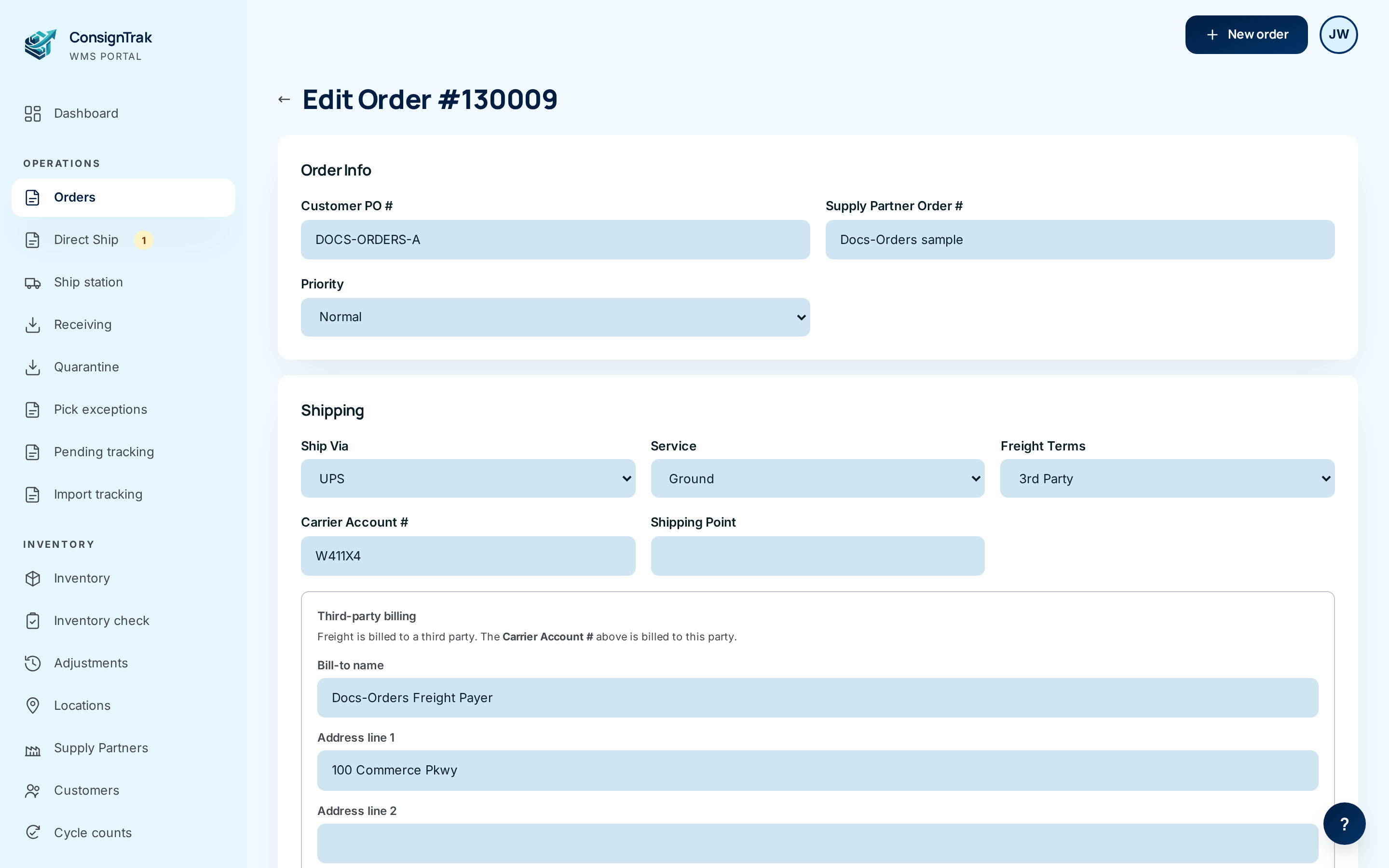
Open the order and choose Edit (top right). Edit only appears while the order is Entered.
-
Change what you need. The fields work as they do on the new-order form (see Entering an order). For a 3rd Party order the bill-to address is filled in from the order; type a new one to replace it. Saved payers aren't listed here — type the payer in.
-
Choose Save Changes. You're taken back to the order. Cancel leaves without saving.
Remove a line
-
Find the line in the order's line table. Each line on an Entered order has a Remove button on the right.
-
Choose Remove. The button turns red and asks you to click again — click it a second time to confirm.

To change a line's quantity, remove it and add it again with the right quantity. Adding more of the same item with the same fulfillment choice adds to the existing line.
Change the priority after release
- Scroll to the History card at the bottom of the order.
- Choose the new Priority — Normal, High or Rush — and choose Save beside it. The warehouse's pick queue re-sorts.
Cancel an order
A cancelled order can't be reopened. If you cancel by mistake, enter the order again. The button asks you to click again before it cancels.
-
Open the order and choose Cancel (the red button, top right).
-
Click it again. The button turns red and shows the confirmation; a second click cancels the order. Clicking anywhere else, or waiting a few seconds, puts the button back.

-
Clear any staged stock. If the warehouse had already picked the order and set it down in a staging area, a message tells you where — for example "Picked stock for this order is staged at S3 — return it to the shelf." Ask the warehouse to put it back.
Every field and option
The Edit Order form has the same fields as the new-order form, minus the ones that can't change. Full meanings are in Entering an order.
| Field or control | What it means | Required | Default | What changes when you set it |
|---|---|---|---|---|
| ← (back arrow) | Back to the order without saving. | — | — | Nothing is saved. |
| Customer PO # | The customer's purchase order number. | No | Current value | Prints on the release. |
| Supply Partner Order # | The supply partner's reference. | No | Current value | Prints on the release. |
| Priority | Normal, High or Rush. | No | Current value | Re-sorts the pick queue. |
| Ship Via, Service, LTL Carrier | Carrier and service level. | No | Current values | Prints on the release. |
| Freight Terms | Who pays the carrier. | No | Current value | 3rd Party shows the bill-to fields. |
| Carrier Account # | The account billed for freight. | No | Current value | Prints on the release. |
| Shipping Point | The "ship from" line. | No | Current value | Prints on the release. |
| Bill-to name, Address line 1, Address line 2, City, State, ZIP | The third party's billing address. Only with 3rd Party. | No | The order's current bill-to | Replaces the bill-to on the order. |
| Remember this payer for reuse on future orders for this customer | Saves this payer to the customer's address book. | No | Off | The payer is offered on new orders for this customer. |
| Special Instructions | Notes for the warehouse. | No | Current value | Prints on the release. |
| Save Changes | Saves and returns to the order. | — | — | — |
| Cancel (link on the form) | Returns to the order without saving. | — | — | Nothing is saved. This does not cancel the order. |
| Remove (on a line) | Deletes the line. Click-twice confirm. | — | — | Line removed; its committed stock is freed. |
| Priority + Save (History card) | Changes priority on a released order. | — | Current value | Re-sorts the pick queue. Gone once shipped. |
| Cancel (red button on the order) | Cancels the whole order. Click-twice confirm. | — | — | See below. |
What happens next
After an edit: the order shows the new details straight away. If you print the release again later, it shows them too.
After removing a line: the line disappears and the stock it had committed is freed: the item's Available goes back up.
After cancelling:
- The order moves to Cancelled and gets a red Cancelled tag. The order flow bar disappears; the History card shows who cancelled it and when.
- Every warehouse quantity it had committed is freed.
- Any pick in progress for it is stopped; the pick disappears from the warehouse's queue.
- On a Partially Shipped order, what the warehouse already shipped stays shipped — that stock really left. The part the supply partner was to ship direct is simply not shipped; tell the supply partner.
- Cancelling doesn't remove stock from the shelf or record a movement, because nothing shipped.
Common problems
There's no Edit button. — the order has been released. Only its priority can change now. To change anything else, cancel it and enter a new order.
There's no Cancel button. — the order is Shipped, Closed or already Cancelled. A shipped order can't be cancelled; the stock has left.
I need to change the customer or supply partner. — you can't. Cancel the order and enter it again with the right one.
The Cancel button went back to normal before I clicked again. — the confirmation times out after a few seconds, or when you click elsewhere. Click Cancel twice in a row.
"Priority must be normal, high, or rush" — the priority didn't save. Choose one of the three and save again.
"Failed to update the order. Try again." / "Third-party payer is invalid for this customer." — the edit wasn't saved. Try again; for the second message, re-type the bill-to.
"Order is past the point where priority can change" — the order has shipped since you opened it.