Direct ship and split fulfillment
What this is
Sometimes the warehouse doesn't have the stock, or the supply partner wants to ship a big order from their own plant. ConsignTrak still tracks the whole order, so it's complete and the customer's order history is right, but some or all of the lines ship direct from the supply partner instead of from the shelf.
- A Supply Partner Direct line ships entirely from the supply partner.
- A Split Fulfillment line ships part from the warehouse and part from the supply partner.
The office marks lines this way when entering the order, tells the supply partner after release, and records the shipment when the supply partner confirms it.
Before you start
- Role: Office or Administrator. Supply partners with portal access can also mark their own direct shipments (see Orders, receiving and reports).
- Settings: to send the supply partner an email from ConsignTrak, the supply partner needs a contact whose role is direct_ship and who has an email address (set on the supply partner's page — see Supply Partners).
- You'll need: an Entered order to add lines to.
A direct line never touches warehouse inventory. Nothing is committed when you add it and nothing comes off the shelf when it ships — the goods never pass through the warehouse.
Step by step
1. Mark the line when you add it
-
Add the line as usual (see Entering an order).
-
Choose the Fulfillment:
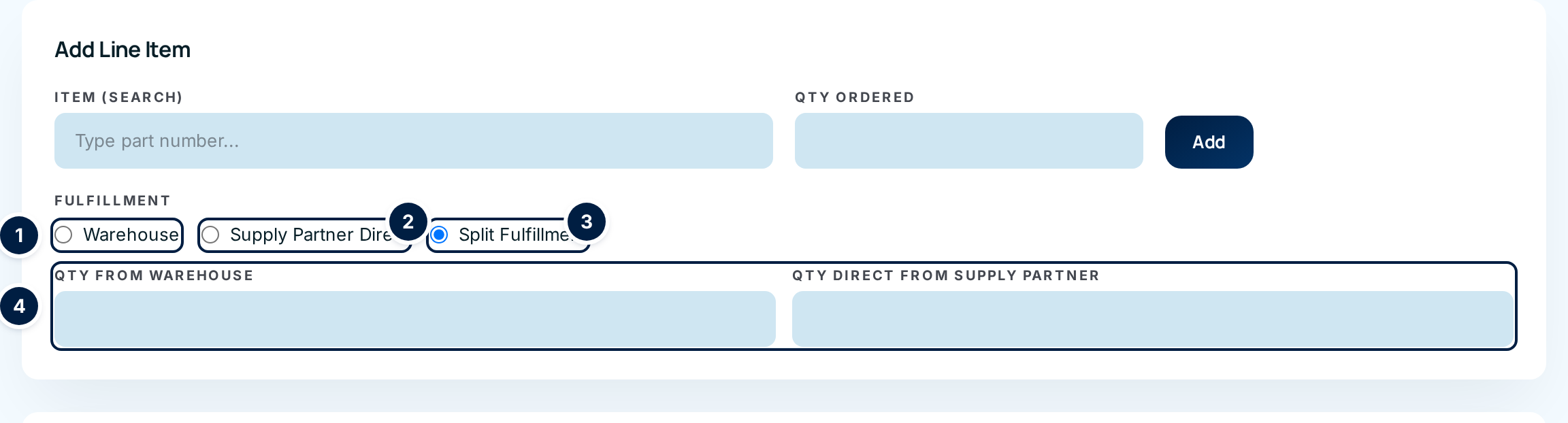
- Warehouse ① — the warehouse ships it all.
- Supply Partner Direct ② — the supply partner ships it all.
- Split Fulfillment ③ — fill in Qty from warehouse and Qty direct from supply partner ④. They must add up to Qty Ordered.
-
Choose Add. The Fulfillment column of the line table shows how each line ships.

2. Release the order
Release as usual. The warehouse part goes to the pick queue. The printed release lists direct lines separately under SHIPS MANUFACTURER DIRECT - DO NOT PICK, so the picker skips them. An order with only direct lines shows Awaiting Direct Ship and never reaches the pick queue.
3. Tell the supply partner
After release, the order's page shows an Awaiting Direct Shipment panel.
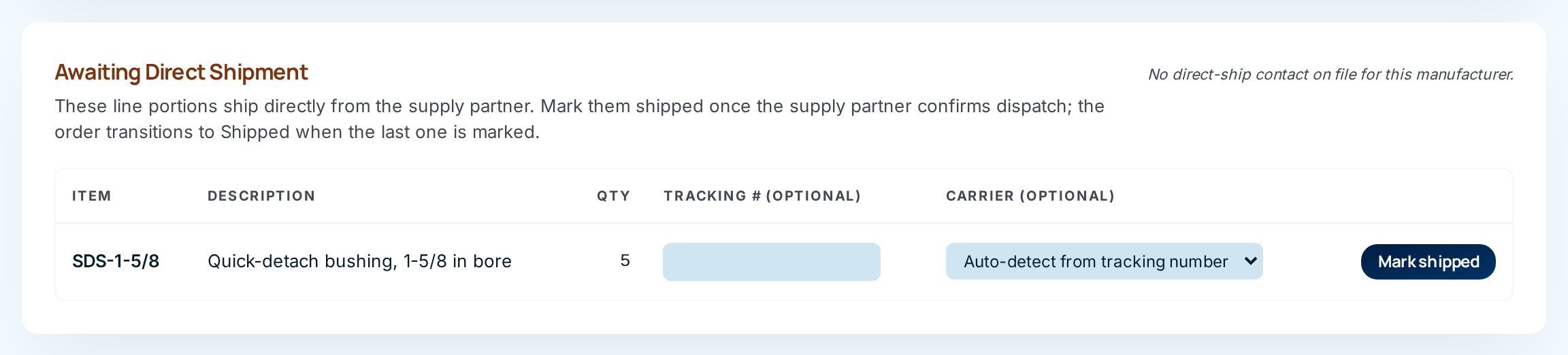
- Choose Notify followed by the contact's name (top right of the panel). Your email program opens with a message to the supply partner's direct-ship contact listing the lines to ship. Send it.
- The panel then shows Notified and the time. If you need to chase them, the button becomes Re-notify.
If the button isn't there, the panel says why — for example, no direct-ship contact on file. Tell the supply partner another way.
To notify several orders at once, use the Direct Ship page instead (below).
4. Record the shipment
When the supply partner confirms they've shipped:
- Type the Tracking # for the line, if they gave you one.
- Choose the Carrier, or leave Auto-detect from tracking number.
- Choose Mark shipped. The button asks you to click again — click it a second time to confirm.
When two or more lines are waiting, a box above the table lets you mark them all at once under one tracking number: fill in Tracking # (optional, applies to all) and Carrier, then choose Mark all … lines shipped and click again.
The Direct Ship page
Direct Ship in the sidebar shows every direct line waiting on a supply partner, across all orders. The number beside it is how many still need a notification. Sweep it once a day.
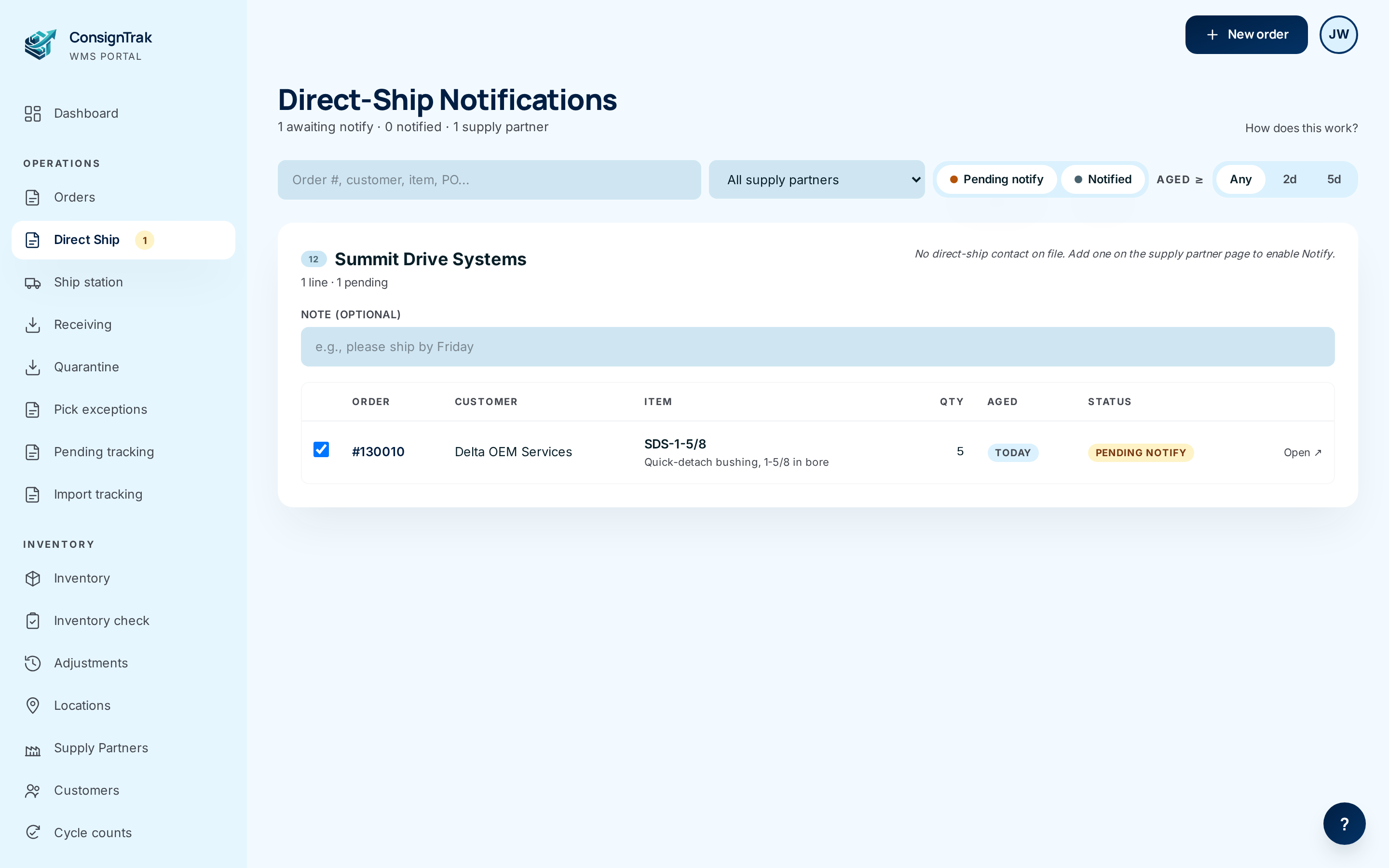
- Find the supply partner's card. Lines are grouped by supply partner, because each gets one email.
- Tick the lines to include. Lines not yet notified are ticked for you.
- Add a note if needed, such as please ship by Friday. It goes at the top of the email and isn't saved.
- Choose Notify followed by the supply partner's name to open the email, or Mark notified (no email) if you told them by phone.
- When the supply partner ships, choose Open ↗ on the line and record the shipment on the order (step 4). The line then drops off this page.
Every field and option
On the order
| Field or control | What it means | Required | Default | What changes when you set it |
|---|---|---|---|---|
| Fulfillment — Warehouse, Supply Partner Direct, Split Fulfillment | Who ships the line. | Yes | Warehouse | Direct quantities commit no stock and print in the DO NOT PICK section of the release. |
| Qty from warehouse, Qty direct from supply partner | The split. Only with Split Fulfillment. | With Split | — | Must add up to Qty Ordered. |
| Fulfillment column — Warehouse, Supply Partner Direct · Pending, Supply Partner Direct · Shipped, Split · WH n / Dir n | How each line ships. A ✓ on a split line means its direct part shipped. A tracking number after it links to the carrier's site. | — | — | Read-only. |
| + direct portion (Order Flow bar) | The order has direct lines. Jumps to the Awaiting Direct Shipment panel. | — | — | — |
| Notify / Re-notify contact name | Opens an email to the supply partner's direct-ship contact and records the time. | — | — | Shows Notified and the time; lines show as Notified on the Direct Ship page. |
| Item, Description, Qty | The direct part of each waiting line. | — | — | Read-only. |
| Tracking # (optional) | The supply partner's tracking number for this line. | No | — | Shown as a link on the line. |
| Carrier (optional) — Auto-detect from tracking number, UPS, FedEx, USPS, Other | The carrier. Auto-detect works out UPS, FedEx or USPS from the number's format. | No | Auto-detect | Decides which carrier website the tracking link opens. |
| Mark shipped | Records that the supply partner shipped this line. Click-twice confirm: Mark this line as shipped by the supply partner? | — | — | Line shows Shipped; when it's the last one, the order becomes Shipped. |
| Tracking # (optional, applies to all), Carrier, Mark all … lines shipped | Marks every waiting line at once under one tracking number. Only with two or more lines. Click-twice confirm. | No | — | As above, for all lines. |
The Direct Ship page
| Field or control | What it means | Required | Default | What changes when you set it |
|---|---|---|---|---|
| Summary line (n awaiting notify · n notified · n supply partners) | Totals for the page. | — | — | Read-only. |
| How does this work? | Opens the in-app help for this page. | — | — | — |
| Search (Order #, customer, item, PO...) | Narrows to matching lines. | No | — | Filters as you type. |
| All supply partners | Narrows to one supply partner. | No | All | Filters the cards. |
| Pending notify, Notified | Show or hide each kind of line. Both on by default. | No | Both on | Filters the lines. |
| Aged ≥ — Any, 2d, 5d | Only lines on orders at least that many days old. | No | Any | Filters the lines. |
| Clear | Removes search, supply partner and age filters. | — | — | — |
| Supply partner name (link) | Opens the supply partner's page. | — | — | — |
| Note (optional) | A line added to the top of the email. Not saved. | No | — | Only affects the email. |
| Line checkboxes | Which lines the buttons act on. | — | Pending lines ticked | — |
| Order, Customer, Item, Qty | The line. The order number opens the order. | — | — | Read-only. |
| Aged | How long the order has been open: TODAY, then days. Amber from 2 days, red from 5. It counts from the order, not the notification — it's how long the customer has waited. | — | — | Read-only. |
| Status — Pending notify, Notified | Whether the supply partner has been told, with the date and who told them. | — | — | Read-only. |
| Notify supply partner | Marks the ticked lines Notified and opens the email. | — | — | Lines move to Notified. |
| Mark notified (no email) | Marks the ticked lines Notified without an email. | — | — | Lines move to Notified. |
| Open ↗ | Opens the order, where you record the shipment. | — | — | — |
What happens next
- At release: warehouse parts go to the pick queue; direct parts wait in Awaiting Direct Shipment and on the Direct Ship page.
- When the warehouse ships its part of a split order: the order becomes Partially Shipped until the direct parts are marked.
- When the last direct part is marked shipped: the order becomes Shipped, and the line drops off the Direct Ship page. No warehouse stock moves for the direct part.
- Lines are marked Notified as soon as you choose Notify, even if you close the email without sending. If that happens, choose Re-notify to send it again.
Common problems
"No direct-ship contact on file for this manufacturer." (on the order) or "No direct-ship contact on file. Add one on the supply partner page to enable Notify." (on the Direct Ship page) — add a contact with the role direct_ship on the supply partner's page, or tell the supply partner another way and use Mark notified (no email).
"Contact has no email address on file." — the direct-ship contact exists but has no email. Add one to the contact.
"Invalid fulfillment split: warehouse + direct must equal qty ordered." — fix the two split quantities.
"Direct portion already shipped." — someone (or the supply partner, in the portal) already marked it. Reload the order.
"Order status does not allow marking direct shipment." — the order isn't released yet, or is closed or cancelled.
"Carrier must be UPS, FedEx, USPS, or Other." — choose a carrier from the list.
"This Will Call order has no warehouse quantity to pick up…" when releasing — a will-call order can't be all direct. See Releasing an order.