Relocating stock
What this is
Relocate moves stock from one bin to another, for example when you consolidate overflow or empty a shelf before it's taken down. You can move part of one item, several items to different bins, or everything in the bin to one place. ConsignTrak records every move in each item's history. This page covers the desktop. On a phone, see Looking things up.
Before you start
- Role: Office or Administrator.
- Settings: none.
- You'll need: a bin that is Active and holds stock. The Relocate button only appears on such a bin. The destination bins must be active too, or not exist yet, since ConsignTrak can create them as it goes.
Step by step
-
Open the bin you're moving stock out of. Find it on the Locations list, or use Scan a bin.
-
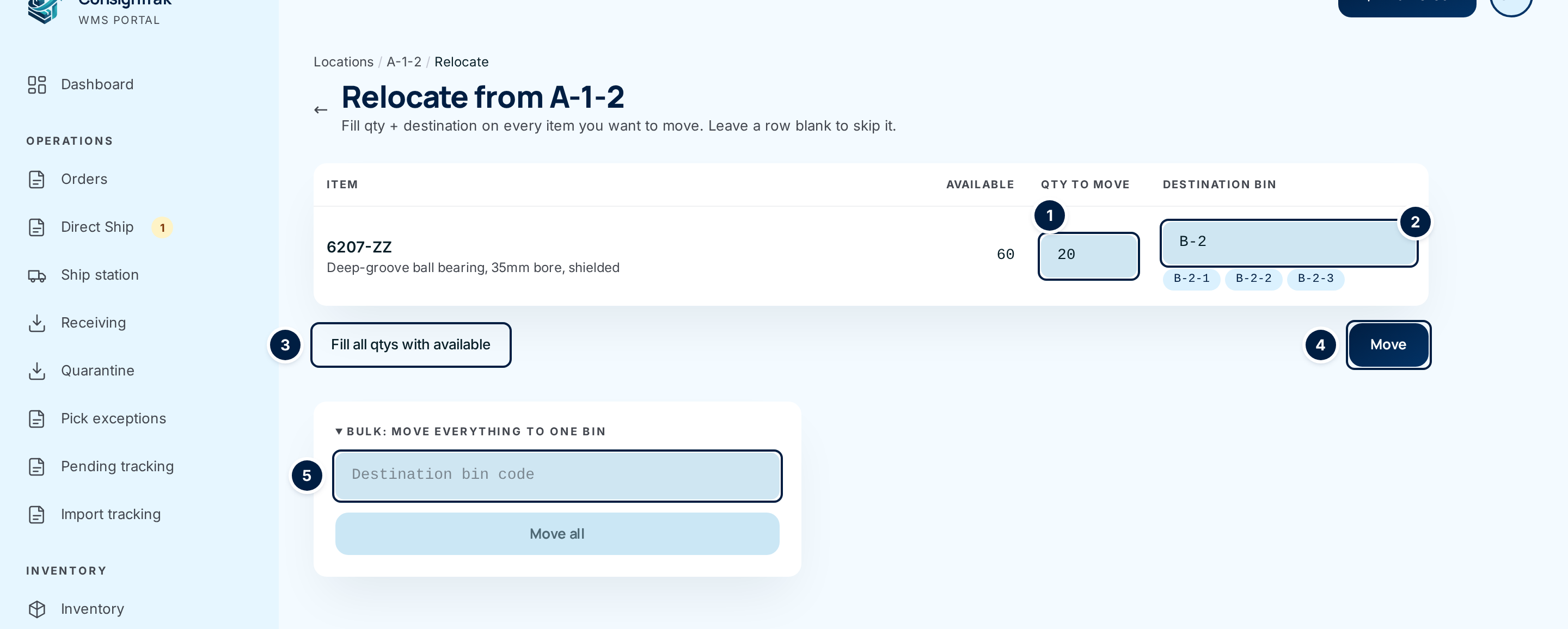
Choose Relocate. Each item in the bin has its own row, showing how many are Available to move.
-
Enter the quantity to move in Qty to move ①. It can't be more than the available amount. To move everything, choose Fill all qtys with available ③. It fills every row with its full amount.
-
Scan or type the destination in Destination bin ②. As you type, matching active bins appear underneath. Click one to fill it in. Each row can go to a different bin.
-
Leave a row blank to leave that item where it is.
-
Choose Move ④. All the rows move together; if any row can't move, none of them do. You go back to the bin with a message such as Moved 1 item (20 total).
When a destination bin doesn't exist
If you type a code that isn't a location yet, ConsignTrak stops before moving anything and lists the missing codes.
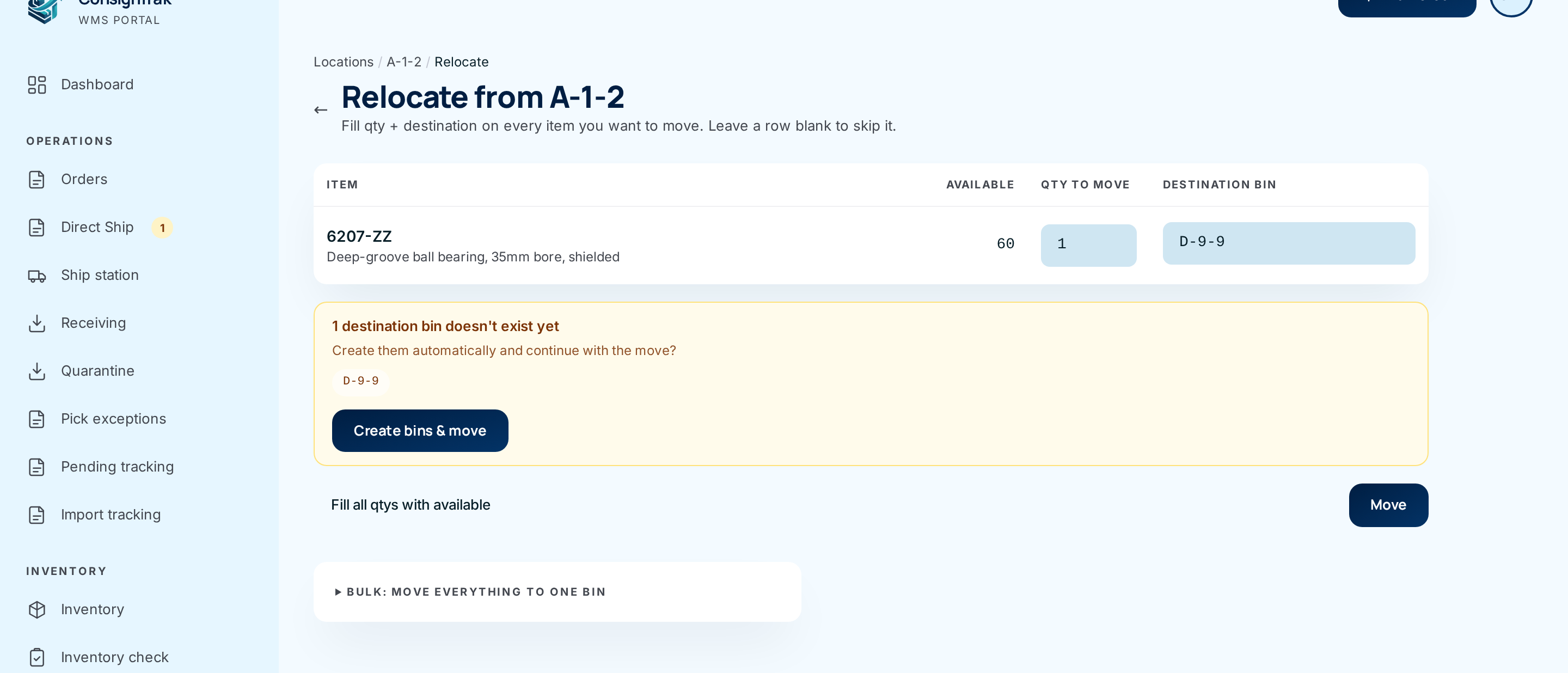
- Choose Create bins & move to create them as storage bins and finish the move. The message then adds, for example, created 1 new bin.
- Or correct the code and choose Move again.
Move everything to one bin
- Open Bulk: move everything to one bin at the bottom of the Relocate page.
- Scan or type the destination in Destination bin code ⑤.
- Choose Move all. The button turns amber and asks you to click again. Click it a second time to confirm.
Every item in the bin moves in full. If the destination code doesn't exist, Move all creates it as a storage bin without asking first, so check the code before you confirm.
Stock always lands in the destination bin as Available, even if it was On hold or Damaged in the old bin. Don't use Relocate for stock that must stay held back. Handle it through exceptions and quarantine instead.
Every field and option
| Field or control | What it means | Required | Default | What changes when you set it |
|---|---|---|---|---|
| Locations / A-1-2 / Relocate (breadcrumb) and ← | Go back to the bin or the list without moving anything. | — | — | — |
| Item | The part number and description. Only items with stock in the bin are listed. | — | — | — |
| Available | How many of the item are in this bin. | — | — | — |
| Qty to move | How many to move. A whole number from 1 up to the available amount. The grey hint is the full amount. | Only if the row has a destination | Blank | Sets how many move. |
| Destination bin | Where this item goes. Scan a label or type a code. | Only if the row has a quantity | Blank | Sets where it goes. |
| Suggested bins (under the destination) | Active bins matching what you've typed. Click one to fill it in. | — | — | Fills the box. |
| Fill all qtys with available | Fills every row's quantity with its full available amount. | — | — | Fills the boxes. Nothing moves until you choose Move. |
| Move | Moves every filled row together. | — | — | Stock leaves this bin and arrives in each destination. |
| N destination bin(s) doesn't exist yet | Lists codes that aren't locations. | — | — | Nothing moves until you decide. |
| Create bins & move | Creates the listed codes as storage bins, then moves. | — | — | New bins appear in the Locations list with a CREATED entry. |
| Bulk: move everything to one bin | Opens the move-everything form. | — | Closed | — |
| Destination bin code | The one bin to receive everything. | Yes | Blank | — |
| Move all | Moves every item in full. Asks you to click again. | — | — | Empties this bin into the destination, creating it if needed. |
When the bin is empty, the page says No items at this bin to relocate.
What happens next
- Stock moves at once. The old bin's quantity goes down and the destination's goes up.
- Two history lines per item. Each item's history shows a transfer out of the old bin, "Relocate to B-2-1", and a transfer into the new one, "Relocate from A-1-2". The item's total on hand doesn't change.
- Primary location follows the stock. If you empty an item's primary location, ConsignTrak makes one of its other bins primary.
- An emptied bin can now be retired. See Retire or reactivate a bin.
Common problems
"Fill in qty + destination on at least one row" — Every row was blank. Fill in at least one quantity and destination.
"Quantity must be a positive whole number" — A row has a destination but no quantity, or a quantity of 0 or less. Shown under that row.
"Destination bin is required" — A row has a quantity but no destination.
"One of the rows asks for more stock than the source has. Adjust the quantity and retry." — Someone may have picked from the bin since you opened the page. Reload and check Available.
"A destination matches the source bin — pick a different bin for that row." — You typed the bin you're moving from.
"One of the destinations is inactive. Reactivate it or pick another bin." — That bin was retired. Reactivate it on its page, or choose another.
"Scan a destination bin" — You chose Move all with the destination empty.
"Source and destination must differ" / "Destination is inactive" — The same two problems, from Move all.
"Nothing to move — bin already empty" — Move all found no stock. Someone may have emptied the bin already.
There's no Relocate button — The bin is empty or retired, or you're a Warehouse user. A retired bin that still holds stock needs reactivating first. See Location health reports.