Printing bin labels
What this is
Every bin gets a printed label with a barcode, so a scanner can read its code instead of someone typing it. ConsignTrak makes the labels as a PDF sized for standard sheets of 30 address labels. Office staff print them after creating or renaming bins, and whenever a label wears out.
Before you start
- Role: Office or Administrator for a single bin's Print label button. Anyone who can see the Locations list can use Print labels and Staging placards there.
- Settings: none.
- You'll need:
- Sheets of 1 inch × 2⅝ inch labels, 30 to a US Letter page. This is the common Avery 5160 layout, and most office-supply brands make an equivalent.
- A barcode scanner that reads Code 128, for scanning later. Most handheld and phone scanners do.
Step by step
-
Open Locations from the Inventory section of the sidebar.
-
Choose what to print.
- A whole zone: choose the zone's tab, such as Zone B, then Print labels. The sheet holds every location shown in the list.
- Every location: stay on All and choose Print labels.
- Staging areas only: choose Staging placards. It prints just the staging locations, for taping to the packing tables.
- One bin: open the bin and choose Print label.
The PDF opens in a new browser tab.
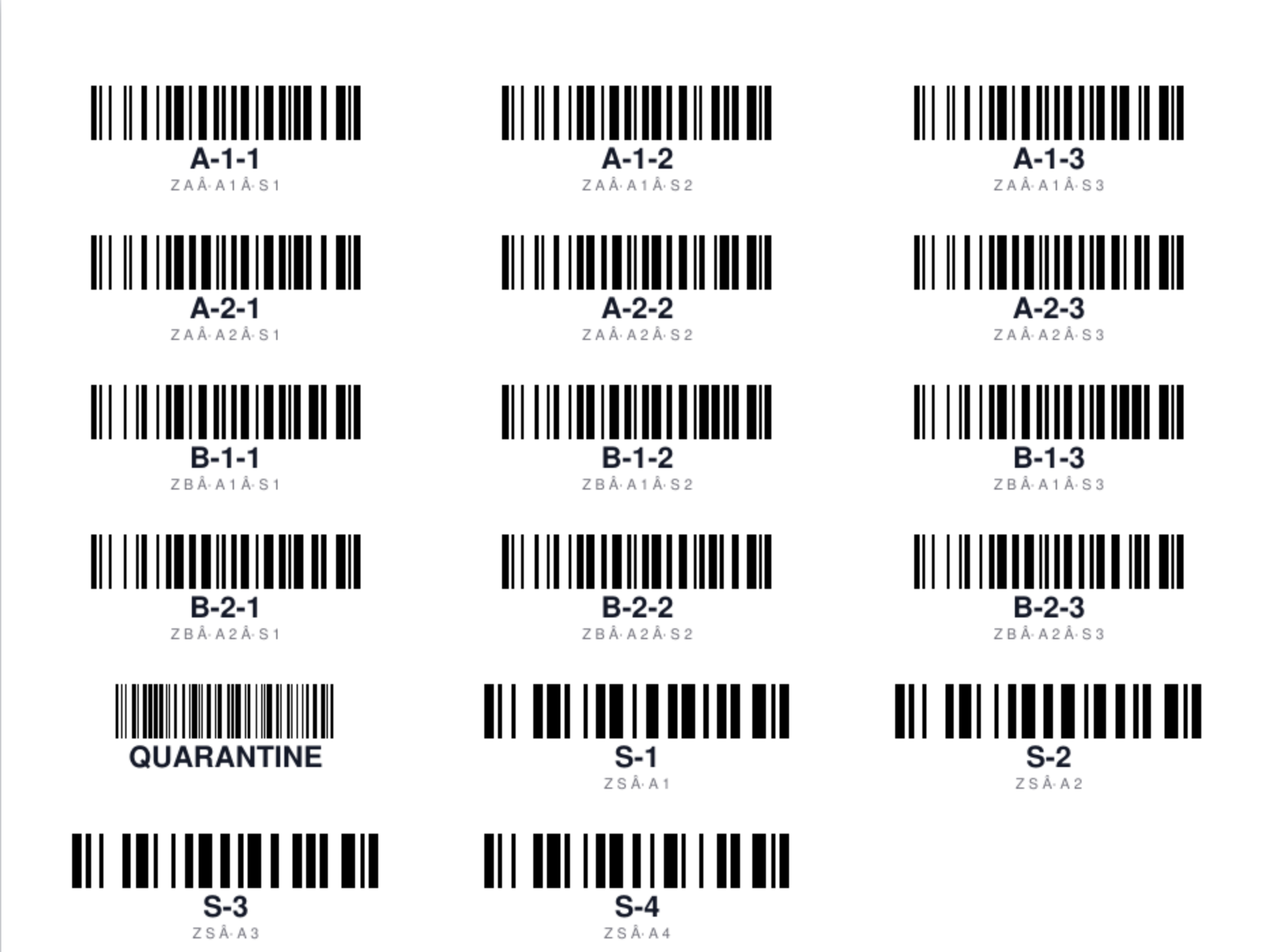
-
Print at actual size. In the print window, choose Actual size or 100%, not "Fit to page". Load the label sheets the way your printer expects. Print one page on plain paper first and hold it against a label sheet to check it lines up.
-
Stick each label on its bin, facing the aisle, where a scanner can reach it.
What's on a label

- The barcode holds the location code, in the Code 128 format.
- The code in large bold type, so people can read it without a scanner.
- A small caption spelling out the position: Z zone, A aisle, R rack, S shelf, B bin. Levels you don't use are left out.
The dots between the caption's parts currently print as "·", as in the pictures above. This is a known fault in ConsignTrak and will be fixed. The barcode and the code are unaffected, and scan correctly.
The order labels print in
Labels print in location-code order: A-1-1, A-1-2 and so on. A sheet
holds 30 labels. More than 30 locations continue onto more pages.
ConsignTrak also has two other print orders built in. One walks up one aisle and back down the next; the other follows a custom list. Neither can be switched on from any screen yet, so every warehouse gets code order.
Scanning labels later
Most barcode scanners type the code into whichever box is selected, then press Enter. So you can scan a bin label anywhere ConsignTrak asks for a location:
- Scan a bin on the Locations list opens the bin's page. If the label is for a code that doesn't exist yet, Office users and Administrators can create it on the spot. See Scan a code that doesn't exist yet.
- The Destination bin boxes when relocating stock.
- A location box on a receiving line.
- On a phone, warehouse staff look bins up from Looking things up.
The barcode holds the code as it was when you printed it. If you rename a bin, its old label no longer matches any location. Print the new label straight away and throw the old one out.
Every field and option
| Field or control | What it means | Required | Default | What changes when you set it |
|---|---|---|---|---|
| Print labels (Locations list) | A label for every location currently shown, including retired ones. Follows the zone tab. Shown only when the list has locations. | — | — | Opens the PDF in a new tab. Nothing is saved. |
| Staging placards (Locations list) | A label for every staging location shown. Shown only when there are staging locations. | — | — | Opens the PDF in a new tab. |
| Print label (a bin's page) | A single label for that bin, at the top-left of the sheet. Office and Administrator only. | — | — | Opens the PDF in a new tab. |
| Zone tabs (All, Zone A…) | Narrow the list, and so the labels printed. | — | All | Prints only that zone. |
| Barcode | The location code in Code 128. | — | — | — |
| Code | The location code in large type. | — | — | — |
| Caption | The position: Z zone, A aisle, R rack, S shelf, B bin. Blank levels are left out. | — | — | — |
Label size: 2⅝ × 1 inch, 3 across and 10 down on a US Letter page, with a ½ inch top margin.
What happens next
- Printing never changes anything in ConsignTrak. You can print the same labels as often as you like.
- Once labels are on the bins, anyone can scan them to open a bin or choose it as a destination.
Common problems
The labels drift off the sticker as you go down the page — The printer scaled the page. Print again at Actual size or 100%.
A label won't scan — Check the label isn't creased or glossy under strong light. Check the scanner reads Code 128. If the bin was renamed since the label was printed, print a new one.
The scan opens "not found" — The label's code doesn't match any active location. The bin may have been renamed or retired. Look it up on the Locations list.
"Missing ids" — The label link was opened with nothing to print. Go back to the Locations list and choose Print labels again.
Retired bins are on the sheet — Print labels includes every location in the list, retired or not. Cut those labels off, or print zone by zone.