Location health reports
What this is
Location reports runs three quick checks on the warehouse's bins on one page: which active bins are empty, which retired bins still show stock, and which bins hold more than their set capacity. Office staff and Administrators use it to find free space and to clean up before a cycle count.
Before you start
- Role: anyone who can see the Locations list. Fixing what it finds (relocating, retiring, editing) needs Office or Administrator.
- Settings: none. The Over capacity check only covers bins with a capacity set. See Edit a bin.
- You'll need: nothing.
Step by step
-
Open Locations from the Inventory section of the sidebar.
-
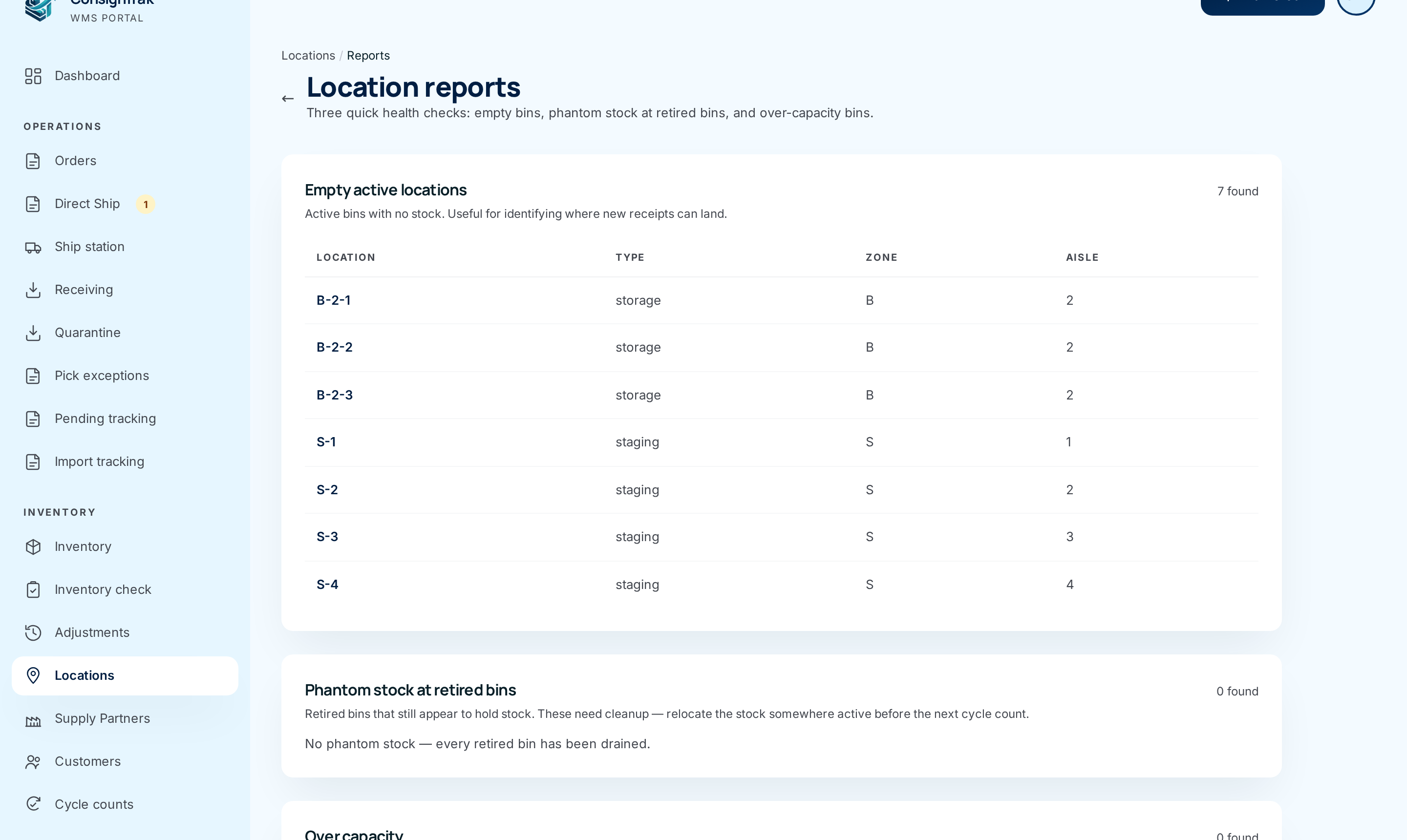
Choose Reports. The three checks are stacked top to bottom, each with a count at the right.
-
Work down the page. Click any row to open that bin and deal with it.
The reports are worked out fresh each time you open the page. There's nothing to save or export.
The three checks
Empty active locations
What it lists: every active bin with nothing in it, of any type.
What a bad number means:
- Zero found means every bin is in use. There's nowhere obvious to put the next delivery, so plan space before a big stock transfer arrives.
- A long list is normal after you've just created bins. If it stays long, you may have more shelving set up than you use. Retire bins that don't physically exist any more.
- Staging areas show up here whenever no order is waiting on them. That's expected.
Phantom stock at retired bins
What it lists: retired bins that still hold stock. Any number above zero is a problem. The page shows the count in red.
What it means: ConsignTrak believes stock is sitting somewhere that's no longer in use. Usually the bin was retired by import or by changing it to inactive in a spreadsheet, while stock was still recorded there. A retired bin can't be picked from, so that stock is effectively invisible to the floor. A cycle count will find a shortage for it.
How to fix it:
- Open the bin from the report and choose Reactivate.
- Choose Relocate and move the stock to an active bin. See Relocating stock.
- If the stock isn't really there, correct it with an adjustment instead. See Inventory.
- Choose Retire again.
The Relocate button is hidden on retired bins today, which is why you reactivate first.
Over capacity
What it lists: active bins that have a capacity set and hold more than it. The count shows in amber.
What it compares: the Used column against Capacity. The Unit column says what's being counted. Every warehouse currently uses item_count, which counts the number of different items with stock in the bin, not the number of units. A bin with capacity 3 is over capacity when a fourth different part goes in. 500 units of one part don't make it over.
What a bad number means: stock has been put away in a bin that's meant to be full, so parts may be hard to find or spilling over. Relocate some items out, or raise the bin's capacity if it really can hold more.
ConsignTrak never refuses to put stock in a full bin. The warehouse floor decides where stock physically goes. This report tells you afterwards that a bin is over its limit.
Every field and option
| Field or control | What it means | Required | Default | What changes when you set it |
|---|---|---|---|---|
| Locations / Reports (breadcrumb) and ← | Back to the Locations list. | — | — | — |
| Empty active locations — N found | How many active bins are empty. | — | — | — |
| Location / Type / Zone / Aisle | The empty bin's code, type, zone and aisle. A dash means not set. Click the row to open the bin. | — | — | — |
| Phantom stock at retired bins — N found | How many retired bins still show stock. Red when above zero. | — | — | — |
| Location / Items / Total qty | The retired bin, how many different items it shows and their total units. The Retired pill marks each row. | — | — | — |
| Over capacity — N found | How many active bins exceed their capacity. Amber when above zero. | — | — | — |
| Location / Used / Capacity / Unit | The bin, what's in it counted in the unit, its capacity, and the unit used. | — | — | — |
When a check finds nothing it says so: No empty active locations — every active bin is in use., No phantom stock — every retired bin has been drained. or No over-capacity bins — everything is within configured limits.
What happens next
- Nothing changes from viewing the reports.
- Once you relocate, retire or edit a bin, reopen Reports to see the count drop.
Common problems
A bin I know is full isn't on Over capacity — Either it has no capacity set, or it holds few different items. The check counts different items, not units. See above.
The unit can't be changed — The capacity unit and label print order are warehouse settings with no screen yet. Every warehouse uses the defaults.
A retired bin with stock has no Relocate button — Reactivate it first, then relocate, then retire it again.